






Connect to Vimeo Data in the Denodo Platform

Denodo Platform is a data virtualization product providing a single point of contact for enterprise database data. When paired with the CData API Driver for JDBC, Denodo users can work with live Vimeo data alongside other enterprise data sources. This article explains how to create a virtual data source for Vimeo in the Denodo Virtual DataPort Administrator.
With built-in optimized data processing, the CData JDBC Driver offers unmatched performance for interacting with live Vimeo data. When you issue complex SQL queries to Vimeo, the driver pushes supported SQL operations, like filters and aggregations, directly to Vimeo and utilizes the embedded SQL engine to process unsupported operations client-side (often SQL functions and JOIN operations). Its built-in dynamic metadata querying allows you to work with and analyze Vimeo data using native data types.
Create the Vimeo Virtual Port
To connect to live Vimeo data from Denodo, you need to copy the JDBC Driver JAR file to the external library directory for Denodo and create a new JDBC Data Source from the Virtual DataPort Administrator tool.
- Download the CData API Driver for JDBC installer, unzip the package, and run the JAR file to install the driver.
- Copy the JAR File (and license file if it exists) from the installation location (typically C:\Program Files\CData\CData API Driver for JDBC\lib\) to the Denodo external library directory (C:\Denodo\Denodo Platform\lib-external\jdbc-drivers\cdata-api-19).
- Open the Denodo Virtual DataPort Administrator tool and navigate to the Server Explorer tab.
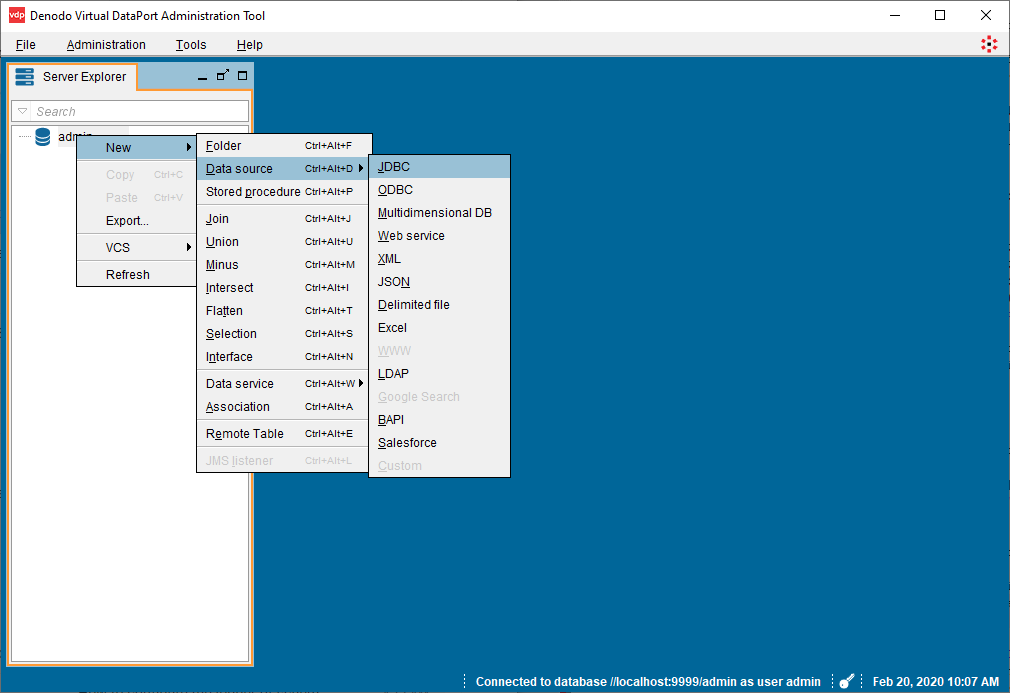
- Right-click "admin" and select New -> Data source -> JDBC.
- Configure the JDBC Connection:
- Name: your choice, e.g.: api
- Database adapter: Generic
- Driver class path: C:\Denodo\Denodo Platform\lib-external\jdbc-drivers\cdata-api-19
- Driver class: cdata.jdbc.api.APIDriver
Database URI: Set this to a JDBC URL using the necessary connection properties. For example,
jdbc:api:Profile=C:\profiles\Vimeo.apip;ProfileSettings='APIKey=your_personal_access_token';
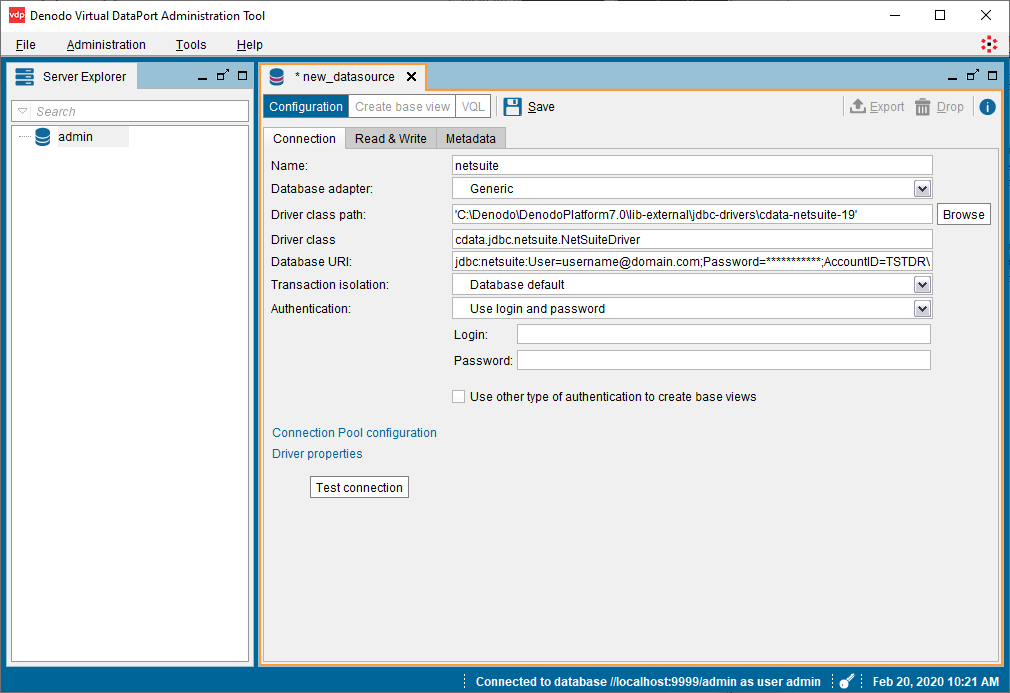
Information on creating the Database URI follows:
Built-In Connection String Designer
For assistance in constructing the JDBC URL, use the connection string designer built into the Vimeo JDBC Driver. Either double-click the JAR file or execute the jar file from the command-line.
java -jar cdata.jdbc.api.jar
Fill in the connection properties and copy the connection string to the clipboard.
Vimeo is a professional video hosting platform. The Vimeo API uses personal access tokens (bearer tokens) to enable secure access to video metadata, user information, channels, groups, categories, and related resources.
Using API Key Authentication
To authenticate to the Vimeo API, you will need to provide a personal access token. To obtain your access token:
- Log in to your Vimeo account at https://vimeo.com
- Navigate to https://developer.vimeo.com/apps
- Create a new app or select an existing app
- Under "Personal Access Tokens", click "Generate" to create a new token
- Select the required scopes: public and private for read access
- Copy the generated token
After obtaining your access token, set the following connection properties:
- AuthScheme: Set this to APIKey.
- APIKey: Set this to your Vimeo personal access token.
Example connection string
Profile=C:\profiles\Vimeo.apip;ProfileSettings='APIKey=your_personal_access_token';

- Click the "Test connection" button to confirm the configuration and click Save.
View Vimeo Data in the VirtualPort Administrator Tool
After creating the data source, you can create a base view of Vimeo data for use in the Denodo Platform.
- Click the "Create base view" button in the newly created VirtualPort (admin.API).
- Expand the object tree and select the objects (tables) you wish to import.
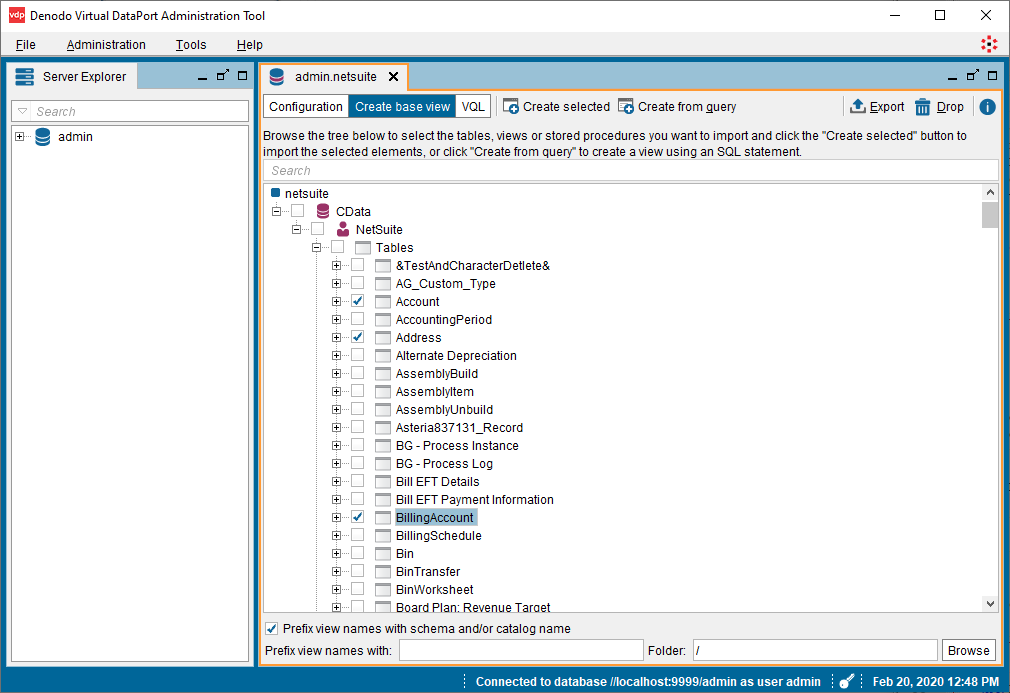
- Click the "Create selected" button to create views of the Vimeo data.
Optional: Click "Create associations from foreign keys" to define relationships between the objects. - With the view(s) created, navigate to a table (cdata_api_videos) in the Server Explorer and double-click the selected table.
- In the new tab, click "Execution panel" to open a query panel.
- Customize the query in the "Execute" tab or use the default:
SELECT * FROM cdata_api_videos CONTEXT ('i18n'='us_est', 'cache_wait_for_load'='true')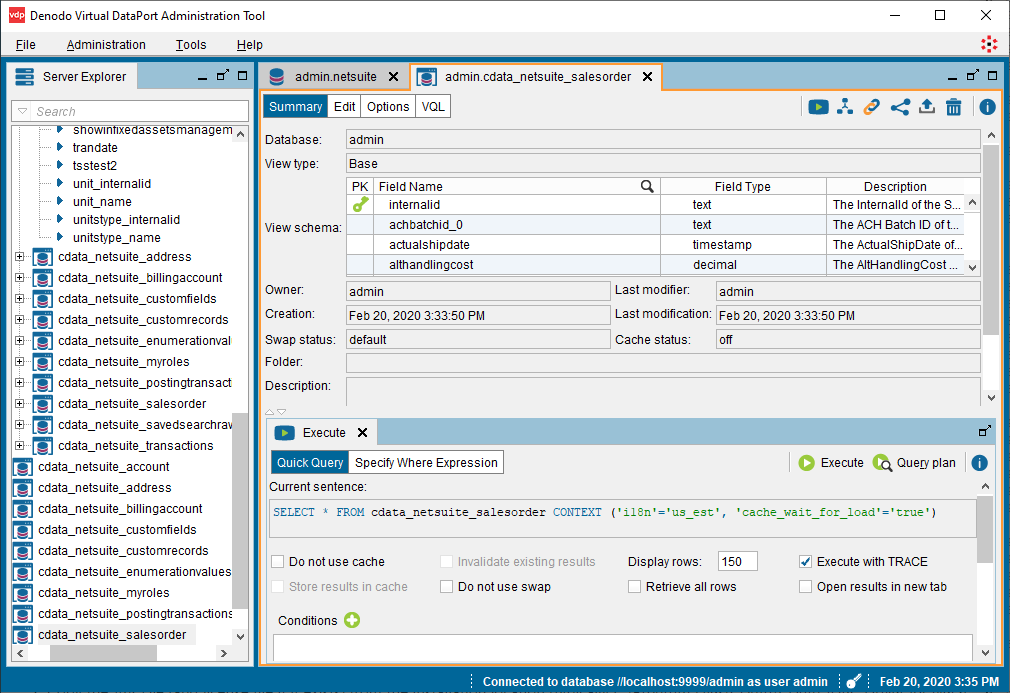
- Click Execute to view the data.
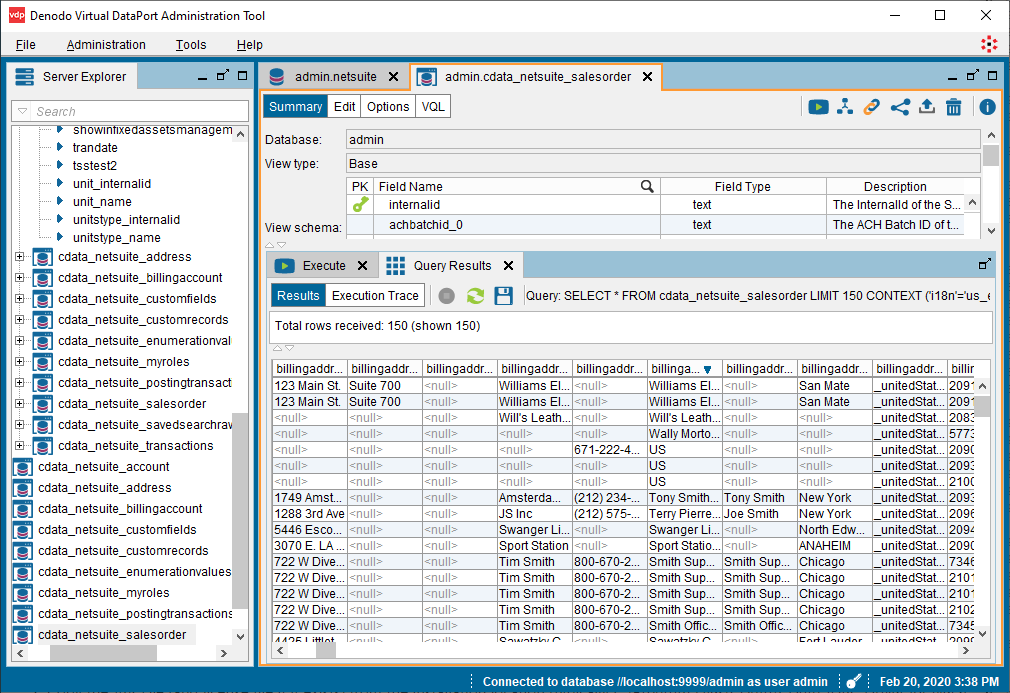
With the base view created, you can now work with live Vimeo data like you would any other data source in Denodo Platform, for example, querying Vimeo in the Denodo Data Catalog.
Download a free, 30-day trial of the CData API Driver for JDBC and start working with your live Vimeo data in Denodo Platform. Reach out to our Support Team if you have any questions.