






How to Easily Query Webflow Data in OpenOffice Base

Apache OpenOffice Base is a versatile, free database tool that makes connecting and managing data easy. With CData API Driver for ODBC, you can seamlessly integrate and query live Webflow data, bringing real-time insights directly into OpenOffice.
This guide simplifies the setup, showing you how to connect Webflow to OpenOffice Base so you can easily generate reports, analyze trends, and make informed decisions right within your familiar workspace.
Overview
Here is an overview of the steps:
- CONFIGURE: Configure the DSN for Webflow data in the CData API Driver for ODBC, using the required connection properties.
- CONNECT: Set up the ODBC connection in OpenOffice Base using the configured DSN.
- IMPORT: Once connected, review the available metadata and tables.
- CREATE: Create a report based on the queried Webflow data data.
Configure the Webflow DSN Using the CData API Driver for ODBC
To start, configure the DSN (Data Source Name) for Webflow data in your system using the CData API Driver for ODBC. Download and install a 30-day free trial with all the features from here.
Once installed, launch the ODBC Data Source Administrator:
- On Windows: Search for ODBC Data Source Administrator in the Start menu and open the application.
- On Mac: Open Applications, go to Utilities, and select ODBC Manager.
- On Linux: Use the command line to launch ODBC Data Source Administrator or use unixODBC if installed.
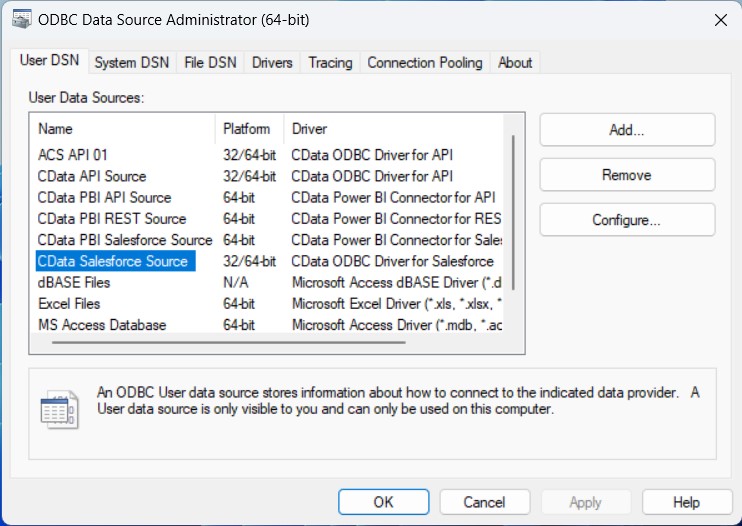
Once launched, double-click on the CData Webflow data Source and enter the required values to establish a connection:
Authentication
Webflow uses OAuth 2.0 authentication to ensure secure access to sites, CMS collections, e-commerce data, and other resources. This authentication method allows you to securely connect to your Webflow workspace and manage resources with proper authorization.
OAuth 2.0 Setup and Configuration
Step 1: Create a Webflow OAuth Application
To set up OAuth authentication:
- Visit the Webflow Developer Portal
- Navigate to "Apps & Integrations" in your Webflow account
- Click "Register an App" to create a new OAuth application
- Configure the application name, description, and redirect URI (CallbackURL)
- Copy the Client ID and Client Secret for use in your connection
Required Connection Properties
- AuthScheme: Set this to OAuth (required)
- OAuthClientId: Client ID from your Webflow OAuth application (required)
- OAuthClientSecret: Client secret from your Webflow OAuth application (required)
- CallbackURL: Redirect URI specified in your OAuth application (required)
- InitiateOAuth: Set to GETANDREFRESH for automatic token management (recommended)
Required OAuth Scopes
The Webflow API Profile requires the following OAuth scopes:
- sites:read - Read access to site information and configuration
- pages:read - Read access to site pages
- cms:read - Read access to CMS collections and items
- forms:read - Read access to forms and form submissions
- assets:read - Read access to media assets and folders
- ecommerce:read - Read access to products, orders, and inventory
- authorized_user:read - Read access to the authorized user
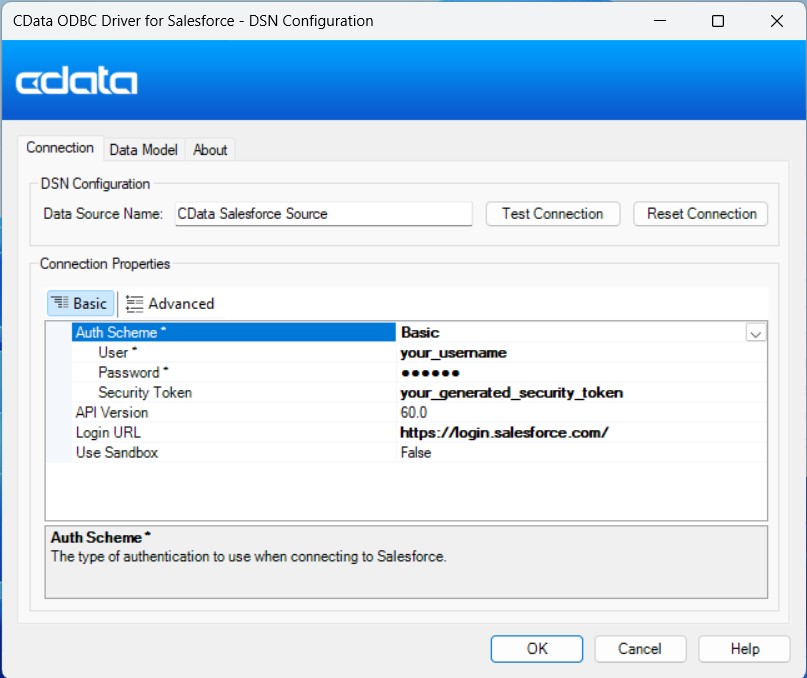
Setup an ODBC Connection in OpenOffice Base
Once you've set up the DSN, it's time to connect to it in OpenOffice Base and start querying data:
- Launch OpenOffice Base and select Database from the home screen.
- In the Database Wizard, choose ODBC from the 'Connect to an existing database' option and click Next.
- Click Browse to locate and select the DSN you created, then click OK.
- Enter the username associated with the DSN, click Test Connection to verify, and then click Next.
- Finally, click Finish to save the new database file to your desired directory. This will connect OpenOffice Base to your live Webflow data data, ready for querying and analysis.
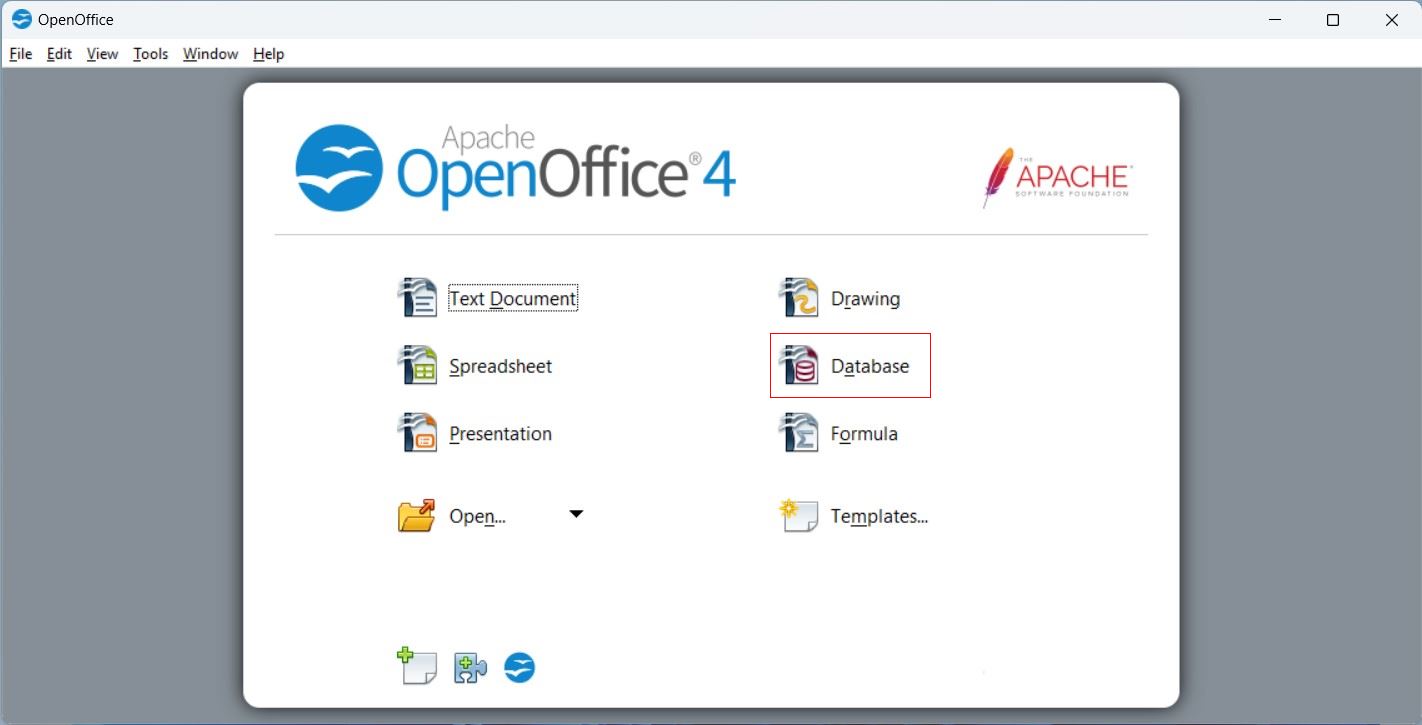
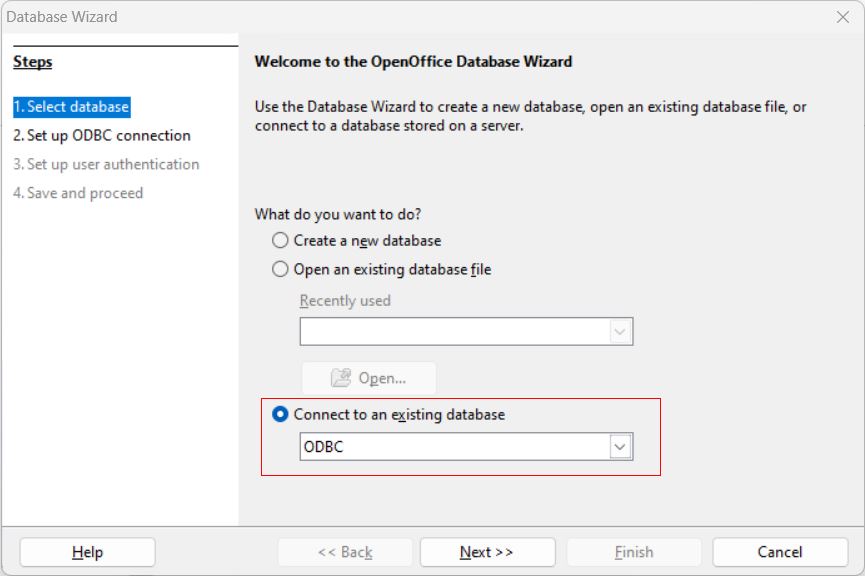
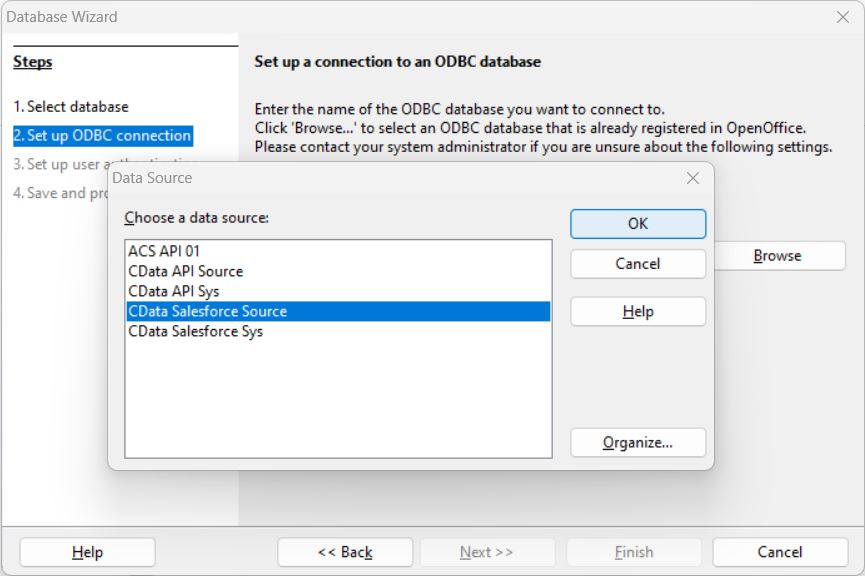
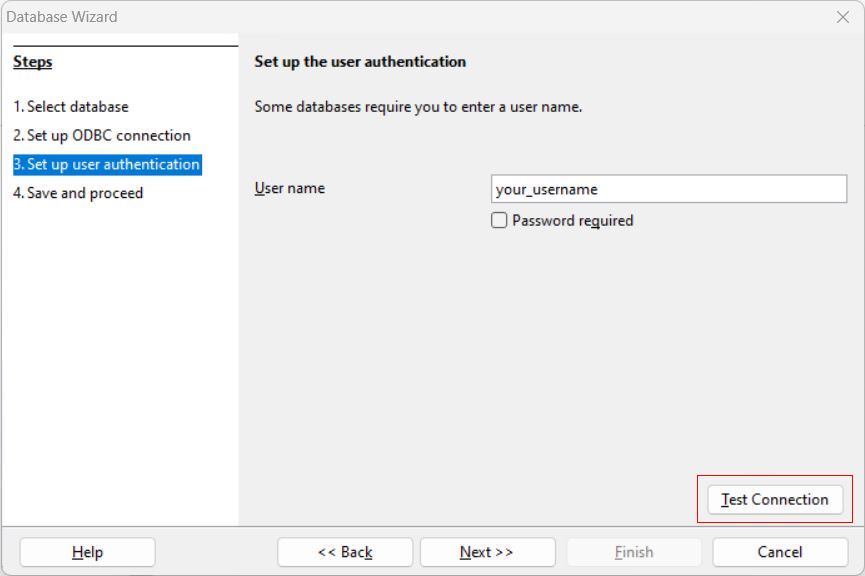
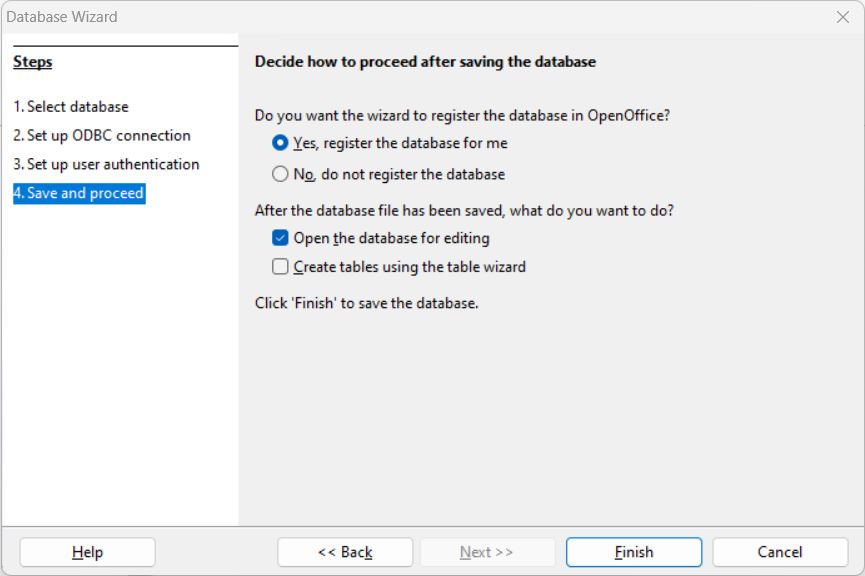
Your connection is now established — ready to query and analyze data seamlessly within OpenOffice Base.
Review the Metadata and Tables
After the database file is created and the connection is established, the table list will automatically display all available Webflow data objects.
- Review the Webflow data Object List: In the left pane, click on Tables to view the Webflow data objects now available within OpenOffice Base.
- View Object Data: Click on any object to view its contents. The Webflow data data will display directly within OpenOffice Base, allowing you to review records and fields with ease.
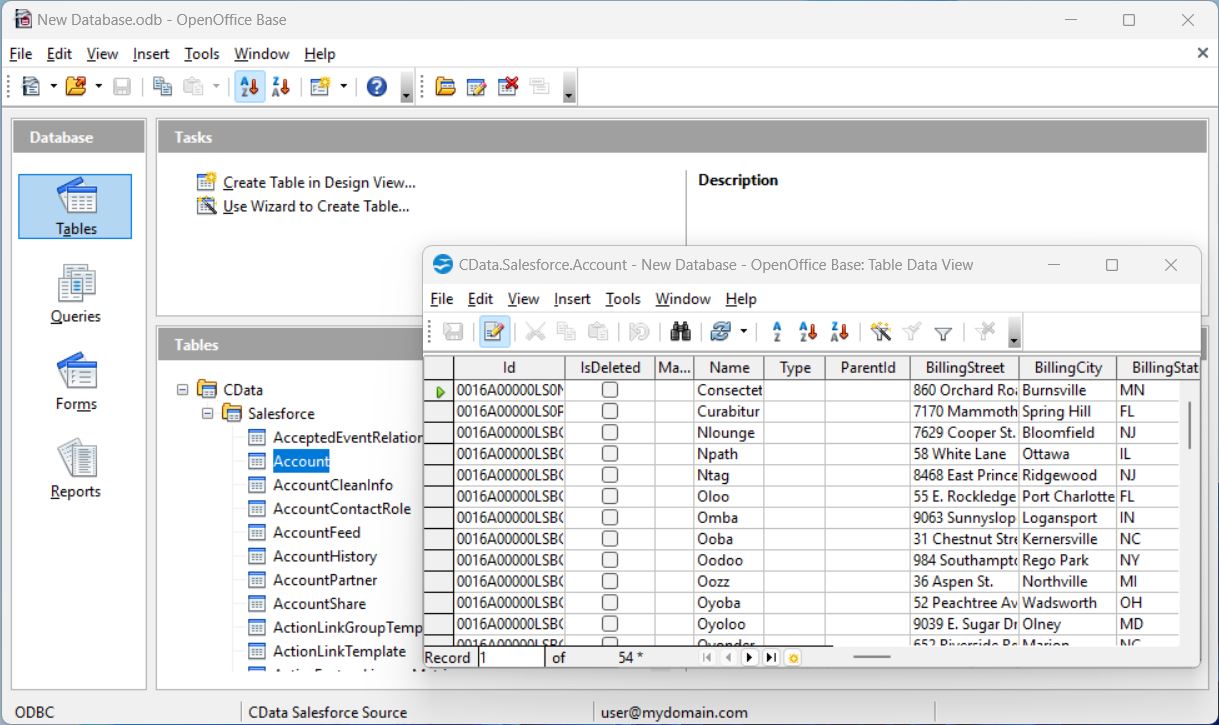
That's it! You have now successfully established a connection to Webflow data in OpenOffice Base, with data readily available for analysis and reporting.
Create a Report
Now, let's generate a report based on your Webflow data data.
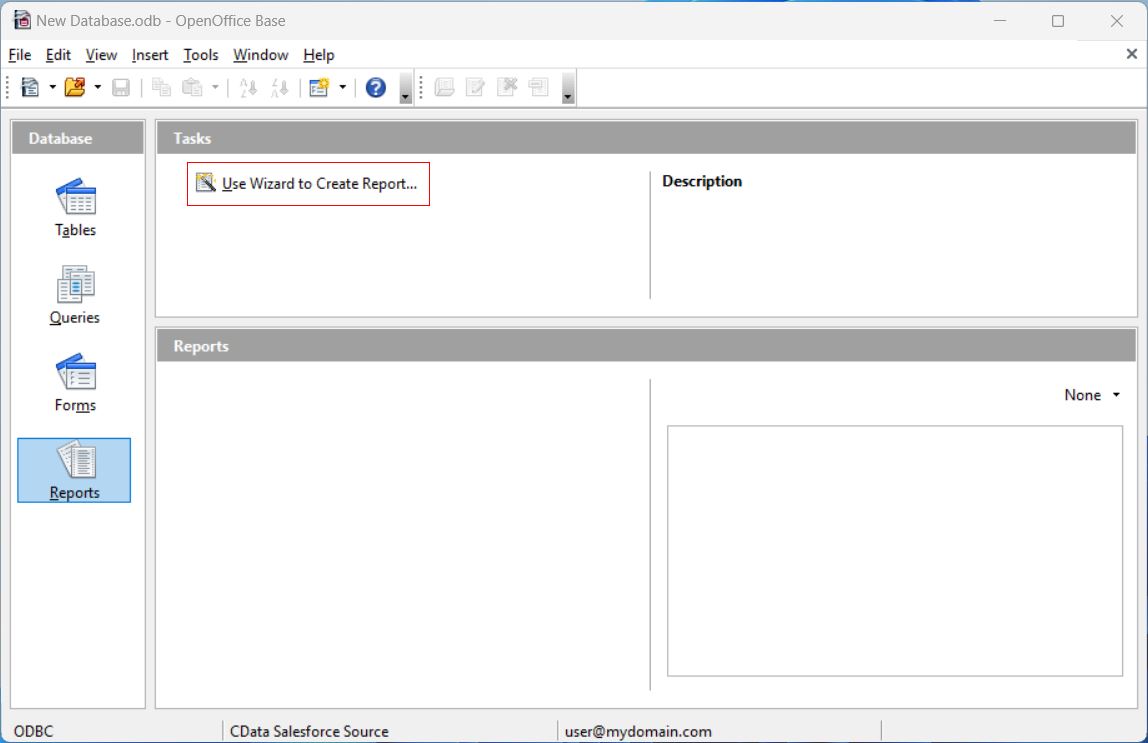
- Open your database and go to the Reports tab, then select Create Report Using Wizard.
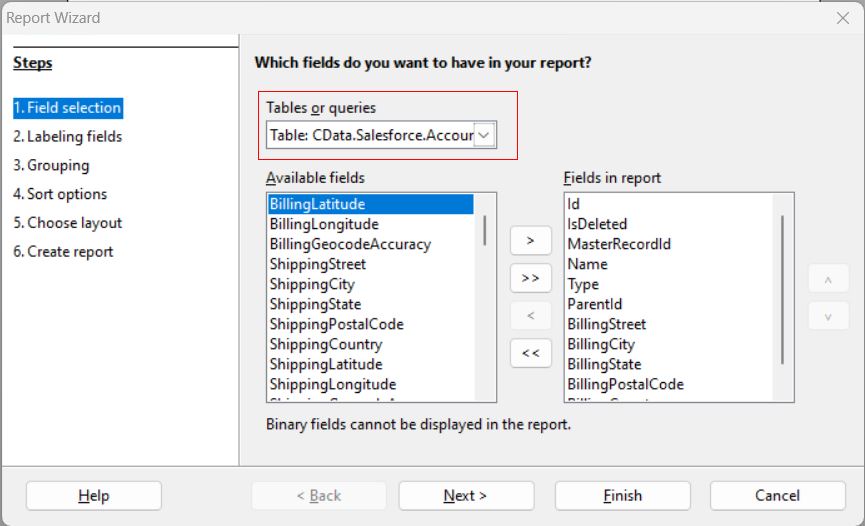
- In the Report Wizard, choose the Webflow data table from the Table or Query section. Select the columns from Available Fields that you want to include in your report and move them to the Fields in Report section using the arrows.
- After configuring the fields, click Finish to generate your report.
- Analyze, adjust, save, and publish the report as needed.
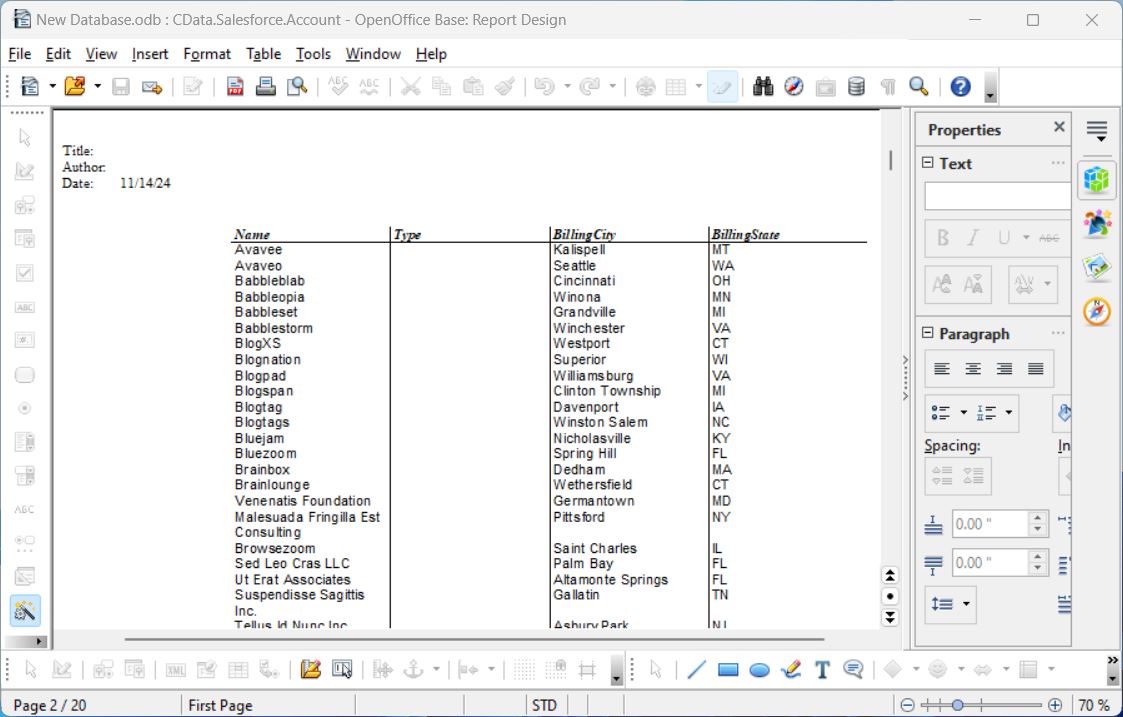
Your report is now created, drawing live data directly from Webflow data, and ready for analysis.
Try CData Free for 30 Days
Experience the power of live Webflow data data at your fingertips and seamlessly integrate it into OpenOffice Base. Start your free trial today!