






Use Databricks Agent Bricks to Talk to Your Workday Data via CData Connect AI
Databricks Agent Bricks is a fully managed, production-ready framework within the Databricks platform for building, deploying, and orchestrating AI agents. Agent Bricks enables teams to compose Supervisor Agents that coordinate external tools and data sources, including MCP Servers, to automate complex enterprise workflows with live, real-time data.
CData Connect AI offers a dedicated cloud-to-cloud interface for connecting to Workday data. Databricks Agent Bricks can authenticate securely against the CData Connect AI MCP Server without requiring user interaction. This allows Supervisor Agents to query and act on your Workday data autonomously, all without the need for data replication to a natively supported database.
In this guide, you will set up an OAuth App in CData Connect AI, configure an MCP Server connection in Databricks, and create a Supervisor Agent in Agent Bricks that queries live Workday data through the Connect AI MCP Server.
About Workday Data Integration
CData provides the easiest way to access and integrate live data from Workday. Customers use CData connectivity to:
- Access the tables and datasets you create in Prism Analytics Data Catalog, working with the native Workday data hub without compromising the fidelity of your Workday system.
- Access Workday Reports-as-a-Service to surface data from departmental datasets not available from Prism and datasets larger than Prism allows.
- Access base data objects with WQL, REST, or SOAP, getting more granular, detailed access but with the potential need for Workday admins or IT to help craft queries.
Users frequently integrate Workday with analytics tools such as Tableau, Power BI, and Excel, and leverage our tools to replicate Workday data to databases or data warehouses. Access is secured at the user level, based on the authenticated user's identity and role.
For more information on configuring Workday to work with CData, refer to our Knowledge Base articles: Comprehensive Workday Connectivity through Workday WQL and Reports-as-a-Service & Workday + CData: Connection & Integration Best Practices.
Getting Started
Prerequisites
Before you begin, ensure you have the following:
- A Databricks workspace with access to the Mosaic AI — Agent Bricks feature.
- A CData Connect AI account. Sign up for a free trial if you don’t have one.
- At least one data source connected to your CData Connect AI account.
Step 1: Create an OAuth App in CData Connect AI
Databricks Agent Bricks uses OAuth Machine-to-Machine (M2M) authentication to connect to the CData Connect AI MCP Server. This requires creating a service-based OAuth App in your CData Connect AI account to generate a Client ID and Client Secret.
- Click the Gear icon () in the top-right corner of Connect AI to open Settings.
- Navigate to OAuth Apps and click + Create App. The Create OAuth App dialog appears.
- Enter the following settings:
- Name — Enter a descriptive name for the OAuth app (e.g., DatabricksOAuth).
- Authentication Flow — Select Service-based (client credentials).
- Callback URL — Since there is no callback URL required for M2M, enter a placeholder URL such as https://localhost/callback.
- User — Select the CData Connect AI user account under which this OAuth app will run and access your Workday data.
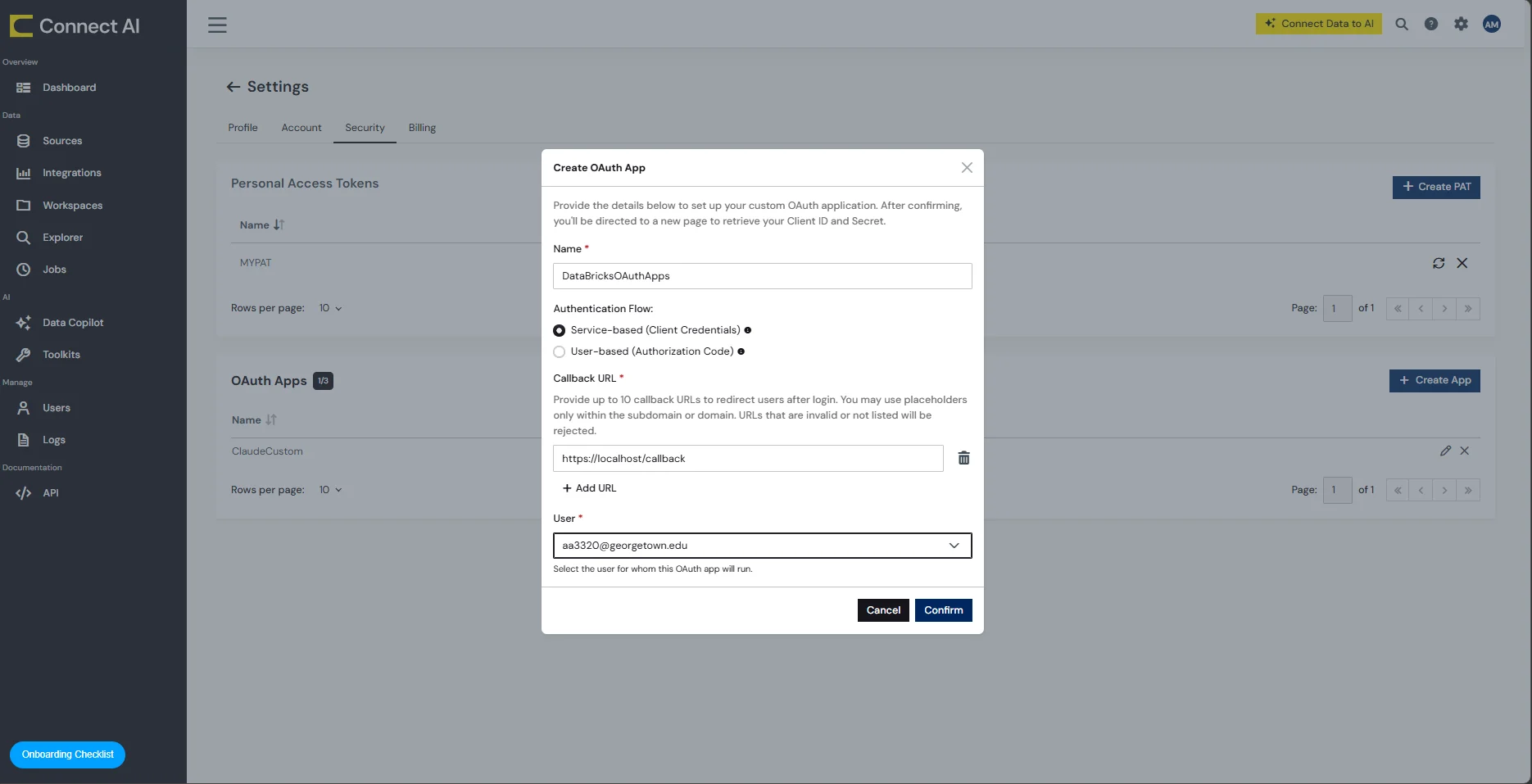
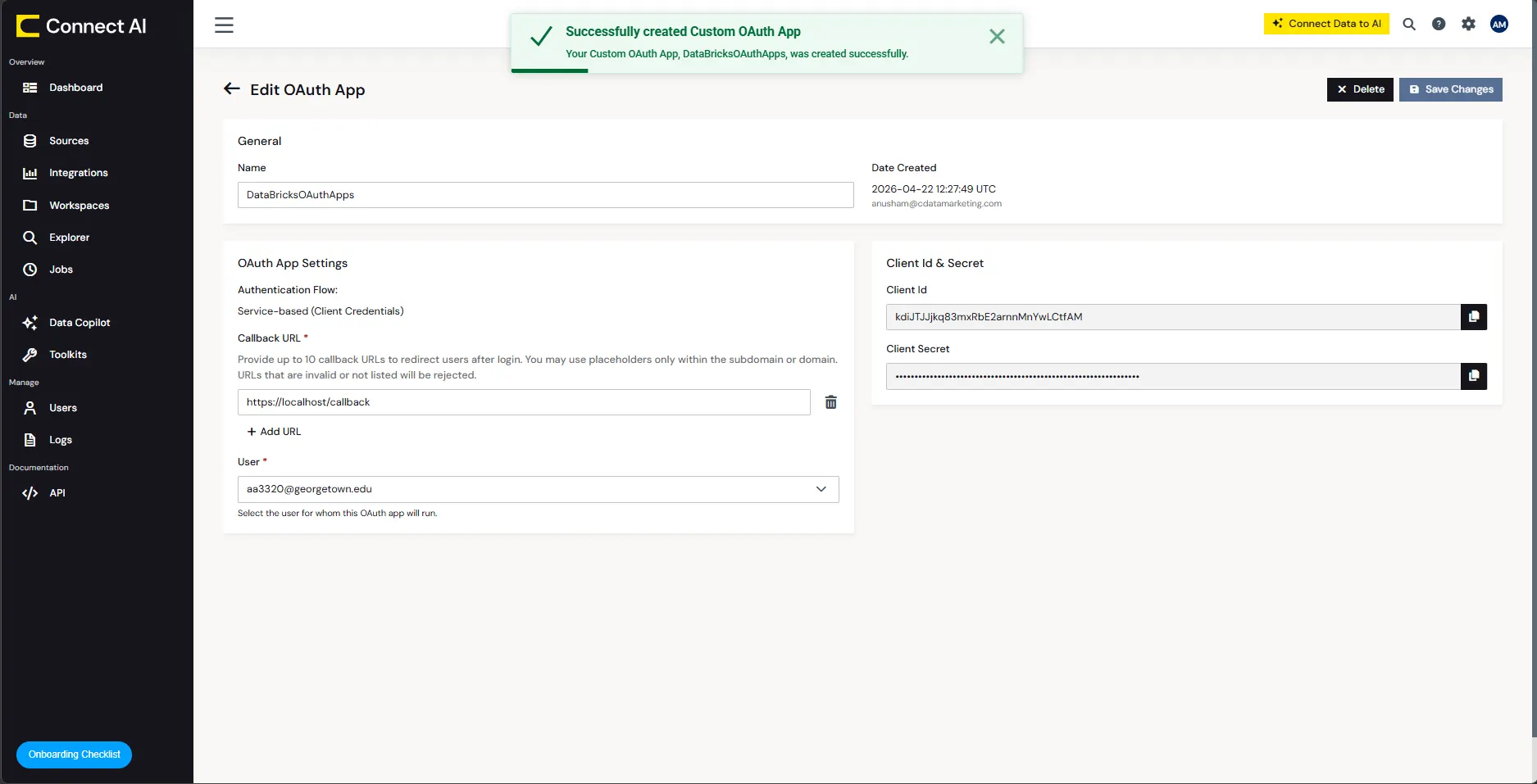
- Click Confirm. CData Connect AI creates the OAuth App and generates a Client ID and Client Secret.
- Copy both the Client ID and Client Secret values. You will need them in the next step.
Step 2: Create an MCP Server Connection in Databricks
With your OAuth App credentials in hand, you can now create an HTTP connection in Databricks Unity Catalog that points to the CData Connect AI MCP Server and authenticates using OAuth M2M.
- Open your Databricks workspace and navigate to the Catalog tab.
- Click the + icon and select Create connection from the drop-down list.
- In Step 1: Connection basics, enter the following:
- Connection name — Enter a user-defined name for this connection (e.g., CData Connect AI MCP).
- Connection type — Select HTTP.
- Auth type — Select OAuth Machine to Machine.
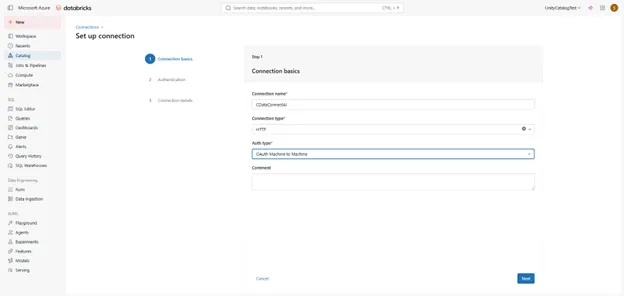
- Click Next.
- In Step 2: Authentication, enter the following:
- Host — Enter https://mcp.cloud.cdata.com.
- Port — Leave the default port.
- Client Secret — Enter the Client Secret you copied from the OAuth App.
- Client ID — Enter the Client ID you copied from the OAuth App.
- OAuth scope — Leave blank.
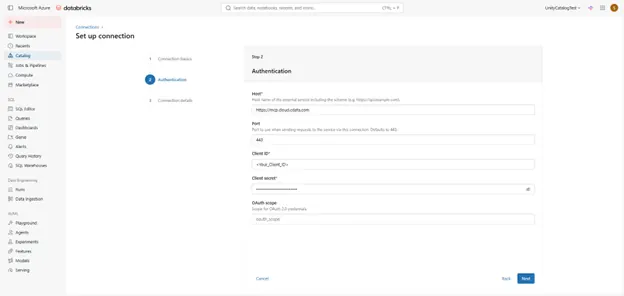
- Click Next.
- In Step 3: Connection details, enter the following:
- Token endpoint — Enter https://cloud-login.cdata.com/oauth/token.
- Base path — Enter /mcp.
- Is MCP connection — Select (enable) this option.
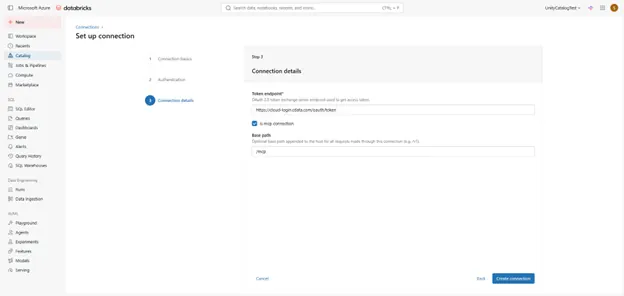
- Click Create connection. Databricks creates and validates the MCP Server connection.
Step 3: Create a Supervisor Agent in Agent Bricks
With the MCP Server connection established in Databricks, you can now create a Supervisor Agent in Agent Bricks that uses CData Connect AI as a tool to access your live Workday data.
- In your Databricks workspace, navigate to the Agents tab.
- Click Create Agent.
- Select Supervisor Agent as the agent type.
- In the Create Supervisor Agent dialog, enter the following:
- Name — Enter a name for your agent.
- Description — Enter a description of what this agent does.
- Under Configure Agents, add a tool with the following settings:
- Type — Select External MCP Server.
- Unity Catalog connection — Select the MCP Server connection you created in the previous step.
- Describe the content — Enter a description of what this MCP connection provides.
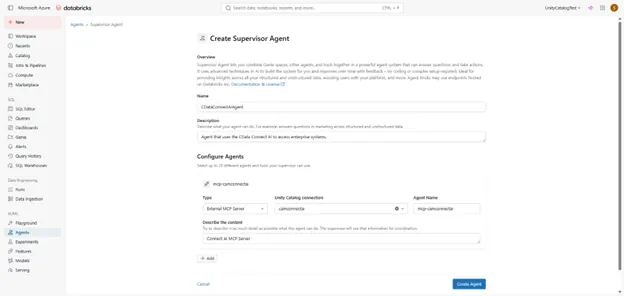
- Click Create Agent. Agent Bricks provisions your Supervisor Agent.
Step 4: Explore Live Workday Data with Agent Bricks
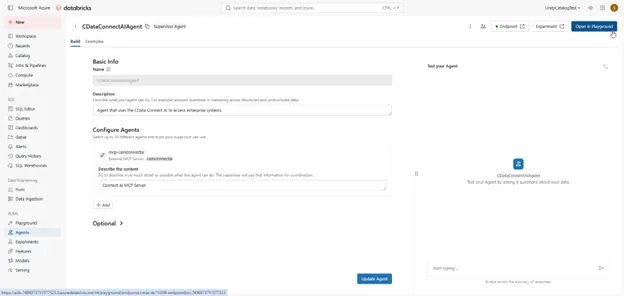
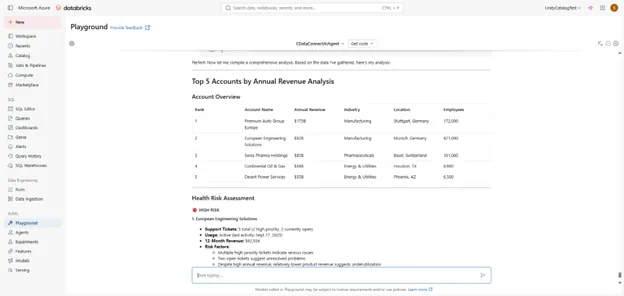
Your Supervisor Agent is now configured and ready to query live Workday data through the CData Connect AI MCP Server. Use the Agent Bricks Playground to test natural language queries against your Workday data.
- On your agent’s page, click Open in Playground.
-
Enter a natural language prompt to query your Workday data.
Refer to CData’s prompt library for prompt ideas for your data source.
Get CData Connect AI
To get live data access to hundreds of SaaS, Big Data, and NoSQL sources directly from your cloud applications, try CData Connect AI today!