






Integrate Theia IDE with Live Workday Data via CData Connect AI

Theia IDE is an open-source, cloud and desktop IDE platform that provides a flexible, extensible development environment with built-in AI capabilities. Its AI features support multiple LLM providers and MCP (Model Context Protocol) tool integrations, allowing developers to interact with live external data sources directly from chat-based agents inside the IDE.
By integrating Theia IDE with CData Connect AI through the built-in MCP server, Theia's AI agents gain governed, real-time access to live Workday data. This enables developers to list catalogs, explore schemas, and query records from Workday data without leaving the editor or writing custom integration code.
This article explains how to configure Workday connectivity in Connect AI, generate the required personal access token, register the CData Connect AI MCP Server in Theia IDE, enable AI features with an LLM provider, and verify the integration by querying live Workday data from the Theia AI Chat.
About Workday Data Integration
CData provides the easiest way to access and integrate live data from Workday. Customers use CData connectivity to:
- Access the tables and datasets you create in Prism Analytics Data Catalog, working with the native Workday data hub without compromising the fidelity of your Workday system.
- Access Workday Reports-as-a-Service to surface data from departmental datasets not available from Prism and datasets larger than Prism allows.
- Access base data objects with WQL, REST, or SOAP, getting more granular, detailed access but with the potential need for Workday admins or IT to help craft queries.
Users frequently integrate Workday with analytics tools such as Tableau, Power BI, and Excel, and leverage our tools to replicate Workday data to databases or data warehouses. Access is secured at the user level, based on the authenticated user's identity and role.
For more information on configuring Workday to work with CData, refer to our Knowledge Base articles: Comprehensive Workday Connectivity through Workday WQL and Reports-as-a-Service & Workday + CData: Connection & Integration Best Practices.
Getting Started
Step 1: Configure Workday connectivity for Theia IDE
Connectivity to Workday from Theia IDE is made possible through Connect AI's Remote MCP Server. To interact with Workday data from Theia IDE, start by creating and configuring a Workday connection in Connect AI.
- Log into Connect AI, click Sources, and then click Add Connection
- Select Workday from the Add Connection panel
-
Enter the necessary authentication properties to connect to Workday.
To connect to Workday, users need to find the Tenant and BaseURL and then select their API type.
Obtaining the BaseURL and Tenant
To obtain the BaseURL and Tenant properties, log into Workday and search for "View API Clients." On this screen, you'll find the Workday REST API Endpoint, a URL that includes both the BaseURL and Tenant.
The format of the REST API Endpoint is: https://domain.com/subdirectories/mycompany, where:
- https://domain.com/subdirectories/ is the BaseURL.
- mycompany (the portion of the url after the very last slash) is the Tenant.
Using ConnectionType to Select the API
The value you use for the ConnectionType property determines which Workday API you use. See our Community Article for more information on Workday connectivity options and best practices.
API ConnectionType Value WQL WQL Reports as a Service Reports REST REST SOAP SOAP
Authentication
Your method of authentication depends on which API you are using.
- WQL, Reports as a Service, REST: Use OAuth authentication.
- SOAP: Use Basic or OAuth authentication.
See the Help documentation for more information on configuring OAuth with Workday.

- Click Save & Test
- Navigate to the Permissions tab and update user-based permissions



Add a Personal Access Token
A Personal Access Token (PAT) is used to authenticate the connection to Connect AI from Theia IDE. It is best practice to create a separate PAT for each integration to maintain granular access control.
- Click the gear icon () at the top right of the Connect AI app to open Settings
- On the Settings page, go to the Access Tokens section and click Create PAT
- Give the PAT a descriptive name and click Create
- Copy the token when displayed and store it securely. It will not be shown again

With the Workday connection configured and a PAT generated, Theia IDE can now connect to Workday data through Connect AI.
Step 2: Configure Connect AI MCP in Theia IDE
Next, register the CData Connect AI Remote MCP Server in Theia IDE so that the built-in AI agents can discover and call live data tools through Connect AI.
- Download and install the Theia IDE
- Open Theia IDE and navigate to Settings (or press Ctrl + ,) to open the Settings view
-
In the Settings panel, expand AI Features and select MCP
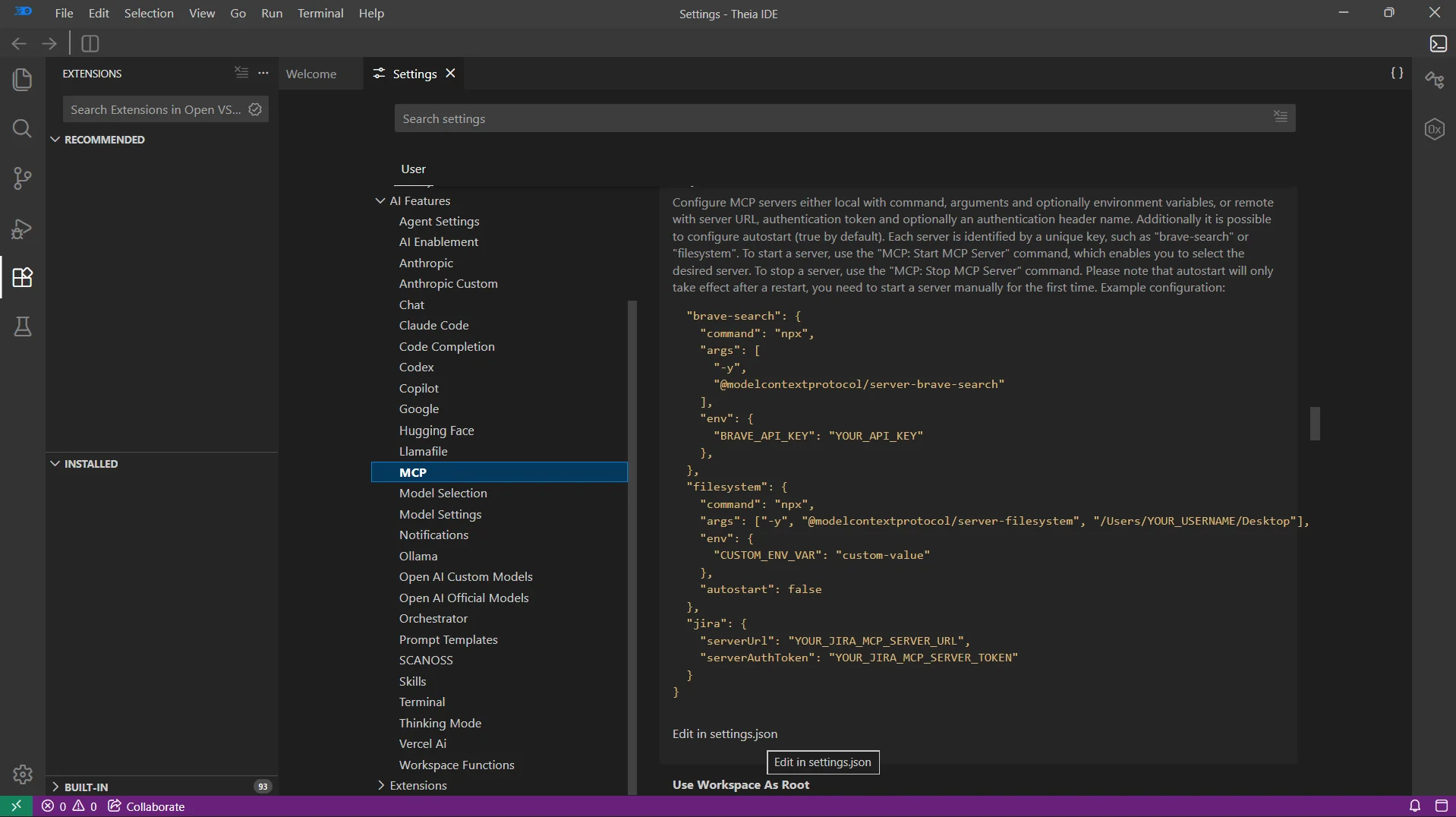
-
Click Edit in settings.json to open the configuration file and paste the following JSON:
{
    "ai-features.mcp.mcpServers": {
        "cdata": {
            "serverUrl": "https://mcp.cloud.cdata.com/mcp",
            "serverAuthToken": "Basic your_base64_encoded_email_PAT",
            "serverAuthTokenHeader": "Authorization"
        }
    }
}
Note: Theia IDE will use Basic authentication with Connect AI. Combine your Connect AI user email and the PAT you created earlier in the format email:PAT, base64 encode the combined string, and prefix it with Basic. For example, given [email protected]:ABC123...XYZ789, the serverAuthToken value becomes something like: Basic dXNlckBkb21haW4uY29tOkFCQzEyMy4uLlhZWjc4OQ==
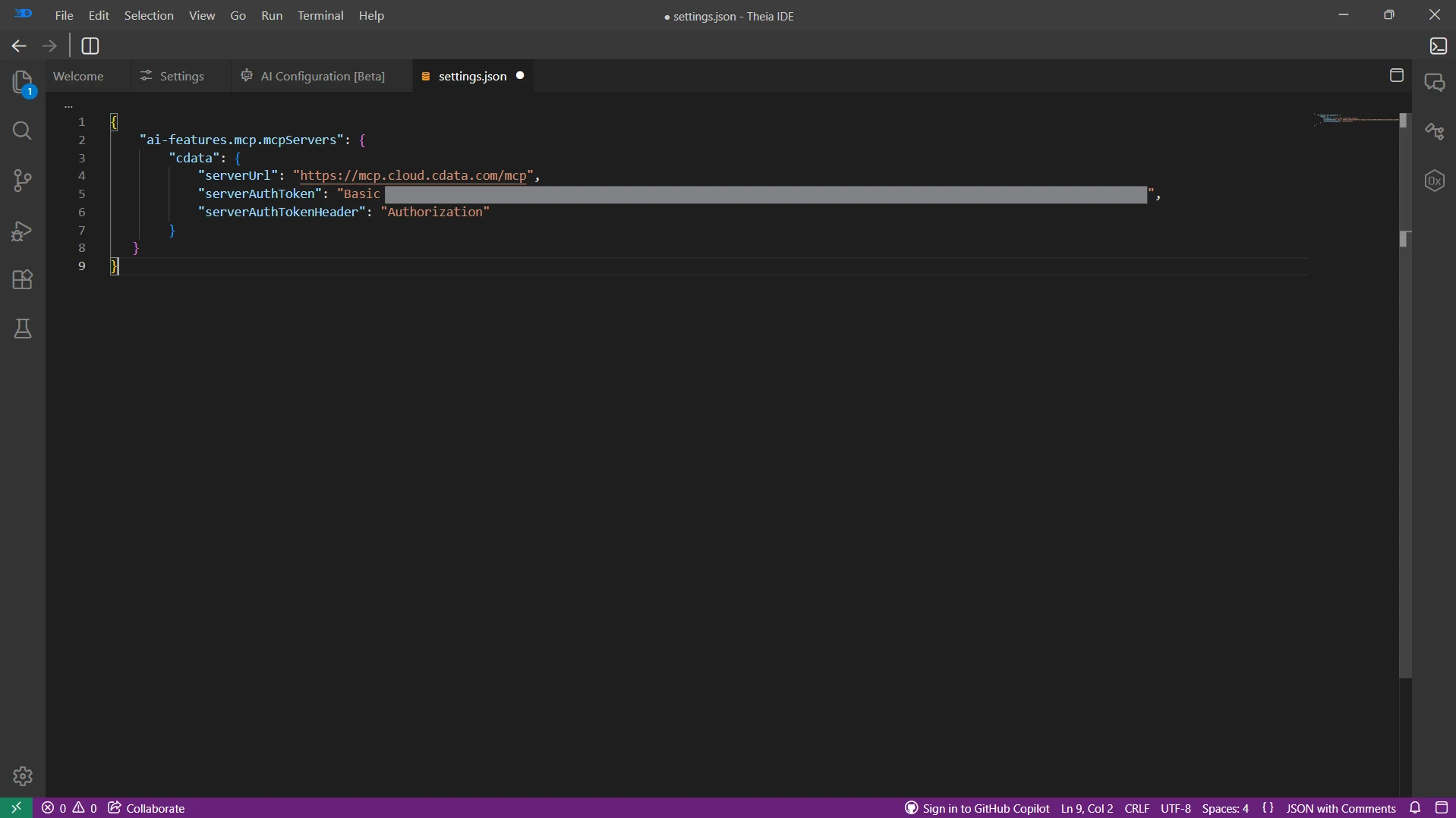
- Save the settings.json file
Enable AI and configure an LLM provider
Theia IDE requires AI features to be enabled and at least one LLM provider configured to power the agent's reasoning.
- Return to Settings and under AI Features, select AI Enablement
-
Check the Enable AI box to activate Theia's AI capabilities
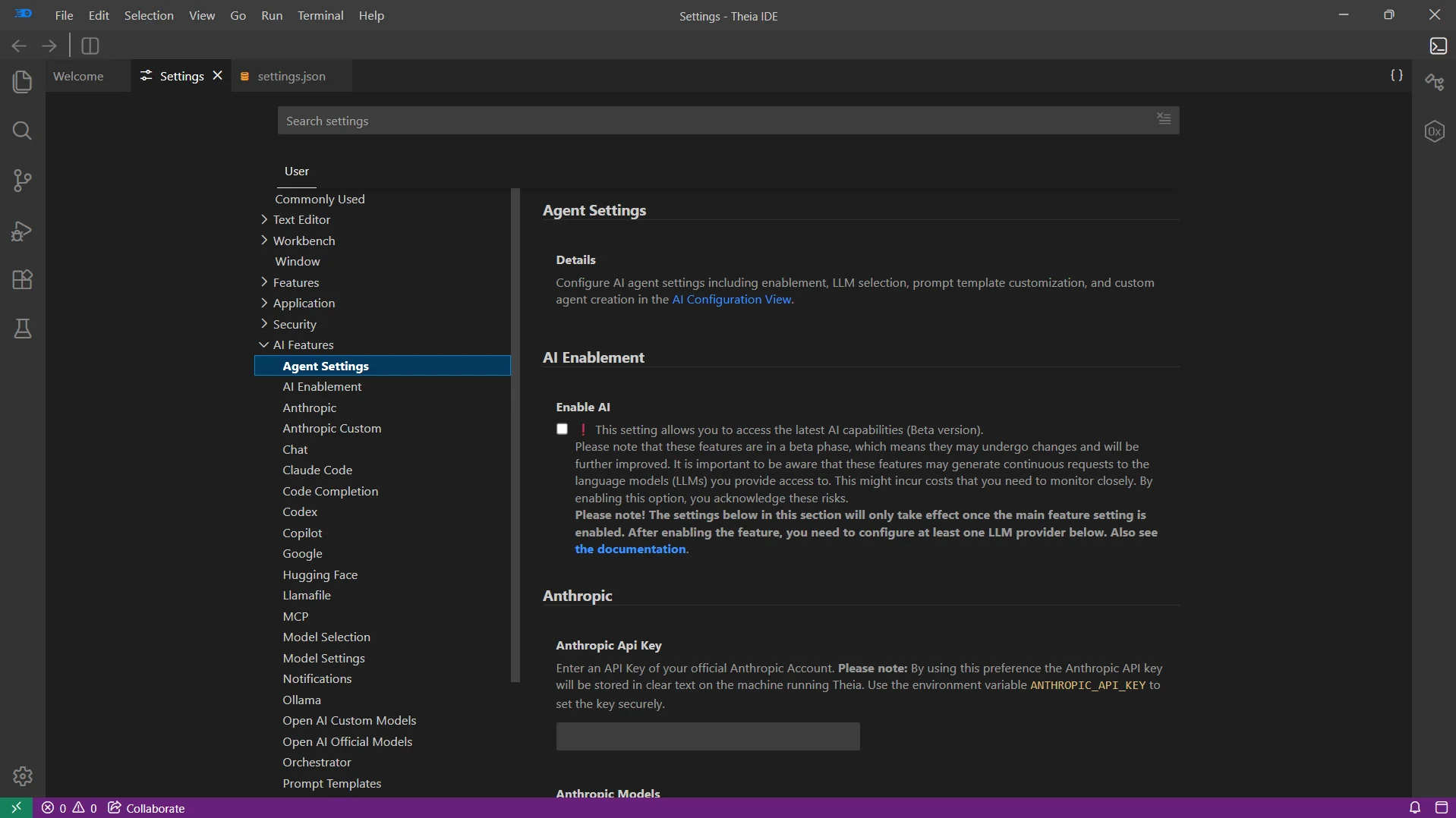
- Under AI Features, choose your preferred LLM provider (e.g., Anthropic, OpenAI, Google, Hugging Face) and enter your API key
With the MCP server registered and an LLM provider configured, Theia's AI agents are ready to query live Workday data through Connect AI.
Step 3: Query live Workday data from the Theia AI Chat
With the integration complete, use the Theia AI Chat panel to interact with live Workday data.
- Open the AI Chat panel from the right sidebar of the Theia IDE
- At the bottom of the chat, click the Toggle Capabilities Configuration icon (or press Ctrl + Shift + .) to open the capabilities panel
-
Under Generic Capabilities, expand MCP and check the cdata server (and any specific tools you want to expose) to make the Connect AI tools available to the agent
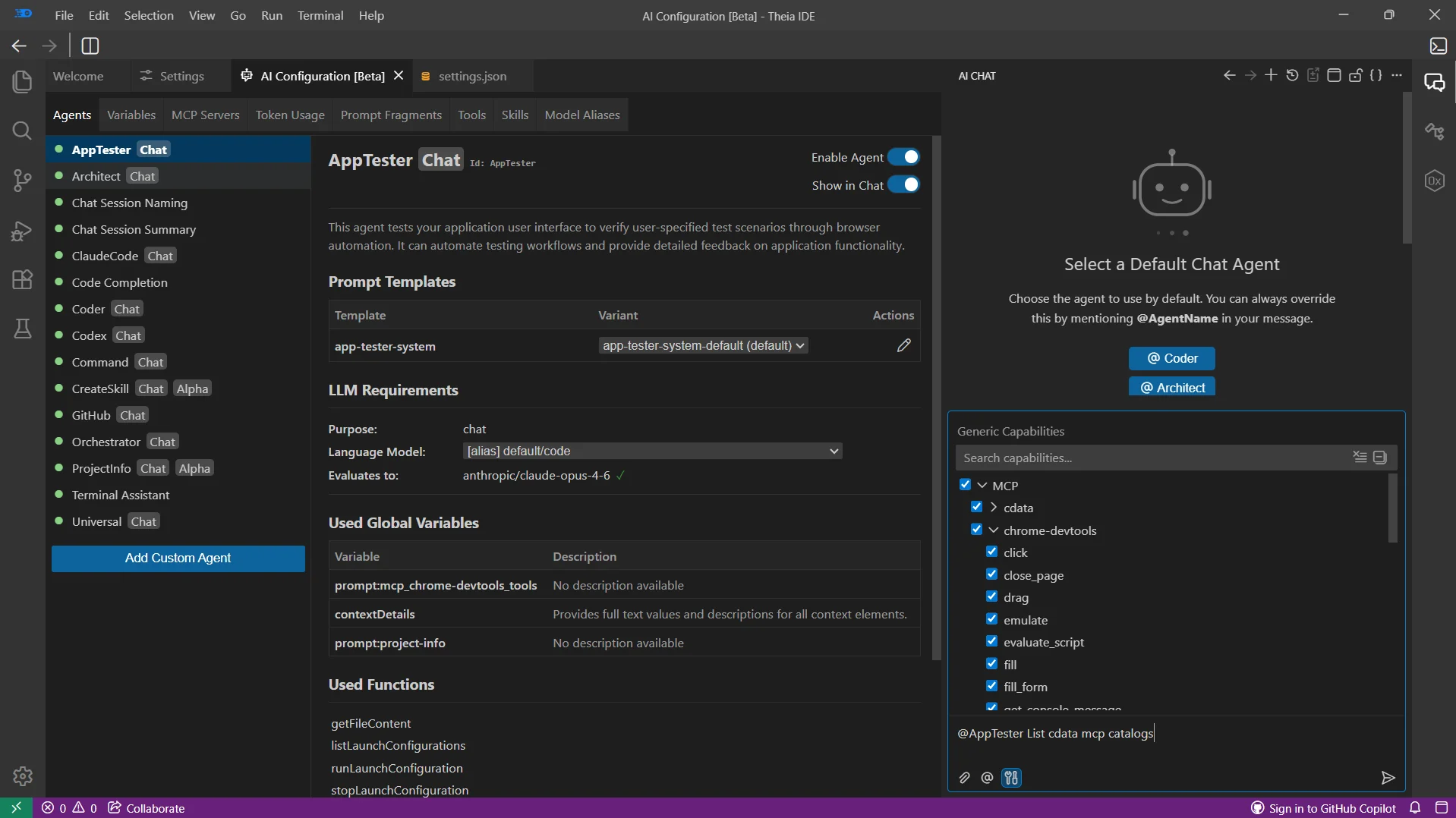
-
Type @AppTester in the chat input followed by your prompt, for example:
- List all catalogs in my cdata mcp
- Show the available schemas and tables for Workday
- Query the top 5 records from a table in Workday data
-
The agent calls the Connect AI MCP Server and returns live results from Workday data
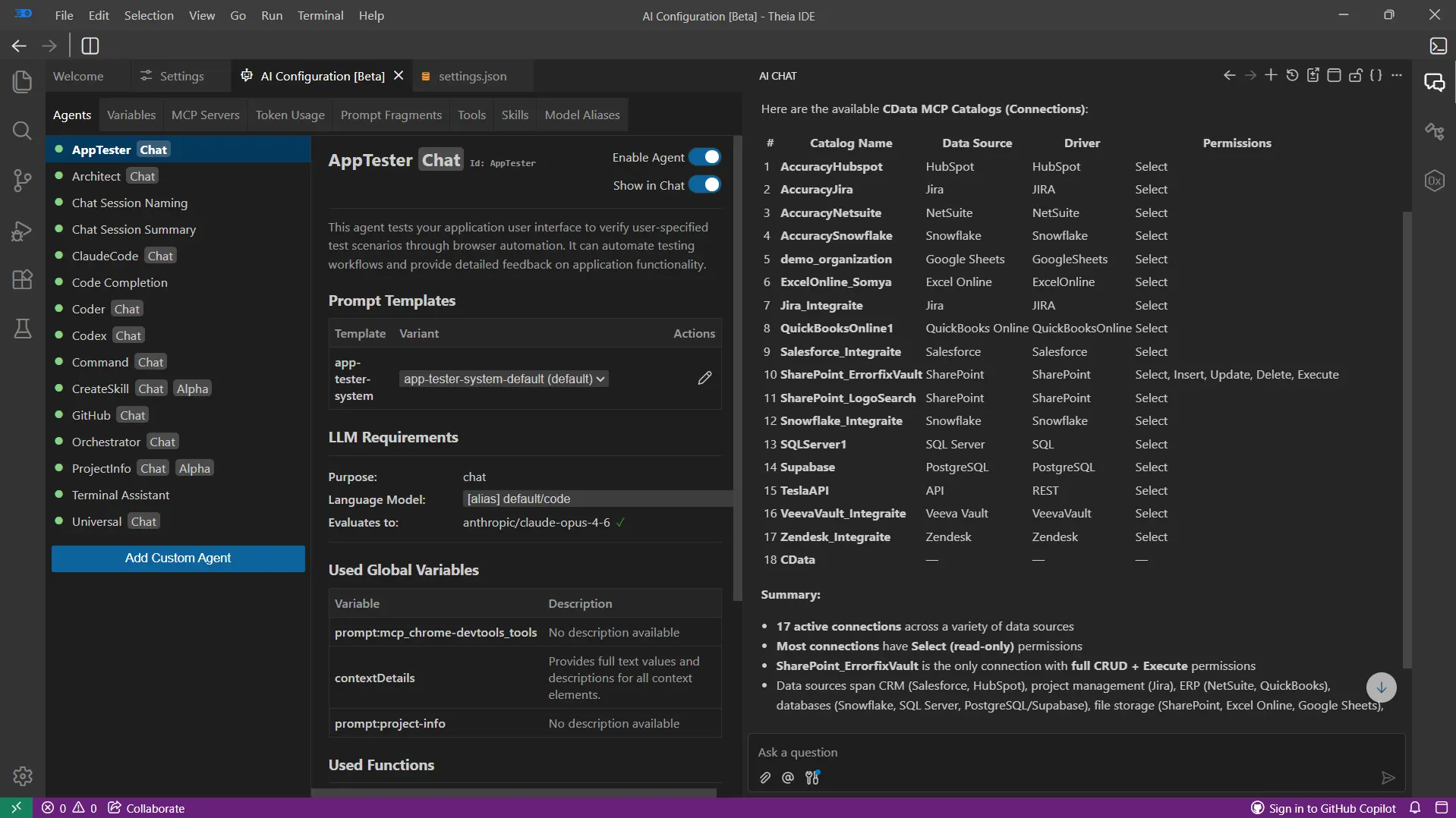
At this point, your Theia IDE communicates with the Connect AI MCP Server and retrieves live Workday data through remote MCP directly from the editor.
Get CData Connect AI
To access hundreds of SaaS, Big Data, and NoSQL sources directly from your cloud applications, try CData Connect AI today! Start a free 14-day trial of CData Connect AI today, and as always, our world-class Support Team is available to assist you with any questions you may have.