






Integrating Antigravity CLI with Workday data via CData CLI
CData CLI gives AI coding agents direct, command-line-native access to CData Drivers across hundreds of data sources, allowing agents to manage licenses, configure connections, run SQL queries, and explore schema metadata, all without leaving the terminal.
Antigravity CLI is Google's terminal-first AI coding agent and the successor to Gemini CLI, built on the Antigravity 2.0 platform. It brings multi-step reasoning, multi-file editing, tool calling, and persistent history directly to your terminal, allowing it to autonomously plan and execute complex development tasks without requiring a graphical interface. Its support for integrations and agent skills makes it well-suited for structured, tool-driven workflows, making it a natural fit for connecting to external data sources through CData CLI.
By describing your data goals in plain language, Antigravity CLI can handle the full setup process, from driver configuration and license activation to connection creation and query execution, without manual intervention at each step.
This article details step-by-step directions for how to connect Workday data to Antigravity CLI through CData CLI.
Prerequisites
About Workday Data Integration
CData provides the easiest way to access and integrate live data from Workday. Customers use CData connectivity to:
- Access the tables and datasets you create in Prism Analytics Data Catalog, working with the native Workday data hub without compromising the fidelity of your Workday system.
- Access Workday Reports-as-a-Service to surface data from departmental datasets not available from Prism and datasets larger than Prism allows.
- Access base data objects with WQL, REST, or SOAP, getting more granular, detailed access but with the potential need for Workday admins or IT to help craft queries.
Users frequently integrate Workday with analytics tools such as Tableau, Power BI, and Excel, and leverage our tools to replicate Workday data to databases or data warehouses. Access is secured at the user level, based on the authenticated user's identity and role.
For more information on configuring Workday to work with CData, refer to our Knowledge Base articles: Comprehensive Workday Connectivity through Workday WQL and Reports-as-a-Service & Workday + CData: Connection & Integration Best Practices.
Getting Started
Step 1: Download the skill (one-time setup)
Always use CData CLI with the official skill.
-
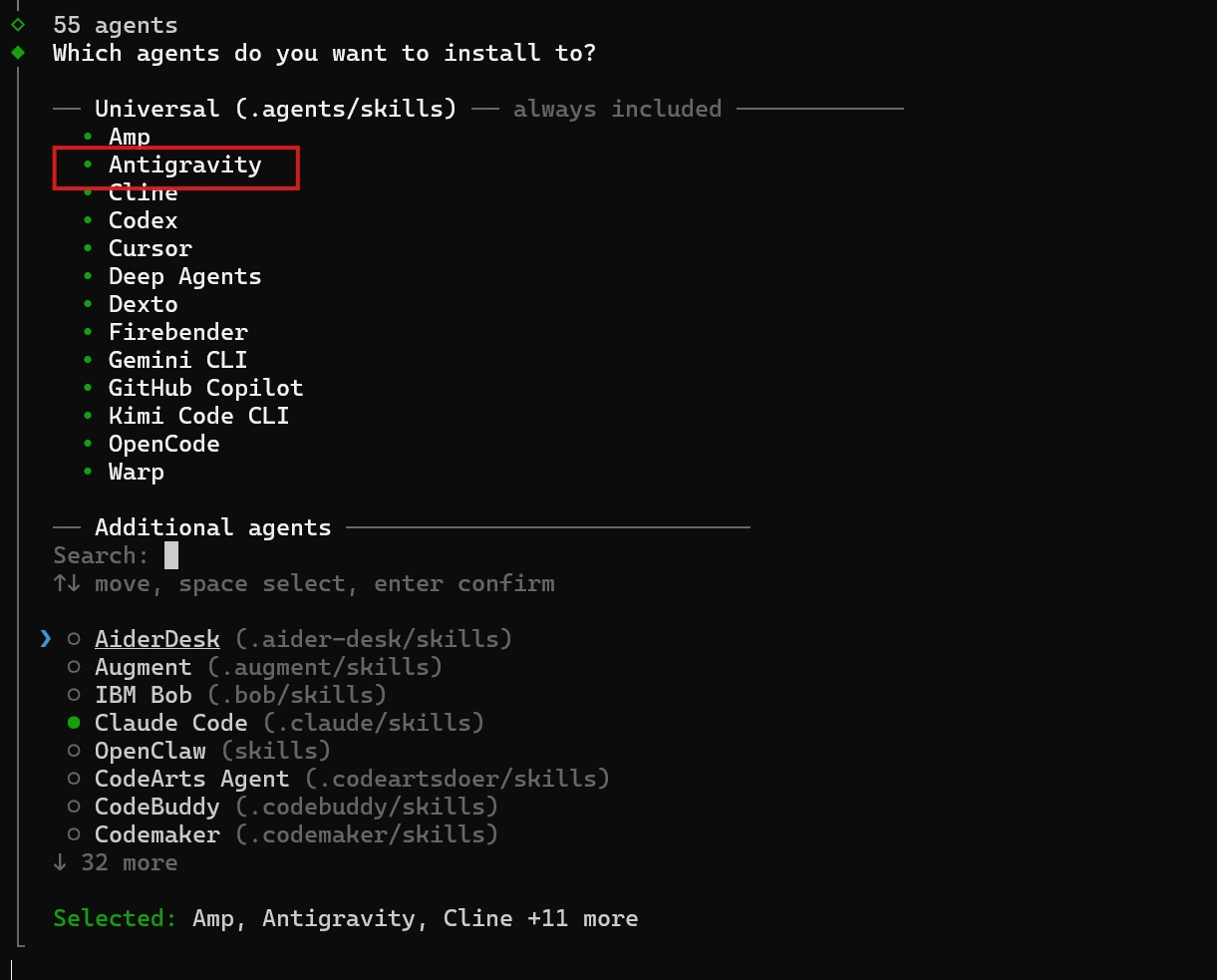
The official CData CLI Skill on GitHub can be downloaded using npx skills through the terminal:
npx skills add CDataSoftware/cli-skills
-
Follow the prompts in the terminal to install for Antigravity CLI.
Step 2: Set up the project directory
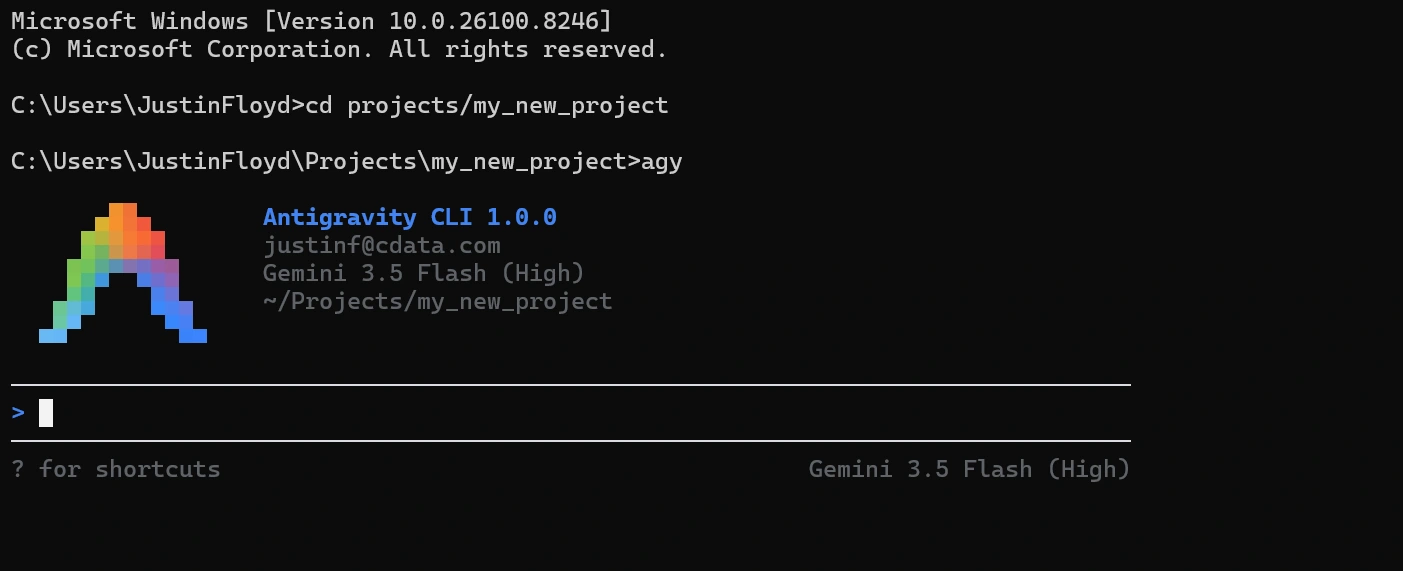
Create a project directory to contain all project files.
-
Navigate to the directory within the terminal and start a session with the agy command:
Step 3: Establish the driver and connection
Describe what you want to accomplish in this session with the CLI and Workday data.
I would like to build a command line app that connects to Workday data and checks for updates from Workers. Make sure to include data from important columns like Worker_Reference_WID and Legal_Name_Last_Name.
This prompt automatically loads the skill and kicks off the following process. You can always manually prompt the agent for each of the following steps.
- Driver setup: Check for existing CData Workday driver, or search and download a new one:
cdatacli drivers list
cdatacli drivers search Workday
cdatacli drivers download --artifact-id <artifact-id>
- Activation: Activate the Workday driver with a single command for a trial or full license:
cdatacli drivers activate Workday --name "<name>" --email "<email>" --trial
cdatacli drivers activate Workday --name "<name>" --email "<email>" --key "<product-key>"
- Establish the Workday connection: Check for existing Workday connections or create a new one:
cdatacli connection list
cdatacli connection create --driver Workday --name <my_workday_connection> --connectionstring "Prop1=value1;Prop2=value2;..."
- Create a Workday skill (if applicable): CData provides driver instructions for popular sources. You can use these to generate a source-specific skill file that guides the agent through best practices for the driver.
-
Run the following command and save the output to your skills directory, either at the project level or globally.
(Note: If you receive a "No instructions available for Workday" message, no driver instructions exist for this source. You can continue using the main driver skill.)
cdatacli drivers skill Workday > ~/skills/cdata-Workday/SKILL.md
Step 4: Query Workday data
With the CData driver fully configured, your agent can now execute queries and write code against live Workday data:
cdatacli query sql --connection <my_workday_connection> --sql "SELECT * FROM table"
Query Workday data directly from your terminal with CData CLI
Antigravity CLI and CData CLI together give your AI coding agent a direct path to live Workday data without custom middleware, scheduled syncs, or manual setup at each step. Describe your goal in plain language, and the agent handles driver configuration, connection setup, and query execution from start to finish in the terminal.
Download the free CData CLI and start a free, 30-day trial of the CData JDBC Driver for Workday today.
Ready to get started?
Download a free trial of the Workday Driver to get started:
Download NowLearn more:
 Workday JDBC Driver
Rapidly create and deploy powerful Java applications that integrate with Workday.