






How to Connect to Live YouTube Analytics Data in Mistral AI Workflows and Agents (via CData Connect AI)

Mistral AI is a frontier AI company that builds enterprise-grade open-source and commercial large language models (LLMs). With Mistral, you can train, fine-tune, and deploy agents anywhere – on premises, in the cloud, or at the edge – while retaining full control of your data. Its agent-ready platform enables multilingual and multimodal AI that can search, create, code, automate, and collaborate securely, with support for memory and extended context handling.
CData Connect AI provides a secure cloud-to-cloud interface for easily integrating 350+ enterprise data sources with Mistral AI. Through CData Connect AI, Mistral AI agents can query, analyze, and act on live YouTube Analytics data in real time, without replication. Connect AI manages authentication, security, and query optimization so you can focus on building intelligent workflows, while Mistral handles reasoning and natural language interaction.
In this guide, we will use Mistral AI's Le Chat, Mistral's customizable conversational chatbot, along with CData Connect AI to connect to live YouTube Analytics data. You will be able to interact with your live YouTube Analytics data directly in Mistral AI workflows – running queries and automating tasks securely.
The setup takes just a few minutes, and once connected, you will have your own chatbot agent intelligently conversing with your live YouTube Analytics data.
Let's begin.
Prerequisites
- A Mistral AI account – Sign up or log in here.
- A CData Connect AI account – Sign up or log in here.
- An active YouTube Analytics account with valid credentials.
Overview
Here is a quick overview of the steps we will follow:
- Connect: Add a connection to YouTube Analytics in CData Connect AI using your credentials.
- Configure: Create a custom MCP connection in Mistral AI Le Chat that points to your YouTube Analytics connection in CData Connect AI.
- Query: Interact with live YouTube Analytics data in Mistral AI workflows – running queries and taking actions using natural language.
Step 1: Configure YouTube Analytics Connectivity for Mistral
Connectivity to YouTube Analytics from Mistral AI is made possible through CData Connect AI Remote MCP. To interact with YouTube Analytics data from Mistral, we start by creating and configuring a YouTube Analytics connection in CData Connect AI.
- Log into Connect AI, click Sources, and then click Add Connection.
- Select "YouTube Analytics" from the Add Connection panel.
-
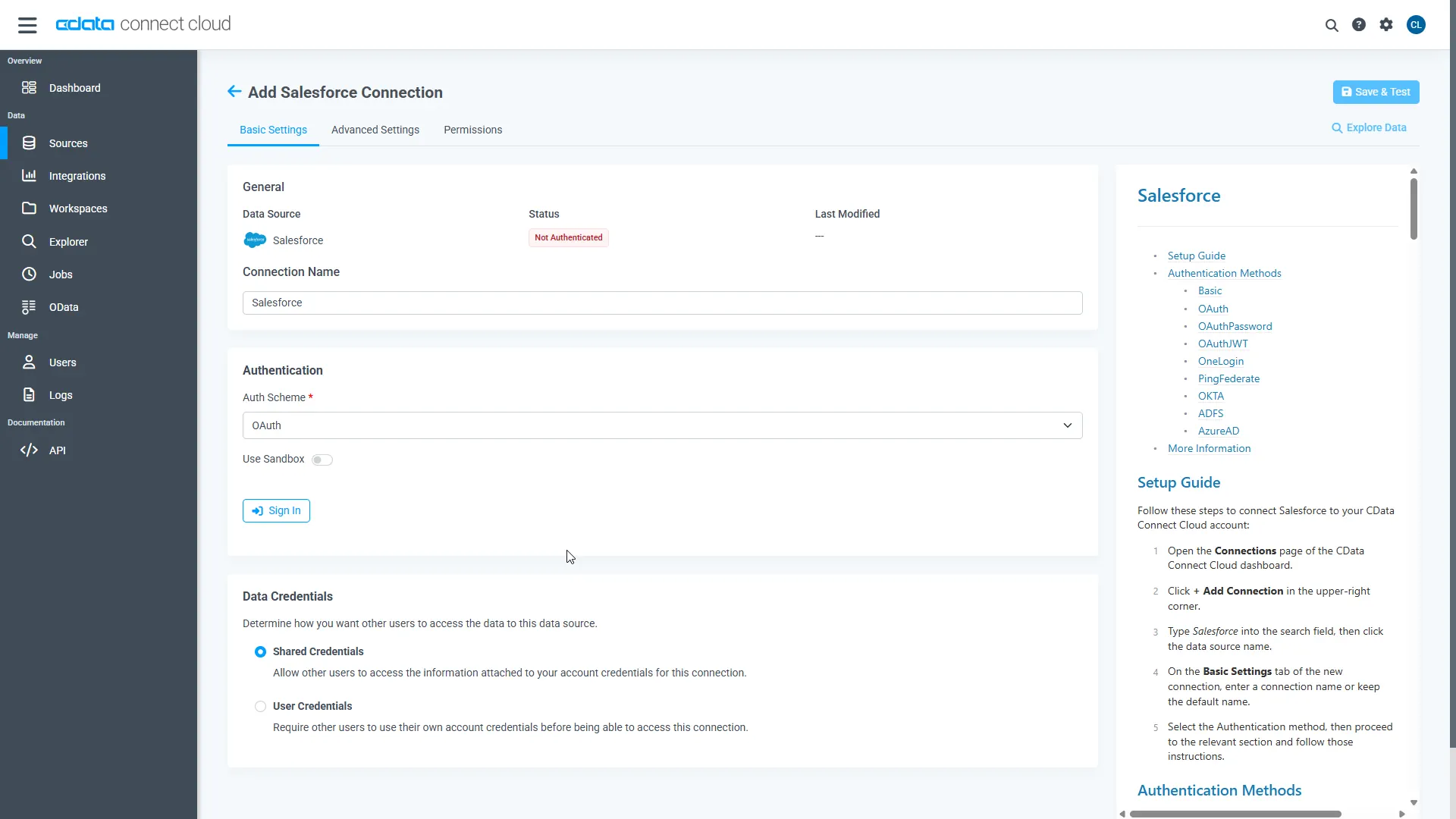
YouTube Analytics uses OAuth to authenticate. Click "Sign in" to authenticate with YouTube Analytics.
-
Navigate to the Permissions tab in the Add YouTube Analytics Connection page
and update the user-based permissions.



Add a Personal Access Token
A Personal Access Token (PAT) is used to authenticate the connection to Connect AI from Mistral AI. It is a best practice to create a separate PAT for each service to maintain fine-grained access control.
- Click on the gear icon () at the top right of the Connect AI app to open the Settings page.
- On the Settings page, go to the Access Tokens section and click Create PAT.
-
Give the PAT a descriptive name and click Create.

- Note: The PAT is only visible at creation, so be sure to copy and store it securely for future use.
With the connection configured and a PAT generated, you are ready to connect to YouTube Analytics data from Mistral AI workflows.
Step 2: Configure the MCP Connector in Mistral Le Chat
With your YouTube Analytics connection and PAT created in CData Connect AI, the next step is to configure a custom MCP connector inside Mistral Le Chat.
-
Log into Le Chat.

-
From the left-hand menu, click on Intelligence, then select Connectors. Click Add Connector.
-
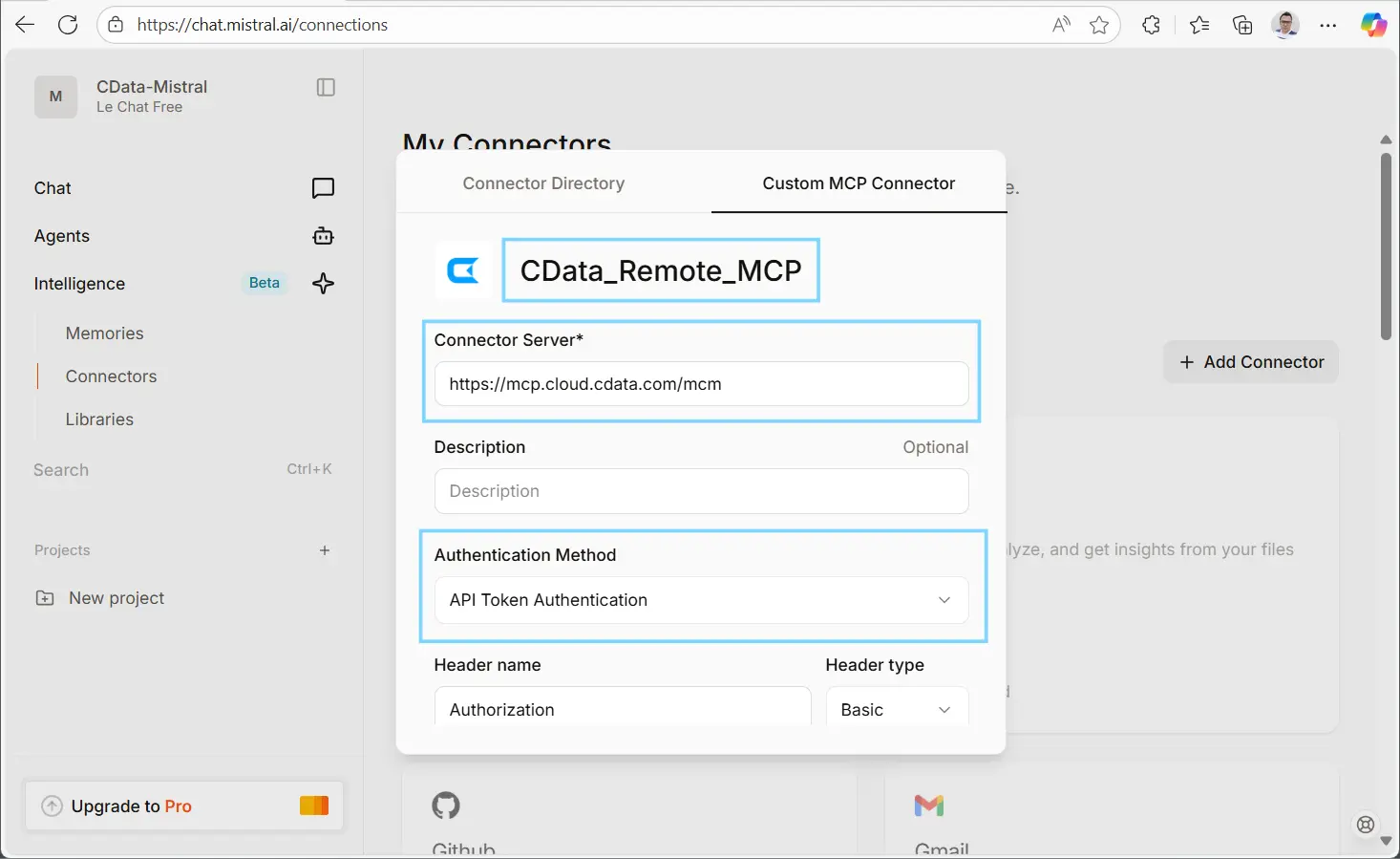
In the dialog, select Custom MCP Connector and enter the following details:
- Connector Name: For example, CData_Remote_MCP.
- Connector Server: https://mcp.cloud.cdata.com/mcp (found in the "Connect Data to AI" ribbon in Connect AI).
- Authentication Method: API Token Authentication.
- Header Name: Authorization.
- Header Value: Basic [email protected]:YourPAT (replace "[email protected]" with your CData Connect AI email and "YourPAT" with the PAT created earlier in above format).
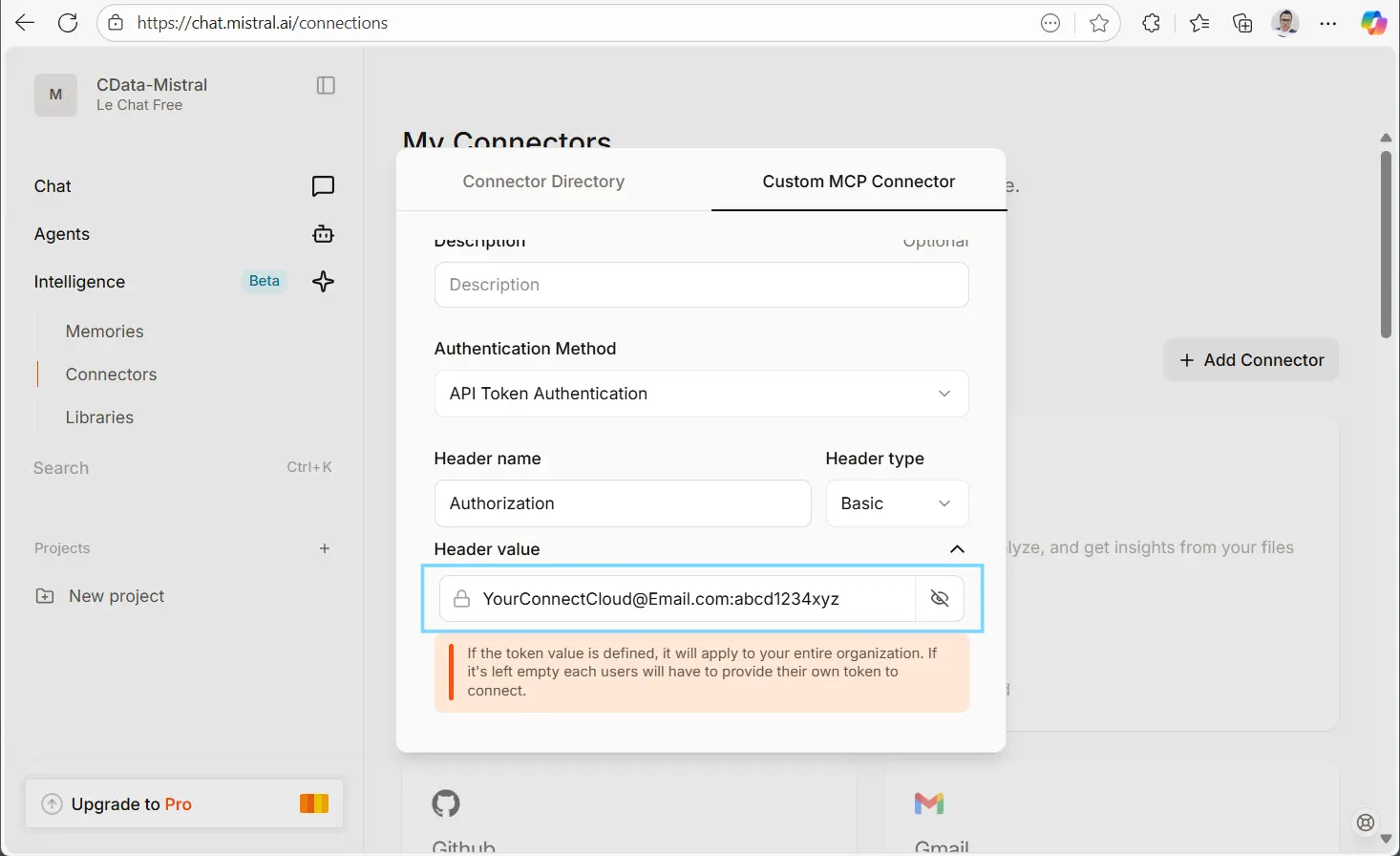
- Click Connect to establish the connection.
-
Scroll down to the bottom of the Connections section to confirm that your
MCP connection is successfully established.
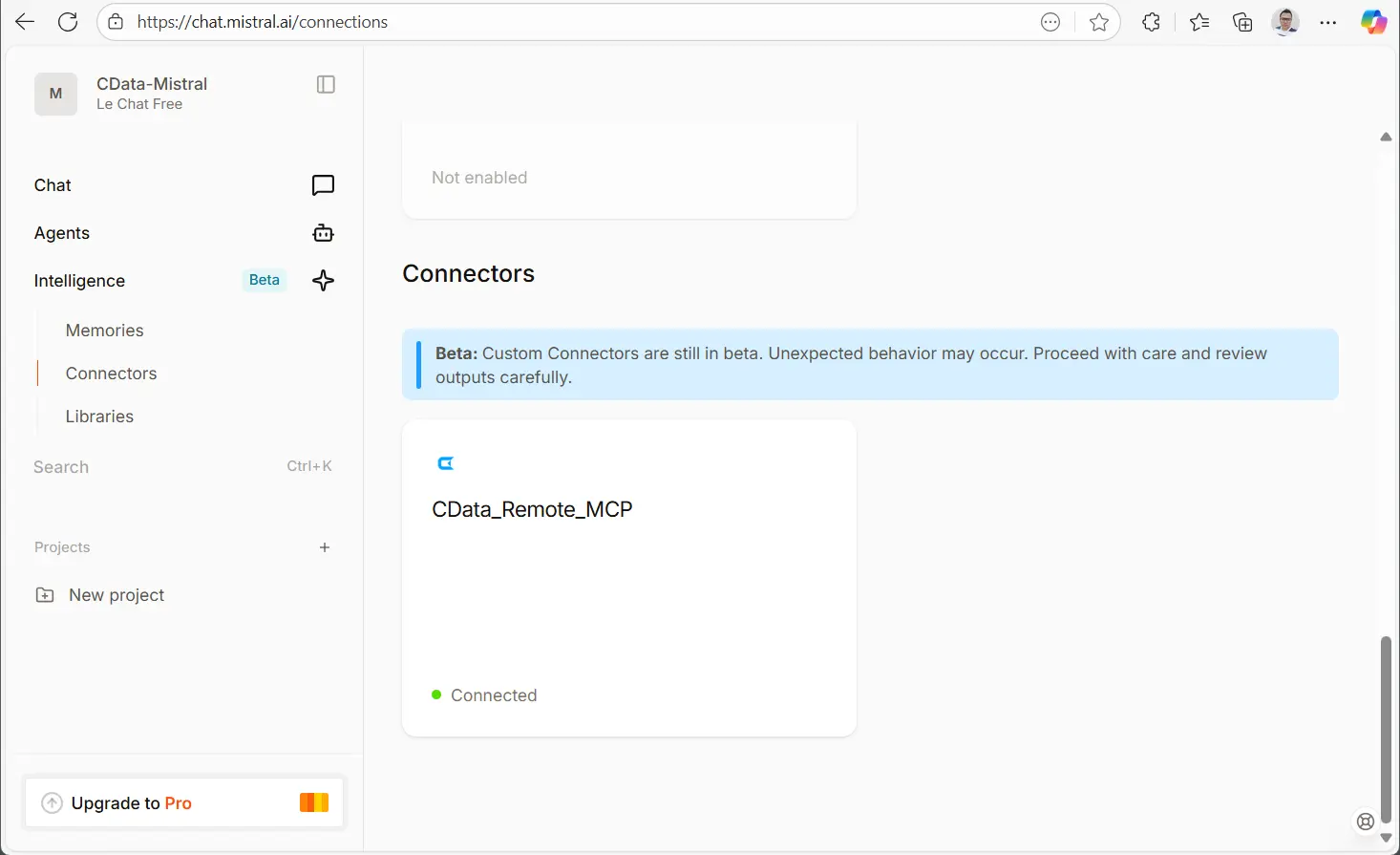
This step ensures that Mistral Le Chat can securely route queries through the CData Remote MCP Server to your live YouTube Analytics data.
Step 3: Query Live YouTube Analytics Data from Mistral AI
Now that your MCP connector is configured in Le Chat, you can begin querying live YouTube Analytics data directly in your conversations.
- In Le Chat, click on Chats in the left menu to start a new chat.
-
Enable your MCP connector by clicking the Enable Tools button.

-
Run a discovery query such as Get Catalogs or Get Tables to see
the available data sources and schemas connected through CData Connect AI.

-
Test the connection by running a simple query. For example:
"Compare the win rate of Opportunities across different industries."


And that's it! You can now interact with live YouTube Analytics data conversationally inside Mistral Le Chat.
Build Complex AI Agents with CData Connect AI
With the integration complete, you can go beyond simple queries and build complex, multi-step AI agents. These agents can combine reasoning from Mistral AI with secure, real-time access to your enterprise data through CData Connect AI, enabling workflows such as sales forecasting, support triage, customer trend analysis, and more.
Try CData Connect AI for free today and use the full power of Mistral AI agents with secure, live access to your enterprise data.
