






Getting Entity Framework to talk to BigQuery mostly means doing a few things in the right order, and some of them belong to somebody else. This is the list to work through with the CData ADO.NET Provider for Google BigQuery installed, from the conversation with your Google Cloud admin to a query that returns rows.
Ask the Google Cloud side for four things
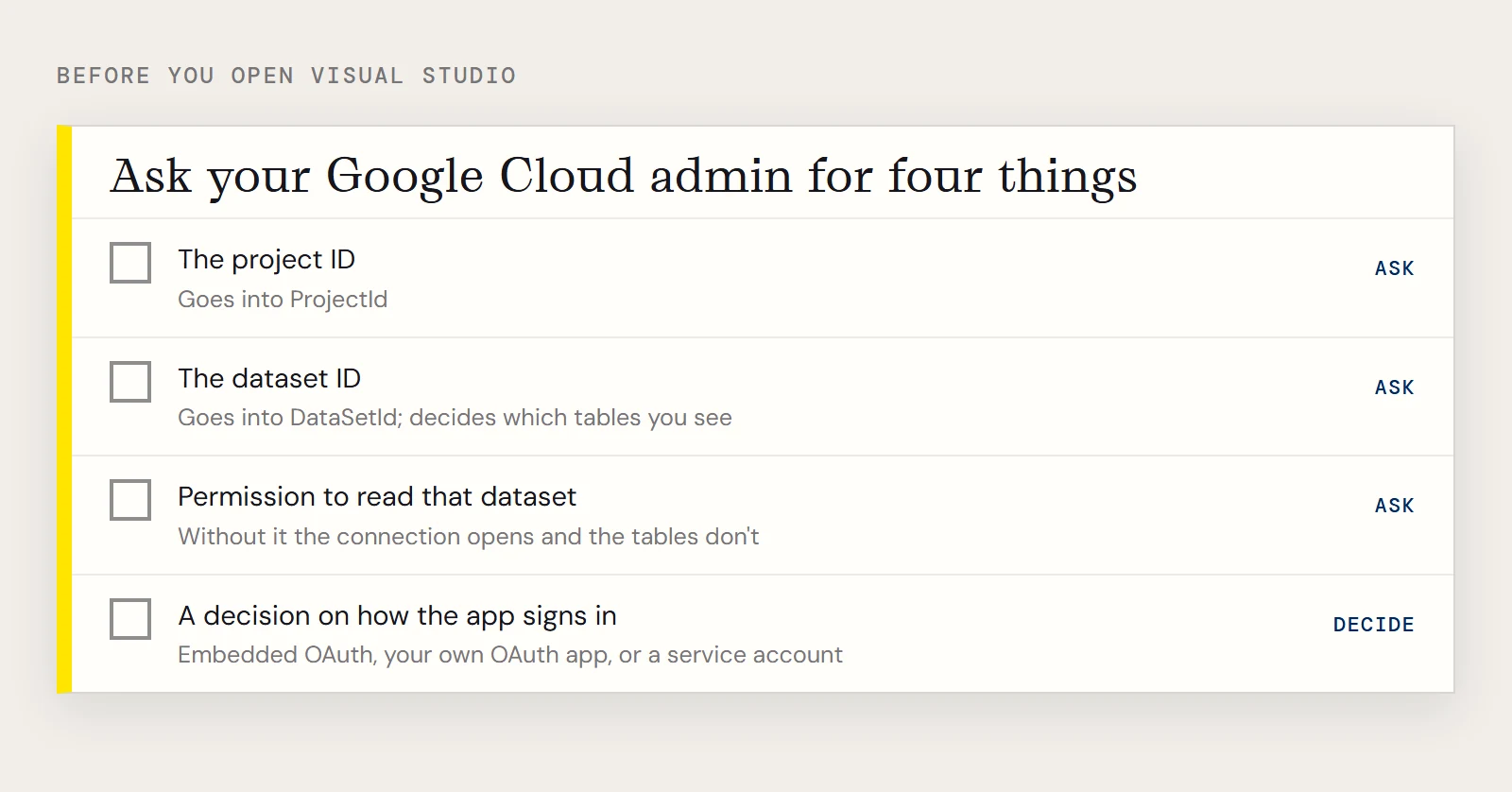
Hand this to whoever manages your GCP organization before you open Visual Studio.
| Ask for | Why you need it |
|---|---|
| The project ID | Goes into the ProjectId property |
| The dataset ID | Goes into DataSetId; it decides which tables you see |
| Permission to read that dataset | Without it the connection opens and the tables don't |
| A decision on how the app signs in | Decides which OAuth route you use below |
If the app runs for a person at a desk, the embedded OAuth credentials may be enough. If your organization wants its own registered OAuth app, or the app needs to run without anybody present, a service account is the route, and it needs the OAuth JWT values from that account's registration.
Choose the sign-in route
Google uses the OAuth standard, and the provider supports a few ways to satisfy it. You can use the embedded credentials to act for an individual user, register your own OAuth app, or use a service account to connect on behalf of users in a Google Apps domain. The provider's help has a Getting Started chapter on OAuth that covers each in detail. For the usual desktop case, setting InitiateOAuth to GETANDREFRESH lets the provider run the OAuth exchange and refresh the token for you, so you aren't pasting access tokens into configuration.
Wire up the project
- Create the Visual Studio project; the walkthrough uses a Windows Forms app on .NET 4.5.
- Run Install-Package EntityFramework in the Package Manager Console.
- Add a reference to System.Data.CData.GoogleBigQuery.Entities.EF6.dll from the lib folder, 4.0 subfolder, of the installation directory.
- Build once to confirm the reference resolves.
- Add the connection string and provider registration to App.config.
Step 5 looks like this:
<connectionStrings>
  <add name="GoogleBigQueryContext"
       connectionString="Offline=False;DataSetId=MyDataSetId;ProjectId=MyProjectId;InitiateOAuth=GETANDREFRESH;"
       providerName="System.Data.CData.GoogleBigQuery" />
</connectionStrings>
<entityFramework>
  <providers>
    <provider invariantName="System.Data.CData.GoogleBigQuery"
              type="System.Data.CData.GoogleBigQuery.GoogleBigQueryProviderServices, System.Data.CData.GoogleBigQuery.Entities.EF6" />
  </providers>
</entityFramework>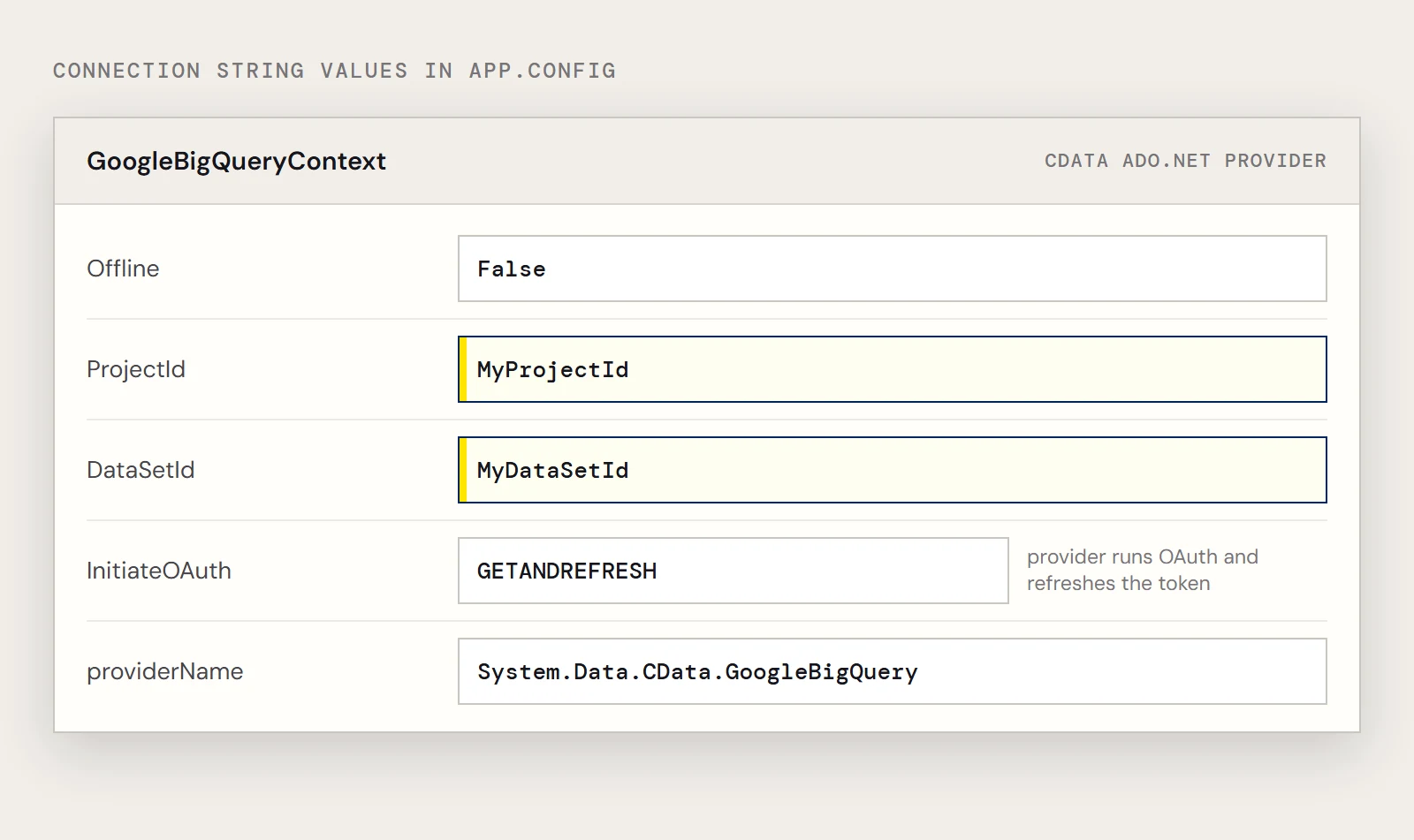
Write the context and one entity
The context class carries the same two settings every CData code-first project uses, and the DbSet for your entity:
using System.Data.Entity;
using System.Data.Entity.Infrastructure;
using System.Data.Entity.ModelConfiguration.Conventions;
class GoogleBigQueryContext : DbContext {
  public GoogleBigQueryContext() { }
  protected override void OnModelCreating(DbModelBuilder modelBuilder)
  {
    Database.SetInitializer<GoogleBigQueryContext>(null);
    modelBuilder.Conventions.Remove<PluralizingTableNameConvention>();
  }
  public DbSet<Orders> Orders { set; get; }
}
The entity maps to a BigQuery table named Orders with OrderName and Freight:
[System.ComponentModel.DataAnnotations.Schema.Table("Orders")]
public class Orders {
  [System.ComponentModel.DataAnnotations.Key]
  public System.String OrderName { get; set; }
  public System.String Freight { get; set; }
}
Run it and check the result
GoogleBigQueryContext context = new GoogleBigQueryContext();
context.Configuration.UseDatabaseNullSemantics = true;
var query = from line in context.Orders select line;
The first run is where sign-in happens, so expect an OAuth prompt before any rows. Then confirm three things: the query returns rows, the rows come from the dataset you named, and a second run doesn't ask you to sign in again.
When the checklist stalls
If rows don't come back, go back to the first table: project ID, dataset ID and read permission account for most of it. If your team also needs the BigQuery data copied into another system for reporting instead of read live from this app, CData Sync handles that side, and the Entity Framework code can stay focused on the application.
To try this against your own dataset, download a free trial of the ADO.NET Provider for Google BigQuery.
Ready to get started?
Download a free trial of the Google BigQuery Data Provider to get started:
Download NowLearn more:
 Google BigQuery ADO.NET Provider
Rapidly create and deploy powerful .NET applications that integrate with BigQuery data including Dataset, Table, and more!