







You have a flow to build and a BigQuery dataset it needs to read. Power Automate doesn't make the route obvious, and there's more than one reasonable way to do it. Which one fits depends on whether your team is comfortable writing HTTP requests, whether a BigQuery connector is available in your tenant, and how much you want SQL to do the work.
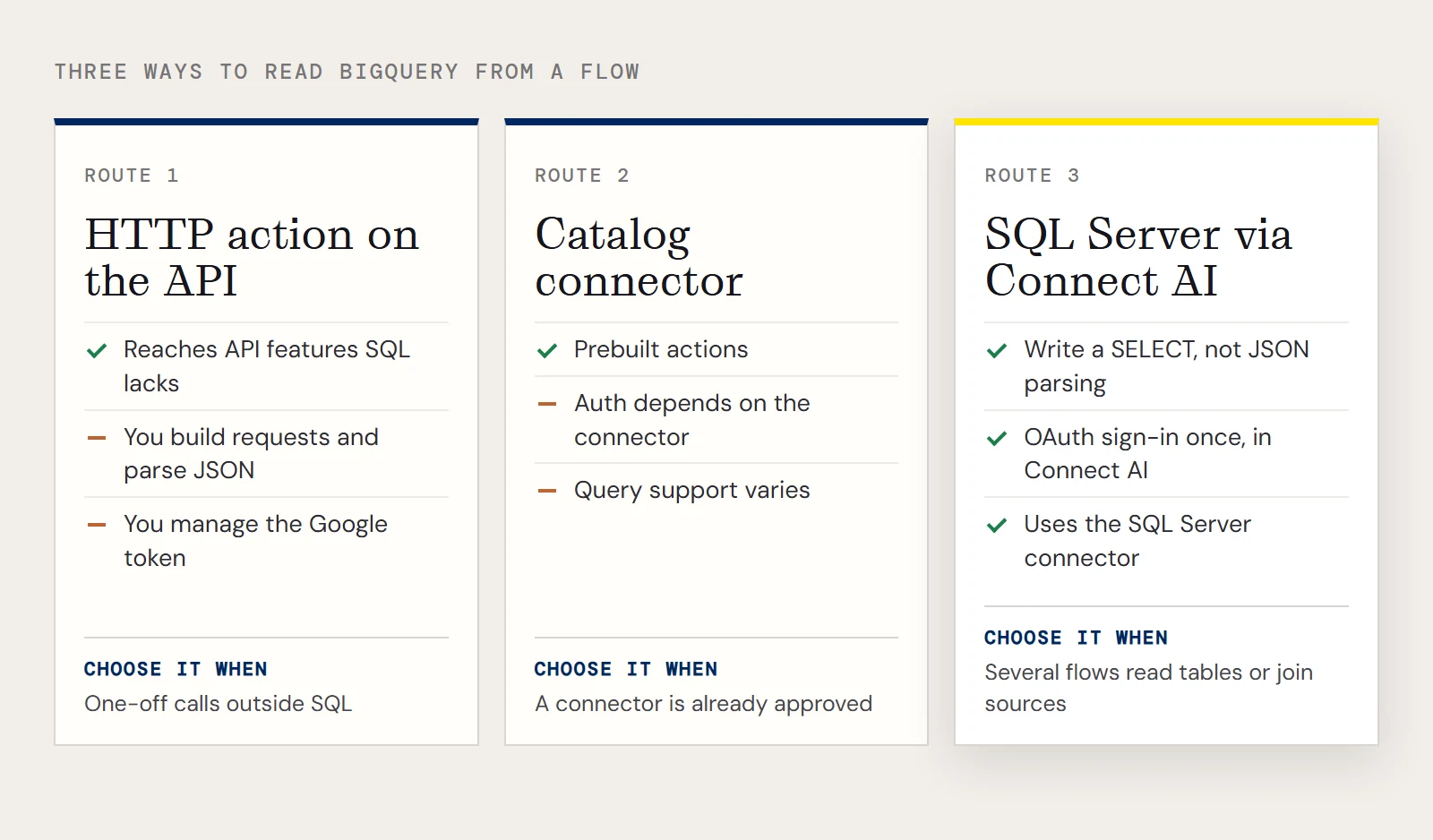
Three ways to read BigQuery from a flow
| HTTP action against the BigQuery API | A BigQuery connector from the catalog | SQL Server connection through CData Connect AI | |
|---|---|---|---|
| How it works | You build the request and parse the JSON response yourself | A prebuilt connector with its own actions | Connect AI presents BigQuery as a SQL Server database |
| Auth to Google | You manage OAuth or a service account token in the request | Whatever the connector's sign-in uses | OAuth sign-in once, in Connect AI |
| Query language | BigQuery SQL in the request body | Depends on the connector | SQL through the normal SQL Server actions |
| Needs a premium or custom component | Usually | Depends on the connector | Uses the SQL Server connector |
| Good fit | One-off calls, API features outside SQL | You already have the connector approved | Several flows reading tables, or joins across sources |
Check the middle column in your own Power Automate environment: whether a connector exists, who published it and what its actions cover are not things to assume. The HTTP route is a fair choice when you need an API feature that SQL doesn't express. The route below is for when you'd prefer to write a SELECT than parse JSON.
How the SQL route works
CData Connect AI holds the BigQuery connection. Power Automate connects to tds.cdata.com,14333 as if it were SQL Server, and Connect AI sends supported SQL operations, including filters and joins, to BigQuery to process there. The data isn't copied into Connect AI or Power Automate ahead of time; each run reads from BigQuery. If what you want is a copy of BigQuery data in another database, that's replication, and CData Sync is the product for it.
Authenticate and scope the BigQuery connection
In Connect AI, go to Sources > Add Connection and choose BigQuery. Google uses OAuth, so the form has you click Sign in and authenticate with Google. CData's driver can use its embedded OAuth credentials or an OAuth app you register yourself, and for a service account it uses OAuth JWT values.
Either way, the driver also needs a ProjectId and a DatasetId. In its connection-string form, a connection looks like this:
DataSetId=MyDataSetId;ProjectId=MyProjectId;InitiateOAuth=GETANDREFRESH;The Connect AI form has the same two fields, and setting a dataset narrows what the flow's table drop-down offers. Finish on the Permissions tab and set the user-based permissions.
Create the Power Automate connection
First create a personal access token in Connect AI: the gear icon, then Personal Access Tokens, then Create PAT. The token shows once, and CData advises a separate one per service.
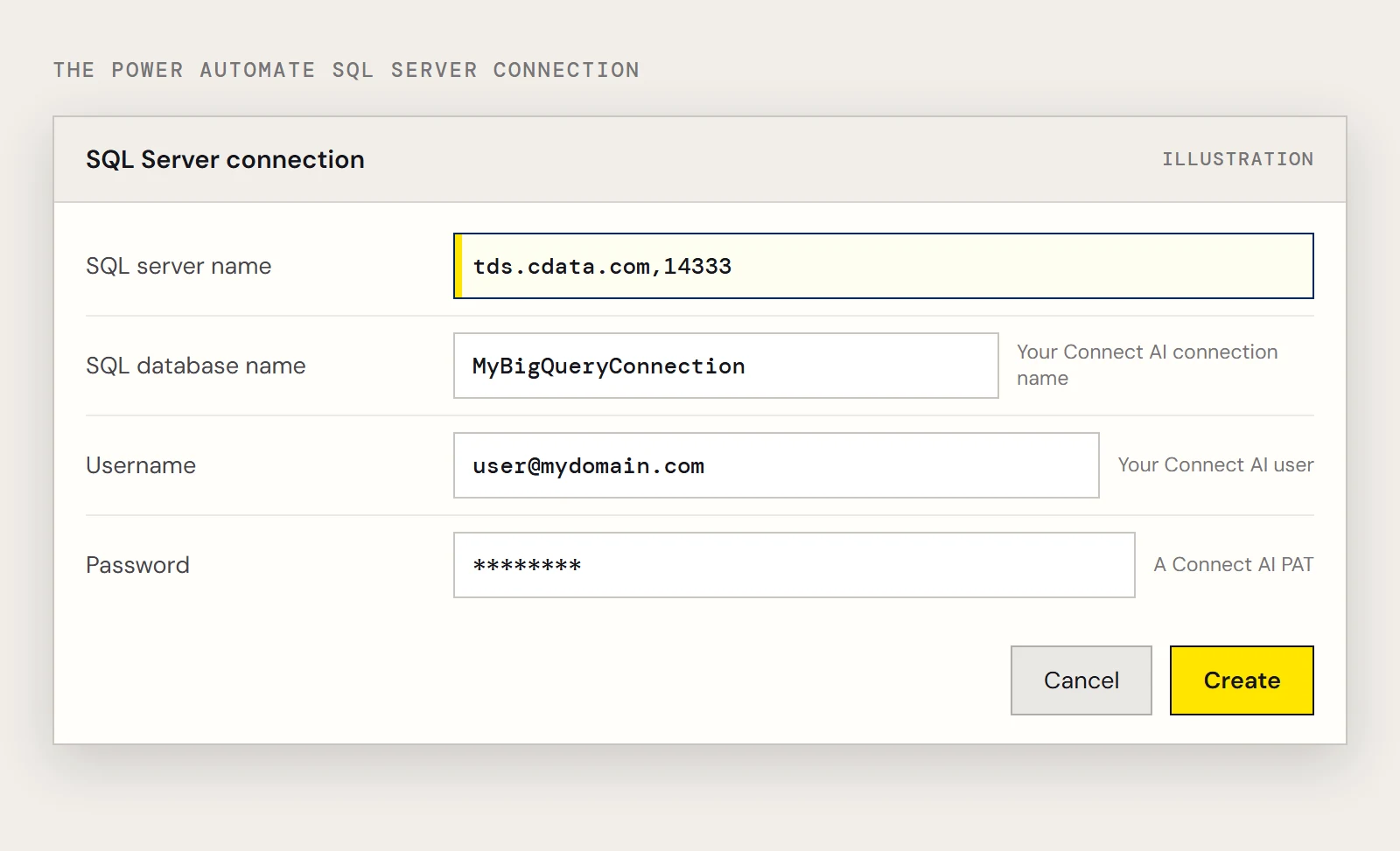
In Power Automate, go to Data > Connections > New connection, choose SQL Server, and connect directly. Enter tds.cdata.com,14333 as the SQL server name and the BigQuery connection's name in Connect AI as the SQL database name. The Username is your Connect AI user and the Password is the PAT.
Read a table in a flow
Start a flow from My flows > New flow, add the SQL Server action Get rows, pick the connection, and choose a table. The sample table in CData's BigQuery material is Orders, and a filtered read of it is equivalent to this:
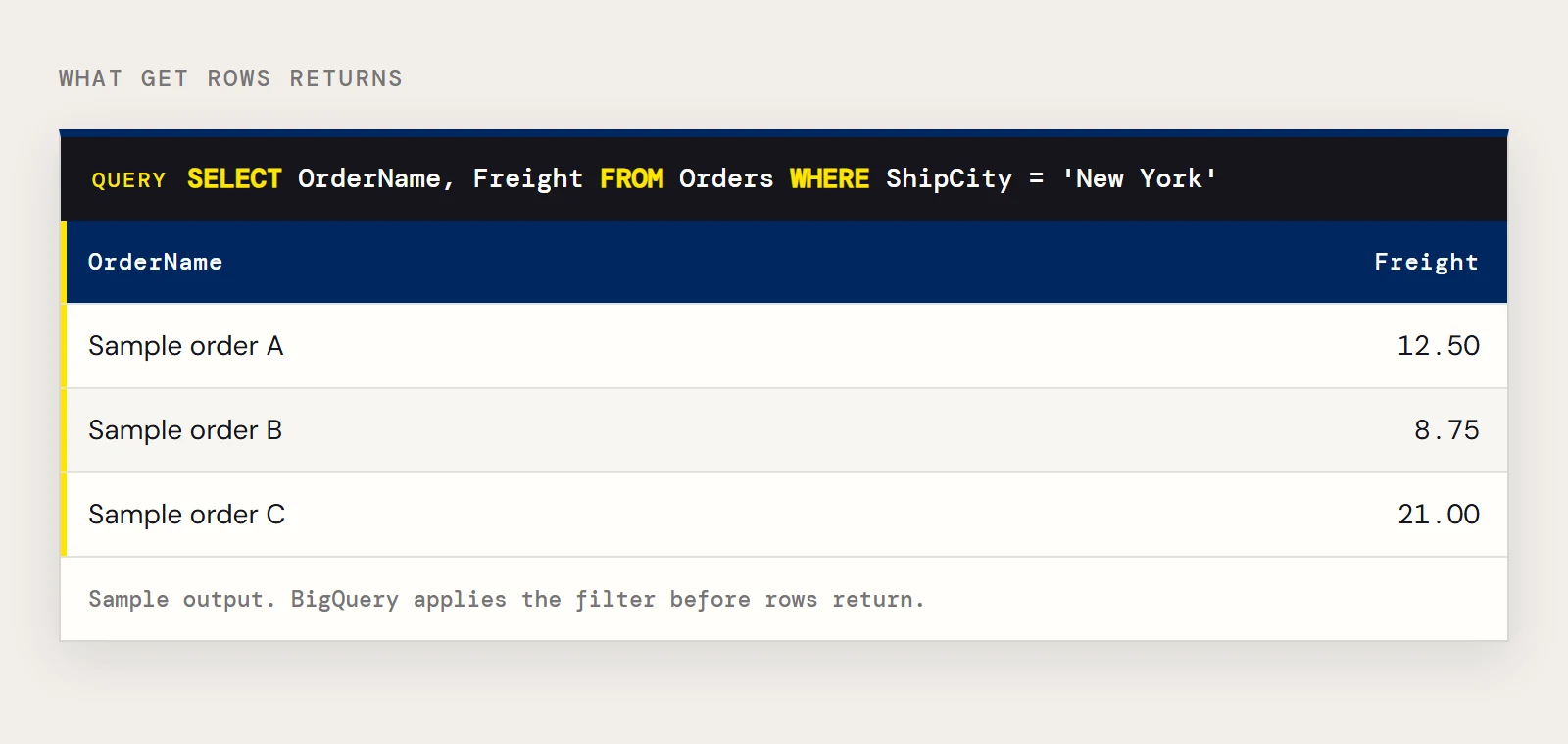
SELECT OrderName, Freight
FROM Orders
WHERE ShipCity = 'New York'
Use the action's advanced options for the filter and ordering, so BigQuery does the narrowing.
If the flow can't reach BigQuery
- If Sign in succeeds but no tables appear, check the ProjectId and DatasetId on the connection.
- If Power Automate refuses the credentials, make sure the password is the Connect AI PAT, not a Google credential.
- If a colleague can't see the connection's tables, review the connection's Permissions tab.