







A report that someone has to remember to run isn't automated; it's a chore with a calendar entry. If the question is "how much time did we log in Jira yesterday, and who logged it", you want the answer to show up in someone's inbox or a Teams channel without a person in the loop. Power Automate can do the scheduling. It can't query Jira like a database on its own, so the setup here has two layers. CData Connect AI exposes your Jira site as a SQL Server database, and a scheduled cloud flow reads it with the standard SQL Server actions. The rest of this guide covers making that unattended run dependable.
The data the flow will read
Jira's objects appear as SQL tables. This flow needs two, Issues and Projects, and the columns that matter are Issues.Summary, Issues.TimeSpent, Issues.ReporterDisplayName, Issues.ProjectId, Projects.Id and Projects.LeadName.
A single issue query is enough for a first version:
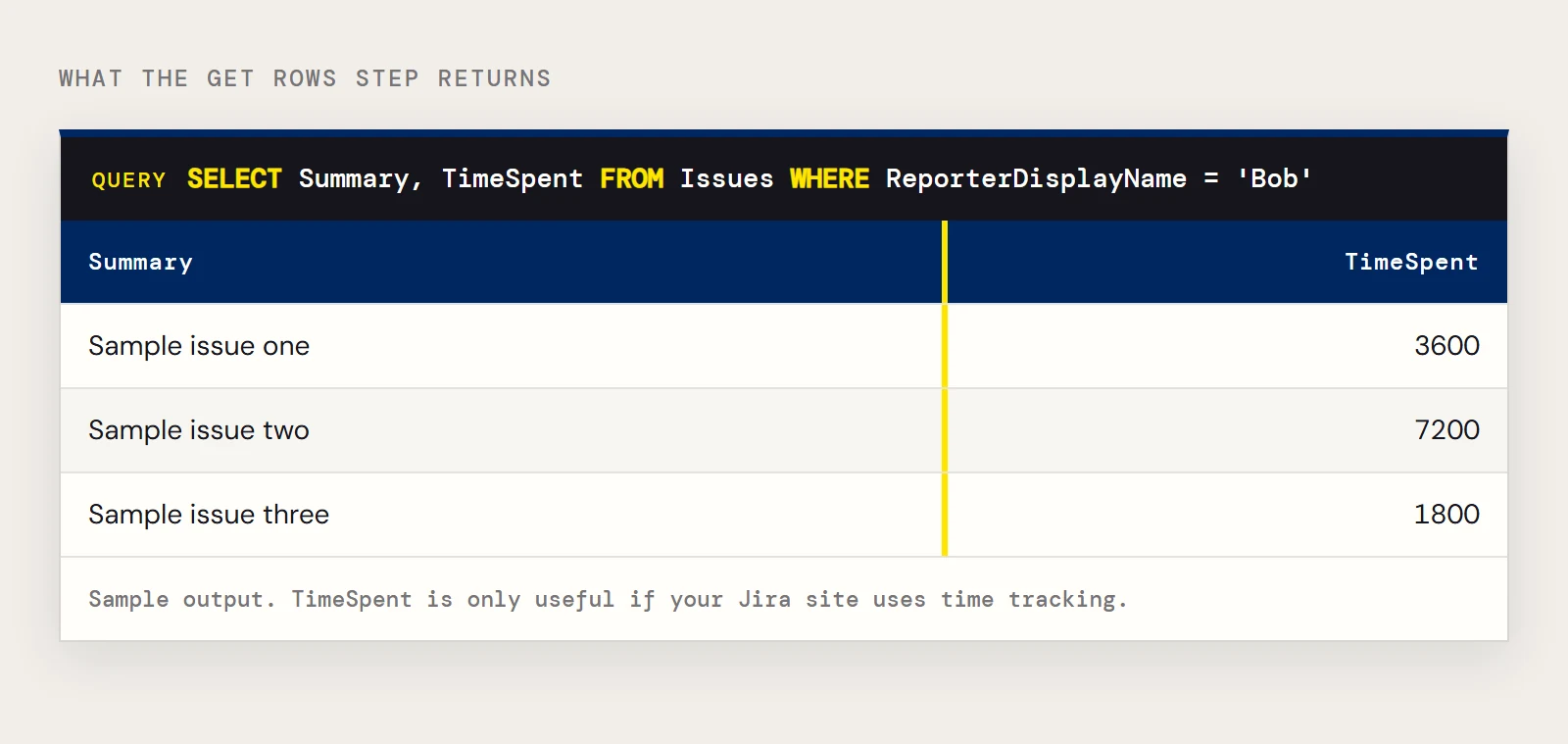
SELECT Summary, TimeSpent
FROM Issues
WHERE ReporterDisplayName = 'Bob'
If you also want the project lead on each row, the join CData documents for Jira looks like this:
SELECT Projects.LeadName, Issues.Summary, Issues.TimeSpent
FROM Projects, Issues
WHERE Projects.Id = Issues.ProjectId
Whether TimeSpent holds anything useful depends on your Jira site having time tracking in use, so check a few issues before you build on it.
Give the schedule its own identity
Unattended flows fail most often because of credentials, so set those up deliberately before you touch the flow. In Connect AI, choose Sources > Add Connection > Jira. The driver needs the User and the site Url, for example https://yoursitename.atlassian.net, plus either a Password or an APIToken. CData's Jira driver lists both forms, and an API token tied to a dedicated reporting account is easier to rotate than a person's password. Click Save & Test, then use the Permissions tab to set which Connect AI users may read the connection.
Next create a Connect AI personal access token from the gear icon, under Personal Access Tokens > Create PAT. Connect AI recommends one PAT per service, and a scheduled flow is a good reason to follow that advice, because then nothing else breaks when the token needs to change. The token is displayed only once, so store it as soon as you create it.
Connect Power Automate
Go to Data > Connections > New connection and select SQL Server. Connect directly. Enter tds.cdata.com,14333 as the SQL server name and the Jira connection name in Connect AI, such as Jira1, as the SQL database name. Use a Connect AI user as the Username and that user's PAT as the Password.
Build the scheduled flow
Create a new flow from My flows > New flow. Power Automate's scheduled cloud flow starts with a recurrence trigger, where you pick the interval and the time of day; set it to run early enough that the report lands before people start work.
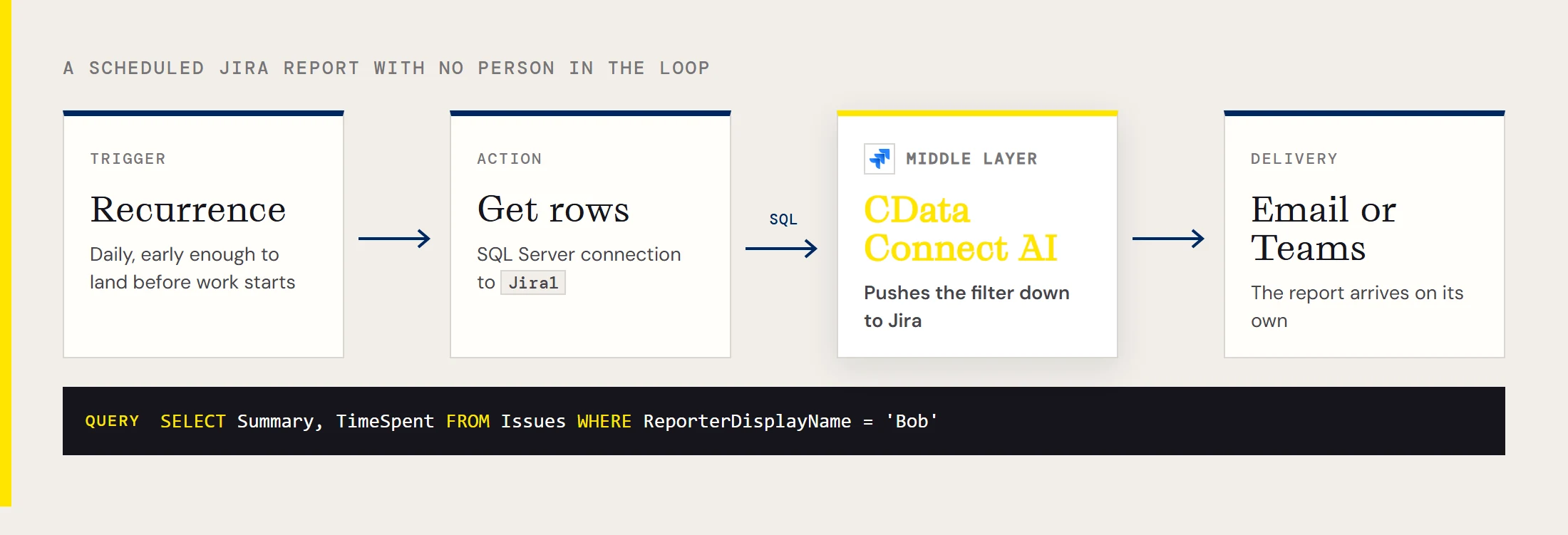
Add a SQL Server Get rows action, choose the Jira connection, and select Issues. Use the advanced options to limit the columns and add the reporter filter. Then add whatever delivers the result, such as an email or a Teams post. Test it once manually and save. Connect AI pushes supported filters and joins down to Jira, so asking for two columns and one reporter keeps the response small and the run short.
Decide what a failure looks like
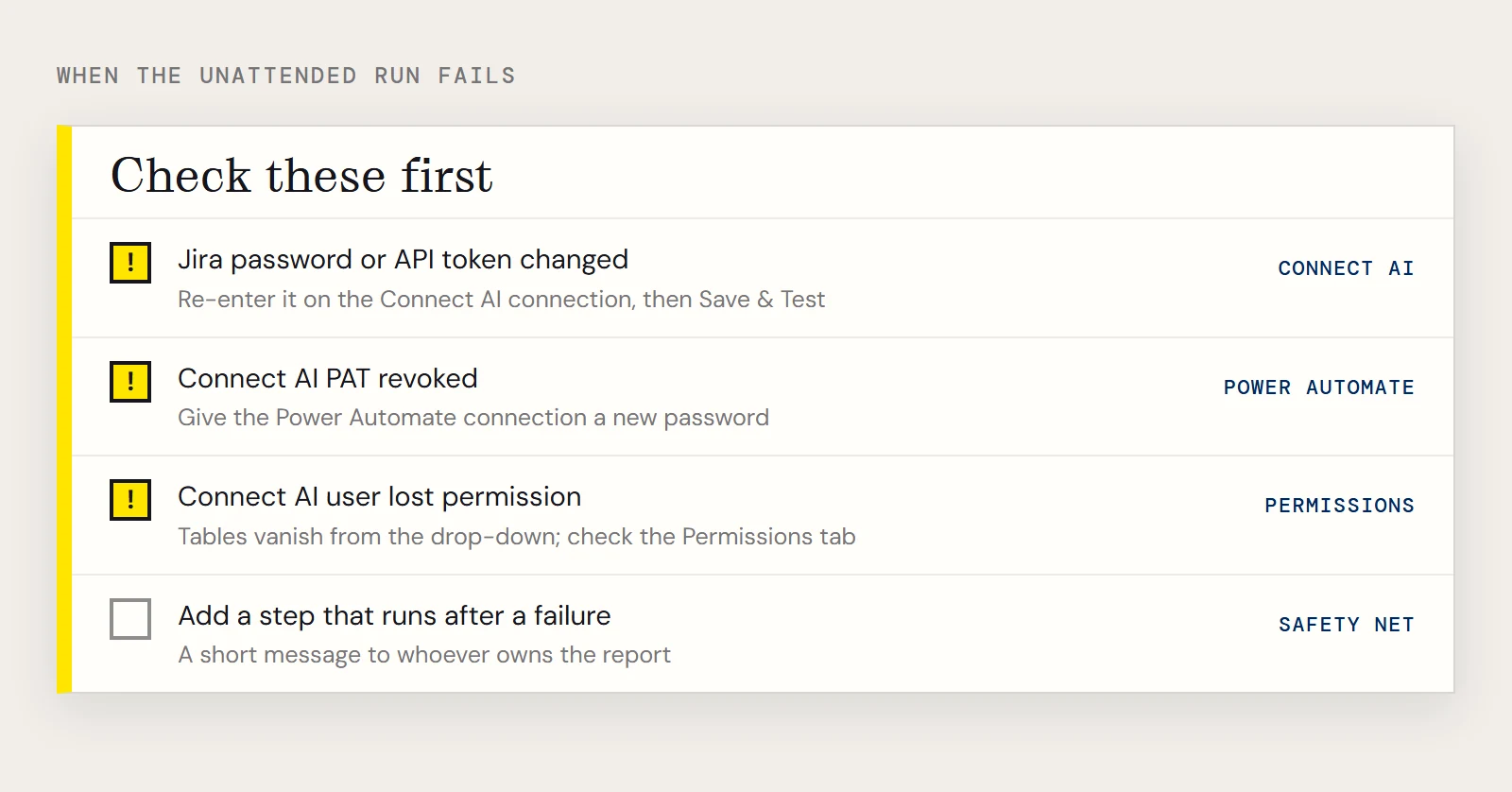
Open the flow's run history after the first scheduled run and keep checking it for a week. A flow that has failed silently for a month is worse than no flow. A few failures are predictable. If the Jira password or API token changes, the connection in Connect AI stops authenticating and the run fails at the SQL Server step, so re-enter it on the Connect AI connection and use Save & Test. If someone revokes the Connect AI PAT, the Power Automate connection needs a new password. If the Connect AI user loses permission on the Jira connection, the tables can disappear from the drop-down. It also helps to add a final step that notifies someone when the flow fails. Power Automate lets you configure a step to run after a failure, which is a good place for a short message to whoever owns the report.
If you want to try the setup, you can start with CData Connect AI.
Related reading
If you work in Power Automate Desktop instead of the cloud service, CData has a separate walkthrough: Jira data in Power Automate Desktop.