






Someone on the business side keeps a SharePoint list that matters, and every morning a downstream job wants it as a CSV. Airflow is a good place for that job because it has a scheduler, retries and a run history. It can't talk to SharePoint on its own, which is where the CData JDBC Driver for SharePoint comes in. Airflow's JDBC hook runs a SQL statement against the driver and hands the rows back as a pandas DataFrame.
The job takes two steps: register the driver as an Airflow connection, then write a DAG that queries a list and writes a file. Most of the time goes into the details around those steps, especially which connection URL is still valid for your SharePoint edition.
Pick the connection URL for your SharePoint edition
The driver builds a JDBC URL from properties you can generate by running java -jar cdata.jdbc.sharepoint.jar, which opens the connection string designer. The class name is always cdata.jdbc.sharepoint.SharePointDriver. What changes is how you authenticate.
| Edition | What the URL needs |
|---|---|
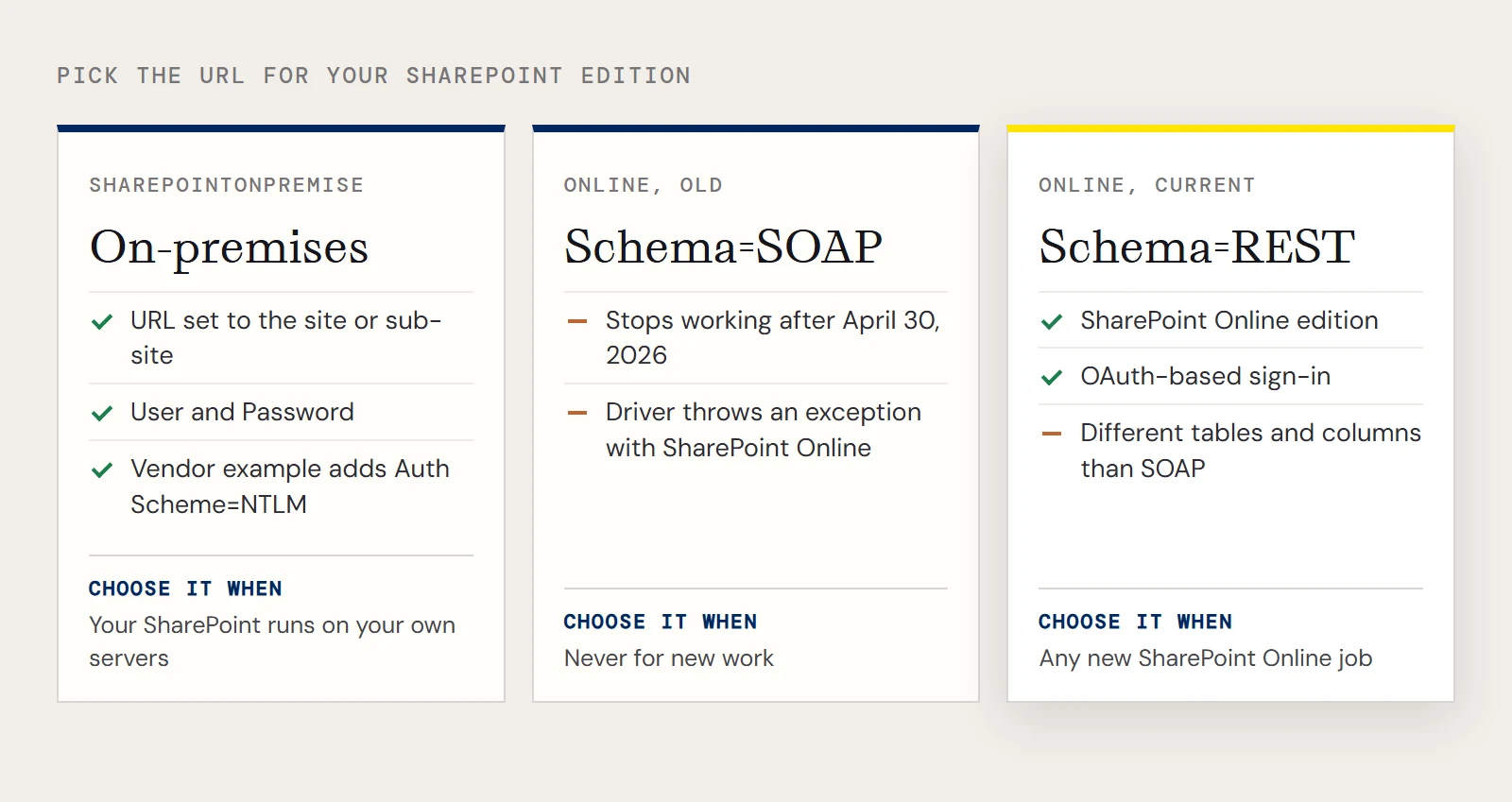
| SharePoint on-premises | URL set to the site or sub-site, User and Password, and SharePointEdition=SharePointOnPremise (the vendor example also sets Auth Scheme=NTLM) |
| SharePoint Online | SharePointEdition=SHAREPOINTONLINE, and for anything new, Schema=REST with an OAuth-based sign-in |
Look twice at the Online row if you're copying an older example. CData's notice on Microsoft retiring IDCRL sign-in says SOAP schema connections to SharePoint Online stop working after April 30, 2026, and the driver now throws an exception if you combine Schema=SOAP with SharePoint Online. REST schema users aren't affected. A username and password string that worked in a 2022 tutorial may fail today, and retrying won't help; the fix is to move to REST. The REST schema exposes different tables and columns than SOAP did, so check your query against it.
The on-premises URL looks like this:
jdbc:sharepoint:RTK=5246...;User=myuseraccount;Password=mypassword;Auth Scheme=NTLM;URL=http://sharepointserver/mysite;SharePointEdition=SharePointOnPremise;Running the driver on a worker instead of a laptop requires a license and a Runtime Key (RTK) in the URL. The trial includes one.
Register the connection in Airflow
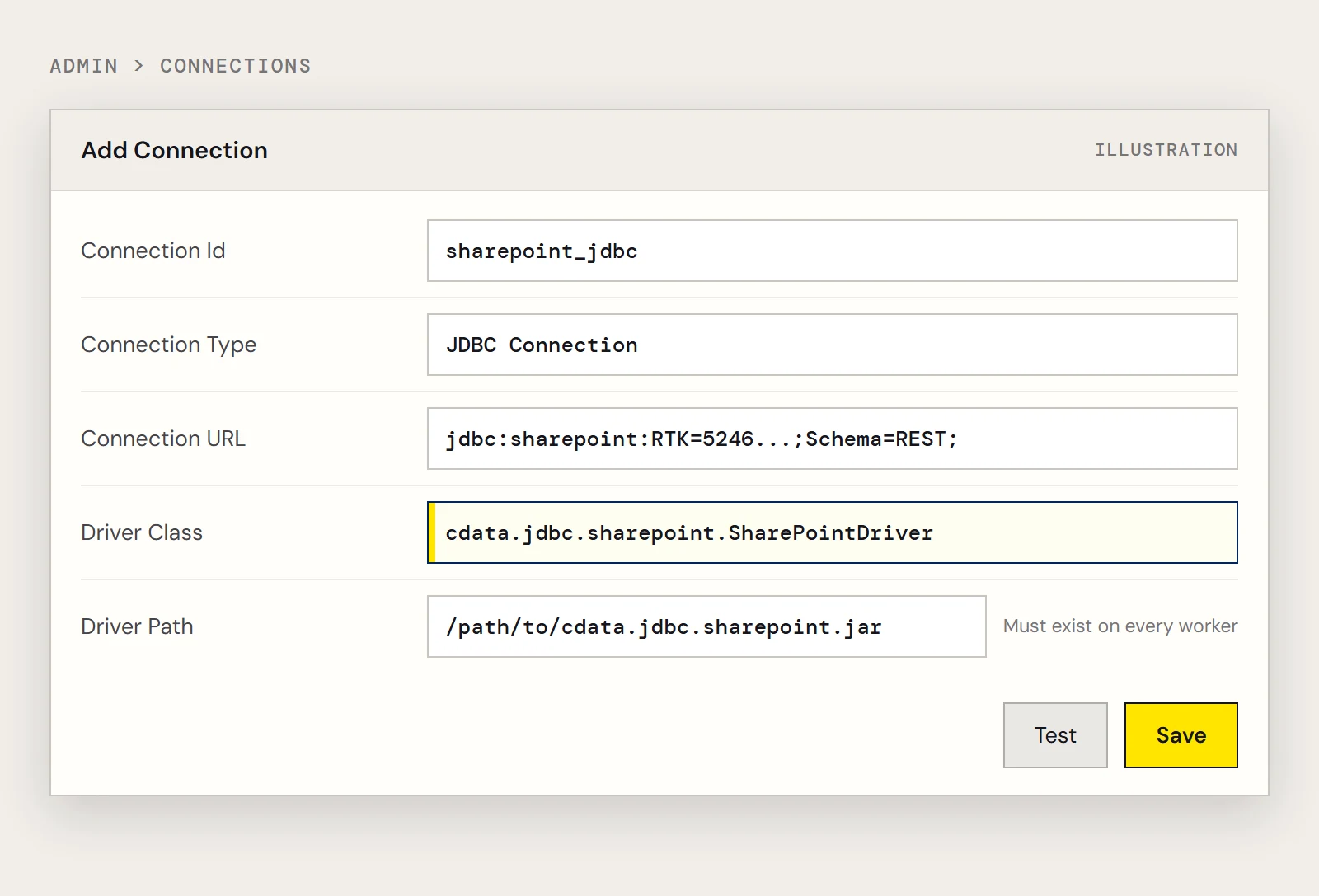
Under Admin > Connections, add a connection of type JDBC Connection and give it an id such as sharepoint_jdbc. The legacy instructions fill in a Connection URL, a Driver Class and a Driver Path (the full path to cdata.jdbc.sharepoint.jar), then use the Test button.
Newer releases of the Airflow JDBC provider lay the form out differently. Its documentation puts the URL in the Host field and moves driver_path and driver_class into the Extra JSON, where they only take effect if the allow_driver_path_in_extra and allow_driver_class_in_extra provider settings are on. Whichever form you see, the jar has to exist at that path on every machine that executes tasks, including the workers and not just the webserver.
The DAG
Create a dags folder under your airflow home directory and add a Python file. This version queries a custom list by name and writes a CSV named for the run date:
from datetime import datetime, timedelta
import pandas as pd
from airflow.decorators import dag, task
from airflow.providers.jdbc.hooks.jdbc import JdbcHook
@dag(
    dag_id="sharepoint_list_export",
    schedule="0 10 * * *",
    start_date=datetime(2026, 11, 1),
    catchup=False,
    default_args={"retries": 2, "retry_delay": timedelta(minutes=5)},
    tags=["sharepoint", "csv"],
)
def sharepoint_list_export():
    @task()
    def export_list(ds=None):
        hook = JdbcHook(jdbc_conn_id="sharepoint_jdbc")
        sql = "SELECT Name, Revenue FROM MyCustomList WHERE Location = 'Chapel Hill'"
        df = hook.get_pandas_df(sql)
        path = f"/data/exports/mycustomlist_{ds}.csv"
        df.to_csv(path, index=False)
        return path
    export_list()
sharepoint_list_export()MyCustomList, Name, Revenue and Location are the placeholder list and columns from CData's SharePoint example. Replace them with your own list and column names. Older examples set the schedule with schedule_interval; recent Airflow versions use schedule.
Three places a scheduled run goes wrong
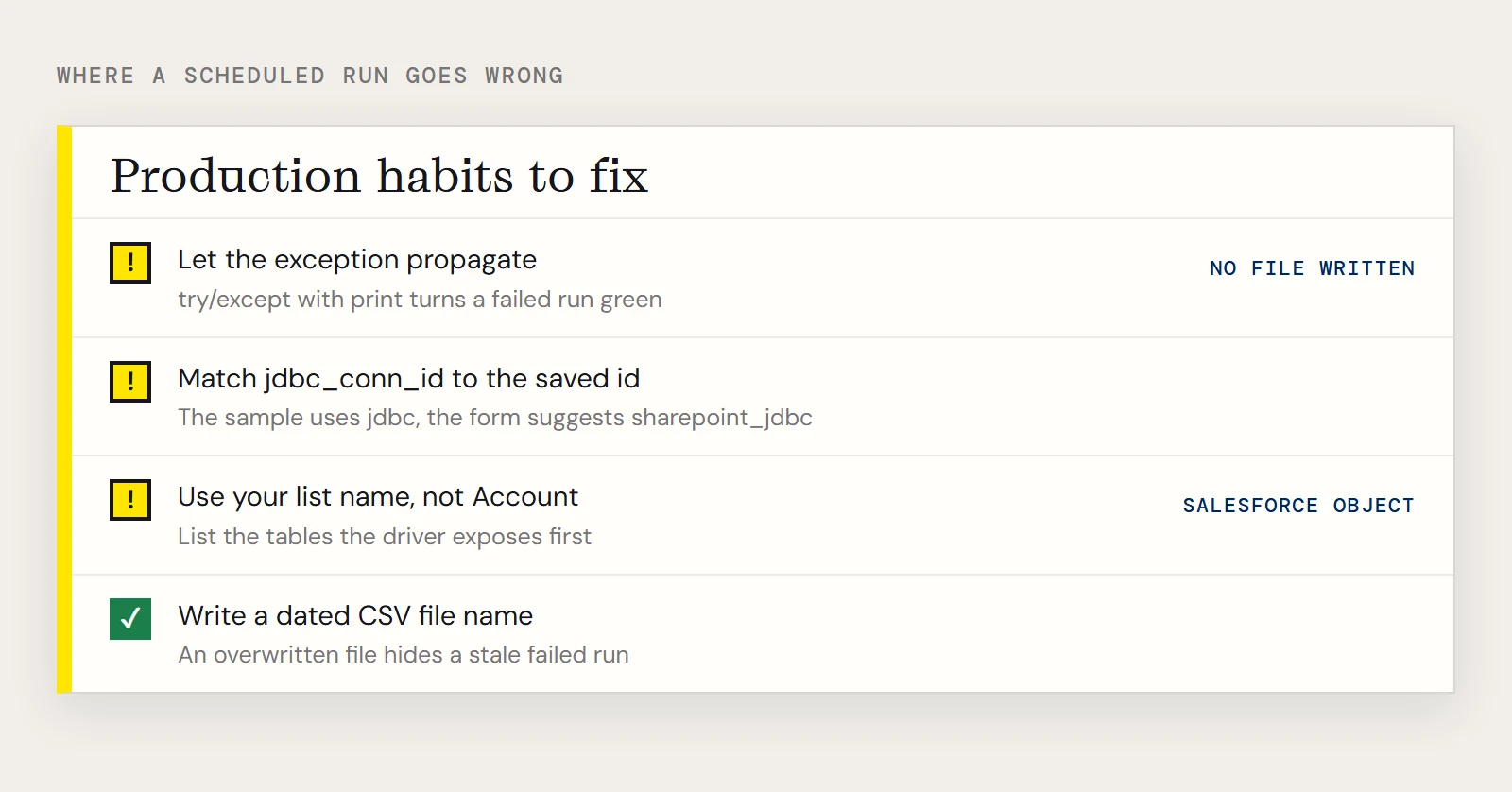
The vendor's sample DAG has a few habits that are fine for a demo and risky in production. First, it wraps the query in try/except and prints the error. Airflow then sees a task that finished, so the run turns green while no file is written. The version above lets the exception propagate, which is what makes retries and alerts work.
Second, the sample uses a connection id of jdbc while the form tells you to name it something like sharepoint_jdbc. The id in JdbcHook(jdbc_conn_id=...) has to match the one you saved exactly. Third, the sample queries a table called Account, which is a Salesforce object. A SharePoint list gets its own table name, so list the tables the driver exposes before you guess.
Write the CSV with a dated file name if downstream consumers need history. If you overwrite one file each day, a failed run leaves yesterday's data in place with no sign that it's stale.
Keep the credentials out of the file
The URL carries the password and RTK, so store the connection in Airflow's connection store or a secrets backend and refer to it by id, as the DAG does. Anything you paste into a DAG file ends up in version control.
To build this export yourself, download the CData JDBC Driver for SharePoint and start a free trial.
Ready to get started?
Download a free trial of the SharePoint Driver to get started:
Download NowLearn more:
 SharePoint JDBC Driver
Provides Java developers with the power to easily connect their Web, Desktop, and Mobile applications to data in SharePoint Server Lists, Contacts, Calendar, Links, Tasks, and more!