






If you landed here, you probably have a SharePoint list and want it in Excel. Several methods work, and the right one depends on how often the data changes and what you plan to do with it. Here's how they compare.
Three ways to get SharePoint data into Excel
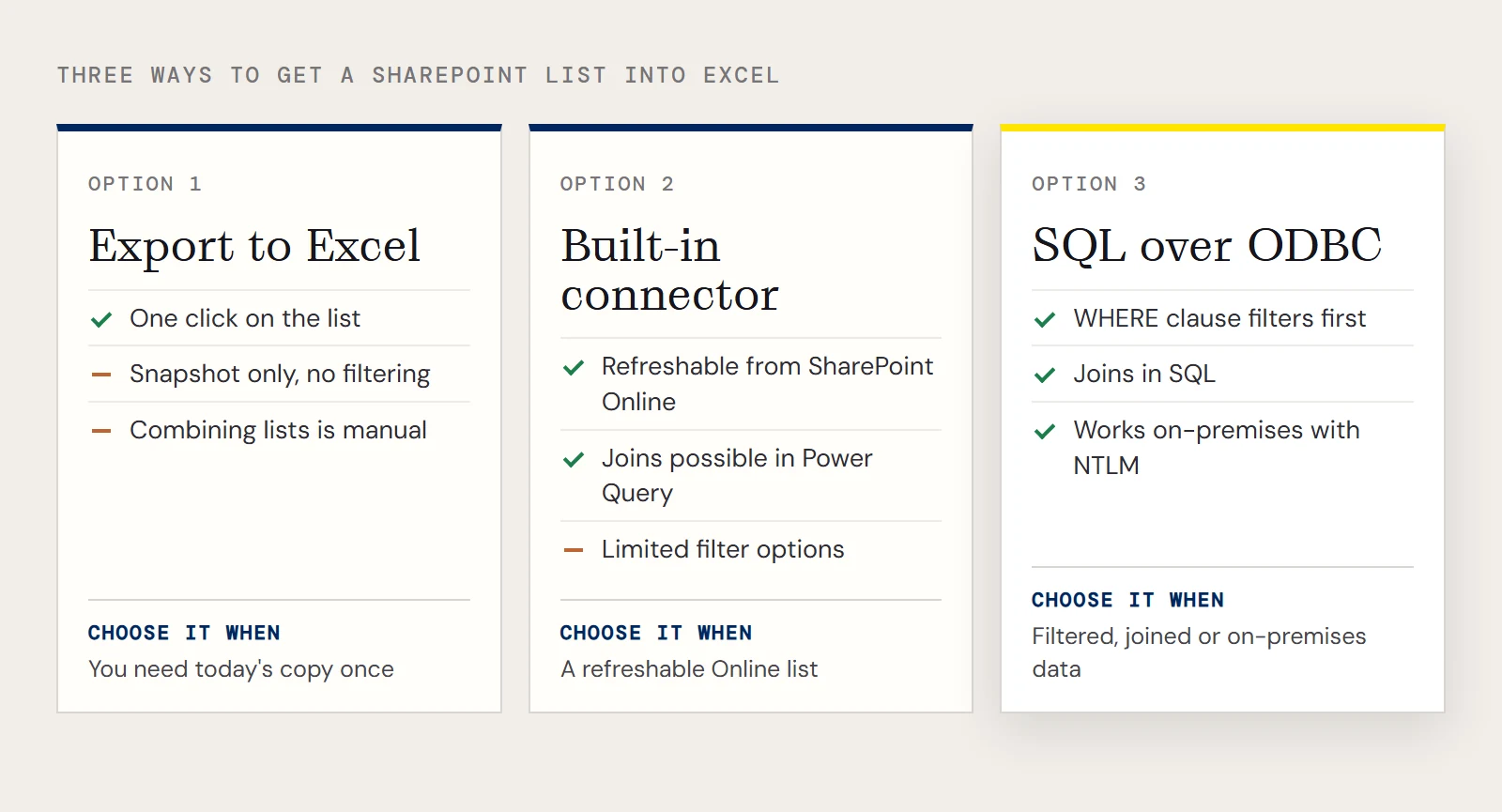
| Export to Excel | Excel's built-in SharePoint connector | SQL over ODBC | |
|---|---|---|---|
| How it works | Button on the list that downloads a workbook | Data > Get Data with the SharePoint list connector | A driver presents lists as tables you query with SQL |
| Best for | A one-off copy | Refreshable lists from SharePoint Online | Filtering, joining lists, or reporting from an on-premises site |
| Filtering before data arrives | No | Limited to the connector's options | Yes, in a WHERE clause |
| Combine with other tables | Manual | Possible in Power Query | Join in SQL |
| Works with SharePoint on-premises | Yes | Depends on version and setup | Yes, with NTLM |
None of these is always best. If you only need today's snapshot, Export to Excel is fine. If you need a filtered, joined or on-premises view that refreshes, the SQL route is the one that pays off, and that's what the rest of this guide covers.
Treat a list like a database table
With the CData ODBC Driver for SharePoint, every list on a site becomes a table, so a list named MyCustomList can be queried like this:
SELECT Name, Revenue
FROM MyCustomList
WHERE Location = ?
Columns come from the list's fields. Other SharePoint entities, such as users and documents, are exposed the same way, so you can join them to your list.
Set up the connection
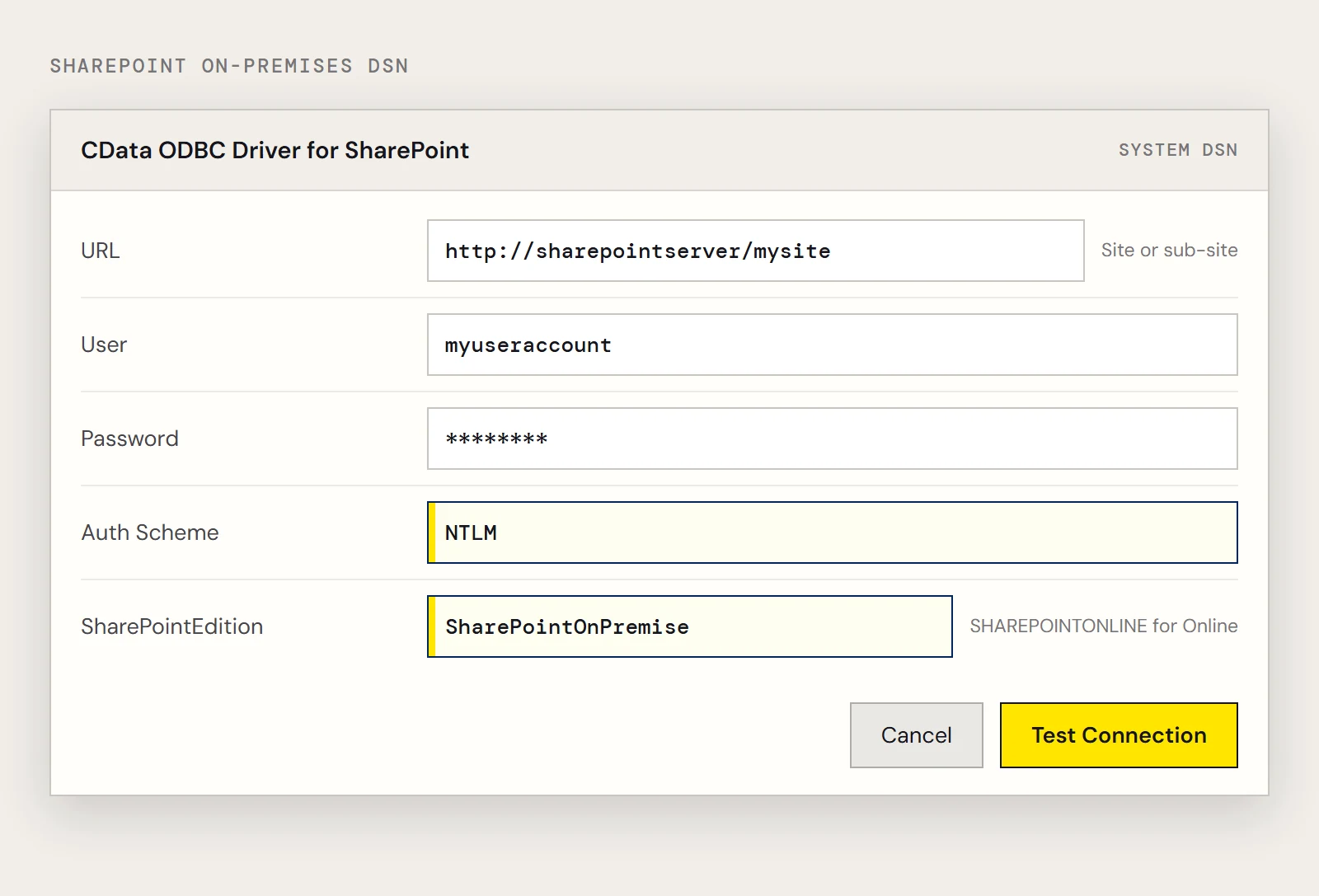
Set the URL to the site, or to a sub-site, whose lists you want to query. The remaining properties depend on where SharePoint runs.
For SharePoint Online, set SharePointEdition to SHAREPOINTONLINE and provide a User and Password. For SharePoint on-premises, set User and Password to valid SharePoint credentials, set Auth Scheme to NTLM, and set SharePointEdition to SharePointOnPremise. An on-premises connection string looks like this:
User=myuseraccount;Password=mypassword;Auth Scheme=NTLM;URL=http://sharepointserver/mysite;SharePointEdition=SharePointOnPremise;If your organization signs in through Okta, the driver can also use single sign-on with the UseSSO and SSODomain properties.
Query it from Excel
- Create a System DSN with the properties above and test the connection.
- In Excel choose Data > Get Data > Legacy Wizards > From Microsoft Query (Legacy). (Enable it under File > Options > Data if it's hidden.)
- Select the SharePoint DSN and expand your list in the Query Wizard.
- Choose the columns you need, then open the query in Microsoft Query and click SQL.
- Replace the filter value with ? as in the example above.
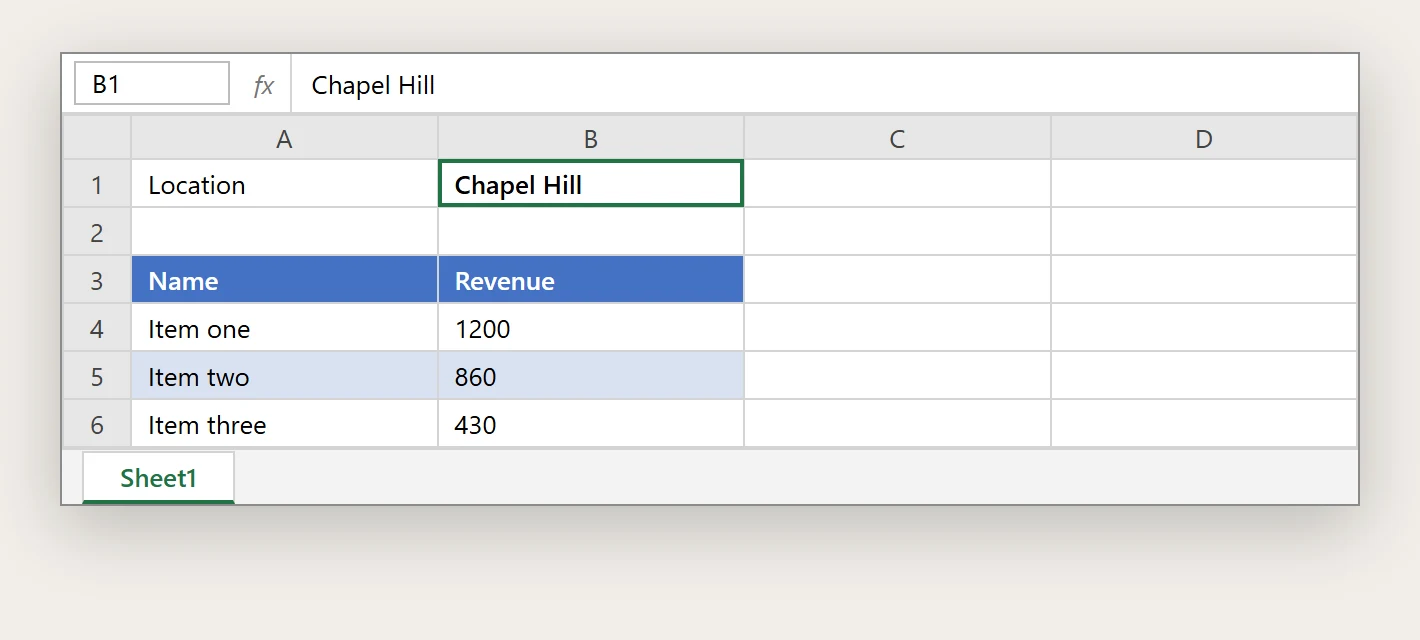
- Return the data to Excel, set the parameter to a cell such as B1, and tick Refresh automatically when cell value changes.
From then on, typing a location such as Chapel Hill into B1 filters the list and refreshes the table.
If you want to try this on your own site, download a free trial of the ODBC Driver for SharePoint.
Quick troubleshooting
- If no tables appear, check the URL. Pointing at the wrong site or sub-site is the most common cause.
- If sign-in fails on SharePoint Online, confirm SharePointEdition is SHAREPOINTONLINE. The on-premises setting expects different authentication.
- If on-premises authentication is rejected, check that Auth Scheme is NTLM and that the account has access to the site.
Ready to get started?
Download a free trial of the SharePoint ODBC Driver to get started:
Download NowLearn more:
 SharePoint ODBC Driver
The SharePoint ODBC Driver is a powerful tool that allows you to connect with live data from SharePoint, directly from any applications that support ODBC connectivity.
Access SharePoint data like you would a database - read, write, and update SharePoint Lists, Contacts, Calendar, Links, Tasks, etc. through a standard ODBC Driver interface.