






SharePoint lists hold a lot of the operational data that analysts want in a notebook or a scheduled job, but a Linux server has no Excel and no Power Query. The CData ODBC Driver for SharePoint fills that gap by presenting each list as a SQL table that pyodbc can read. This guide ends with a Python script that pulls rows from a custom list into a pandas DataFrame and writes them to a CSV file. The example uses a list named MyCustomList with Name, Revenue and Location columns, which are the names in CData's own sample, so swap in your list and its columns.
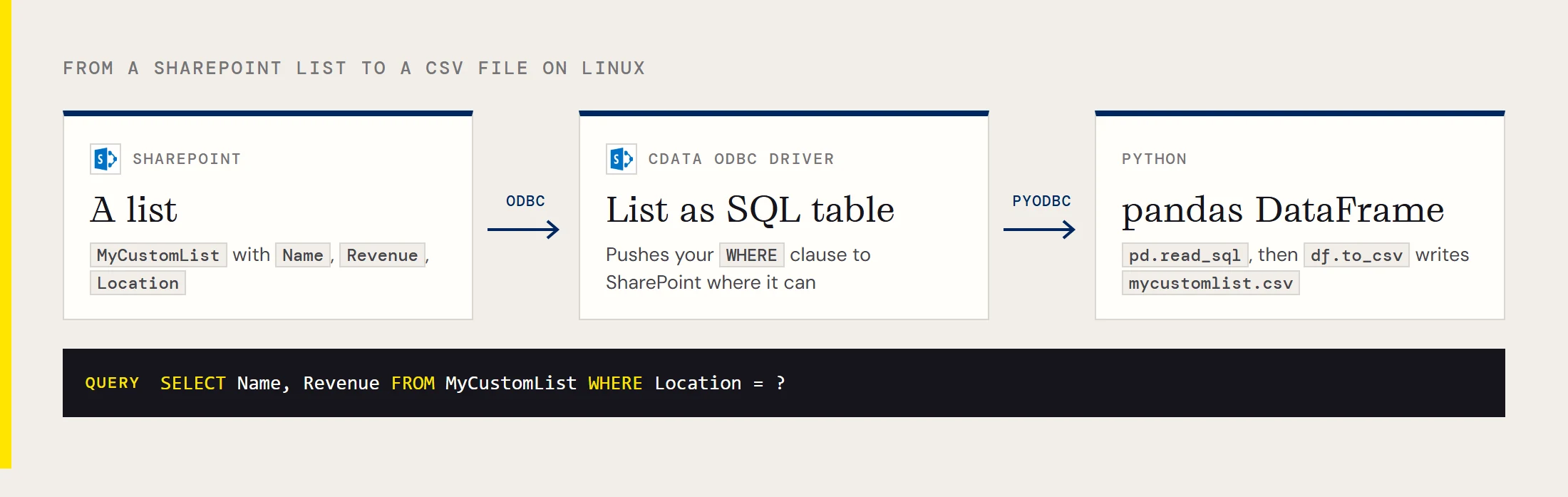
What you end up with
A short script that connects through a DSN, runs one parameterized SELECT against a list, and returns a DataFrame. Because the driver pushes your WHERE clause to SharePoint where it can, you filter by something like location before the rows travel, which keeps a large list manageable.
Install the pieces on the Linux host
You need a driver manager, the driver, and the Python module. On Debian-based systems install unixODBC with sudo apt-get install unixodbc unixodbc-dev, and on Red Hat family systems with sudo yum install unixODBC unixODBC-devel. Then install the driver package with dpkg -i for a .deb or rpm -i for an .rpm, run as root. The installer registers the driver and creates a system DSN named CData SharePoint Source.
Then edit cdata.odbc.sharepoint.ini in the lib folder of the install location (typically /opt/cdata/cdata-odbc-driver-for-sharepoint) so that it holds the following setting, which unixODBC needs:
[Driver]
DriverManagerEncoding = UTF-16
Last, install the Python side with pip install pyodbc pandas.
Point the DSN at your site
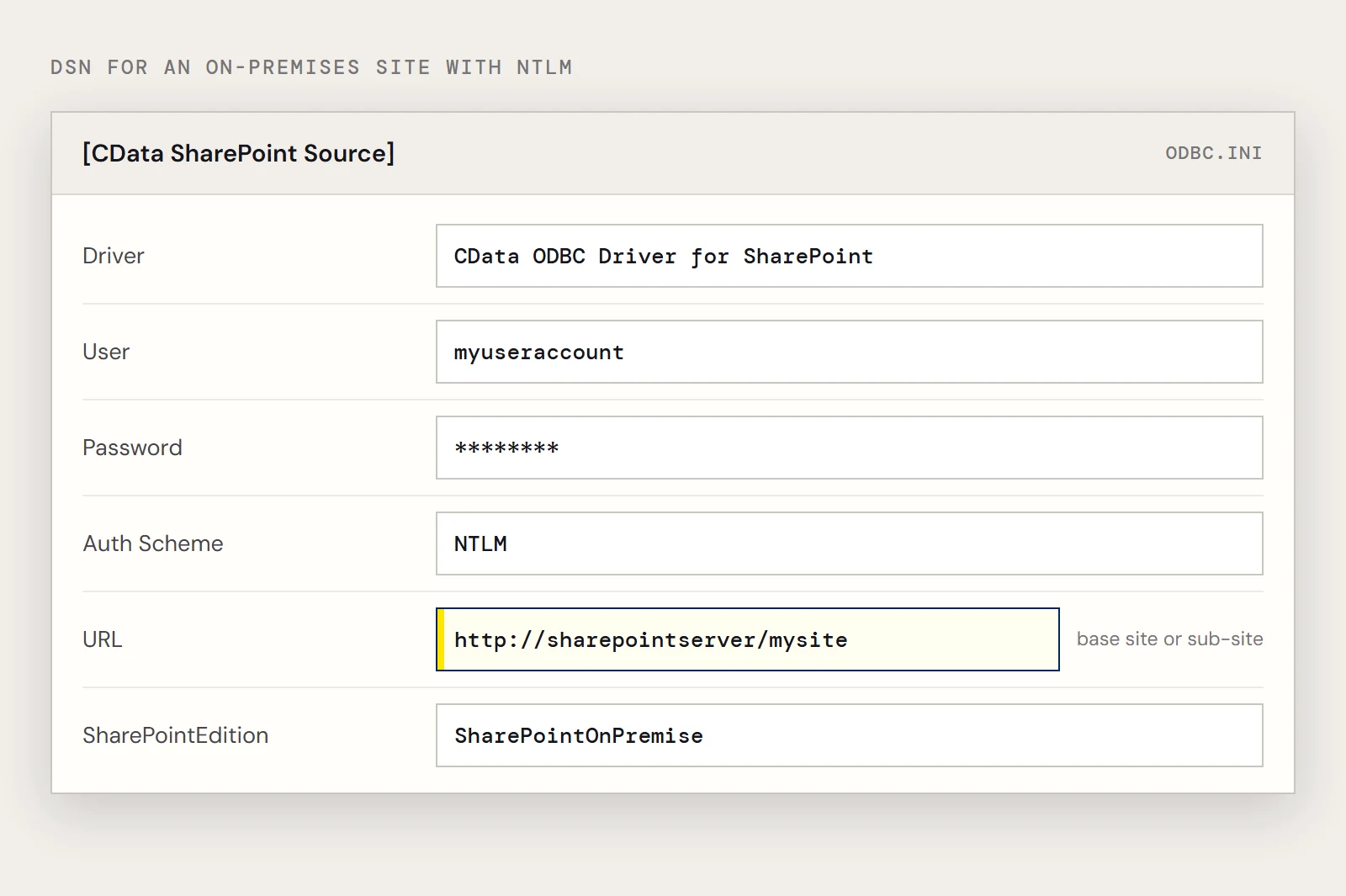
Set URL to the base SharePoint site or to a sub-site. The driver can then query any list and other SharePoint entity defined for that site. Edit /etc/odbc.ini for a DSN every user can use, or $HOME/.odbc.ini for one that only your account sees and that doesn't need root to change. For an on-premises server with NTLM, the entry looks like this:
[CData SharePoint Source]
Driver = CData ODBC Driver for SharePoint
Description = My Description
User = myuseraccount
Password = mypassword
Auth Scheme = NTLM
URL = http://sharepointserver/mysite
SharePointEdition = SharePointOnPremise
On-premises SharePoint needs valid SharePoint credentials in User and Password. For SharePoint Online, set SharePointEdition to SHAREPOINTONLINE together with User and Password.
SharePoint Online and the SOAP schema
Microsoft has retired the IDCRL sign-in method that the driver's SOAP schema mode uses against SharePoint Online. CData's notice says SOAP schema connections to SharePoint Online stop working, and the fix is to set Schema=REST and use an authentication method the REST schema supports, such as OAuth 2.0. The REST schema exposes different tables, columns and procedures than the SOAP schema, so check your table and column names after you switch. The details are in the CData notice on the IDCRL deprecation.
Query the list from Python
Run the script below as the account whose DSN you edited. The query is parameterized, so the location stays out of the SQL string.
import pandas as pd
import pyodbc
cnxn = pyodbc.connect('DSN=CData SharePoint Source')
df = pd.read_sql(
    "SELECT Name, Revenue FROM MyCustomList WHERE Location = ?",
    cnxn,
    params=['Chapel Hill'],
)
print(df.head())
df.to_csv('mycustomlist.csv', index=False)
cnxn.close()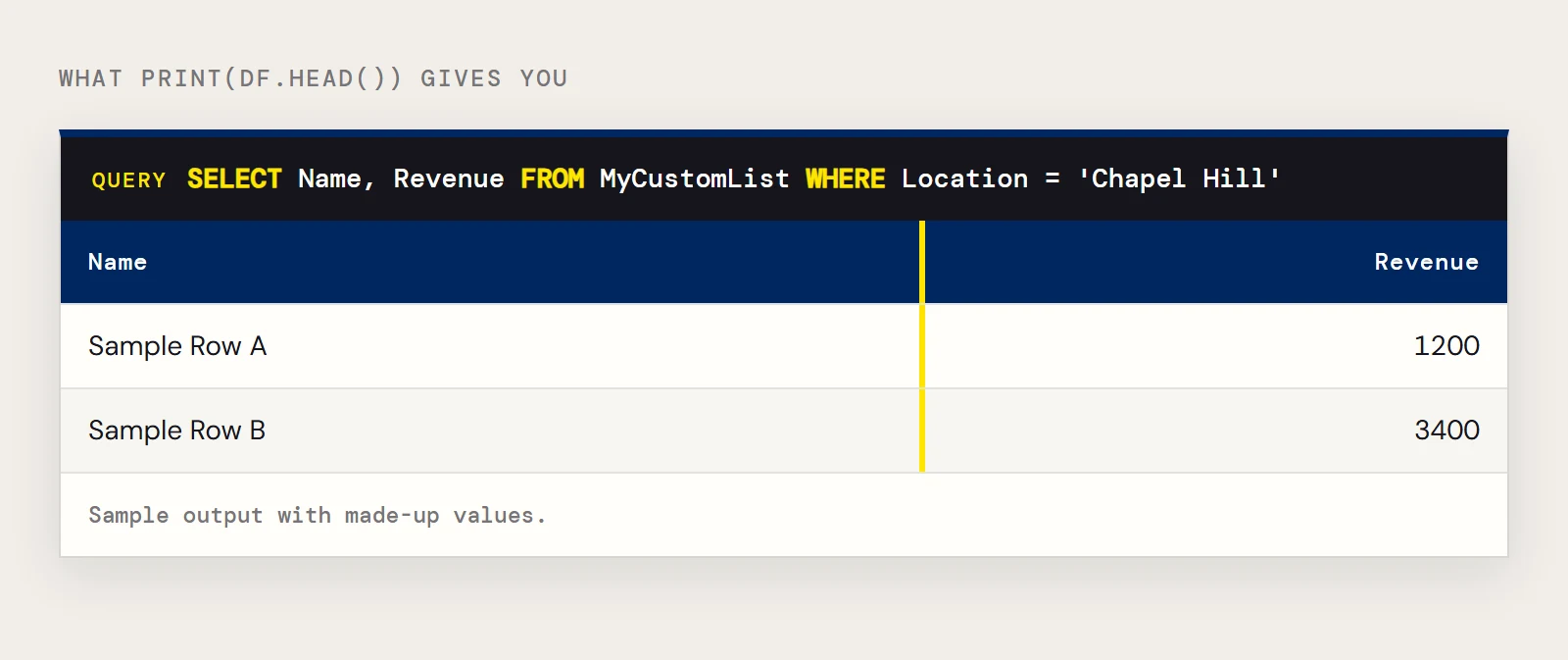
If you prefer plain pyodbc, the equivalent is a cursor loop:
cursor = cnxn.cursor()
cursor.execute("SELECT Name, Revenue FROM MyCustomList WHERE Location = ?", 'Chapel Hill')
for row in cursor.fetchall():
    print(row.Name, row.Revenue)
You can also skip the DSN and hand the driver a connection string, which is convenient in containers where editing odbc.ini is awkward:
cnxn = pyodbc.connect(
    'DRIVER={CData ODBC Driver for SharePoint};'
    'User=myuseraccount;Password=mypassword;Auth Scheme=NTLM;'
    'URL=http://sharepointserver/mysite;SharePointEdition=SharePointOnPremise;'
)
Common stumbles
pandas may print a warning that it prefers a SQLAlchemy connection when you hand it a raw pyodbc connection. The query still runs. If the DSN isn't found, run odbcinst -j and odbcinst -q -s to see which file your user reads and what the data source is called.
The driver supports lists that use hidden or lookup columns, and it can recurse through folders to build a relational model of the site. It also exposes stored procedures for uploading and downloading documents and attachments, which is handy once the list data is flowing. If you later want the list copied into a database on a schedule instead of queried live, CData Sync covers that.
Want to try it on your own system? Download a free trial of the ODBC Driver for SharePoint and run these snippets today.
Ready to get started?
Download a free trial of the SharePoint ODBC Driver to get started:
Download NowLearn more:
 SharePoint ODBC Driver
The SharePoint ODBC Driver is a powerful tool that allows you to connect with live data from SharePoint, directly from any applications that support ODBC connectivity.
Access SharePoint data like you would a database - read, write, and update SharePoint Lists, Contacts, Calendar, Links, Tasks, etc. through a standard ODBC Driver interface.