






Your SharePoint report loads fine in Power BI Desktop, you publish it, and the scheduled refresh in PowerBI.com fails or never offers a gateway. This is almost always one of a handful of mismatches between your laptop and the gateway machine. Check them in the order below, since the early ones are the quickest.
The setup assumed here is the CData Power BI Connector for SharePoint, a system DSN, and an on-premises data gateway in standard mode.
Match the symptom to the layer
| What you see | Likely layer | First thing to check |
|---|---|---|
| The dataset has no gateway option, or the gateway isn't listed | Gateway cluster setting | The option that allows users' custom data connectors to refresh through the cluster |
| No SharePoint entry in the gateway's data source types | Connector files | The Connectors folder and the .pqx files |
| CData.PowerBI.SharePoint missing from the gateway's Connectors list | Folder permissions | Access for NT SERVICE\PBIEgwService |
| The data source can't find the DSN | DSN type or bitness | System DSN, and a version that matches the gateway |
| Refresh works for you but fails on the gateway | Credentials and URL | The DSN properties, tested on the gateway machine |
| Personal mode asks for credentials | Gateway mode | Edit Credentials, then Sign In |
These mappings come from how the pieces fit together, not from fixed error messages, so treat them as a guide to where to look.
The gateway doesn't see the connector
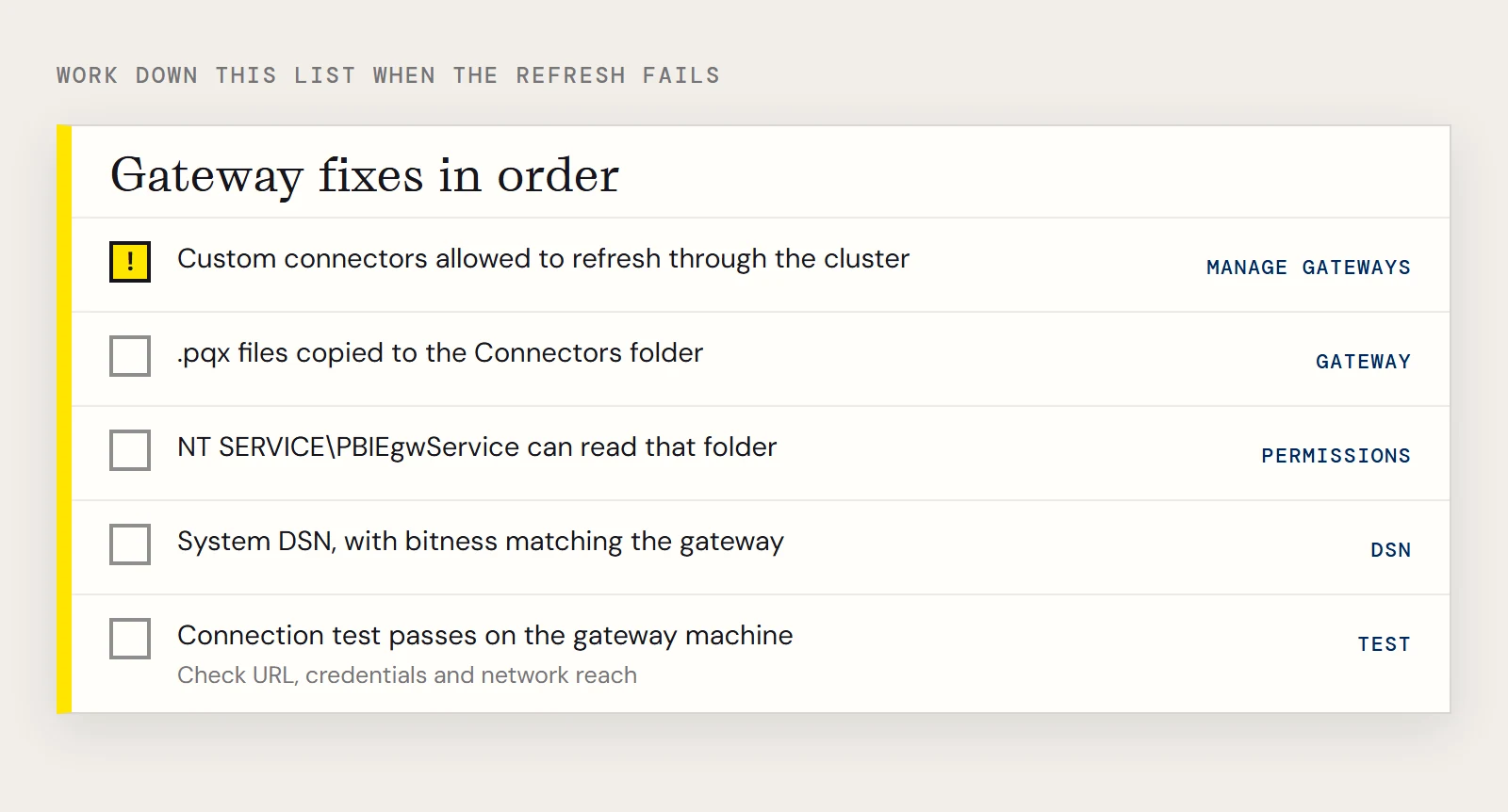
Power BI Desktop picks up custom connectors from your own profile, but the gateway service reads from a folder you choose in the Connectors step of its configuration. Copy the connector's .pqx files from C:\Users\USERNAME\Documents\Power BI Desktop\Custom Connectors\ to that folder. The service account NT SERVICE\PBIEgwService needs access to the folder; if it can't read it, the connector never loads. You can change the service account in the Service Settings section of the gateway installer. When it's working, an entry named CData.PowerBI.SharePoint shows up in the Connectors section of the gateway settings.
PowerBI.com won't let the dataset use the gateway
Go to Manage Gateways, select the gateway and tick the option that allows users' custom data connectors to refresh through this gateway cluster. Click Apply. Without this, a dataset built on a custom connector has nothing to bind to.
Then add the data source. Choose the CData Power BI Connector for SharePoint as the type and enter the system DSN name as the Data Source Name. In the dataset's own settings you can also use Manually add to gateway, choose Anonymous as the authentication method and set a privacy level. Anonymous is correct here because the SharePoint credentials are held in the DSN.
The DSN is wrong for the gateway
Two details trip people up. Standard mode needs a system DSN, because a user DSN is only visible to the account that created it. The ODBC administrator you configure the DSN in must also match the bitness of the software that will use it, either 32-bit or 64-bit.
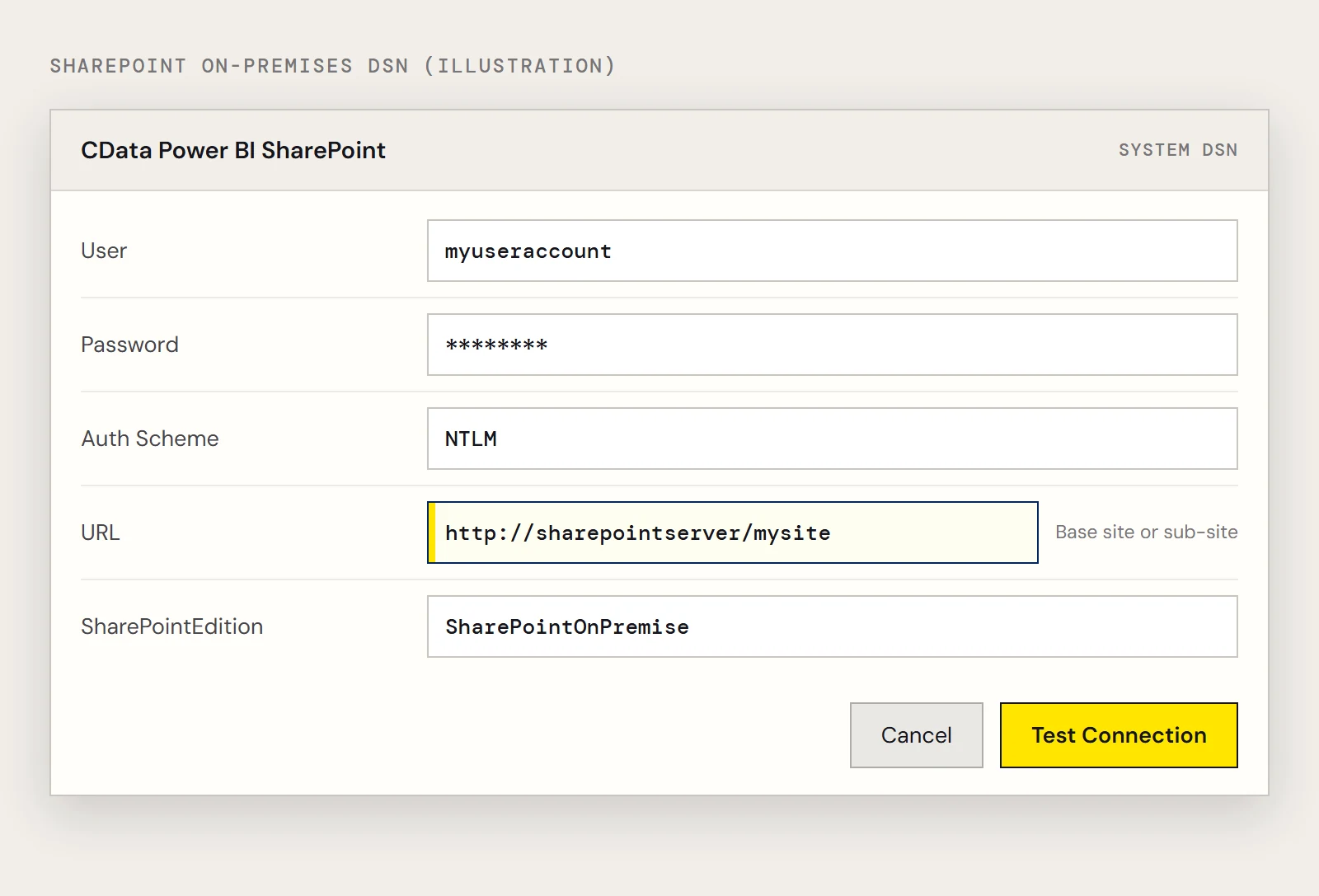
Open the DSN on the gateway machine and run the connection test there. Set URL to the base site or sub-site. For SharePoint Online add SharePointEdition=SHAREPOINTONLINE with User and Password. For SharePoint on-premises the pattern is:
User=myuseraccount;Password=mypassword;Auth Scheme=NTLM;URL=http://sharepointserver/mysite;SharePointEdition=SharePointOnPremise;If a test passes on your laptop but fails on the gateway machine, the usual suspect is network reach: the gateway host has to be able to get to the SharePoint site itself.
Credentials for personal mode
If you use the gateway in personal mode, it runs under your Windows account. After you choose it in the dataset settings, expand the data source credentials, click Edit Credentials and Sign In. Standard mode doesn't need this step.
A quick sanity query
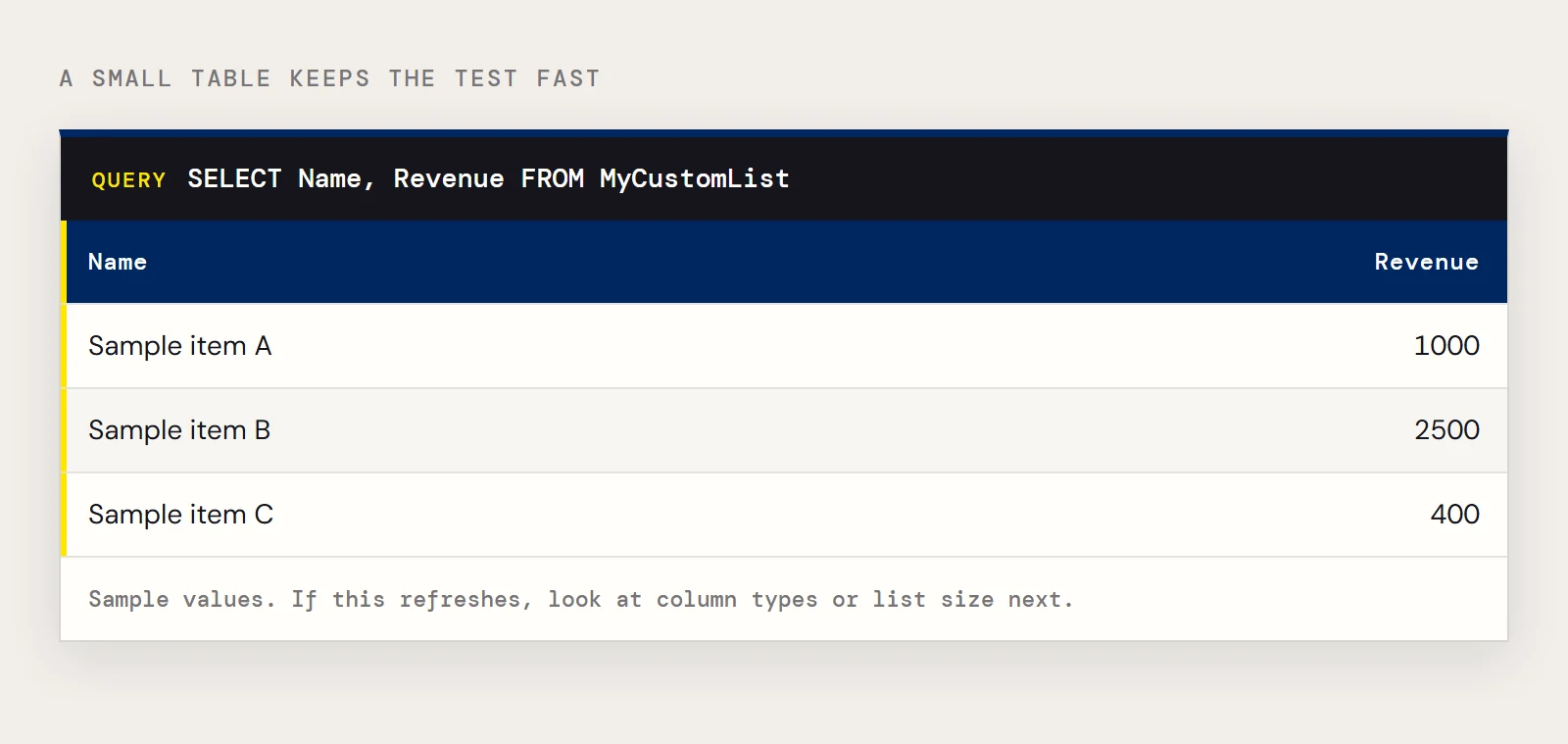
When nothing else explains it, reload a very small table. A list such as MyCustomList keeps the test fast:
SELECT Name, Revenue
FROM MyCustomList
If that refreshes, the problem is something specific to the larger dataset, such as a column type or a very big list. If it fails the same way, go back to the table at the top and start again from the first row.
If you don't have the connector yet, download the CData Power BI Connector for SharePoint.
Ready to get started?
Download a free trial of the SharePoint Power BI Connector to get started:
Download NowLearn more:
 SharePoint Power BI Connector
The fastest and easiest way to connect Power BI to SharePoint data. Includes comprehensive high-performance data access, real-time integration, extensive metadata discovery, and robust SQL-92 support.