






A notebook that reads a SharePoint list in seconds against a test site can drag on the real one, where lists are long, columns are many and everything is filtered after the fact. Before you change anything, find out where the time goes. This guide assumes you already have the CData JDBC Driver for SharePoint installed on the cluster and a notebook that loads a list. If you don't, the installation notes near the end cover the Azure side.
Time one plain read first
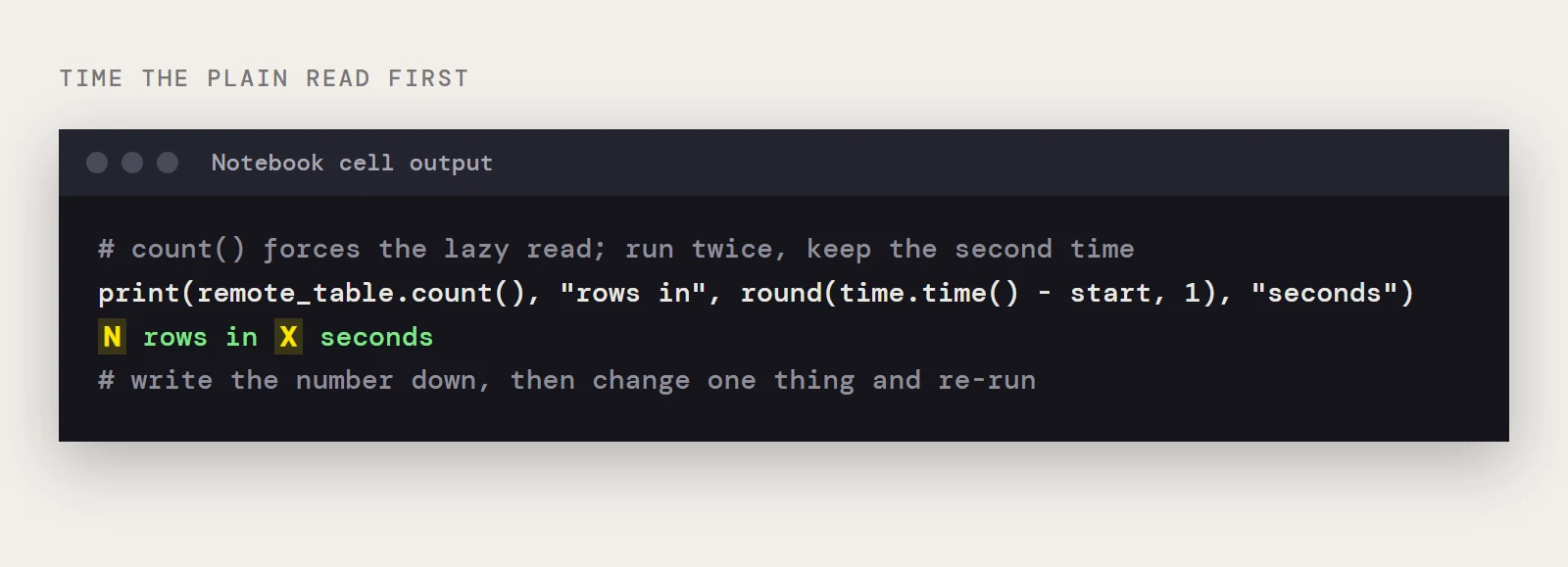
Spark reads lazily, so the clock only means something if you force the read. A count() does that. Run this against the list you care about and write the number down.
import time
driver = "cdata.jdbc.sharepoint.SharePointDriver"
url = "jdbc:sharepoint:RTK=5246...;User=myuseraccount;Password=mypassword;Auth Scheme=NTLM;URL=http://sharepointserver/mysite;SharePointEdition=SharePointOnPremise;"
start = time.time()
remote_table = (spark.read.format("jdbc")
    .option("driver", driver)
    .option("url", url)
    .option("dbtable", "MyCustomList")
    .load())
print(remote_table.count(), "rows in", round(time.time() - start, 1), "seconds")
The connection string above is the on-premises form. For SharePoint Online, drop the NTLM scheme and set SharePointEdition=SHAREPOINTONLINE with your User and Password. Run the cell twice and keep the second time, so a cold cluster doesn't skew the baseline.
Know which side does the work
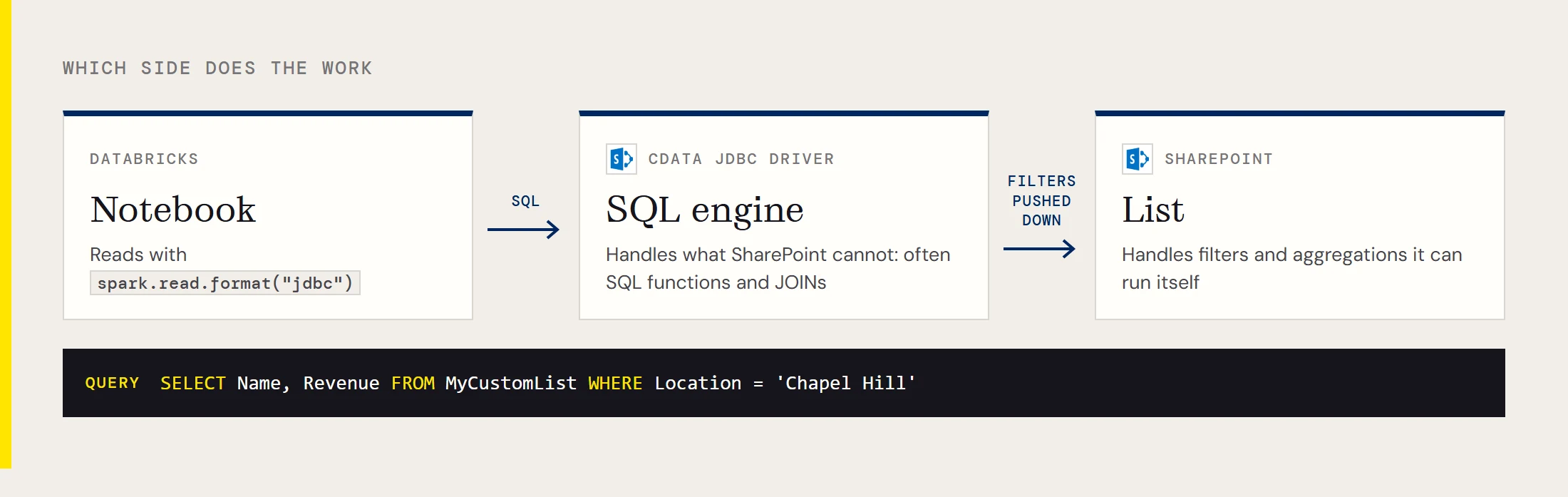
The driver sends the SQL operations SharePoint can handle, such as filters and aggregations, to SharePoint itself. Anything it can't push down, which is often SQL functions and JOINs, is processed by the driver's own SQL engine after the rows arrive. That split explains most slow reads. A read that fetches a whole list and filters it afterward moves every row across the network before it throws most of them away.
The changes below all follow from that: give SharePoint less to look at, and give the driver less to do.
Change one thing at a time
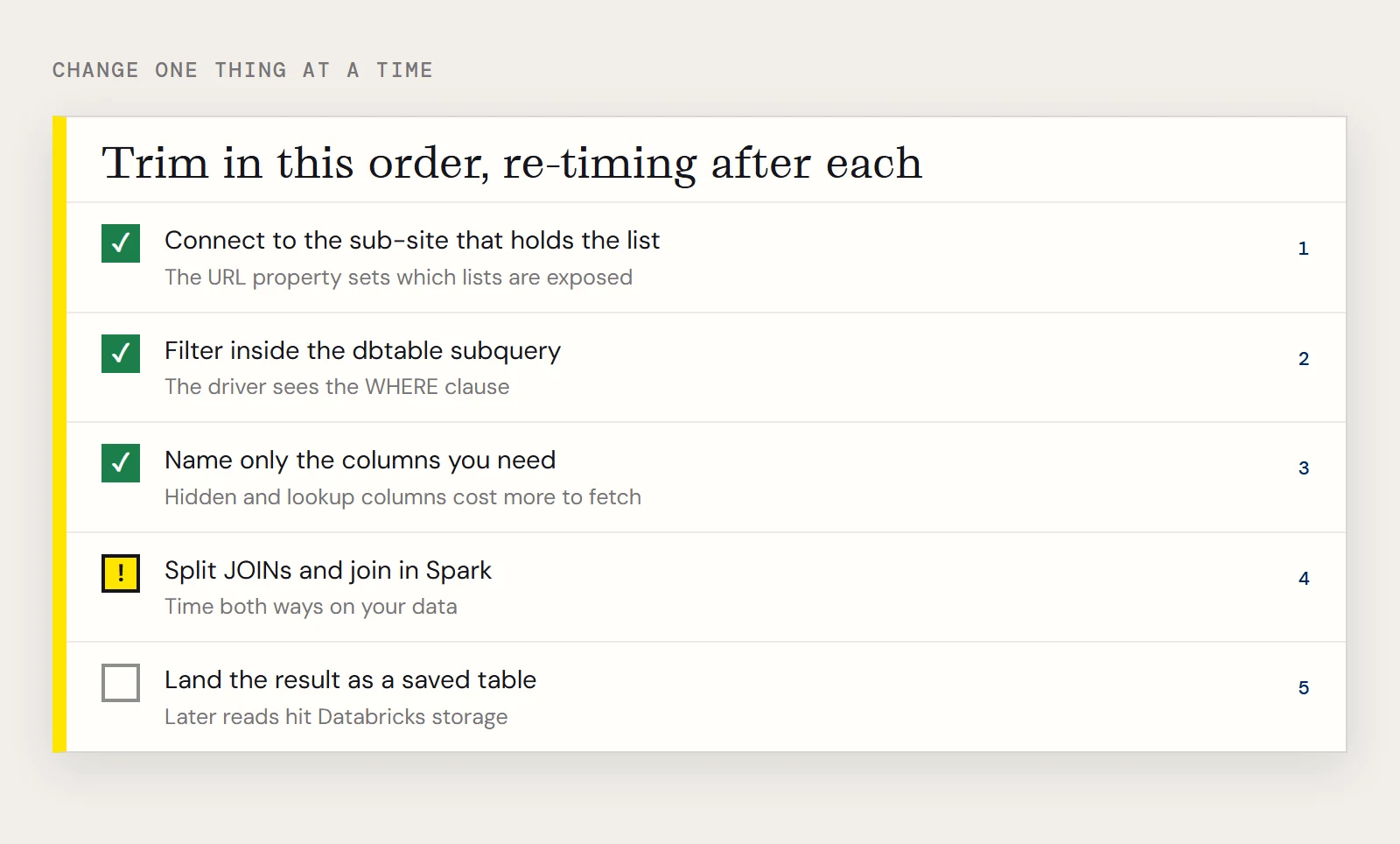
Take them in this order and re-run the timing cell after each. Start with the scope of the connection.
The URL property can point at the base site or at a sub-site, and it determines which lists and other entities the connection exposes. If your list lives in a sub-site, connect to that sub-site instead of the root.
Next, move the filter into the read. Passing a query through dbtable as a subquery lets the driver see the WHERE clause instead of leaving it to Spark afterward.
query = "(SELECT Name, Revenue FROM MyCustomList WHERE Location = 'Chapel Hill') AS src"
remote_table = (spark.read.format("jdbc")
    .option("driver", driver)
    .option("url", url)
    .option("dbtable", query)
    .load())
That one statement also covers the third change, naming only the columns you need. A list with many fields, including hidden and lookup columns the driver can expose, costs more to fetch than two named columns.
Fourth, keep JOINs out of the driver. If you need a list alongside another entity such as Users, load each one with its own filter and column list, then join the two dataframes in Spark. Whether that beats a driver-side join depends on your data, so time both.
Land it once
Most notebooks read the same list many times a day. Writing the filtered result to a table means later queries hit Databricks storage instead of SharePoint.
remote_table.createOrReplaceTempView("sp_revenue")
remote_table.write.format("parquet").saveAsTable("sharepoint_revenue")
The temp view is only visible in the notebook that created it, which is why the saved table is the version other people can query. The cost is staleness: the copy is as old as its last write, so schedule the refresh at whatever interval the report can tolerate. If many notebooks depend on the same lists, CData Sync can keep a replicated copy up to date instead of each notebook doing its own read.
What to compare after each change
| Change | What to check |
|---|---|
| Connect to the sub-site | Row count and time for the same list |
| Filter in the subquery | Time, and that the row count matches the old filtered result |
| Name only needed columns | Time, and that downstream code still finds its columns |
| Split the join | Time against the driver-side join on the same filters |
| Saved table | Time for the second and later reads |
Installing the driver on the cluster
Upload the JAR to a blob container, then add the Spark option spark.hadoop.fs.azure.account.key.<storage account>.blob.core.windows.net to the cluster with the storage account key as its value. Install the library from the cluster's Libraries tab using the ADLS option and the abfss:// URL of the JAR. The older DBFS method is deprecated, although no end-of-life has been announced. You also need to set the RTK property in the JDBC URL unless you are using a beta driver; the licensing file in the installation explains how.
To run these timings on your own lists, download the CData JDBC Driver for SharePoint.
Ready to get started?
Download a free trial of the SharePoint Driver to get started:
Download NowLearn more:
 SharePoint JDBC Driver
Provides Java developers with the power to easily connect their Web, Desktop, and Mobile applications to data in SharePoint Server Lists, Contacts, Calendar, Links, Tasks, and more!