






Dynamically Retrieve Data Based on Cell Values with the CData Excel Add-in: CData Excel Formulas
When working with business data, it’s often useful to fetch or update external information directly within Excel. The CData Excel Add-in not only enables that but also offers a hidden gem: CData Excel Formulas a feature that allows you to run live SQL queries as Excel functions.
In this article, we’ll explore how you can use the CData Excel Add-in’s CData Excel Formulas feature to dynamically retrieve, refresh, and manage live data directly within Excel.
What are CData Excel formulas?
CData Excel formulas let you execute SQL queries supported by CData Drivers inside Excel just like you would with built-in functions. You can not only perform data retrieval (SELECT) but also modify records (INSERT, UPDATE, DELETE) or call stored procedures all without leaving your spreadsheet.
| Function | Description |
|---|---|
| CDATAQUERY | Executes SELECT / INSERT / UPDATE / DELETE or stored procedure calls |
| CDATAINSERT | Inserts records based on cell values |
| CDATAUPDATE | Updates records based on cell values |
| CDATADELETE | Deletes records based on cell values |
The key point of this function is that, because it behaves as a native Excel function, processing is executed immediately when the referenced cell value changes. This makes it incredibly easy to build Excel sheets that dynamically retrieve or update data from cloud services or databases such as Salesforce, Kintone, or Google BigQuery based on cell values.
Use the CData Excel Add-in
For this example, we'll use the CData Excel Add-in for Salesforce. This add-in allows you to query Salesforce data directly from Excel using familiar SQL syntax, making it ideal for data analysis and reporting.
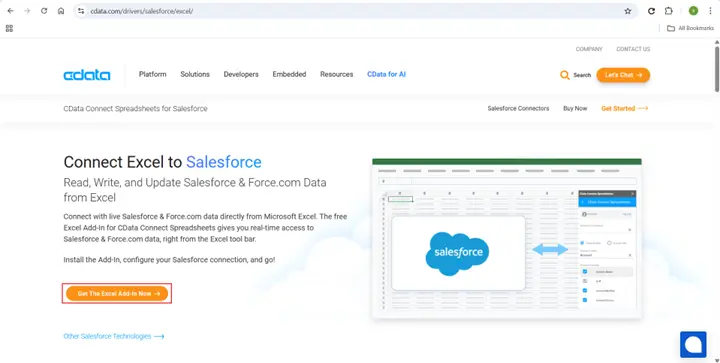
Once the installation is complete, open Excel, navigate to the CData tab, and configure your Salesforce connection. You'll need to specify authentication details such as your Salesforce credentials, security token, and connection name. After setup, the add-in establishes a secure link between Excel and Salesforce, allowing real-time data access.
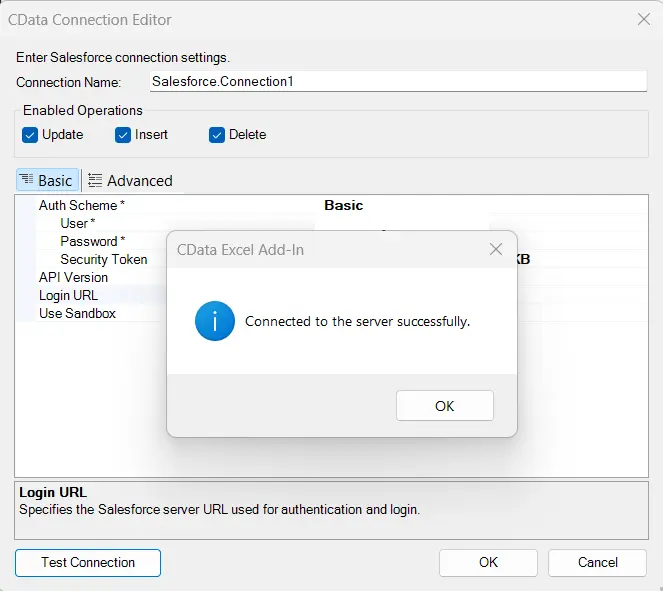
How to use CDATAQUERY
Building a dynamic data sheet
Let’s create a simple example to see this feature in action. Imagine you want to retrieve Salesforce Account information dynamically, based on a keyword you type in a cell.
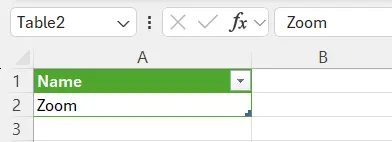
- In cell A2, enter a partial keyword for the Account name (this will act as your search input)
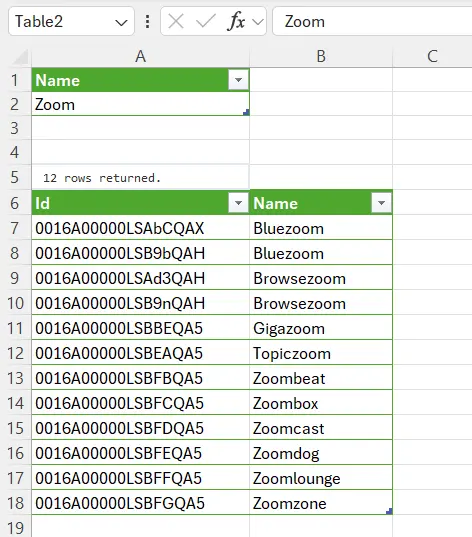
- In another cell (say A6), enter the following formula:
=CDATAQUERY("SELECT Id, Name FROM Account WHERE Name LIKE '%" & A2 & "%'", "Salesforce.Connection1")
In this example:
- The first argument is the SQL query string
- The second argument specifies the connection name you configured (e.g., 'Salesforce.Connection1')
- The A2 cell is dynamically embedded in the query, meaning that when the value in A2 changes, the formula automatically re-executes and displays new results
The query results will spill into the cells below the formula, showing the matching Salesforce Accounts in real time. By simply changing the keyword in cell A2, the results refresh immediately no manual refresh required.
Using parameters and output locations
CData Excel Formulas also support parameters and result locations for greater flexibility. For example, you can write a cleaner query using parameters:
=CDATAQUERY("SELECT Id, Name FROM Account WHERE Name = @Name", "Salesforce.Connection1", A1:A2)
Here, A1:A2 contains the parameter name (@Name) and its corresponding value. This approach avoids manual string concatenation and keeps the formula easy to maintain.
You can also specify where to display the output results using the ResultLocation argument:
=CDATAQUERY("SELECT Id, Name FROM Account WHERE Name = @Name", "Salesforce.Connection1", A1:A2, "A8")
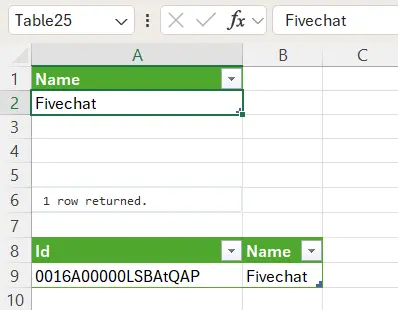
In this case, the data will be returned starting at cell A8. This flexibility helps you design well-structured, organized reports that separate input and output areas.
Conclusion
By using CData Excel Formulas, you can create highly flexible and dynamic Excel sheets that automatically retrieve and update data from various cloud services. This feature simplifies the process of building reports and analysis tools that stay synchronized with live business data. Although this example used Salesforce, the same approach works seamlessly with other CData Excel Add-ins like Kintone or Backlog, making it an essential tool for anyone looking to enhance productivity and efficiency in Excel.
Try the CData Excel Add-in for free and experience how easily you can connect, query, and manage live data directly from Excel.
