






Understanding the API Limits in Dynamics 365 and Dataverse (CDS): Behavior, Monitoring, and How It Impacts the CData Dynamics 365 / Dataverse Driver
Microsoft Dynamics 365 and Dataverse (formerly Common Data Service or CDS) implement a tiered set of API usage controls designed to guarantee system stability and fair resource sharing across tenants. These controls include daily request allocations, service protection limits, and per-user and per-tenant throttling.
Monitoring API usage is essential because exceeding short-term or daily limits can cause integrations to slow down, fail unpredictably, or return HTTP 429 throttling responses. Proactive monitoring ensures consistent performance and prevents downtime for apps, automations, and external systems relying on Dataverse or Dynamics 365.
This article provides an up-to-date summary of these limits (based on the latest Microsoft guidelines), how to monitor them, what happens when limits are exceeded, and how the CData Dynamics 365 / Dataverse Driver interacts with the platform under these rules.
API Request Allocations: Daily Limits per User & Tenant
Dataverse enforces 24-hour API request allocations, using the modern Requests & Allocations system. This determines how many API calls each user or application identity can make within a 24-hour period.
- Licensed users receive daily API capacity based on the paid licenses assigned to them.
- Non-interactive / application users (service principals) draw from the shared tenant-level allocation pool instead of receiving individual entitlements.
- Some capacity may accrue within Microsoft-defined limits depending on license type and tenant usage.
Examples of commonly used licensed-user allocations (2024–2025):
- Dynamics 365 Enterprise & Professional applications and most premium Power Platform licenses: 40,000 requests per 24 hours per paid license
- Power Apps per user (Premium): 40,000 requests per 24 hours
- Power Automate per user (Premium): 40,000 requests per 24 hours
- Power Apps per app / pay-as-you-go, Microsoft 365 licenses with Power Platform access, and Dynamics 365 Team Member: 6,000 requests per 24 hours per paid license
Service principals (application users) consume from the tenant's combined capacity, which consists of:
- A base tenant allocation provided by Microsoft (for example, 500,000 base pooled requests for tenants with Dynamics 365 Enterprise & Professional licenses, or 25,000 base pooled requests for tenants with only Power Apps or only Power Automate licenses)
- + Additional accrued capacity from eligible Dynamics 365 Enterprise & Professional user licenses (5,000 pooled requests per user license, up to a maximum of 10,000,000 pooled requests per 24 hours, as documented), while Power Apps and Power Automate licenses contribute only their fixed base tenant allocations without extra accrual
Automation-heavy tenants, or tenants with many Dataverse integrations, may require additional API capacity add-ons to avoid throttling.
Source: Microsoft Docs
- Power Platform Requests & Allocations (entitlements, licensed vs. unlicensed users, tenant pools)
- API Limits Overview (daily limits vs. service protection limits)
Data Processing Limits per Request
Dataverse Web API requests are bound by per-request limits that control how much data can be retrieved or processed in a single operation. These limits apply regardless of whether the request originates from an interactive user, a service principal, or an integration platform such as the CData Dynamics 365 / Dataverse Driver.
Record Retrieval: Maximum 5,000 Records per Page
The Dataverse Web API enforces a maximum page size of 5,000 records for read operations. If the client does not specify a smaller value using the Prefer: odata.maxpagesize header, Dataverse will return up to 5,000 records and a continuation link when additional pages are available.
For larger result sets, Dataverse returns a paging cookie (continuation URL) that the CData Driver automatically follows until all records are retrieved.
Given the 5,000-record page size, the theoretical upper bound of data you could retrieve or write can be very large. For example, issuing 10,000 API calls could fetch up to 50 million records, or write up to 10 million records when using batch operations. In practice, real-world performance, paging overhead, network constraints, and throttling mean these figures should be treated as rough guidelines rather than guaranteed throughput.
Batch Requests: Up to 1,000 Operations
A single OData batch request can include up to 1,000 individual operations. Nested batch requests are not allowed. This limit applies to all clients, including custom integrations and tools.
Batching can reduce API call volume but does not bypass Power Platform request entitlement limits. CRUD operations inside a batch still count as individual operations for daily request allocations.
Source: Microsoft Docs
Service Protection Limits (Throttling Rules)
In addition to daily Power Platform request allocations, Dataverse enforces Service Protection API Limits to protect the platform from excessive load. These limits are evaluated per authenticated user and per web server, and apply to Web API, SDK, and other public API endpoints.
Service protection limits operate on a 5-minute sliding window (300 seconds) and include:
Key Service Protection Controls
- Request Count Limit – Default threshold of about 6,000 requests per user within a 5-minute window, per web server.
- Execution Time Limit – Combined execution time of all requests from a user is limited to 20 minutes (1,200,000 ms) within the same 5-minute window.
- Concurrent Requests Limit – Number of simultaneous requests from a user is typically limited to 52 or more concurrent requests, depending on environment.
If any of these limits are exceeded, Dataverse responds with: HTTP/1.1 429 Too Many Requests
The response includes a Retry-After header that specifies the number of seconds the client must wait before sending additional requests. The CData Dynamics 365 / Dataverse Driver honors this header and automatically retries after the specified duration.
How Service Protection Limits Are Evaluated
Request count and execution time limits are evaluated over a rolling 300-second window. The concurrent request limit is enforced immediately whenever too many requests are in flight.
These limits apply per authenticated user. Only users generating unusually high or bursty traffic are throttled; other users in the same environment aren't affected.
Retry Behavior and Best Practices
When a 429 error is returned:
- Web API responses include a Retry-After header (seconds).
- SDK for .NET exposes a TimeSpan in ErrorDetails["Retry-After"].
- Retry duration increases if demanding requests continue during the window.
Microsoft recommends gradually increasing throughput until service protection limits are reached, then using Retry-After guidance to maintain steady, optimal throughput.
Important Notes
- Limits apply equally to interactive, application, non-interactive, and admin users.
- Plug-in and workflow operations don't count as separate API calls, but their execution time contributes to the execution-time limit of the triggering request.
- Batch operations reduce HTTP calls but increase execution time, which can trigger throttling if batches are large or frequent.
Source: Microsoft Docs
Monitoring API Consumption and Limits
There are multiple ways to monitor Dataverse API usage at both the tenant level and the individual user level. Two commonly used approaches are checking the Power Platform Admin Center for tenant-wide consumption, and inspecting the Web API response headers to view real-time per-user service protection usage.
1. Using the Power Platform Admin Center (Tenant-Level)
- Sign in to the Power Platform Admin Center .
- On the home screen, navigate to Manage (on the left menu) → Dataverse → API calls statistics.
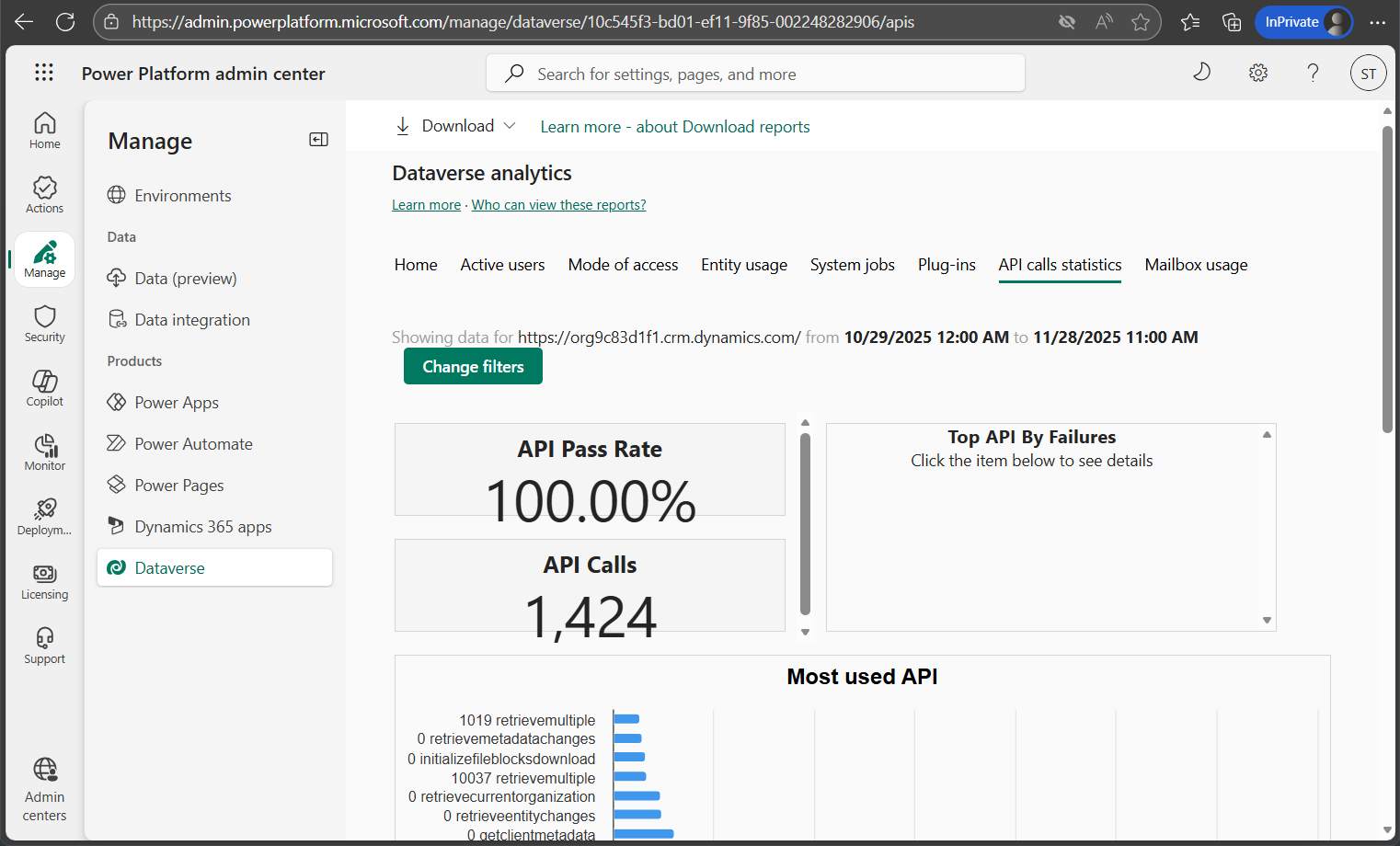
This dashboard shows tenant-level API usage, including consumption trends and total calls made across the environment. Although Dataverse API limits apply per user, the Admin Center currently provides mostly tenant-scoped visibility, and detailed per-user breakdowns may not always be available.
2. Checking Web API Response Headers (Per-User, Real-Time)
You can also monitor API usage by inspecting the response headers returned with every Dataverse Web API call. These headers show how much short-term service protection capacity remains for the user making the request.
| Header Name | Description |
|---|---|
| x-ms-ratelimit-burst-remaining-requests | Number of remaining short-term burst requests in the current window. |
| x-ms-ratelimit-time-remaining-requests | Time remaining in the active 5-minute sliding evaluation window. |
| Retry-After | Time (in seconds) the client must wait after receiving an HTTP 429 response. |
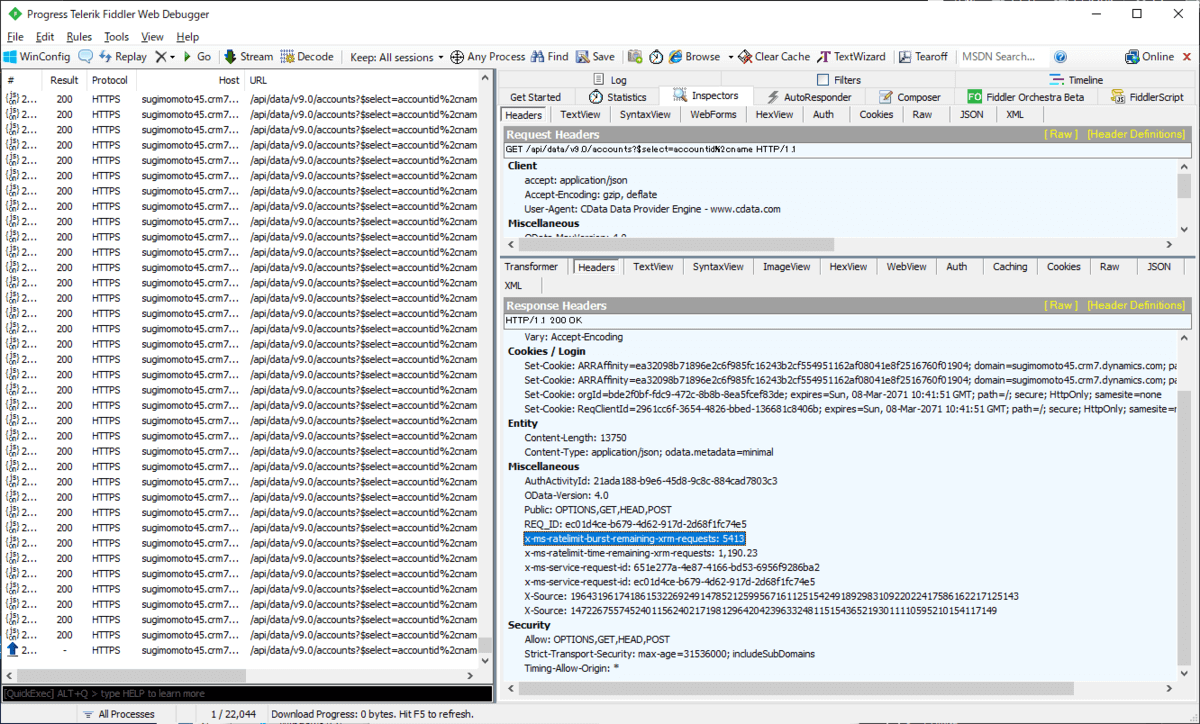
As these values change with each API request, you can observe how quickly your integration is consuming its short-term capacity. For example, a response such as x-ms-ratelimit-burst-remaining-requests: 5413 shows how many burst requests remain, decreasing as additional requests are executed.
In our testing, we used Progress Telerik Fiddler Classic as an HTTP capture proxy, routing traffic from the CData Dynamics 365 / Dataverse driver through Fiddler by configuring standard proxy-related connection properties such as ProxyAutoDetect, ProxyServer, and ProxyPort.
Once these limits are exceeded, Dataverse begins returning HTTP 429 responses with a Retry-After header indicating how long the client must wait before retrying.
What Happens When You Exceed API Limits?
In theory, exceeding Dataverse API limits should result in immediate throttling. When a user or application surpasses request count, concurrency, or execution time thresholds, Dataverse returns HTTP 429 Too Many Requests and instructs the caller to pause using the Retry-After header.
To validate this behavior, we stress-tested the CData Dynamics 365 for Sales Driver by issuing 20,000 sequential API requests in a tight loop. Surprisingly, the environment did not immediately return 429 errors, despite high-volume usage.
string connectionString =
  "InitiateOAuth=GETANDREFRESH;OrganizationUrl=https://XXXXX.crm7.dynamics.com/";

using (var connection = new D365SalesConnection(connectionString))
{
    for (int i = 0; i < 20000; i++)
    {
        var da = new D365SalesDataAdapter(
            "SELECT accountid, Name FROM Accounts", connection);

        var table = new DataTable();
        da.Fill(table);

        Console.WriteLine($"Count: {i}; {table.Rows[1]["accountid"]}");
    }
}
Throughout the run, we monitored the x-ms-ratelimit-burst-remaining-requests header. The value decreased gradually, but throttling never occurred:
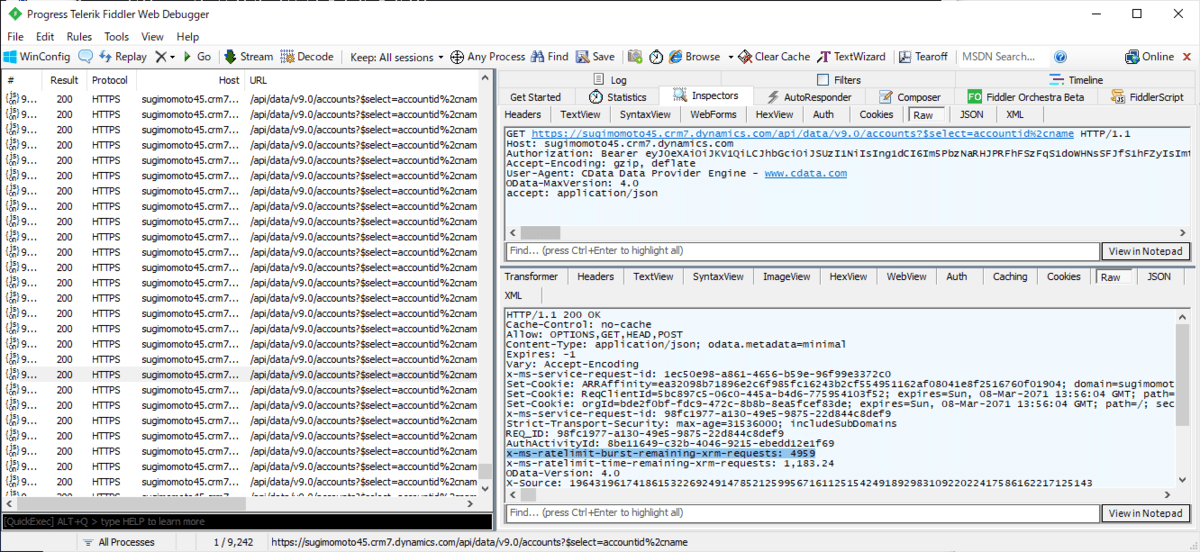
At the start of the test, the value was approximately 5999—a typical burst-limit baseline for many environments:
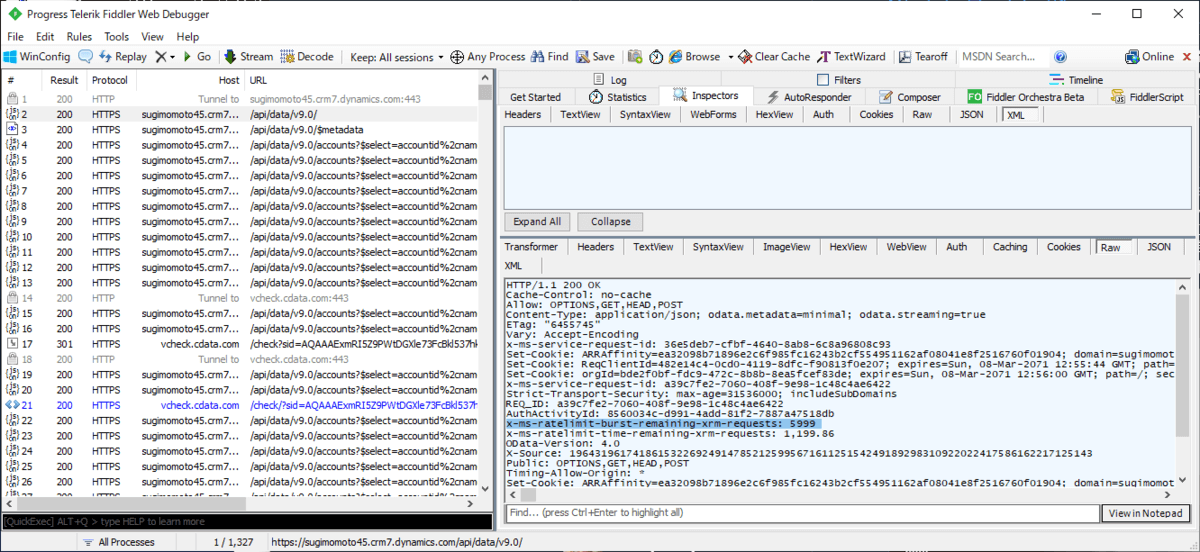
Microsoft documentation clarifies this behavior: minor, short-lived overages may not trigger immediate throttling, particularly when usage remains within a “reasonable” range. However, extended overages or sustained high-volume workloads may eventually result in throttling or administrative intervention (e.g., disabling a user or flow).
In short, the absence of 429 responses in this specific test does not mean unlimited usage is allowed. It simply reflects how Dataverse currently handles burst usage in some environments.
Source: Microsoft Docs
How the CData Dynamics 365 / Dataverse Driver Handles API Requests
The CData Dynamics 365 / Dataverse Driver communicates exclusively through the official Dataverse Web API. It does not connect directly to the underlying SQL Server backing Dataverse, nor does it use any private or undocumented interfaces. This is an intentional design choice: the driver simulates an SQL experience while still adhering fully to Microsoft’s supported API standards.
Although Dataverse exposes an optional TDS (SQL Server) endpoint, this is a separate feature and not used by the CData Driver. Instead, the driver translates each SQL-like query into one or more OData Web API operations, which means the driver’s activity always counts toward Microsoft’s documented API request and service-protection limits.
To illustrate how this translation works in practice, we captured actual HTTP traffic using Progress Telerik Fiddler Classic while executing a simple SQL query through the driver.
Example SQL executed through the driver:
SELECT accountid, Name FROM Accounts
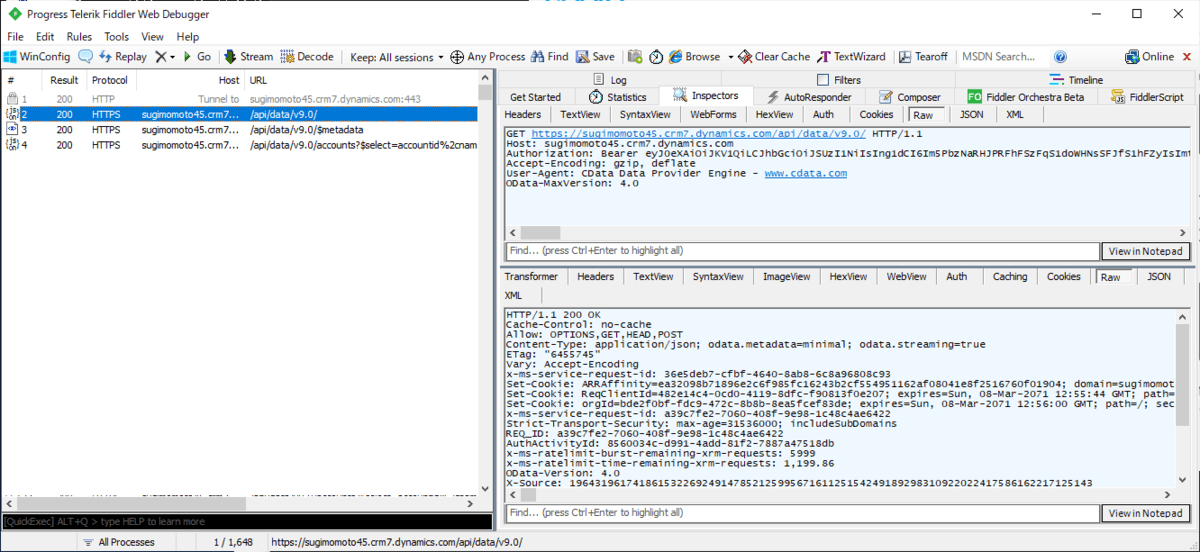
Fiddler showed that this seemingly simple SQL query generated multiple Web API calls, not just one:
-
Environment Validation Request
Before performing any data operation, the driver first validates the environment URL:GET https://sugimomoto45.crm7.dynamics.com/api/data/v9.0/
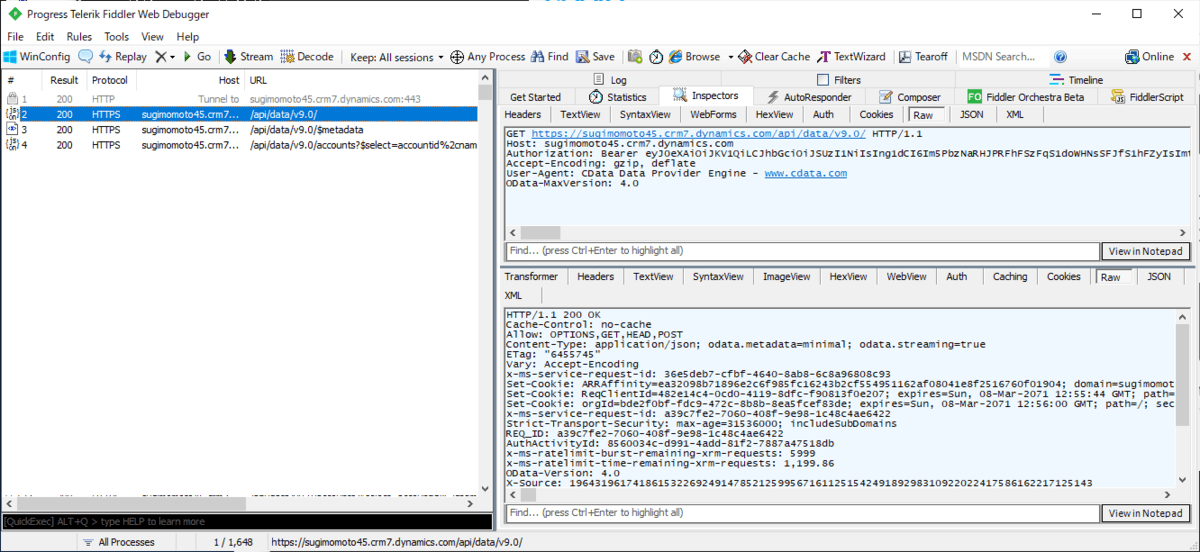
This ensures the API endpoint is reachable and the organization is correctly configured.
-
Metadata Retrieval Request
Next, the driver retrieves entity metadata to build (or refresh) its internal schema cache:GET https://sugimomoto45.crm7.dynamics.com/api/data/v9.0/$metadata
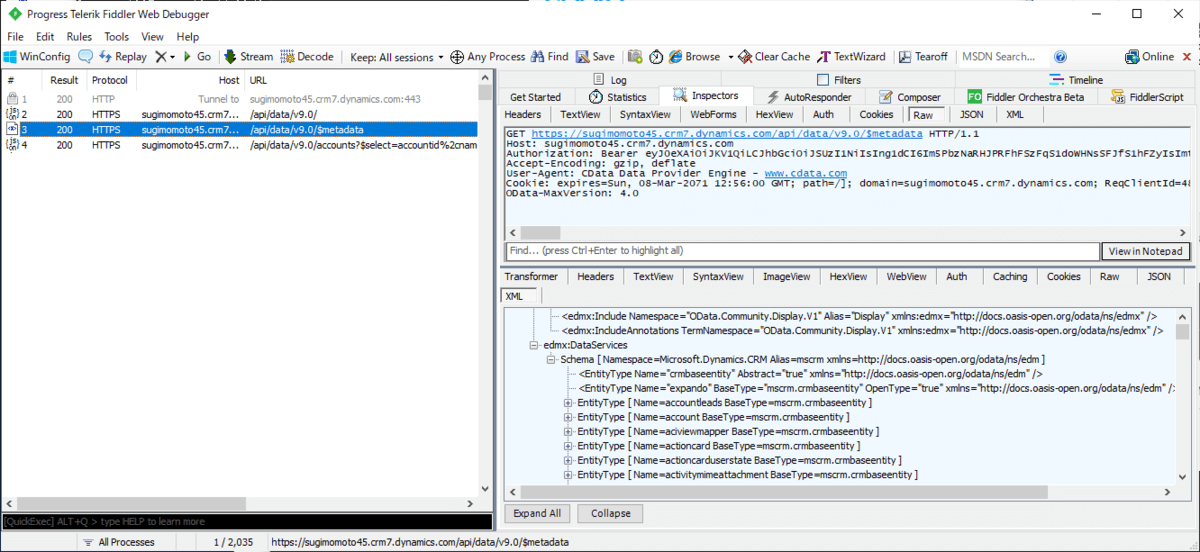
This step allows the driver to understand fields, relationships, data types, and other schema details. When metadata is cached, this request does not occur every time.
-
Actual Data Retrieval Request
Finally, the driver issues the true data query:GET https://sugimomoto45.crm7.dynamics.com/api/data/v9.0/accounts?$select=accountid,name
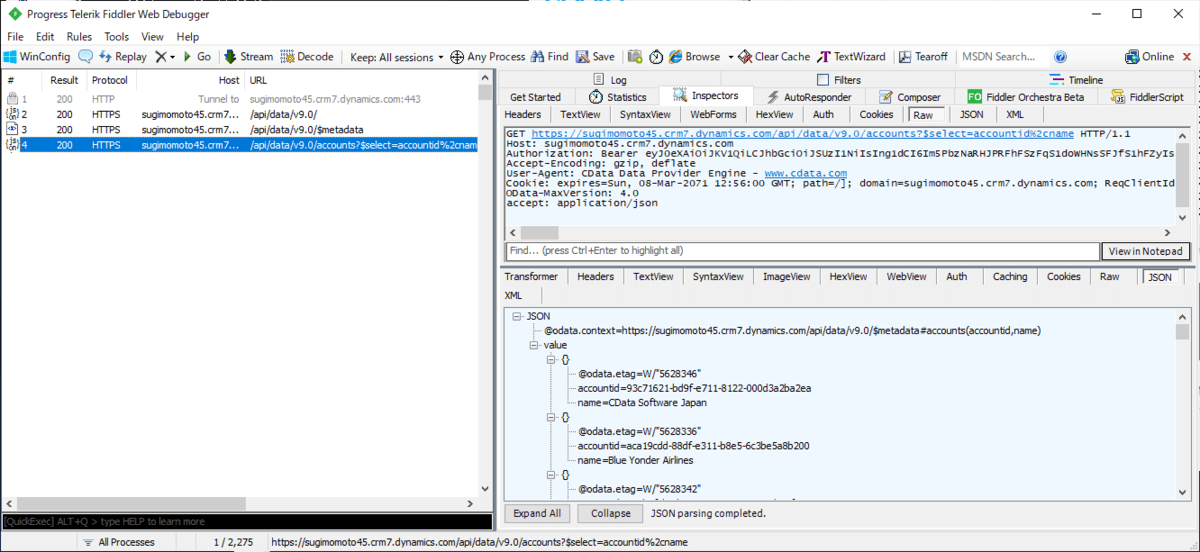
This call returns the actual business data requested by the SQL query.
As this example shows, executing one SQL statement does not equate to one Web API request. The real number depends on:
- whether metadata is already cached
- whether pagination is required (over 5,000 rows)
- whether related entities or expanded fields are requested
- batch operations, filters, or repeated queries
In some scenarios, the driver may also issue additional automatic API calls—for example, when handling pagination, resolving lookups, or performing updates in batches. For this reason, it is not possible to define a universal “X API requests per SQL query” rule. The driver optimizes API usage wherever possible, but actual consumption varies by workload and query pattern.
How to Avoid Exceeding API Limits
Avoiding API violations requires a workload-specific strategy. Dataverse usage varies widely depending on read vs. write operations, concurrency, data volume, and whether metadata must be refreshed. The following best practices help reduce API consumption and improve throughput:
1. Measure Actual Usage First
Run representative workloads and observe API usage in both the Power Platform Admin Center and Web API response headers. This identifies the operations generating the highest traffic.
2. Use Bulk Operations for Writes
Writes can be bundled into Dataverse batch operations (up to 1,000 sub-operations per request). The CData driver can leverage batching to reduce total HTTP calls, particularly for insert-heavy workflows.
3. Enable Caching in the CData Driver
If queries repeatedly access the same reference data, enabling caching can dramatically reduce Dataverse reads.
4. Offload Reporting Workloads Using CData Sync
For analytics, replicate Dataverse to a database or warehouse using CData Sync, allowing BI workloads to run locally without consuming Dataverse API calls.
5. Maintain Steady Throughput
Avoid large burst workloads. Increase throughput gradually and rely on the Retry-After header to maintain an optimal rate without triggering extended throttling.
Source: Microsoft Docs
Build High-Performance Dataverse Integrations with CData
Unlock the full potential of your Microsoft Dynamics 365 and Dataverse environments with enterprise-grade connectivity from CData. Whether you're building real-time integrations, migrating data, or powering analytics, CData Drivers deliver unmatched performance, reliability, and ease of use.
Start your free trial:
- Download the CData Dataverse Driver (Free Trial)
- Download the CData Dynamics 365 Driver (Free Trial)
Accelerate your integration projects and build scalable, API-efficient solutions with CData today.
