






How to Manage Multiple Attachments in Kintone Using the CData Kintone JDBC Driver
Kintone is a flexible, cloud-based business application platform that helps organizations across industries streamline workflows, manage data, and automate processes, all without requiring deep technical expertise. From project tracking to customer management, it enables teams to build custom solutions tailored to their unique operational needs.
CData enhances this flexibility by enabling seamless connectivity between Kintone and a wide range of external applications and databases. With the CData Kintone JDBC Driver, users can work with Kintone data directly from familiar tools like Excel, Access, or any other compatible client, simplifying data integration and automation.
In this article, we explore how to make use of the CData Kintone JDBC Driver to add or delete multiple attachments in Kintone efficiently using SQL (we use DBeaver as the client for this article). This new capability, introduced in version 23 of the CData Kintone Drivers & Connectors, allows users to manage attachments in bulk, saving time and improving productivity across data-driven workflows.
Prerequisites
- A Kintone account with appropriate permissions
- Download and install the CData Kintone JDBC Driver
- DBeaver or another JDBC-compatible client installed on your system
Step 1: Connect to Kintone using the JDBC driver
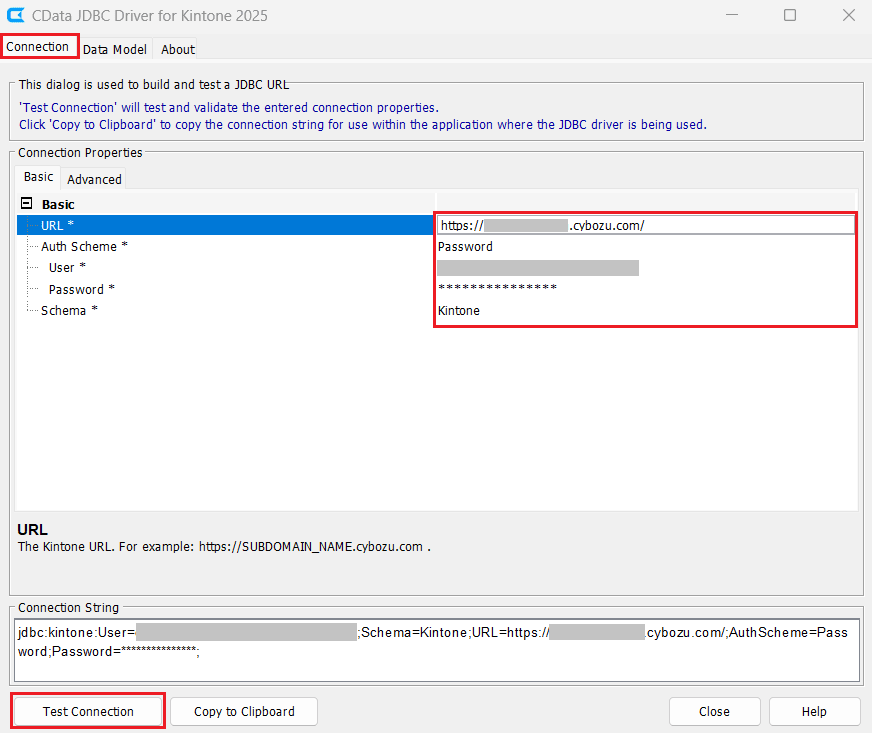
To construct the JDBC URL, use the connection string designer built into the Kintone JDBC driver. Either double-click the JAR file or execute the .jar file from the command line.
java -jar cdata.jdbc.kintone.jar
Fill in the connection properties, copy and save the connection string to the clipboard (to be used in later sections).
Below is a typical connection string:
jdbc:kintone:User=myuseraccount;Password=mypassword;Url=http://subdomain.domain.com;GuestSpaceId=myspaceid
Step 2: Create a Kintone application
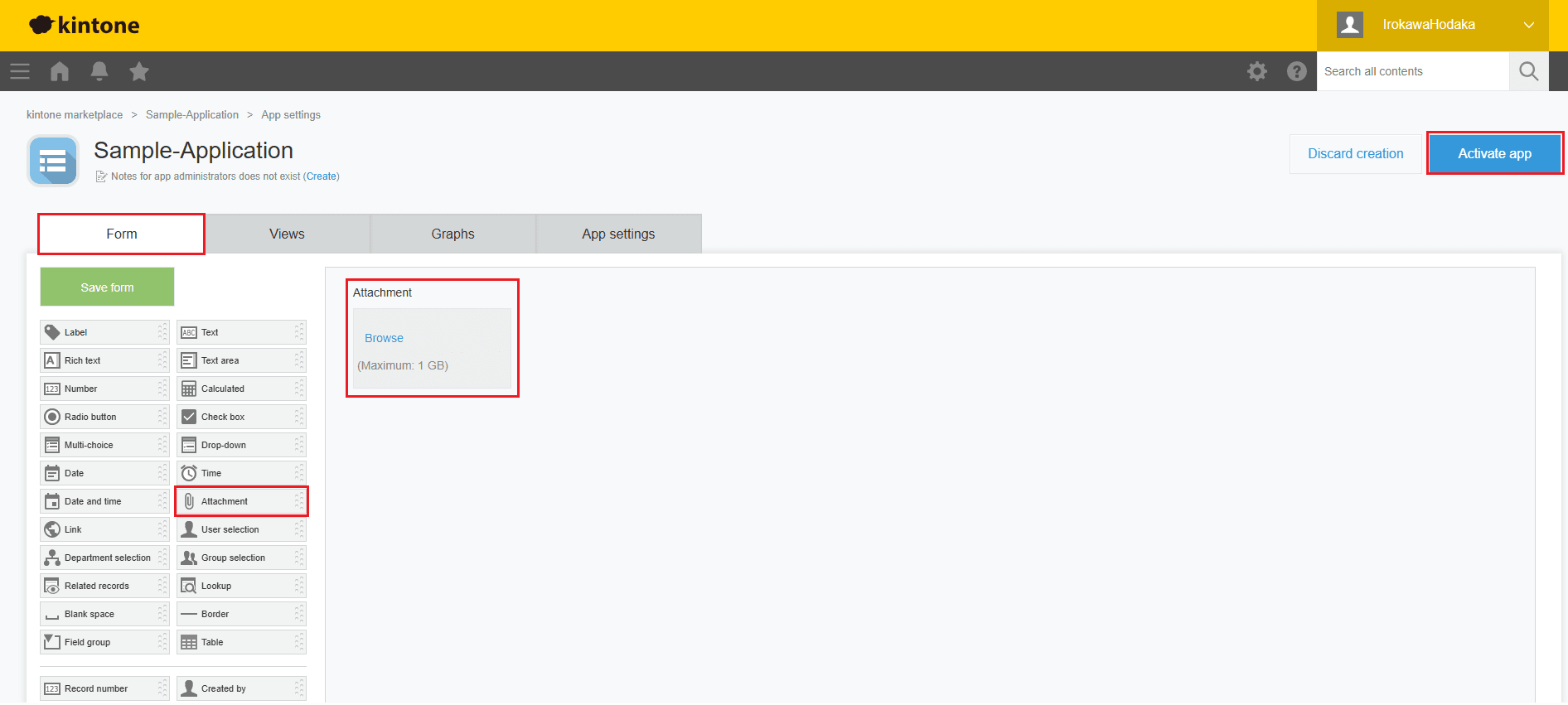
Before connecting with the CData Kintone JDBC Driver, you need to create a Kintone application that includes an Attachment field for storing files. Follow these quick steps to set up your app:
- Log in to your Kintone environment.
- From the dashboard, click Create App and select Create App from Scratch.
- Enter a suitable name for your application.
- In the Form tab, drag and drop the Attachment field into the form area.
- Click Activate app to create and publish your Kintone application.
Step 3: Add an attachment to a record in the application
Adding an attachment to a record involves two main actions: uploading the file and setting the FileKey on the corresponding record in Kintone.
In this example, we use the CData Kintone JDBC Driver to connect to Kintone from DBeaver and execute stored procedures that handle these operations.
To connect to Kintone from DBeaver:
- Create a new database connection in DBeaver using the Driver Manager.
- In the connection settings, paste the JDBC URL copied from the CData Kintone JDBC Driver (include your Kintone URL, Username, and Password).
- Once connected, right-click on the Kintone database, open a new SQL script from the SQL Editor and follow the upcoming process as instructed.
a. Upload the file with the UploadFile stored procedure
After the connection is established, execute the UploadFile stored procedure, as shown below.
EXEC UploadFile @FullPath='filepath';
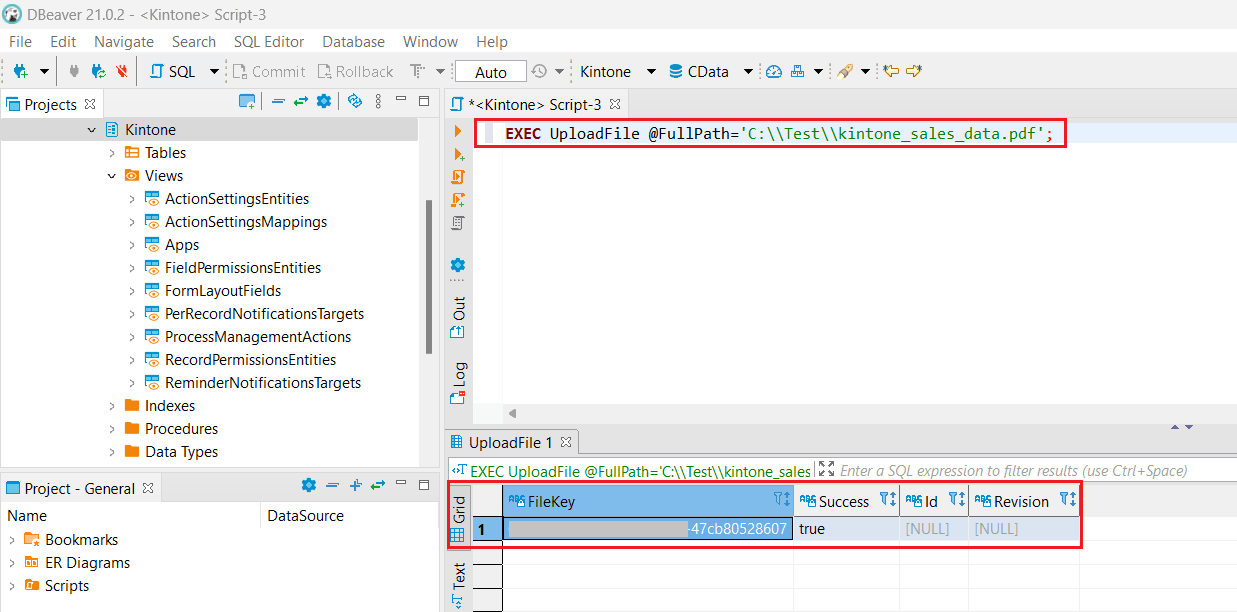
Once the file is uploaded, a new FileKey is generated, which is used in the next step.
Also, as witnessed from the given example, Kintone automatically detects the file type. However, you can also explicitly define the ContentType to ensure the upload is processed correctly.
For example, when uploading a PDF file, you can specify the ContentType as shown below.
EXEC UploadFile @FullPath='C:\\CData\\LocalTest\\Sample.pdf', @ContentType='application/pdf';
Refer to our documentation on UploadFile stored procedure to know more.
b. Set the FileKey in the attachment column of the record
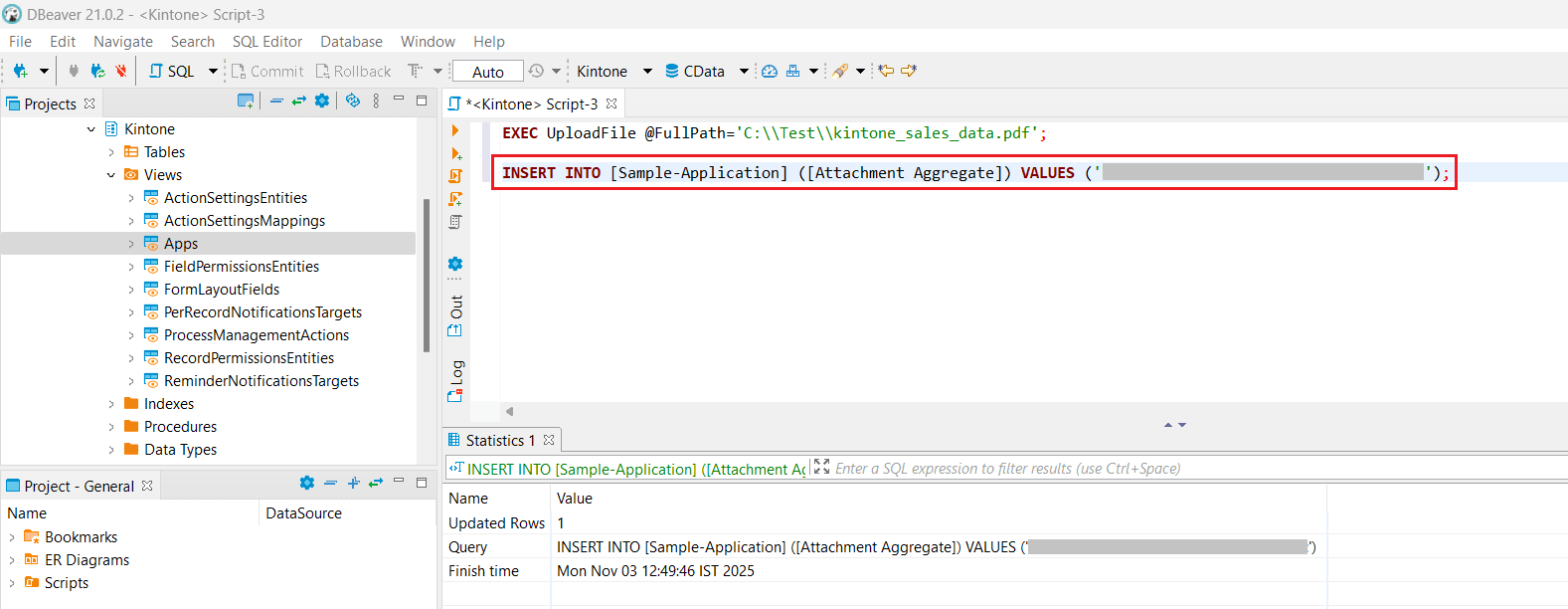
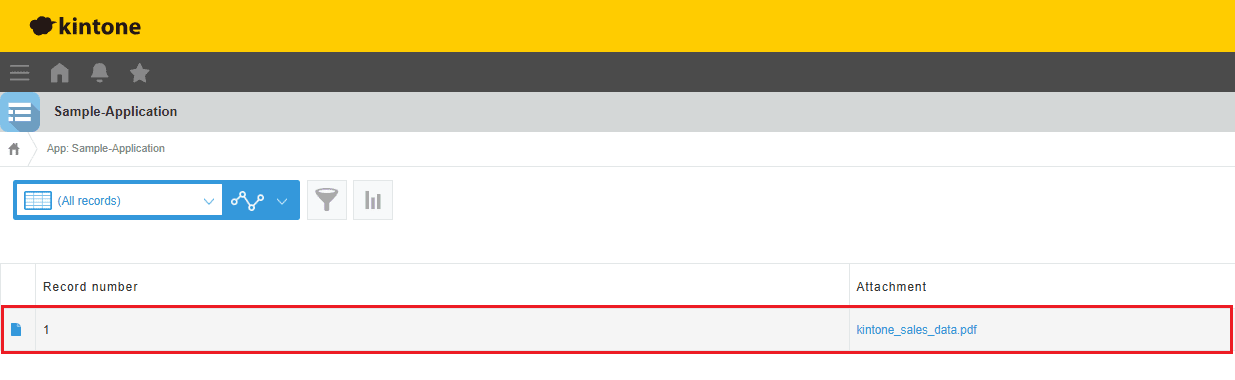
In this step, the newly generated FileKey from the previous step is used to insert a record that includes the uploaded file as an attachment. This is done using the following SQL INSERT statement:
INSERT INTO [Application Name] ([Attachment Aggregate]) VALUES ('FileKey');
Step 4: Add another attachment to an existing record
To add a new attachment to a record that already contains one, you need to combine the FileKey of the existing attachment with the FileKey of the newly uploaded file. These keys are concatenated with a comma before updating the record.
a. Retrieve the FileKey from the existing record
First, get the FileKey of the record’s current attachment by querying the attachment field. The result gets returned in JSON format:
SELECT [Attachment Aggregate] FROM [Application Name] WHERE [RecordId] = '1';
Example output
[
  {
    "fileKey": "xxxxxx",
    "name": "Sample.pdf",
    "contentType": "application/pdf",
    "size": "5974"
  }
]
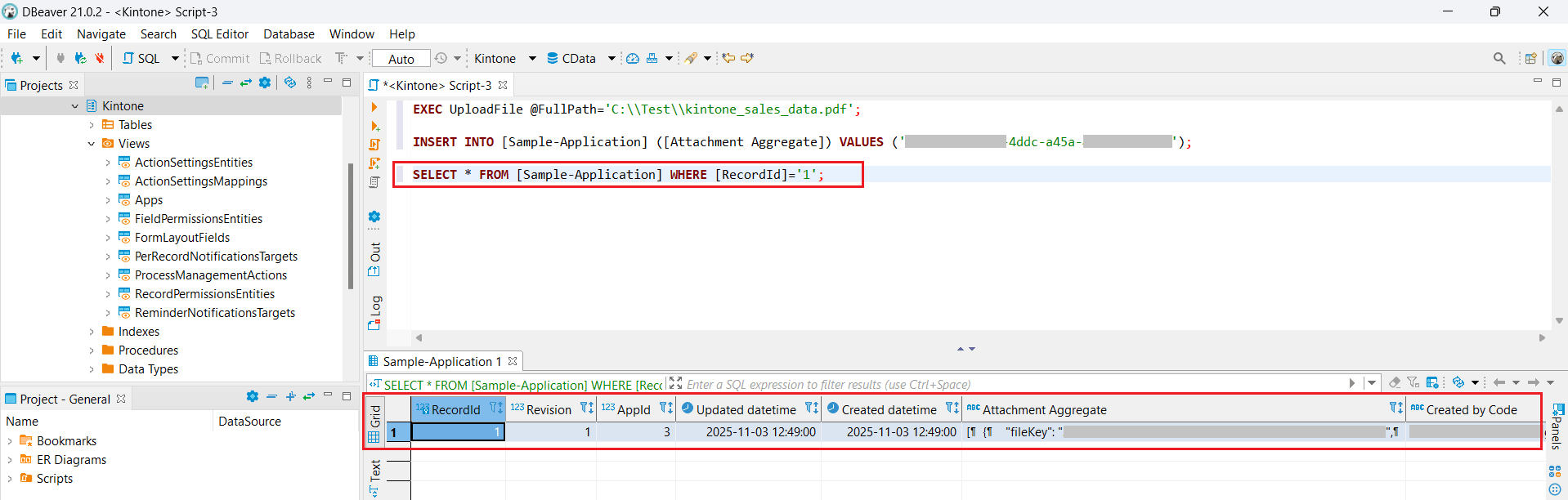
Since the fileKey value is nested within the JSON, extracting it manually can be cumbersome. Instead, you can use the JSON_EXTRACT function to retrieve it directly.
b. Extract the FileKey value
Use the following query to extract the fileKey value from the JSON response:
SELECT JSON_EXTRACT([Attachment Aggregate], '$.[0].fileKey')
FROM [Application Name]
WHERE [RecordId] = '1';
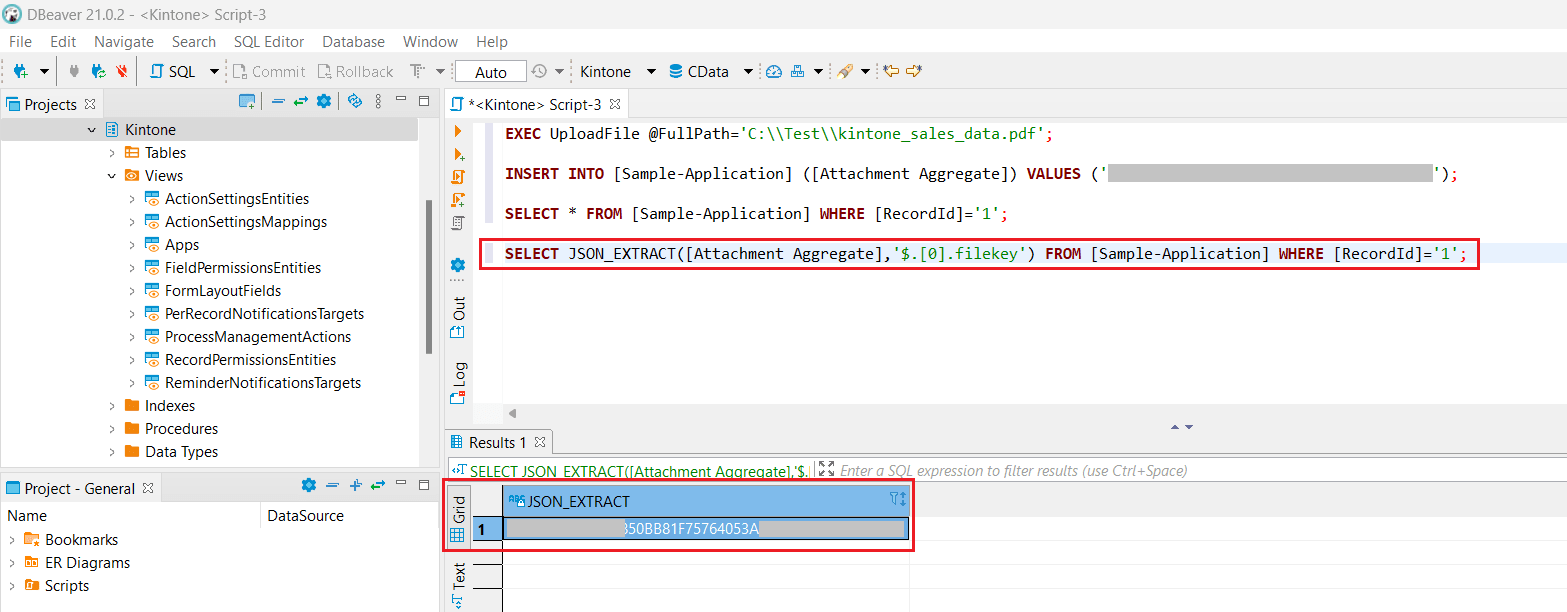
The [0] index here specifies which attachment to reference. If multiple attachments exist, change this index to extract the corresponding FileKey.
c. Combine FileKeys to add the new attachment
Once you have both the original FileKey and the newly uploaded one, concatenate them with a comma and update the record as shown below:
UPDATE [Application Name]
SET [Attachment Aggregate] = xxxxxx'
WHERE [RecordId] = '1';
This command updates the record to include both attachments, effectively adding a new file without removing the existing one.
Step 5: Delete attachments
If you need to remove an attachment from a Kintone record, you can simply clear the value of the attachment field. This effectively deletes the associated file reference from the record without affecting other data in the table.
To remove all attachments from a specific record, set the Attachment Aggregate field to NULL using the following SQL command:
UPDATE [Application Name]
SET [Attachment Aggregate] = NULL
WHERE [RecordId] = '1';
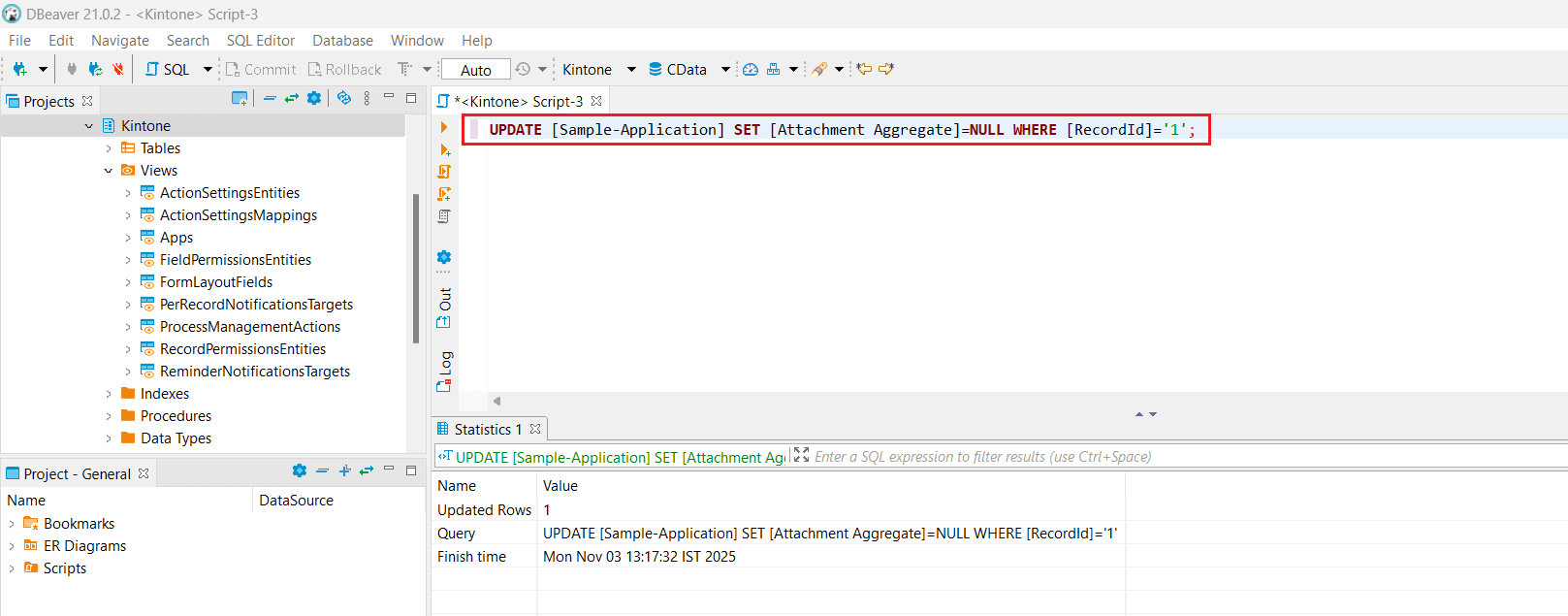
After executing this statement, the record will no longer contain any attached files. If you want to remove only specific attachments while keeping others, you can extract and update the FileKey values accordingly before running the update.

Smarter Kintone workflows with CData
Attachments are an essential part of using Kintone for business, enabling teams to store and manage files directly within their applications. With the CData Kintone JDBC Driver, managing attachments becomes simple and efficient, whether you are adding, updating, or deleting files.
CData offers a wide range of connectivity solutions that allow you to integrate Kintone with tools such as Excel, Access, and many other applications.
Ready to get started? Download a free 30-day trial of any CData Driver or Connector today. Our world-class Support Team is always available to help you with any questions.
