






How to Access PostgreSQL Through an SSH Server (No PuTTY Required): CData PostgreSQL ODBC Driver
If you host PostgreSQL on cloud platforms like AWS or Azure, accessing your database securely often requires routing the connection through an SSH server. Traditionally, this involves complex and time-consuming manual port forwarding using tools like PuTTY.
With the CData PostgreSQL Driver, you can connect directly to PostgreSQL databases through an SSH server — no additional SSH tools, command-line setups, or port configurations needed.
This can be set up in minutes with just a few steps. The driver handles SSH tunneling automatically, saving time and reducing the risk of misconfiguration — while ensuring secure end-to-end communication with your database.
In this article, we'll look at how to configure a secure connection to PostgreSQL in the cloud through an SSH server using the CData driver. For this example, we'll use the CData ODBC Driver for PostgreSQL along with an Amazon RDS for PostgreSQL instance and an AWS EC2 instance configured as the SSH jump server. You can use the same approach with other CData Drivers and Connectors as well.
Prerequisites
- A PostgreSQL cloud instance (e.g., Amazon RDS or Azure Database for PostgreSQL) with credentials, plus an SSH-accessible server (e.g., AWS EC2) in the same network.
- The CData ODBC Driver for PostgreSQL — download a free trial here.
Overview
Here's a quick overview of the steps we'll follow:
- Configure: Install the CData ODBC Driver for PostgreSQL and create a DSN with database and SSH details.
- Query: Query your live connected data securely through the SSH tunnel.
Step 1: Install and Configure the Driver
- Download and install the CData PostgreSQL ODBC Driver for your operating system.
- Run the installer and follow the on-screen setup instructions.
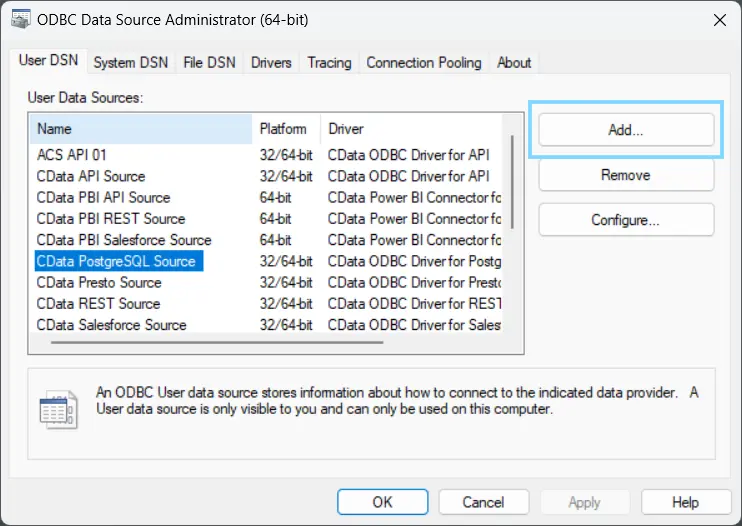
- Once installed, open the ODBC Data Source Administrator to configure a new DSN:
- On Windows: Search for ODBC Data Sources (64-bit) in the Start menu and open it.
- On macOS: Open Applications > Utilities > ODBC Manager.
- On Linux: Use unixODBC and edit your odbc.ini file.
-
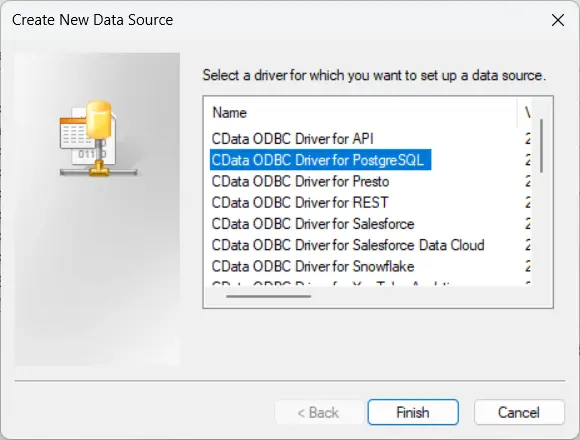
Click Add and select CData ODBC Driver for PostgreSQL.
-
Switch to the Advanced tab and enter the following
connection properties under the Authentication section.
PostgreSQL Connection Properties
Property Name Example Value Details AuthScheme Password Authentication method. Use Password for standard PostgreSQL authentication. Server database-1.CDataSample.us-west-2.rds.amazonaws.com The RDS endpoint or PostgreSQL server hostname. Database postgres The name of the PostgreSQL database to connect to. User postgres The PostgreSQL username configured for the database. Password YOUR_PASSWORD The password for the PostgreSQL user. Port 5432 The default PostgreSQL port (5432 unless customized). UseSSL False Set to True if SSL/TLS is required by your PostgreSQL server. Default is False. 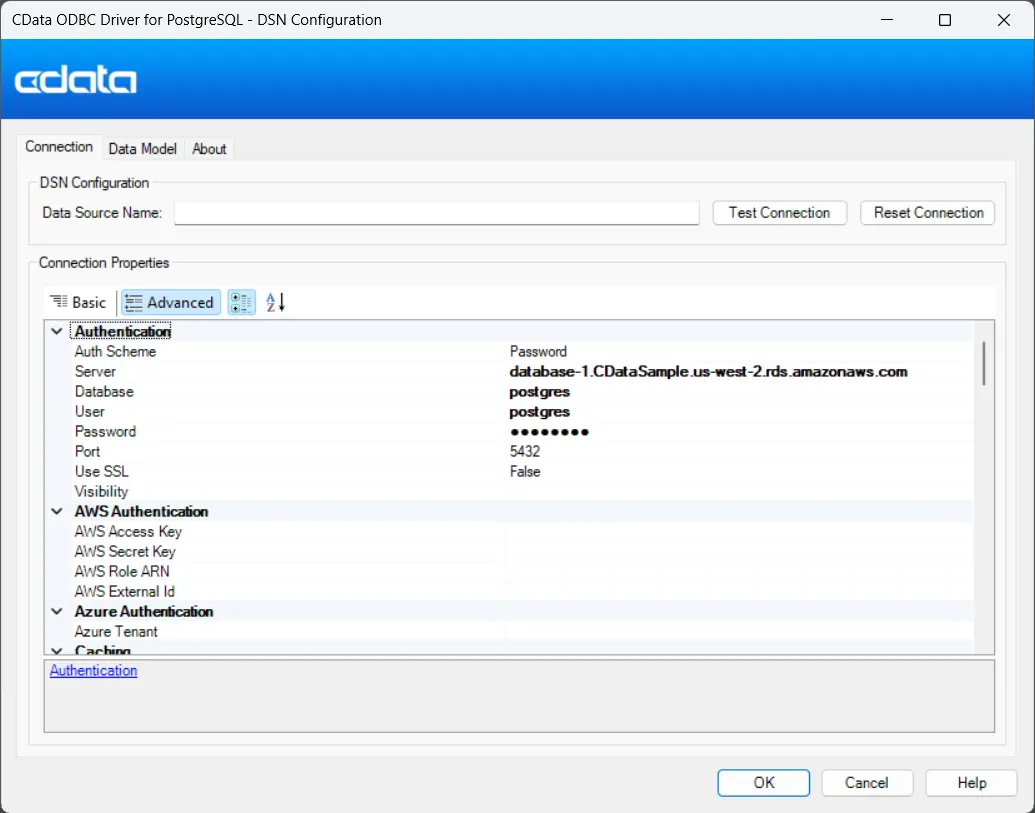
-
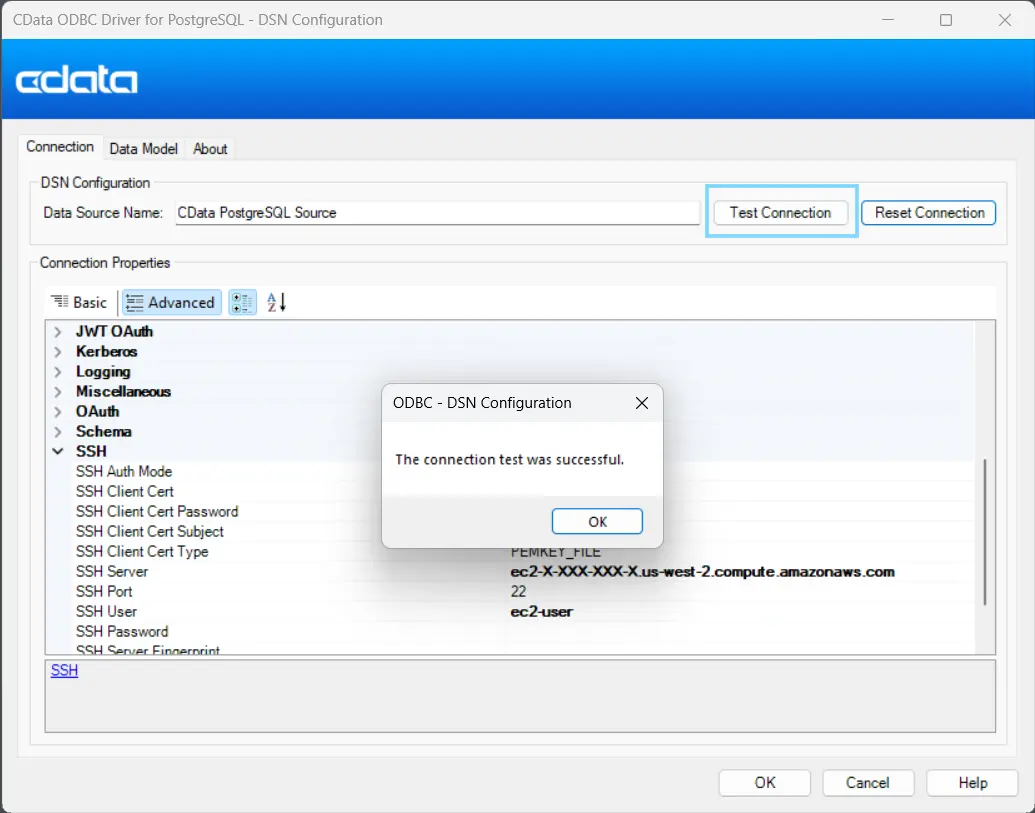
Scroll down to the SSH section and enter the following details.
SSH Connection Properties
Property Name Example Value Details SSHAuthMode Password Authentication method for SSH. Use Password or PublicKey depending on your setup. SSHClientCert C:\Keys\my-key.pem Path to your downloaded AWS EC2 PEM key file (used for public key authentication). SSHClientCertType PEMKEY_FILE Specifies that the client certificate is a PEM key file. SSHServer ec2-X-XX-XX-XXX.us-west-2.compute.amazonaws.com The public DNS name of your EC2 SSH server. The X-XX-XX-XXX portion corresponds to the instanc's public IP. SSHPort 22 Default SSH port. Only change if your EC2 instance uses a non-standard SSH port. SSHUser ec2-user The default user for Amazon Linux AMIs is ec2-user. For Ubuntu AMIs, use ubuntu. UseSSH True Set this to True to enable SSH tunneling through the EC2 instance. 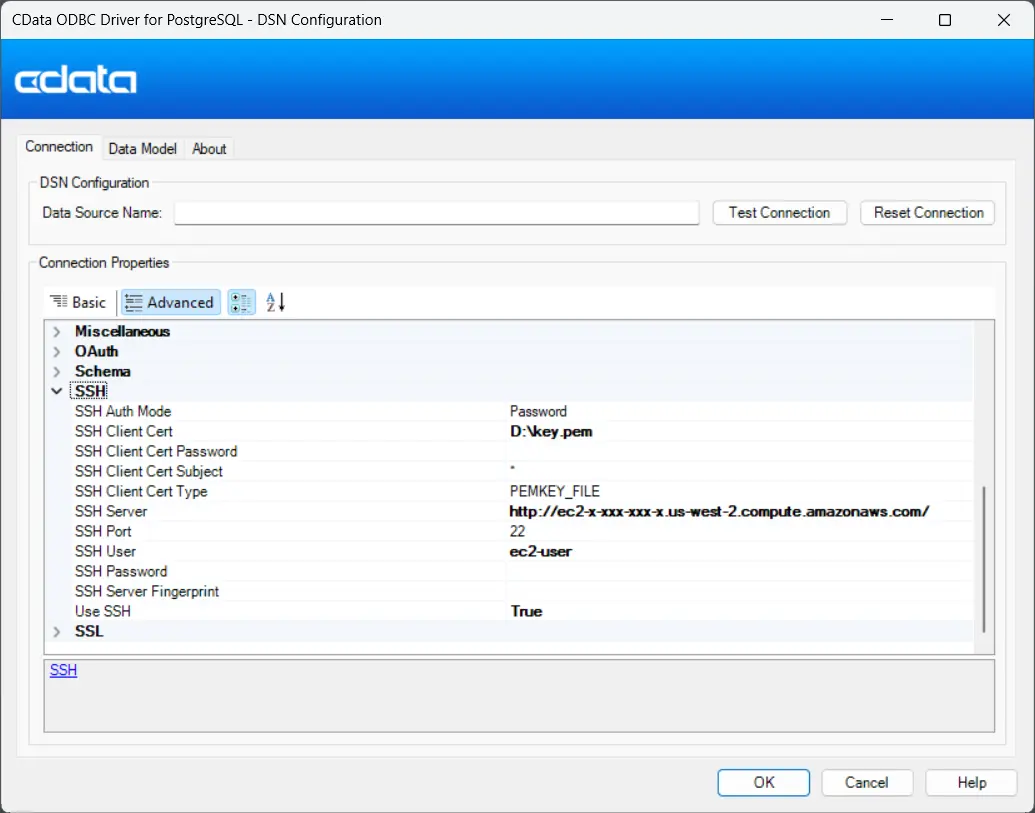
-
Click Test Connection to validate the configuration.
If the connection is successful, you will see a confirmation message.
Step 2: Query the Live PostgreSQL Data
Now that you have successfully configured and tested the connection, you can begin querying your live PostgreSQL data directly through the CData ODBC Driver.
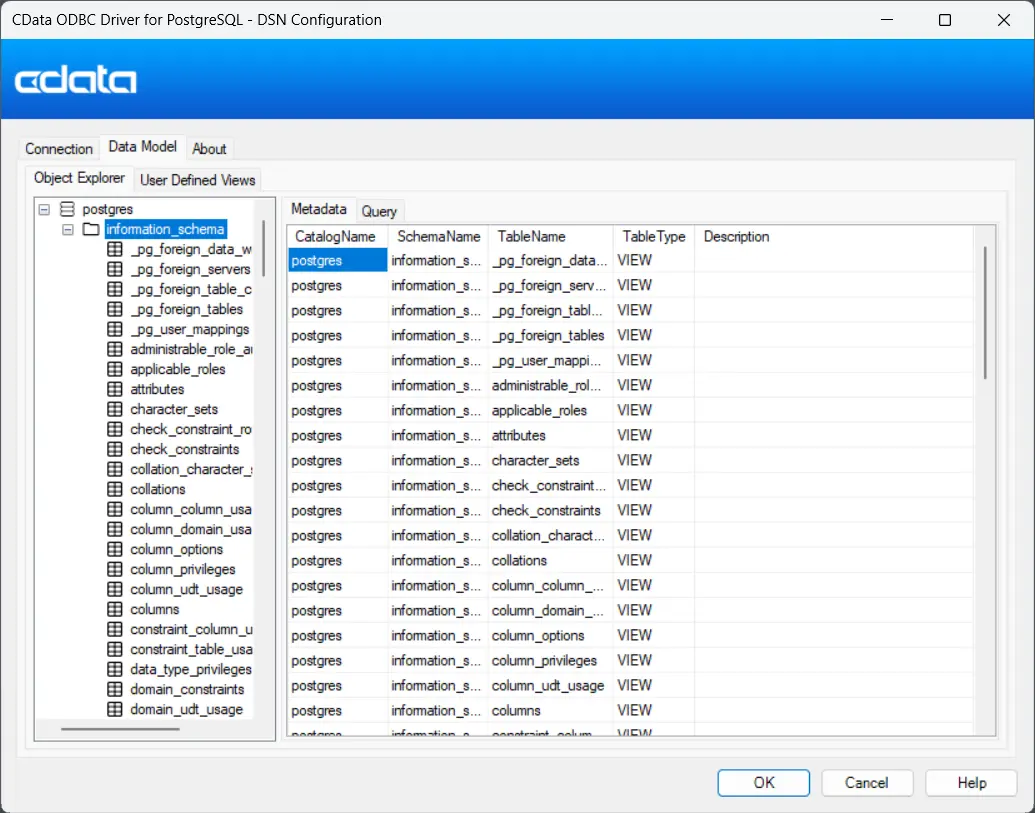
Click on the Data Model tab in the driver's connection dialog to view available schemas, tables, and columns from your PostgreSQL instance.
You can also run queries from your preferred BI, reporting, or ETL tools. For example, open Excel, Tableau, or Power BI, connect to the configured DSN, and start building queries or reports against your live PostgreSQL data — all securely tunneled through SSH.
Try CData Driver for PostgreSQL Free for 30 Days
The CData ODBC Driver for PostgreSQL makes it simple to connect to your cloud-hosted PostgreSQL data securely through SSH — no manual tunneling or third-party tools required. Set up connections in minutes and start querying your data in real time from any tool that supports ODBC.
Start your free 30-day trial today and experience seamless PostgreSQL connectivity with CData.
