






How to Use an External ID to Perform an UPSERT Operation against Salesforce
Data integration scenarios frequently require synchronizing records between Salesforce and external systems such as relational databases, ERP applications, marketing platforms, or custom business systems. When these systems do not store Salesforce record IDs, even routine updates can become more complex and demanding on API resources. Leveraging External IDs provides a practical way to match and update records reliably, without needing additional lookup operations. When combined with UPSERT functionality and the SQL-based interface offered by the CData Salesforce Driver, managing Salesforce data becomes more efficient, scalable, and easier to maintain across your broader integration landscape.
This article explores how to use External IDs to perform UPSERT operations in Salesforce using the CData Salesforce Driver and how to implement them effectively.
Salesforce ID limitations
Salesforce automatically assigns a unique identifier to every record. However, external databases and business systems typically do not store this Salesforce-specific ID. As a result, updating a record through standard API operations requires first searching Salesforce to locate the corresponding record, retrieving its ID, and then performing the update. This process doubles the number of required API calls and can quickly increase API consumption, especially in large-scale integrations.
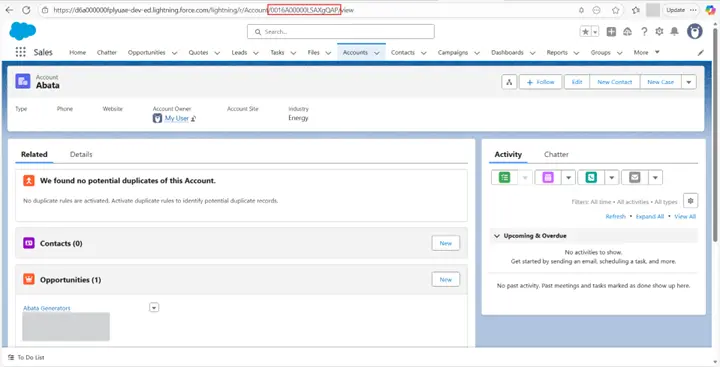
Introduction to UPSERT
UPSERT combines the logic of an update and an insert in a single operation. When an external ID matches an existing record, Salesforce performs an update; when no match is found, a new record is created. The CData Salesforce Driver further streamlines this process by enabling UPSERT through SQL commands, making integrations more efficient and reducing overall API usage.
Implementing UPSERT with external IDs
Step 1: Create an external ID field in Salesforce
-
Navigate to Setup, open Object Manager, select Account, and then open Fields and Relationships
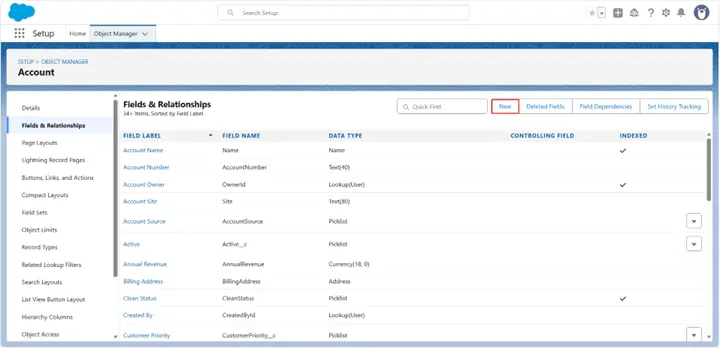
-
Create a new field using the Text data type
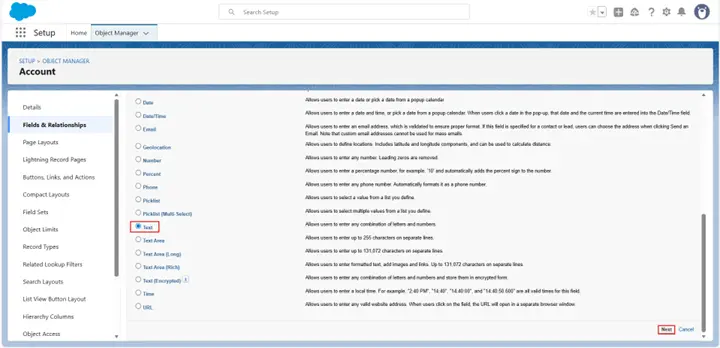
-
Configure the field by enabling both External ID and Unique to ensure it serves as a reliable identifier
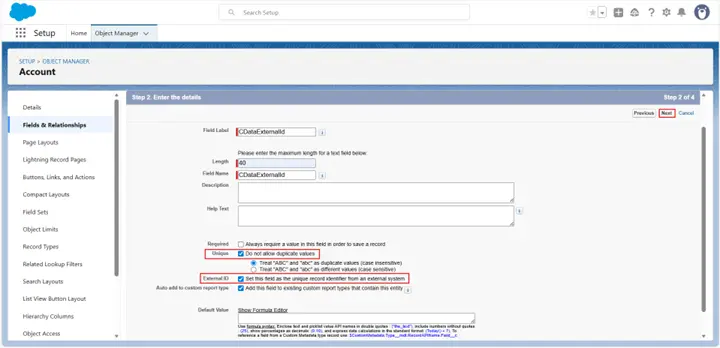
-
Save the field using an appropriate name such as CDataExternalId__c
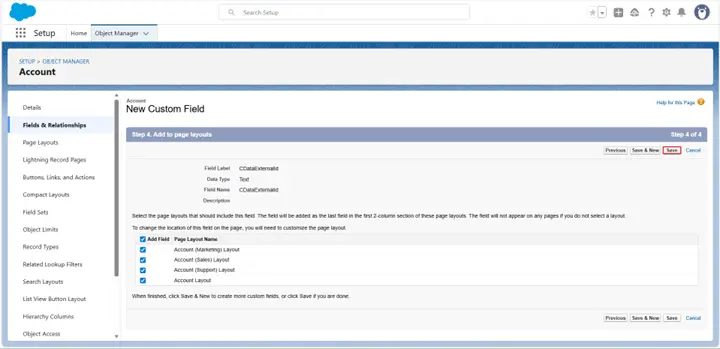
-
Confirm that the new field appears in the Fields and Relationships list with the External ID and Unique indicators displayed beside it
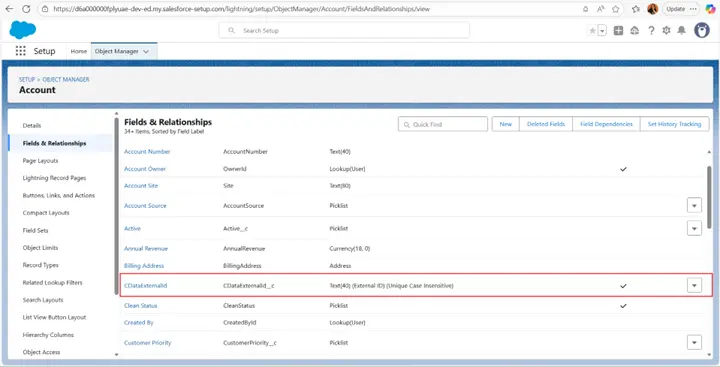
Step 2: Connect to Salesforce using the CData Salesforce driver
- Open your SQL tool such as DBVisualizer
-
Connect to Salesforce using the CData Salesforce JDBC Driver
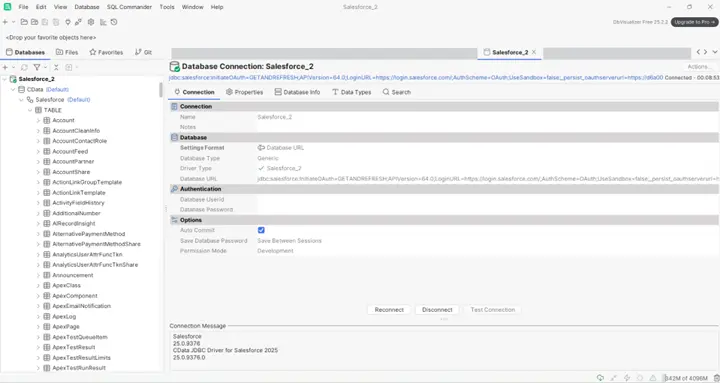
-
Expand the Salesforce connection and locate the Account table to confirm the connection is successful
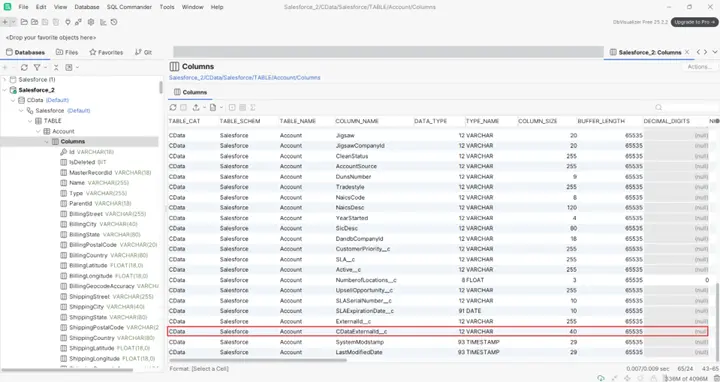
- Open a new SQL editor window
-
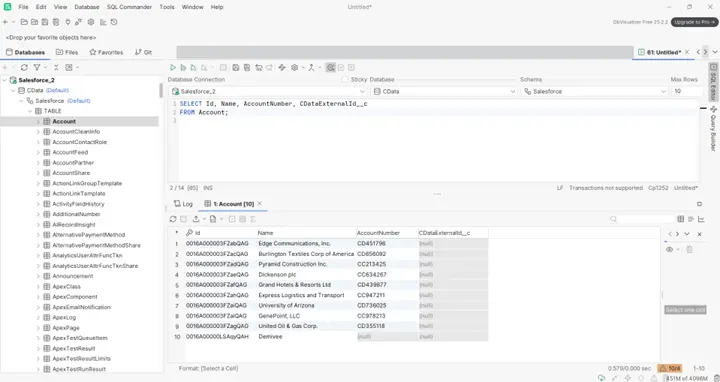
Run the following query to verify that the External ID field is accessible:
SELECT Id, Name, AccountNumber, CDataExternalId__c FROM Account;
Step 3: Perform an UPSERT operation
- Prepare an UPSERT statement to insert a new Account record using the External ID field
-
Run the following command to create the record because the External ID does not yet exist:
UPSERT INTO Account(Name, AccountNumber, CDataExternalId__c, ExternalIdColumn) VALUES('UPSERT TEST INSERT', '001', 'UPSERTKEY01', 'CDataExternalId__c'); -
Run another UPSERT using the same External ID value to update the existing record instead of inserting a new one:
UPSERT INTO Account(Name, AccountNumber, CDataExternalId__c, ExternalIdColumn) VALUES('UPSERT TEST UPDATE', '001', 'UPSERTKEY01', 'CDataExternalId__c'); - Confirm that Salesforce correctly inserts the record on the first command and updates it on the second, showing that the UPSERT logic is working as expected
Simplified Salesforce integration with CData
The CData Salesforce Driver streamlines record management by supporting UPSERT operations through simple SQL commands. With External IDs, you can synchronize data efficiently, reduce API usage, and avoid the need to manually retrieve Salesforce record IDs. The driver also delivers secure, real-time access to all Salesforce objects, making it easier to integrate, automate, and analyse your data.
Start your free trial of the CData Salesforce Driver today and experience faster, more scalable Salesforce connectivity.
