




How to Fix Power BI SAP Connector Memory and Performance Issues
Power BI and SAP form the core of enterprise reporting in manufacturing and supply chain, and getting them to work together reliably at production scale is a persistent challenge. Power BI drives visualization across production, inventory, and finance; SAP holds the operational data that feeds those reports.
One of the most common ways teams connect SAP to Power BI is through Microsoft’s native SAP connector — which handles lighter workloads but degrades in documented, predictable ways as datasets grow and report complexity increases.
The degradation follows a consistent pattern: DirectQuery sessions time out mid-report, Power BI Desktop exhausts memory on refresh, and Remote Function Call (RFC) connections accumulate on the SAP server. When teams escalate the issue, Microsoft’s troubleshooting documentation instructs users to contact SAP, and SAP’s official FAQ redirects session and memory issues back to the Power BI team. The deflection is documented on both sides, and neither vendor has committed to a resolution.
This guide explains the root causes of those failures and walks through the full setup of a CData SAP Power BI Connector — from installation and licensing through DSN configuration and report connection — so existing Power BI files run against live SAP data without modification.
Root causes of native SAP connector failures
The native connector’s performance failures trace back to three design constraints: how it routes queries through the Multidimensional Expressions (MDX) interface, how it manages memory under DirectQuery, and how it handles SAP session lifecycle.
- DirectQuery timeouts on SAP HANA. The connector includes all selected columns in every subselect sent to HANA, regardless of what the current report rendering actually requires. Microsoft acknowledges the result: those queries "generally perform poorly and can encounter timeouts." Non-additive measures — distinct counts, averages — degrade query plan optimization on the HANA side and accelerate the failure. (Microsoft Learn — DirectQuery for SAP HANA in Power BI)
- The BatchSize memory trade-off on SAP Business Warehouse (BW). The BatchSize parameter controls rows retrieved per MDX call. Increasing it reduces call overhead but "could cause memory issues on the SAP BW server." The default of 50,000 rows sits in the middle of a range where neither end is safe for enterprise data volumes. (Microsoft Learn — SAP BW Connector in Power BI Desktop)
- MDX is not designed for bulk data extraction. SAP’s FAQ states memory errors are "in 99% of cases due to the size of the requested resultset" and that "the MDX interface is not meant to be used for mass data extraction." Power BI’s generated MDX omits the NON EMPTY statement — a behavior the report developer cannot change. (SAP KBA 2777473 — MDX: FAQ for Power BI accessing BW or BW/4HANA)
- RFC sessions accumulate without closing. Power BI operations open RFC connections to SAP BW that remain open on the SAP server even after the operation completes or is cancelled. Per SAP’s own documentation, session lifecycle management is the frontend tool’s responsibility — SAP support does not assist with session cleanup on the BW side. (SAP KBA 2777473)
- MDX cell limits and memory exhaustion on SAP BW. In classic MDX execution mode, SAP BW caps result sets at 1,000,000 cells. Implementation 2.0 of the native connector removes this hard ceiling but does not resolve the underlying memory and timeout problems — large result sets remain “very large and time-consuming to process.” (SAP SCN Wiki — MDX: 1 million cell limit · Microsoft Learn — Navigate query objects)
These two error strings appear most consistently across support threads for these failure modes:
DataSource.Error: SAP Business Warehouse: SYSTEM_FAILURE No more memory available to add rows to an internal table
Error occurred when starting the parser: timeout during allocate / CPIC-CALL: 'ThSAPCMRCV'
What connector failures cost manufacturing teams
Production planning dashboards run at shift handovers. Inventory visibility reports are open during cycle counts. Financial reconciliations run against month-end deadlines. These are scheduled, time-sensitive operations where a DirectQuery timeout or a crashed Power BI Desktop session causes immediate downstream impact — not impact that can wait for a support ticket to resolve.
The native connector’s own documentation describes the failure conditions in operational terms. Microsoft advises that selecting too many columns causes subselect queries that “generally perform poorly and can encounter timeouts,” and that non-additive measures “reduce the efficiency of query plan optimization in SAP HANA.” (Microsoft Learn — DirectQuery for SAP HANA in Power BI)
SAP’s own FAQ notes that memory errors occur in the majority of cases due to result set size, and that the MDX interface “is not meant to be used for mass data extraction.” These are not edge cases — they are the documented behavior of the connector under the query patterns that production reporting requires. (SAP KBA 2777473)
Reducing row limits, switching to Import mode, or applying aggressive pre-filters can reduce the frequency of failures, but each degrades report coverage or data freshness — outcomes that undermine the purpose of connecting Power BI to SAP in the first place.
Replacing the connector at the driver level resolves these failures without requiring report rebuilds or workflow changes.
How CData SAP connectors resolve these issues
CData addresses the native connector’s failures by replacing the underlying query architecture. Each capability below corresponds directly to one of the documented failure modes above.
- Server-side query pushdown. Filters, joins, and aggregations execute on SAP before data moves to Power BI. The connector returns only the result subset the active report requires, keeping both SAP memory usage and Power BI Desktop memory usage bounded regardless of underlying dataset size. (CData — SAP HANA Power BI Connector)
- Direct SQL access to SAP data. CData SAP connectors query each platform through its native, most efficient interface — SQL against HANA views, RFC/BAPI calls for SAP ECC and BW, and OData with SQL pushdown for S/4HANA Cloud. All paths bypass the MDX interface entirely, removing the 1-million-cell ceiling, the BatchSize memory trade-off, and the mass extraction restriction documented in SAP KBA 2777473 from the data path.
- Managed connection pooling. The driver maintains a connection pool that handles session lifecycle cleanly. Connections open, execute, and return to the pool after each operation — the RFC session accumulation that affects the native BW connector does not occur.
- DirectQuery, Import, and Composite modes. All three Power BI connectivity modes are fully supported. In DirectQuery mode, reports query live SAP data without storing a local copy, which sidesteps the Power BI Pro 1GB import cap and keeps dashboards current against operational data that changes continuously.
- Full SQL compliance. Standard SQL operations — SELECT, WHERE, JOIN, GROUP BY, ORDER BY, and aggregates — execute correctly against SAP tables and views across all connector variants. The connector provides full access to both data and metadata, enabling schema discovery and report development without additional tooling.
- Driver performance. CData drivers are engineered at the SQL engine level for throughput efficiency, with socket-level streaming and compression applied across all connectors. In a direct benchmark against the Microsoft native SAP HANA connector, CData connected up to 11x faster on a cold start, loaded 1 million rows 65.9% faster in Import mode, and completed DirectQuery sessions 37% faster end-to-end. (CData — Power BI SAP HANA Connector Performance Benchmark)
- Single-vendor support. CData provides support for the complete connection path from Power BI to SAP. Teams working through a connectivity issue work with one team rather than navigating the Microsoft–SAP escalation boundary.
Setting up the CData SAP HANA Power BI Connector
NOTE: This walkthrough uses the CData SAP HANA Power BI Connector as the example. The installation, licensing, DSN configuration, and Power BI Desktop connection steps apply to all SAP connector variants from CData — only the connection properties in Step 3 differ by platform. See Supported SAP platforms below for the corresponding properties for each SAP product.
Step 1: Download and install
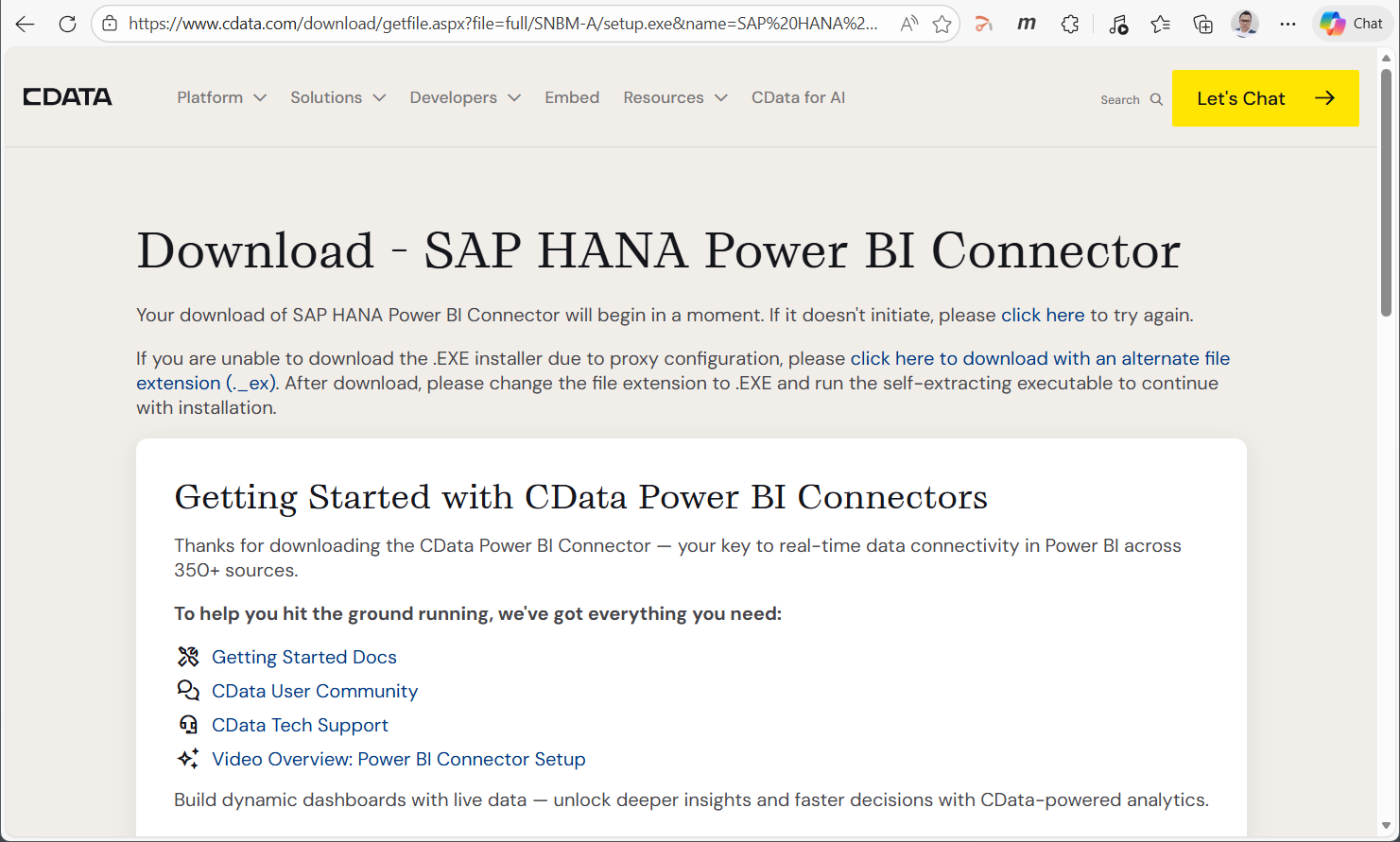
Download the CData Power BI Connector for SAP HANA and run the installer. The wizard handles driver registration and deploys the connector to the default installation directory.
- After installation, locate the .pqx connector file at:
C:\Program Files\CData\CData Power BI Connector for SAP HANA\CData.SAPHANA.pqx - Copy the file to the Power BI Desktop Custom Connectors folder:
Documents\Power BI Desktop\Custom Connectors - Restart Power BI Desktop
- If Power BI prompts you to enable custom extensions, go to File > Options and Settings > Options > Security, set Data Extensions to Allow any extension to load without validation, and restart
Step 2: Activate your license
Your license key arrives by email from the CData Orders Team in the format XXXX-XXXX-XXXX-XXXX-XXXX. For a trial installation, select the Trial Key option during setup. To activate manually after installation:
- Open ODBC Data Sources from the Windows Start menu
- On the User DSN or System DSN tab, select CData PBI SAPHANA Source and click Configure
- Navigate to the About tab
- Under License Information, enter the key in the Activation field and click Activate!
- Once the connector shows a Licensed status, click OK
NOTE: To transfer a license to another machine, submit a request at cdata.com/lic/transfer. For a lost key, contact [email protected] with your order number.
Step 3: Configure a DSN
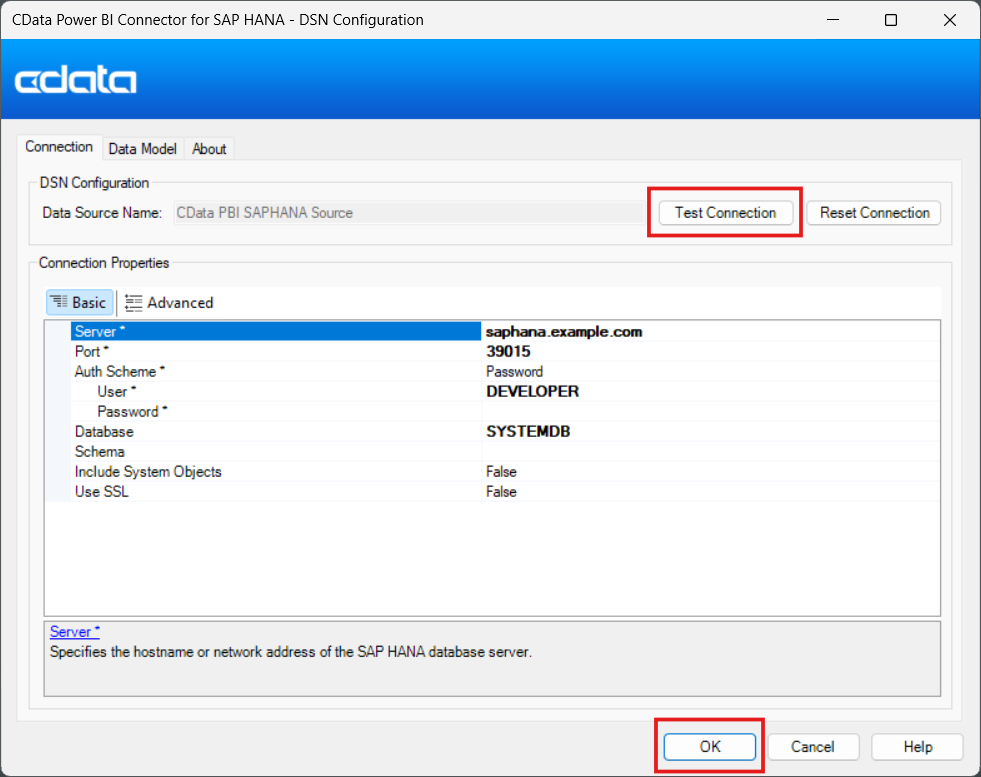
The connector stores SAP HANA connection properties in a DSN (Data Source Name). Open the ODBC Data Source Administrator (64-bit) from the Windows Start menu. The 64-bit version is required because Power BI Desktop is a 64-bit application.
- Click the System DSN tab. System DSNs are accessible to all Windows users on the machine and are required for Power BI Gateway deployments. User DSNs are sufficient for local Power BI Desktop use
- Select CData PBI SAPHANA Sys and click Configure, or click Add to create a new entry
- Fill in the connection properties:
- Server: Hostname or IP address of the SAP HANA server
- Auth Scheme: Basic for username and password authentication; SNC (Secure Network Communications) for Kerberos-based SSO where SNC is configured on the HANA server
- User: SAP HANA database username
- Password: Corresponding password
- Port: TCP port for the SAP HANA server. Default is 39015 for tenant databases and 39013 for the system database. Confirm the correct port with your SAP Basis administrator
- Database: Target SAP HANA database or tenant name. Leave blank to connect to the default system database
- Click Test Connection. A dialog confirms "The connection test was successful."
- Click OK to save the DSN
Step 4: Connect Power BI Desktop to SAP HANA
- Open Power BI Desktop and click Get Data > More
- Search for CData SAP HANA, select the connector from the list, and click Connect
- In the Data Source Name field, enter CData PBI SAPHANA Sys
- Select a connectivity mode:
- DirectQuery — recommended for production dashboards where data freshness is required. Queries run live against SAP HANA and the Power BI Pro 1GB import cap does not apply
- Import — suitable for reports that require complex transformations or work against stable historical data. Power BI Pro supports up to 8 scheduled refreshes per day
- In the Navigator dialog, select the SAP HANA tables or views required by the report and click Load
Step 5: Build a visualization and verify
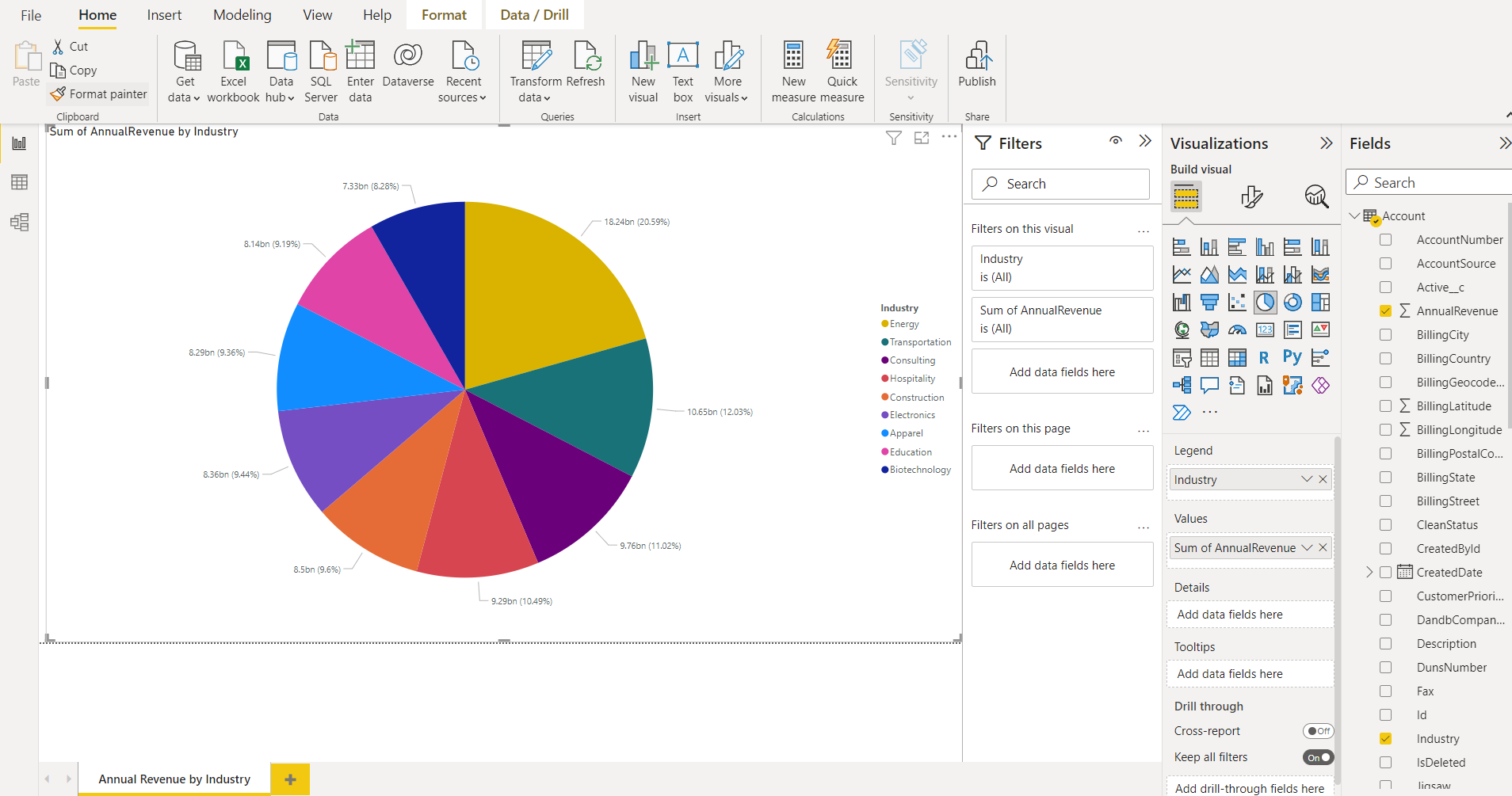
After loading, switch to Report view. Select a chart type from the Visualizations pane and drag fields from the Fields pane onto the canvas. To build a pie chart as an example:
- Select the pie chart icon in the Visualizations pane
- Drag a dimension field such as Plant or MaterialNumber to Legend
- Drag a measure field such as OrderQuantity or ProductionOrder to Values
- Apply page-level or report-level filters from the Filters pane as needed
- Click Refresh on the toolbar to confirm the report is pulling live SAP HANA data
To reconnect an existing report, update the data source under Transform Data > Data Source Settings to point to the new CData DSN. Visualizations, calculated measures, filters, and report layout carry over without modification.
Supported SAP platforms
For on-premises SAP environments, CData provides dedicated Power BI connectors for each platform. Installation, licensing, and Power BI Desktop connection steps are identical across all variants — only the DSN connection properties in Step 3 differ by platform. For SAP S/4HANA Cloud, the CData SAP NetWeaver Gateway connector follows the same process against an OData endpoint, with the OData API published on the SAP side in advance.
| SAP Platform | CData Connector | Recommended Auth | Query Method | DirectQuery |
|---|---|---|---|---|
| SAP HANA (on-premises) | CData SAP HANA Power BI Connector | Basic (username + password) or SNC for Kerberos SSO | Direct SQL against HANA views | ✓ |
| SAP ERP / ECC (on-premises) | CData SAP ERP Power BI Connector | SAP Logon credentials: User, Password, Client, SystemNumber | Direct RFC/BAPI access — no MDX layer. RFC SDK libraries required on the connecting machine | ✓ |
| SAP BW / BW/4HANA | CData SAP ERP Power BI Connector | SAP Logon credentials: User, Password, Client, SystemNumber | Direct RFC/BAPI access — bypasses MDX and its cell limits. BW on HANA environments can alternatively connect via the CData SAP HANA connector directly | ✓ |
| SAP S/4HANA Cloud | CData SAP NetWeaver Gateway Power BI Connector | OData via SAP NetWeaver Gateway. Requires the OData API to be published and active on the SAP side before connecting | OData API with SQL pushdown | ✓ |
Simplify SAP connectivity in Power BI with CData
Manufacturing and supply chain teams should not have to choose between data freshness and report stability. CData SAP Power BI Connectors deliver both — with server-side query pushdown that keeps memory usage bounded, direct SQL and RFC/BAPI access that routes around every MDX limitation, and a single vendor who owns the full connection path from Power BI to SAP. Reports that currently time out or exhaust memory run against the same SAP data, through the same Power BI files, without modification.
Start a free 30-day trial of the CData Power BI Connector for SAP HANA or SAP ERP — no credit card required, no feature restrictions, full production load testing included. The CData Support Team is available to assist with configuration, DSN setup, and migration from the native connector.