






How to Measure Claude Token Reduction with CData Connect AI
Schema discovery is what makes Claude expensive on multi-source queries. Without curated tools, Claude walks catalogs, schemas, tables, and columns across every connected source before it can answer—six figures of input tokens are routine. CData Connect AI replaces that discovery work with admin-curated tool surfaces. The benchmark in this guide measures how much that compresses your token bill.
We released the full benchmark on GitHub so you can verify the headline numbers, or run the same harness against your own data. This guide walks you through cloning the kit, setting up sources in Connect AI, and running the benchmark—then briefly explains how the harness works and how it is built.
NOTE: The default tutorial uses Google Sheets for all three sources, which sets up in about 10 minutes. The same methodology applies across hundreds of supported data sources—swap in Salesforce, ServiceNow, Snowflake, or anything else you already have connected.
Prerequisites
You need the following:
- A CData Connect AI account (free trial)
- An Anthropic API key with at least $6 in credit (get key)
- Python 3.10 or later (download) and Git (download)
Overview
The benchmark runs in four steps:
- Clone the kit and install dependencies
- Load seed data and create three Connect AI connections
- Configure the kit and fire the benchmark
- Interpret your results
Step 1: Clone the kit and install
- Clone the repository and install dependencies:
git clone https://github.com/CDataSoftware/connect-ai-token-benchmark.git
cd connect-ai-token-benchmark
pip install -r requirements.txt
Copy-Item .env.example .env
The kit has three entry points: run_benchmark.py (re-fire the benchmark, costs API credit), render_final.py (re-render charts and tables from the locked numbers, free), and render_token_flow_simple.py (regenerate the flow diagram).
NOTE: If you only want to verify the published charts without running anything, skip ahead to Step 4 and run python render_final.py. No API calls, no Connect AI account needed.
Step 2: Load seed data and create connections
The kit ships three CSVs in seed/: 50 accounts, 50 incidents, and 50 opportunities, joined by BMK_-prefixed account IDs.
The fastest path is Google Sheets. Open each template, click File › Make a copy, and rename the worksheet tab to match the role:
| Role | Template URL | Tab name |
|---|---|---|
| CRM (accounts) | sheets.google.com/…/1KCZEr5b…HN7Zs/edit | accounts |
| ITSM (incidents) | sheets.google.com/…/12Ah5Wj9…SpeIc0/edit | incidents |
| Warehouse (opportunities) | sheets.google.com/…/1Y0ndX-_…suMH9w/edit | opportunities |
Note the file ID of each copy (the long string between /d/ and /edit in the URL). You will paste it into Connect AI next.
Add a Connection in Connect AI
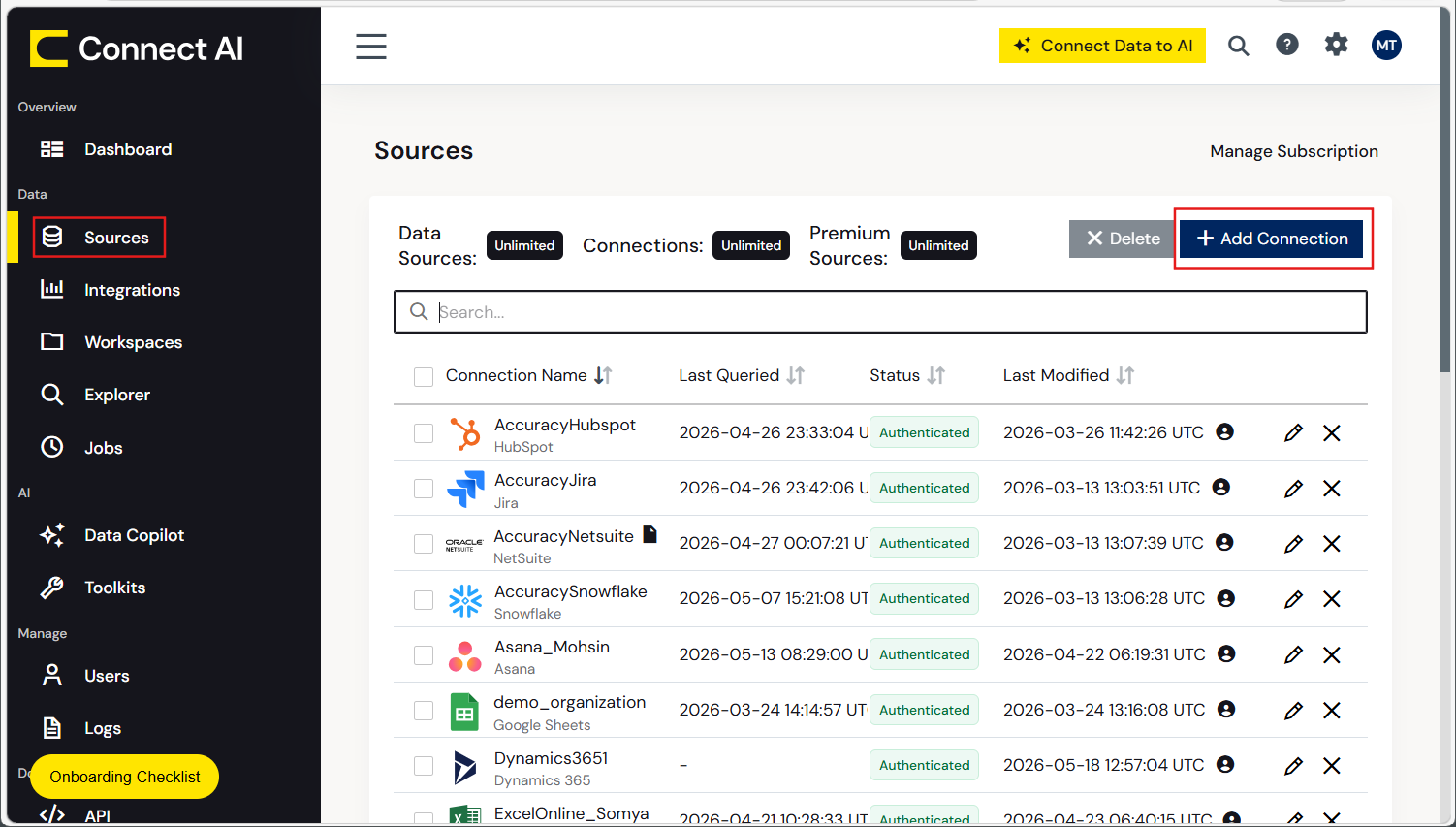
In Connect AI, click Sources in the left navigation, then click + Add Connection in the upper right.
Search for Google Sheets, select it, and fill in the Basic Settings:
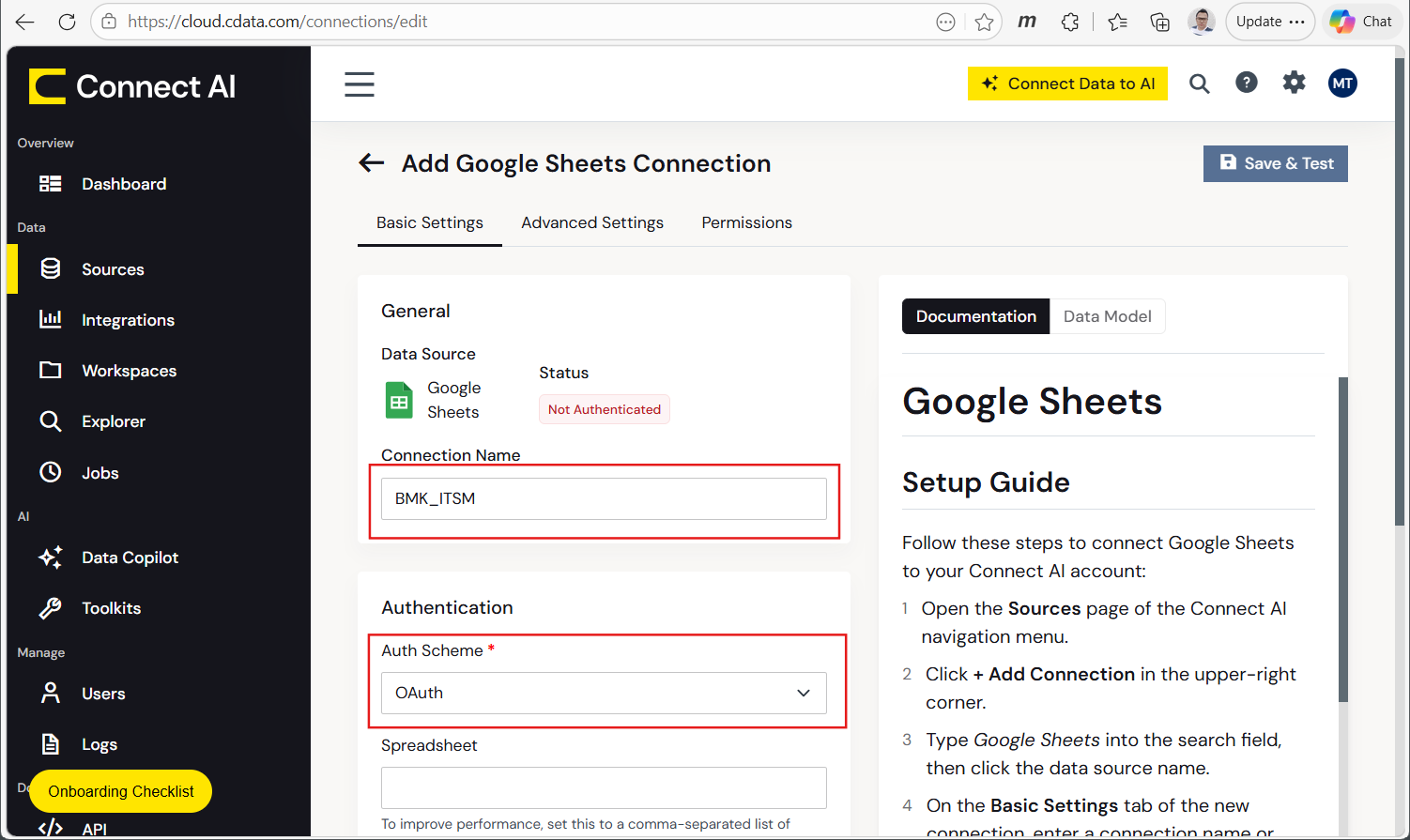
For each of the three connections, set:
| Connection Name | Spreadsheet Id | Spreadsheet (tab) |
|---|---|---|
| BMK_CRM | file ID of your accounts copy | accounts |
| BMK_ITSM | file ID of your incidents copy | incidents |
| BMK_WH | file ID of your opportunities copy | opportunities |
Leave Auth Scheme as OAuth, click Sign in to complete the Google OAuth flow, then click Save & Test. Repeat for all three connections.
Create a Personal Access Token
Click your user icon › Settings › Personal Access Tokens › Create PAT. Copy the token immediately (you cannot retrieve it later) and paste it into CDATA_ACCESS_TOKEN in your .env.
Set up the Connect AI features
The benchmark's eight scenarios each measure a different Connect AI feature. Set up all five in the order the scenarios run:
1. Derived Views
A saved cross-source SQL query exposed as a single tool. The benchmark joins the three workbooks into one view.
- Click Explorer in the left navigation, then SQL Editor.
- Paste the cross-source join (uses the three connections you just created):
SELECT i.number AS ticket_number, i.short_description AS ticket_summary, i.priority AS ticket_priority, a.name AS AccountName, a.industry AS Industry, a.annual_revenue AS AnnualRevenue, o.amount AS OpportunityAmount, o.stage_name AS StageName, o.is_won AS IsWon FROM [BMK_ITSM].[GoogleSheets].[incidents] i LEFT JOIN [BMK_CRM].[GoogleSheets].[accounts] a ON i.company = a.id LEFT JOIN [BMK_WH].[GoogleSheets].[opportunities] o ON a.id = o.account_id WHERE i.number LIKE 'BMK-%' - Click Execute, then Save › Save as Derived View. Name it BMK_Incident_Account_Revenue and click Confirm.
Docs: docs.cloud.cdata.com/en/Data-Explorer.
NOTE: For an authentic reproduction using Salesforce + ServiceNow + Snowflake instead of Google Sheets, follow seed/load-salesforce.md, seed/load-servicenow.md, and seed/load-snowflake.md in the repo. The methodology and SQL shape are identical—only the connection types and column casing change.
2. Workspaces
A scoped MCP endpoint that exposes only the assets you choose.
- Click Workspaces in the left navigation, then + Add. Name it BMK_Workspace and click Confirm.
- Open the workspace, click + Add › Add Asset › Tables and Views. Pick the three BMK_ tables and your Derived View. Click Confirm.
- Click View Endpoints › AI (MCP). Copy the Remote MCP Server URL into MCP_WORKSPACE_URL in your .env.
Docs: docs.cloud.cdata.com/en/Workspaces.
3. Toolkits and Custom Tools
Named MCP-callable SQL tools with AI-readable descriptions. This is where the headline reduction comes from.
- Click AI › Toolkits › + Add. Name it BMK_Toolkit and click Confirm.
- Open the toolkit, click + Add, choose connection tool, assign your three connections, click Confirm.
- Open the Custom Tools tab, click + Add. Set Tool Name = get_incidents. Add an AI Instructions line such as "Returns open enterprise tickets with their account profile and warehouse revenue." Paste the SQL:
SELECT TOP 50 * FROM [CData].[DerivedViews].[BMK_Incident_Account_Revenue]
- Click Validate SQL to confirm the query parses, then Save Changes. Enable the tool.
- Copy the toolkit's MCP Remote Server URL from the main Toolkits page into MCP_TOOLKIT_URL in your .env.
Docs: docs.cloud.cdata.com/en/Toolkits.
4. Jobs / Caching
Pre-fetches data into a PostgreSQL warehouse Connect AI manages, so queries skip live source calls.
- Click Jobs in the left navigation, then Setup Cache Connection. Configure your PostgreSQL connection details and click Save & Test.
- Back on the Jobs page, click + Add Job. Select Cache, pick a connection, pick the tables to cache, set the update frequency, pick the cache scheme (full or incremental), click Confirm.
- Click Run Now to populate. Wait for the status to read Success.
Docs: docs.cloud.cdata.com/en/Caching.
NOTE: Caching is not available for relational source databases (Snowflake, PostgreSQL, MySQL, etc.). For the benchmark this means the cached path covers ITSM + CRM but not the warehouse source.
5. AI Skills
No UI step. This is a prompt-engineering pattern handled by the benchmark harness—a tightly scripted system prompt that pre-specifies the SQL and forbids discovery. The prompt is defined as SYSTEM_PROMPT_SKILL in config.py; review it before running if you want to see exactly what Claude is told.
For the why behind each feature and the broader context on token efficiency, see the published blog post (link in the repo README).
Step 3: Configure the kit and run the benchmark
Open .env and fill in the values you collected in Step 2:
ANTHROPIC_API_KEY=sk-ant-your-key-here
CDATA_EMAIL=your-connect-ai-email
CDATA_ACCESS_TOKEN=your-pat-from-step-2

CDATA_ITSM_CATALOG=BMK_ITSM
CDATA_ITSM_SCHEMA=GoogleSheets
CDATA_ITSM_TABLE=incidents

CDATA_CRM_CATALOG=BMK_CRM
CDATA_CRM_SCHEMA=GoogleSheets
CDATA_CRM_TABLE=accounts

CDATA_WH_CATALOG=BMK_WH
CDATA_WH_SCHEMA=GoogleSheets
CDATA_WH_TABLE=opportunities

DERIVED_VIEW_NAME=BMK_Incident_Account_Revenue
Then run the benchmark:
python run_benchmark.py --full --runs 3
Expect roughly 1.5 hours of wall-clock time and about $6 in Anthropic API spend at the default three runs per scenario. For publishable confidence intervals, use --runs 10 (about $18, ~5 hours).
NOTE: If you skipped Step 2 because you only want to verify the published charts, run python render_final.py instead. It regenerates output/results.md and the four charts from the locked numbers in LOCKED_RESULTS.py—no API calls, no source connections needed.
Step 4: Read your results
Open output/results.md. The headline table reports total tokens, reduction percentage, cost per query, and projected monthly savings at 1K, 10K, 50K, and 100K queries per month for each of the eight scenarios. Read it top to bottom: the first row is the Raw baseline, every following row shows how a different Connect AI feature changes the numbers.
The four charts in output/ are paste-ready for a slide deck or doc:
| Chart | What it shows |
|---|---|
| chart-tokens.webp | Total tokens per scenario, sorted by reduction |
| chart-reduction.webp | Reduction percentage per Connect AI feature vs Raw baseline |
| chart-cost.webp | Dollar cost per query per scenario |
| chart-waterfall.webp | Token compression as a descending waterfall from Raw to Custom Tools |
Plus the flow diagram token-flow-simple.webp that illustrates the two-path comparison.
Your numbers will not exactly match the published locked numbers. Raw baseline shifts run to run with Claude's discovery path; Custom Tools is close to deterministic because the scoped tool is pre-defined. The trend is what reproduces: Custom Tools beats every other feature, and the reduction grows as more sources and joins enter the query.
How the benchmark works
Every scenario sends Claude the same natural-language question: "Show me open support tickets, the related Salesforce accounts, and their Snowflake revenue data for enterprise customers. Return up to 50 rows." What varies is the tool surface Claude can see.
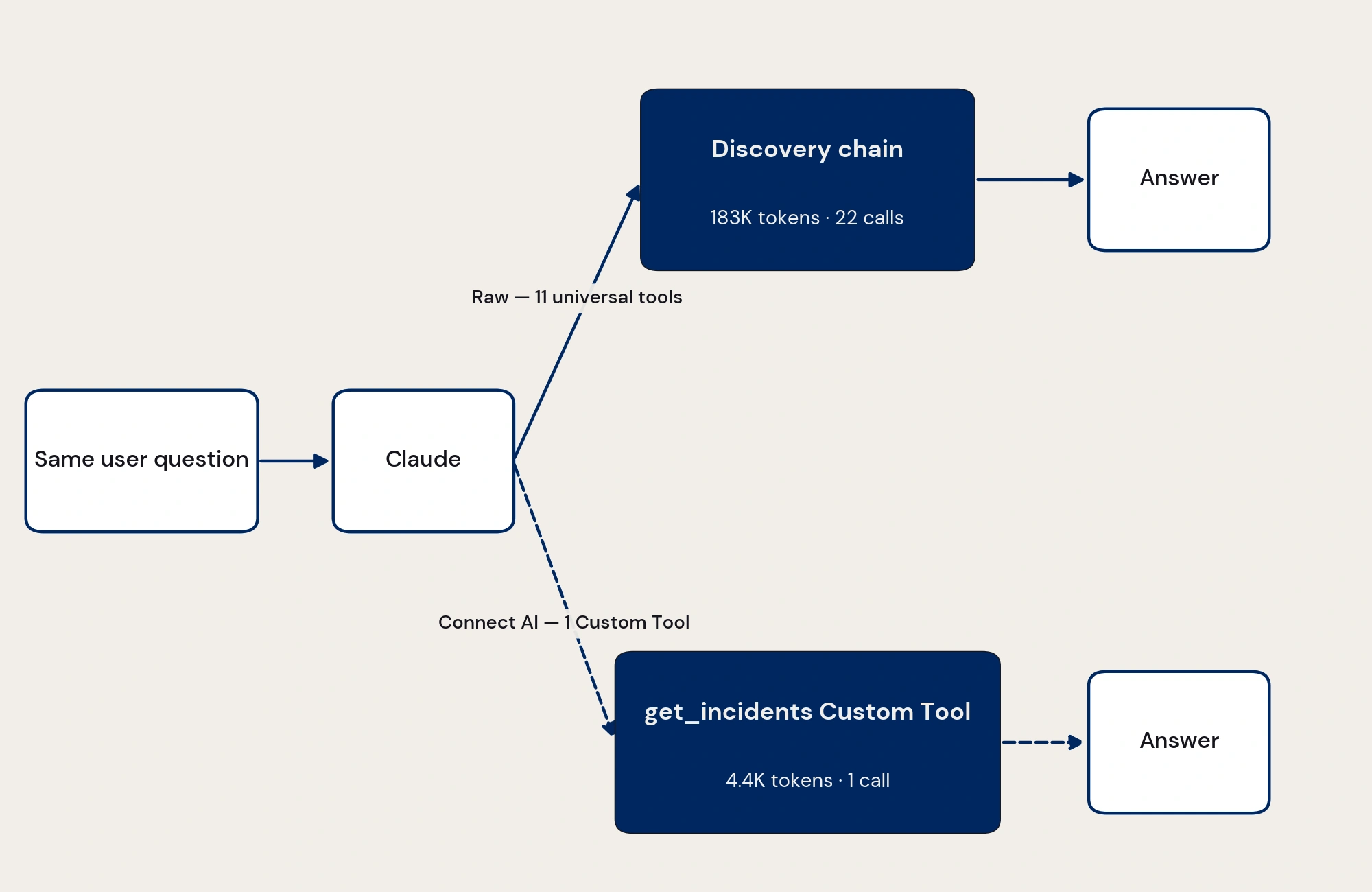
Raw baseline exposes 11 universal Connect AI tools (getCatalogs, getSchemas, getTables, getColumns, queryData, ...). Claude walks the discovery chain itself, accumulating ~180,000 input tokens before it can answer.
Custom Tools exposes one pre-defined tool named get_incidents with a description that maps directly to the user's question. Claude calls it once, receives the cross-source result, and answers. No discovery, no chained queries, ~4,400 total tokens.
The benchmark measures the gap across eight scenarios, each isolating a different Connect AI feature: Derived Views, Workspaces, Custom Tools, Toolkits, Jobs/Caching, and AI Skills. Each fires four to sixteen times; locked numbers use median for high-variance scenarios and mean for deterministic ones.
NOTE: Custom Tools delivers the dramatic reduction because its tool description is well-aligned to the specific query. In production, the win depends on whether your admin has built tools that match the queries your users actually send. The benchmark measures best-case payoff, not average performance across an unknown query distribution.
Build your own
The harness is about 1,100 lines of Python across eight modules. The four pieces that matter:
- MCP client (benchmark/mcp_client.py) — SSE-aware JSON-RPC client that calls tools/list and tools/call against any Connect AI MCP endpoint.
- Tool-schema normalizer (benchmark/normalizer.py) — converts MCP's inputSchema into Anthropic's input_schema shape.
- Multi-turn runner (benchmark/runner.py) — the core loop. Calls anthropic.messages.create, dispatches each tool_use through the MCP client or a synthetic responder, feeds tool_result back, repeats until end_turn or the turn cap.
- Scenarios and reporter (benchmark/scenarios.py, benchmark/reporter.py) — eight scenario definitions plus the aggregator that writes results.md, results.json, results.csv, and the per-run run_ledger.jsonl.
Every prompt and SQL fragment used in the benchmark is documented verbatim in BENCHMARK-PROMPTS-AND-QUERIES.md in the repo. Read that alongside scenarios.py and runner.py and you can recreate the harness from scratch.
Token-Efficient AI with CData Connect AI
CData Connect AI gives Claude and every other AI agent direct, schema-aware access to your real data sources. Measure with the benchmark kit at design time; deploy with Connect AI in production so your agents query live data with the same low token surface they hit in this benchmark.
Start your free CData Connect AI trial—free for development, no trial period, no credit card required—or visit the CData Community to share insights, ask questions, and help shape the future of enterprise-ready AI.