






How to Analyze YouTube Audience Retention Data in Excel with CData
YouTube Analytics provides valuable insights into how viewers engage with your content, but accessing and visualizing this data typically requires coding, API knowledge, or complex setup. For many users, this can create a barrier to meaningful analysis and quick decision-making.
With the CData YouTube Analytics Add-In for Excel, you can retrieve, filter, and analyze your audience retention metrics directly in Excel — no code, no APIs, and no hassle. Easily measure how long viewers are staying with your content, compare retention across videos, and identify where drop-offs occur. Specifically, you can query metrics like audienceWatchRatio, relativeRetentionPerformance, elapsedVideoTimeRatio, etc., with ease.
In this article, we'll show you how to configure a connection to YouTube Analytics from Excel, retrieve the Audience Retention view, and analyze viewer engagement data — all within Excel.
Prerequisites
- A YouTube Channel with Analytics access – Login or sign up here.
- Microsoft Excel (Desktop version) – Download or try here.
- CData YouTube Analytics Add-In for Excel – Download or try for free here.
Overview
Here's a quick overview of the steps we'll follow:
- Connect: Set up a connection to YouTube Analytics in Excel using the CData Add-In.
- Analyze: Query and visualize metrics like audienceWatchRatio, relativeRetentionPerformance, and elapsedVideoTimeRatio directly in Excel.
Step 1: Connect to YouTube Analytics in Excel
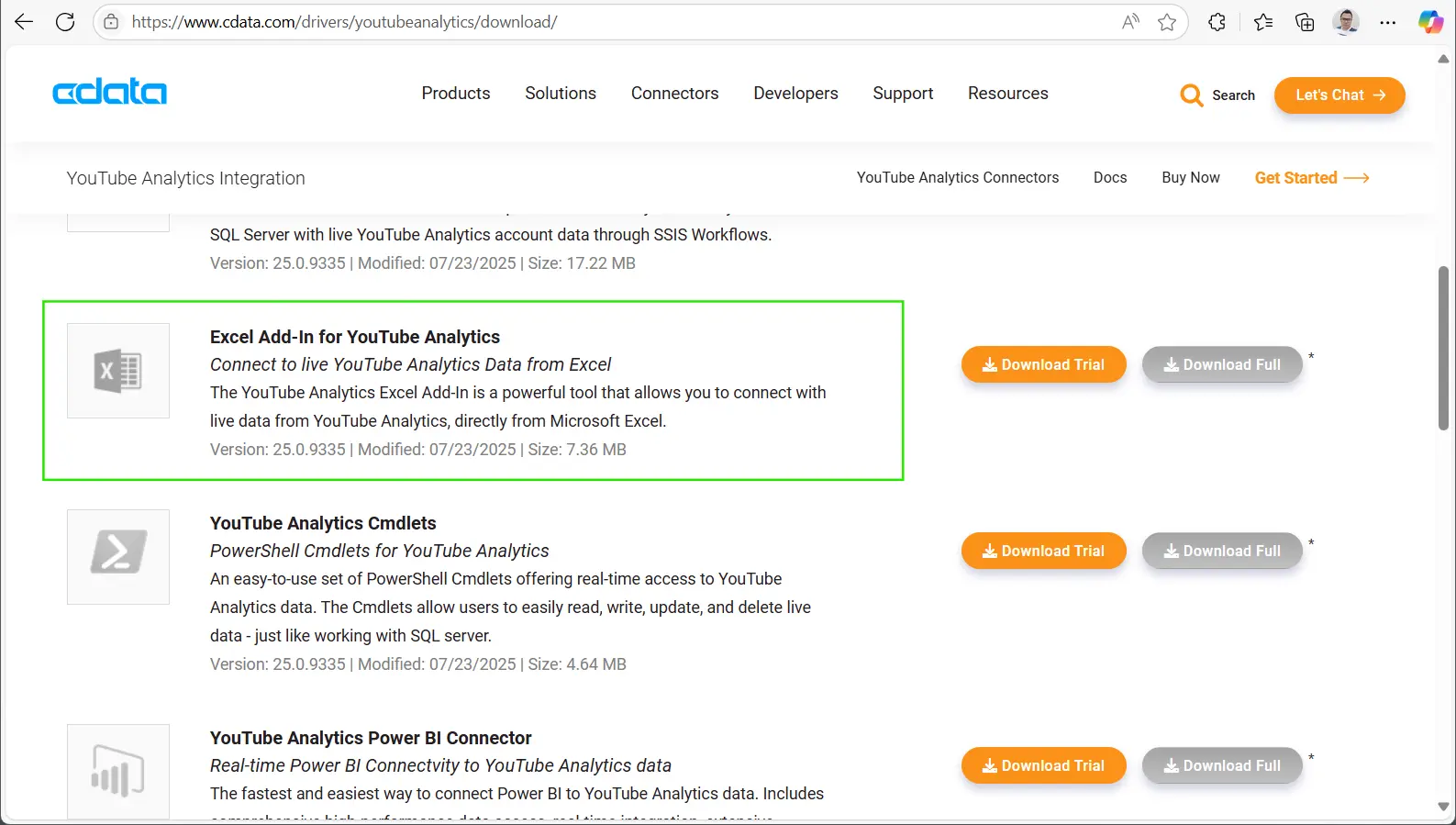
- Download and install the CData Excel Add-In for YouTube Analytics.
-
Follow the on-screen installation instructions. Start a free trial or enter an existing
license key if you already have one.
-
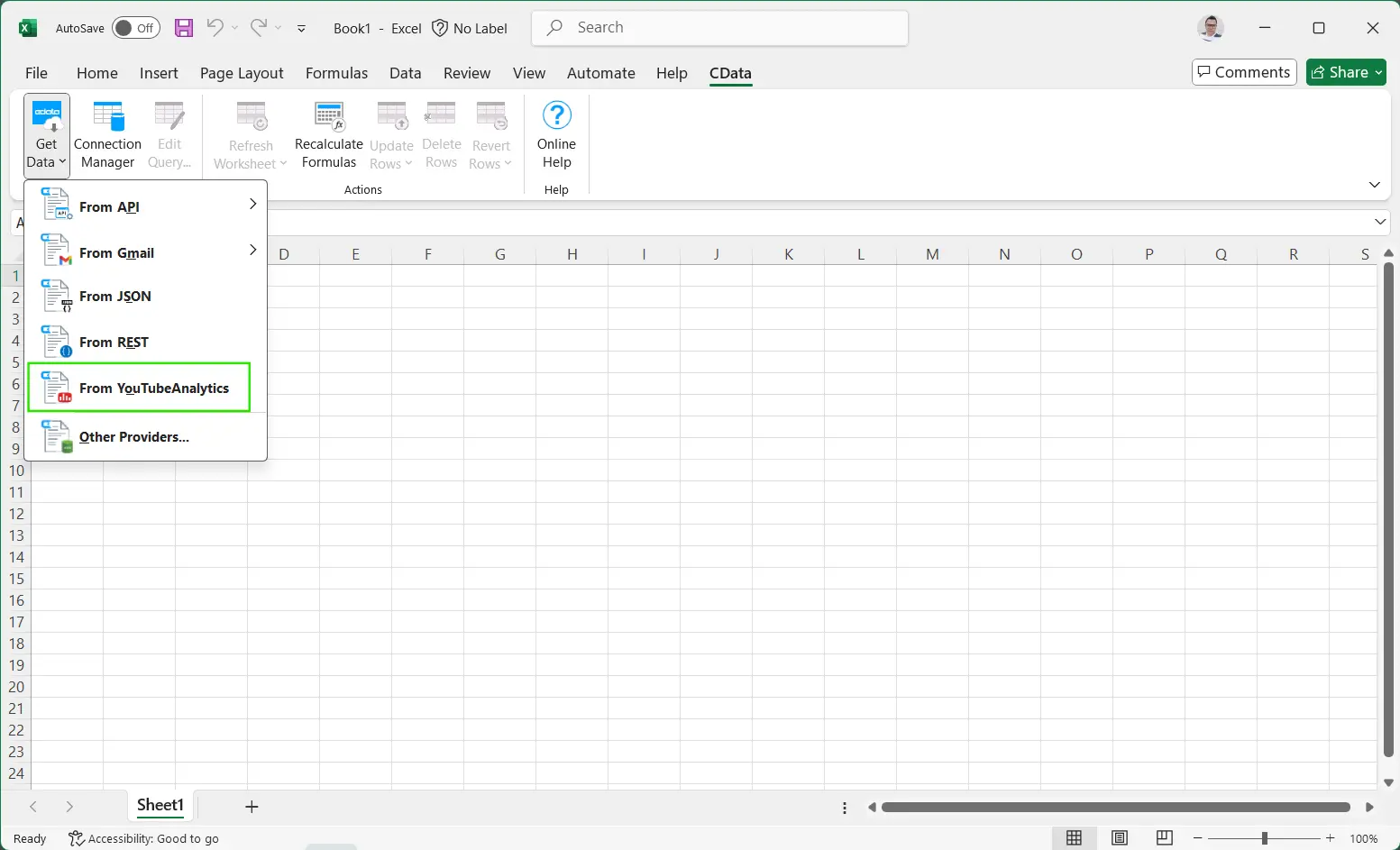
Once the add-in is installed, open Excel. Navigate to the CData tab
on the top-right ribbon, then select
From YouTubeAnalytics from the dropdown.
-
In the CData Connection Editor dialog, select and enter the following details:
- Auth Scheme: OAuth
- Initiate OAuth: GETANDREFRESH
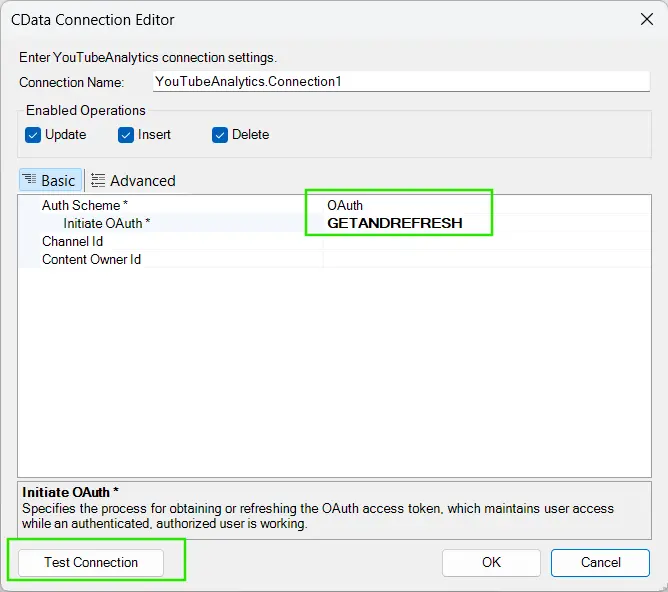
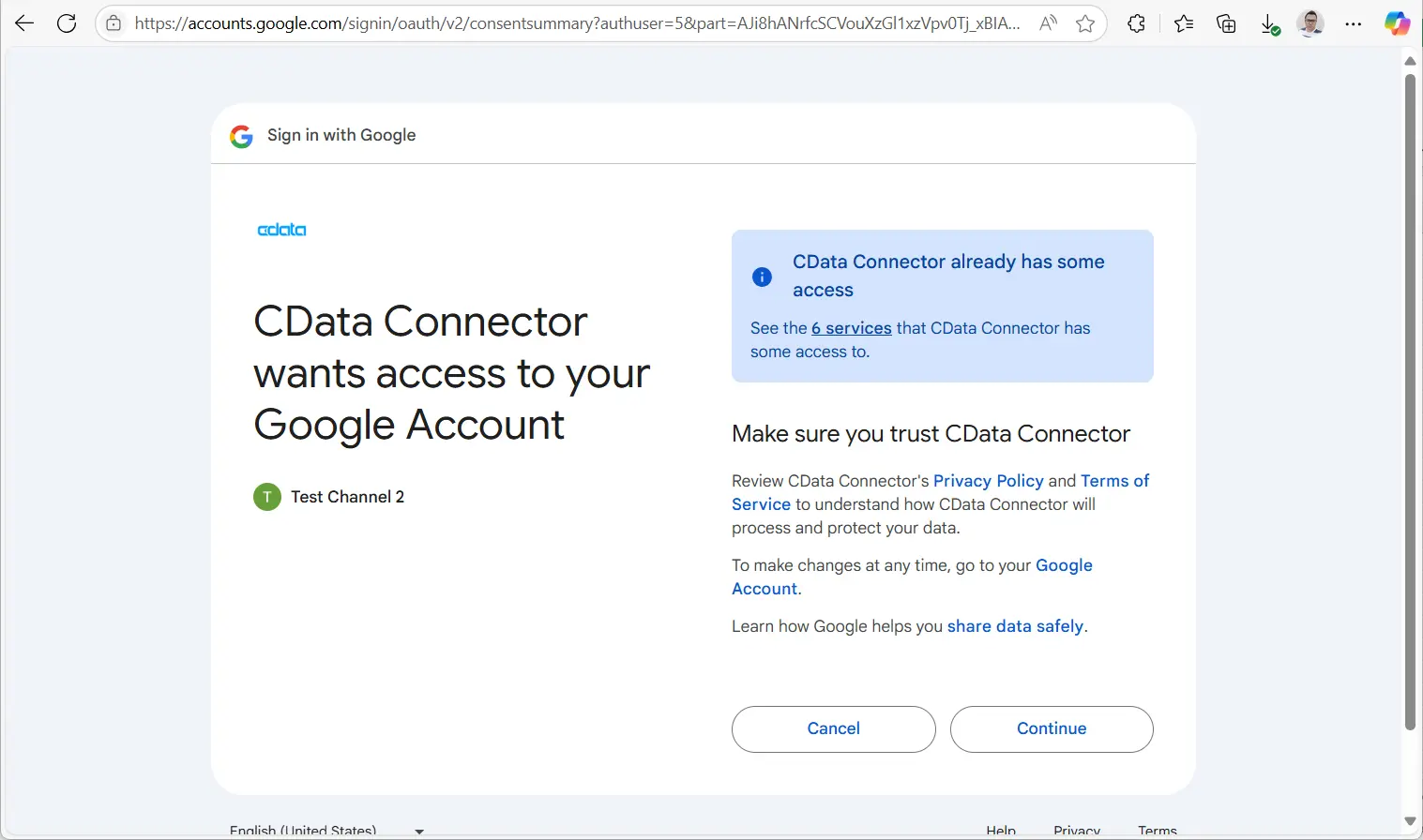
- Click on Test Connection at the bottom-left. A browser window will open prompting you to choose your Google account and YouTube channel.
-
Select the correct channel and click Continue to authorize.
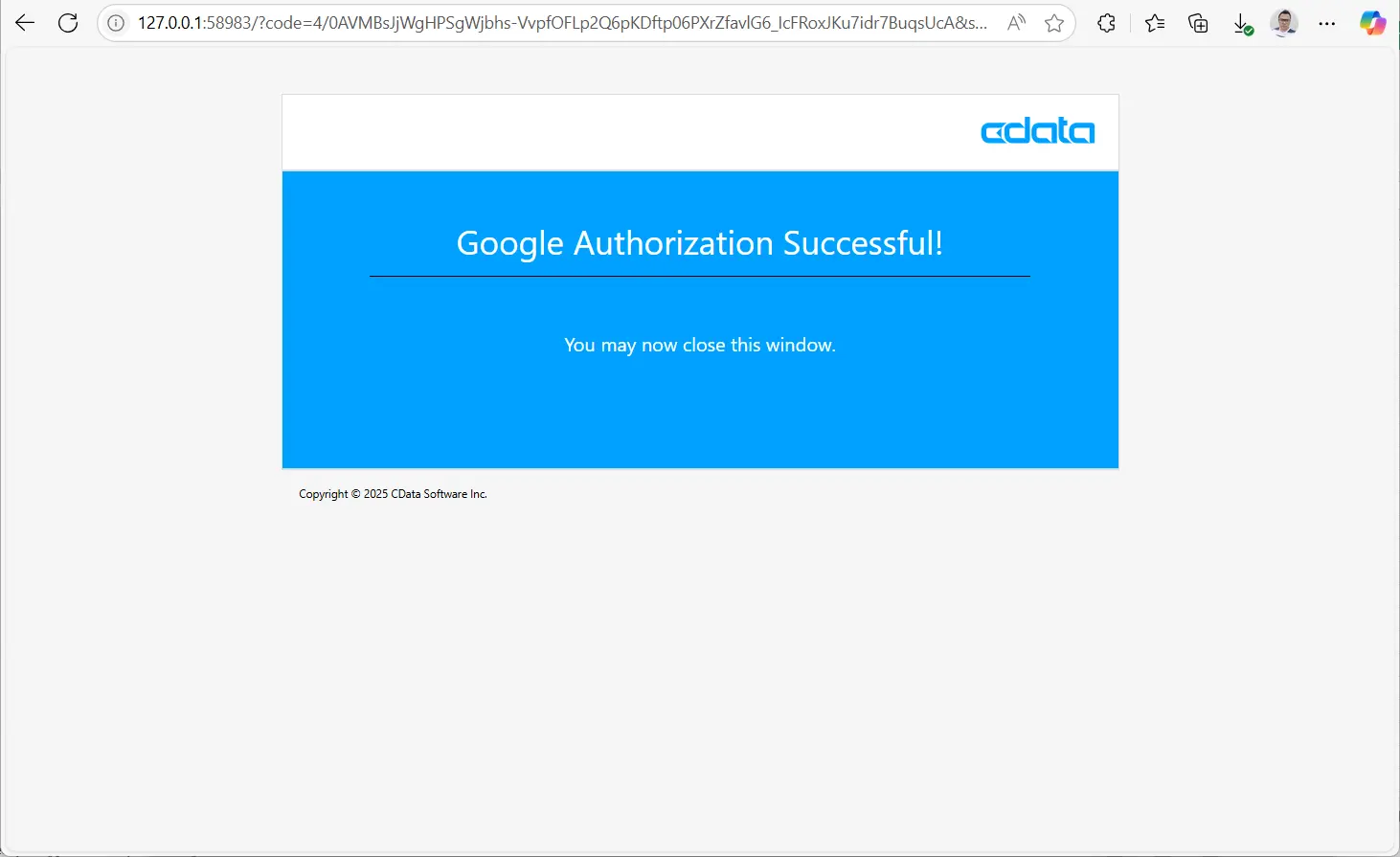
You should see the message "Google Authorization Successful!" upon completion.
Step 2: Analyze and Visualize the YouTube Audience Retention Data
With the connection established, you can now analyze audience retention metrics directly in Excel — including watch ratio, drop-off points, and performance across different videos. Visualize trends to improve your content strategy and better understand viewer engagement.
-
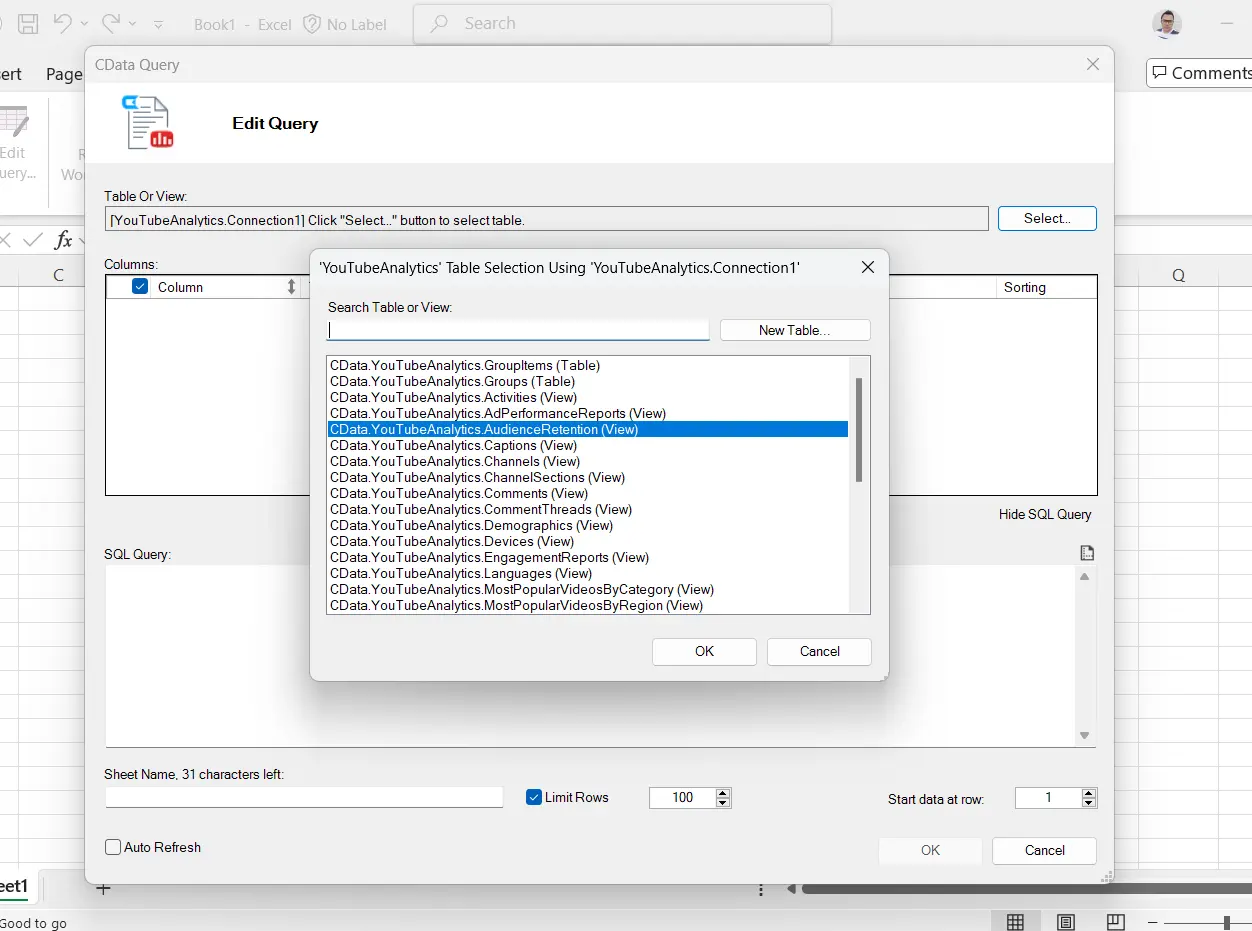
On the Query Editor dialog, select the
CData.YouTubeAnalytics.AudienceRetention view table from the dropdown list.
-
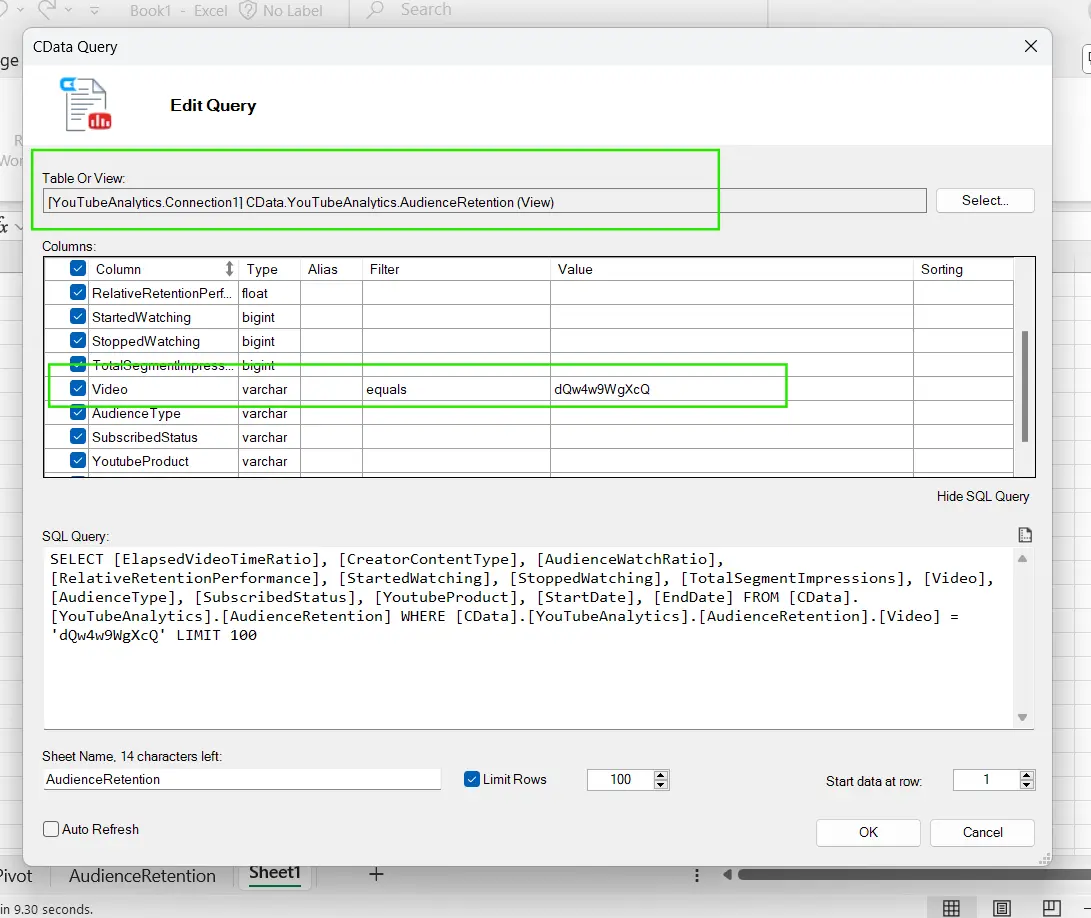
In the Columns section, scroll down to the
Video row and change the Filter to equals. In the Values
field, paste the video ID of your YouTube video — the final part of the YouTube URL.
For example: dQw4w9WgXcQ from the URL https://www.youtube.com/watch?v=dQw4w9WgXcQ.
-
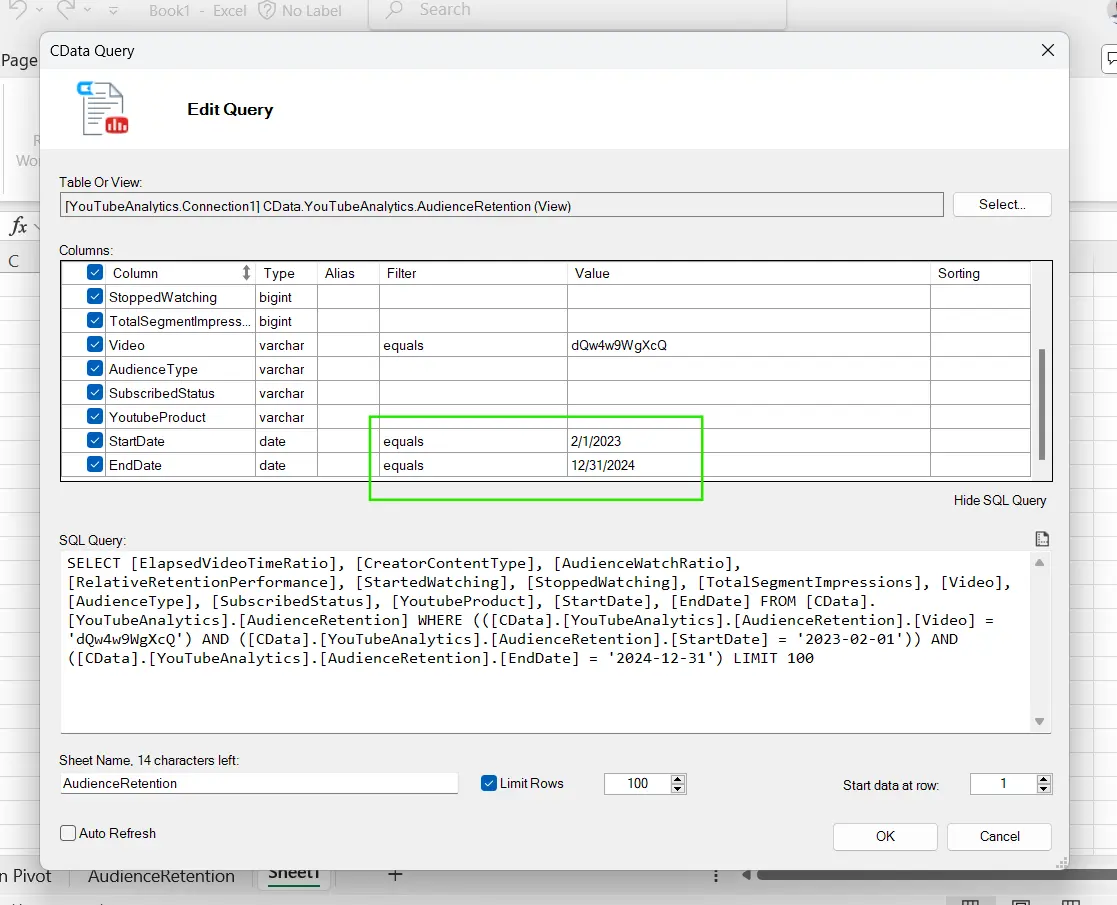
Set the Date Range filters by locating the StartDate and EndDate rows.
Change their Filter to equals, and enter your desired reporting period.
For example: from 02/01/2023 to 12/31/2024.
-
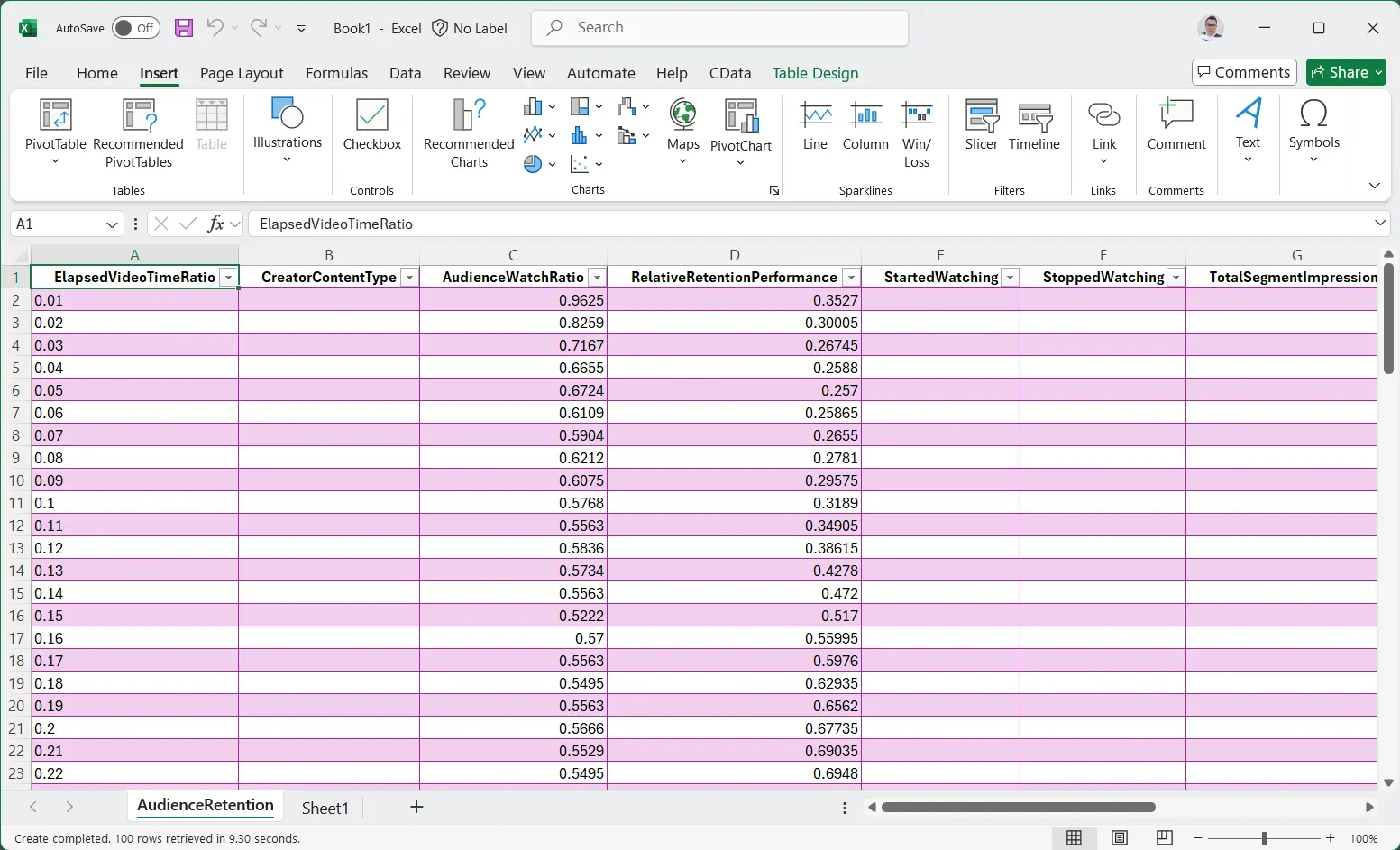
Click OK to load the data into Excel. Your audience retention metrics like
audienceWatchRatio, relativeRetentionPerformance, and elapsedVideoTimeRatio
will populate in a structured table format.
-
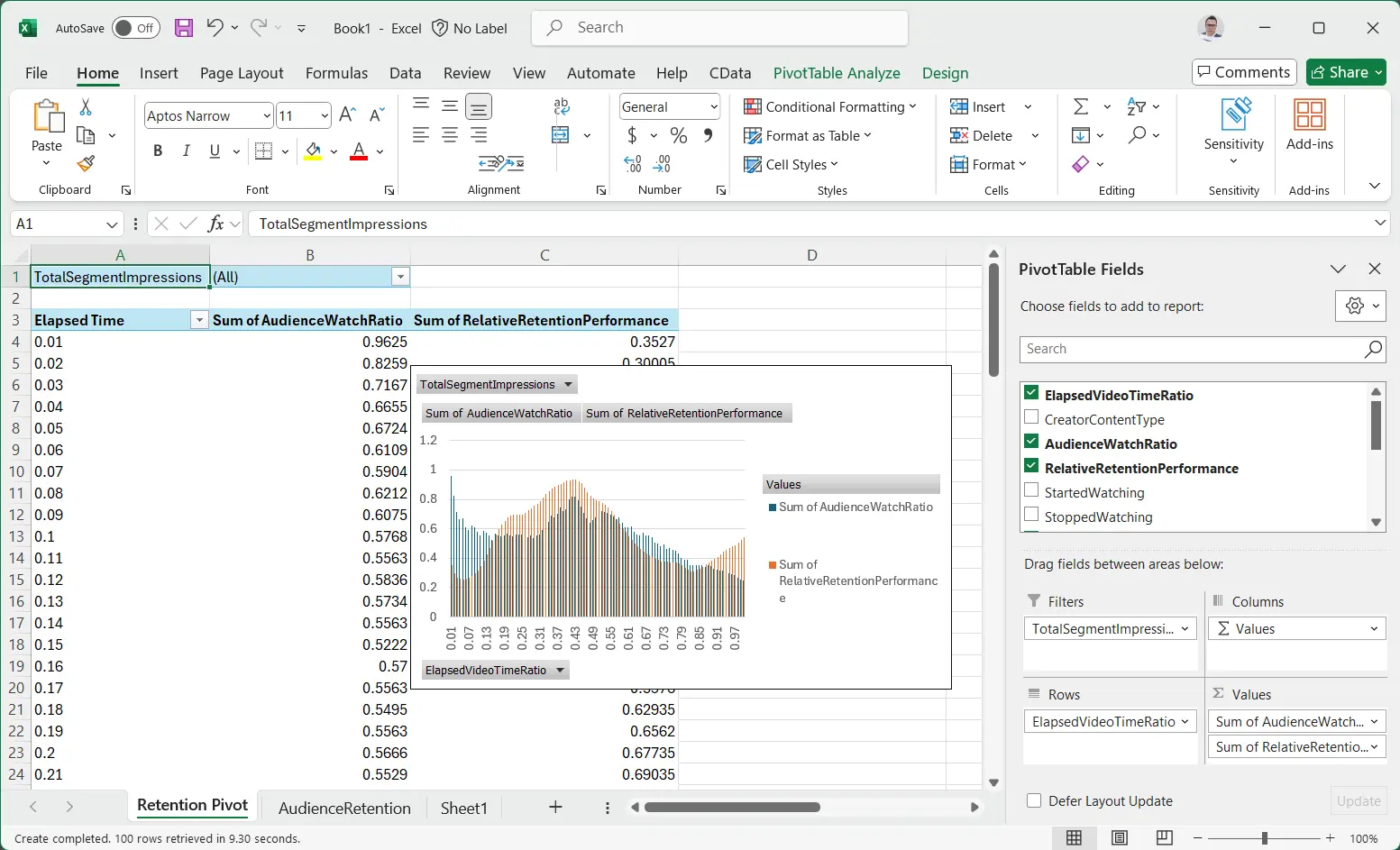
Use Excel's built-in tools like PivotTables, Charts, or Conditional Formatting to visualize and compare
video performance over time. For example, in the chart below, we used a PivotTable to plot
ElapsedVideoTimeRatio by RelativeRetentionPerformance and AudienceWatchRatio,
highlighting peak retention moments across the video timeline.
You can further segment your analysis by filters like audienceType (e.g., logged-in vs anonymous users), subscribedStatus (subscribed vs unsubscribed), or even by YouTubeProduct (mobile app vs desktop). This helps tailor content strategy to maximize engagement across audience types.
Try CData for YouTube Analytics Free
Whether you're a creator optimizing your content strategy or a marketer tracking audience engagement, the CData Excel Add-In for YouTube Analytics offers a powerful, no-code solution for retrieving and analyzing your YouTube performance metrics.
Download your free trial of the CData YouTube Analytics Excel Add-In here and start exploring your audience retention insights the right way, today!
