




How to create Alchemy federated tables in MySQL

You can use the SQL Gateway to configure a MySQL remoting service and set up federated tables for Alchemy data. The service is a daemon process that provides a MySQL interface to the CData ODBC Driver for Alchemy: After you have started the service, you can create a server and tables using the FEDERATED Storage Engine in MySQL. You can then work with Alchemy data just as you would local MySQL tables.
Connect to Alchemy Data
If you have not already done so, provide values for the required connection properties in the data source name (DSN). You can use the built-in Microsoft ODBC Data Source Administrator to configure the DSN. This is also the last step of the driver installation. See the "Getting Started" chapter in the help documentation for a guide to using the Microsoft ODBC Data Source Administrator to create and configure a DSN.
Start by setting the Profile connection property to the location of the Alchemy Profile on disk (e.g. C:\profiles\Alchemy.apip). Next, set the ProfileSettings connection property to the connection string for Alchemy (see below).
Alchemy API Profile Settings
Alchemy uses API key authentication. The API key is supplied in the request URL path. To obtain an API key:
- Sign in to your Alchemy account at https://dashboard.alchemy.com.
- Open an existing app or create a new one.
- Copy the app's API key from the API Key dialog.
After obtaining your API key, set the following connection properties:
- AuthScheme: Set this to APIKey.
- Network: Optional. The blockchain network slug for NFT API requests (for example, eth-mainnet, base-mainnet, polygon-mainnet). Defaults to eth-mainnet.
Set the following in the ProfileSettings connection property:
- APIKey: Set this to your Alchemy app API key.
Configure the SQL Gateway
See the SQL Gateway Overview to set up connectivity to Alchemy data as a virtual MySQL database. You will configure a MySQL remoting service that listens for MySQL requests from clients. The service can be configured in the SQL Gateway UI.
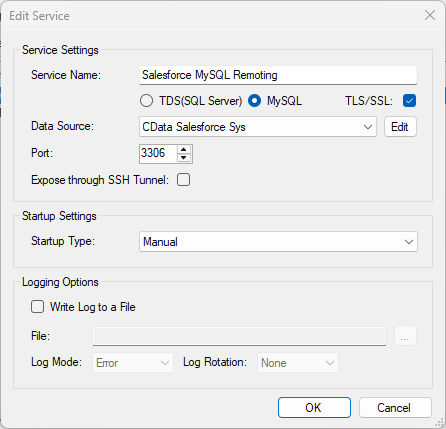
Create a FEDERATED Server and Tables for Alchemy Data
After you have configured and started the service, create a FEDERATED server to simplify the process of creating FEDERATED tables:
Create a FEDERATED Server
The following statement will create a FEDERATED server based on the ODBC Driver for Alchemy. Note that the username and password of the FEDERATED server must match a user account you defined on the Users tab of the SQL Gateway.
CREATE SERVER fedAPI
FOREIGN DATA WRAPPER mysql
OPTIONS (USER 'sql_gateway_user', PASSWORD 'sql_gateway_passwd', HOST 'sql_gateway_host', PORT ####, DATABASE 'CData API Sys');
Create a FEDERATED Table
To create a FEDERATED table using our newly created server, use the CONNECTION keyword and pass the name of the FEDERATED server and the remote table (ContractsForOwner). Refer to the following template for the statement to create a FEDERATED table:
CREATE TABLE fed_contractsforowner (
  ...,
  address  TYPE(LEN),
  name  TYPE(LEN),
  ...,
)
ENGINE=FEDERATED
DEFAULT CHARSET=latin1
CONNECTION='fedAPI/contractsforowner';
NOTE: The table schema for the FEDERATED table must match the remote table schema exactly. You can always connect directly to the MySQL remoting service using any MySQL client and run a SHOW CREATE TABLE query to get the table schema.
Execute Queries
You can now execute queries to the Alchemy FEDERATED tables from any tool that can connect to MySQL, which is particularly useful if you need to JOIN data from a local table with data from Alchemy. Refer to the following example:
SELECT
  fed_contractsforowner.address,
  local_table.custom_field
FROM
  local_table
JOIN
  fed_contractsforowner
ON
  local_table.foreign_address = fed_contractsforowner.address;