






Visualize Live Anaplan Data in Tableau

Tableau is a visual analytics platform transforming the way businesses use data to solve problems. When paired with the CData Tableau Connector for Anaplan, you can easily get access to live Anaplan data within Tableau. This article shows how to connect to Anaplan in Tableau and build a simple chart.
The CData Tableau Connectors enable high-speed access to live Anaplan data in Tableau. Once you install the connector, you simply authenticate with Anaplan and you can immediately start building responsive, dynamic visualizations and dashboards. By surfacing Anaplan data using native Tableau data types and handling complex filters, aggregations, & other operations automatically, CData Tableau Connectors grant seamless access to Anaplan data.
NOTE: The CData Tableau Connectors require Tableau 2020.3 or higher. If you are using an older version of Tableau, you will need to use the CData JDBC Driver.
Connect to Anaplan in Tableau
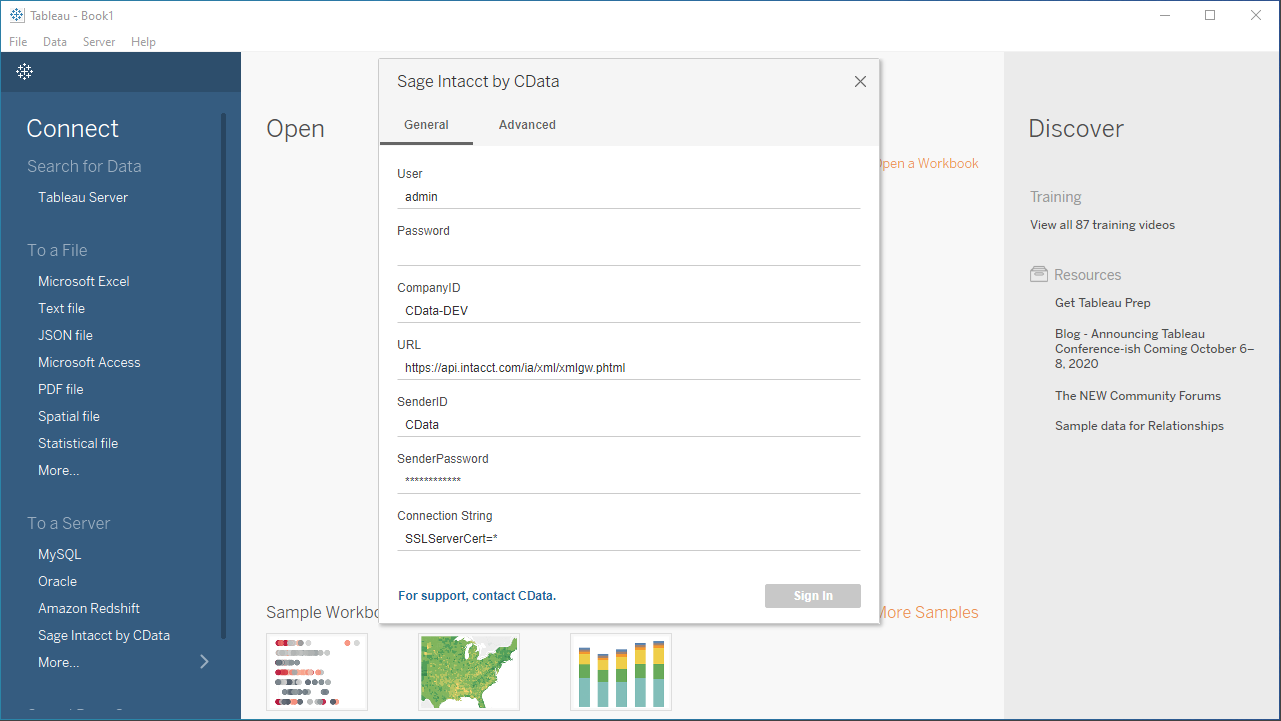
Open Tableau and click More under Connect -> To a Server. Select "Anaplan by CData," then configure the connection and click "Sign In."
Authenticating to Anaplan
The driver supports authenticating with Basic, Certificate, or OAuth. In every case, set Region to the region where your Anaplan account data is hosted (e.g., US1, which is the default).
Using Basic Authentication
Set AuthScheme to Basic, then supply your Anaplan User and Password. If your workspace uses single sign-on (SSO), you must be assigned as an Exception User to use Basic authentication.
Using Certificate Authentication
Set AuthScheme to Certificate, then supply the Certificate, CertificateType, and PrivateKey properties (and the matching CertificatePassword / PrivateKeyPassword if either is encrypted). The certificate must be a CA-issued X.509 certificate registered with your Anaplan tenant administrator.
Using OAuth Authentication
Register a custom OAuth application in Anaplan, then set the following properties:
- OAuthClientId: The client Id assigned when you registered your custom OAuth application.
- OAuthClientSecret: The client secret assigned when you registered your custom OAuth application.
- CallbackURL: The redirect URI defined when you registered your application.
- InitiateOAuth: Set to GETANDREFRESH to have the driver manage the OAuth token exchange and refresh automatically.
See the Getting Started chapter of the help documentation for a guide to creating a custom OAuth app and using OAuth.
Discover Schemas and Query Data
- Select CData from the Database pull-down menu.
- Select Anaplan from the Schema pull-down menu.
- Drag the tables and views you wish to visualize onto the join area. You can include multiple tables.
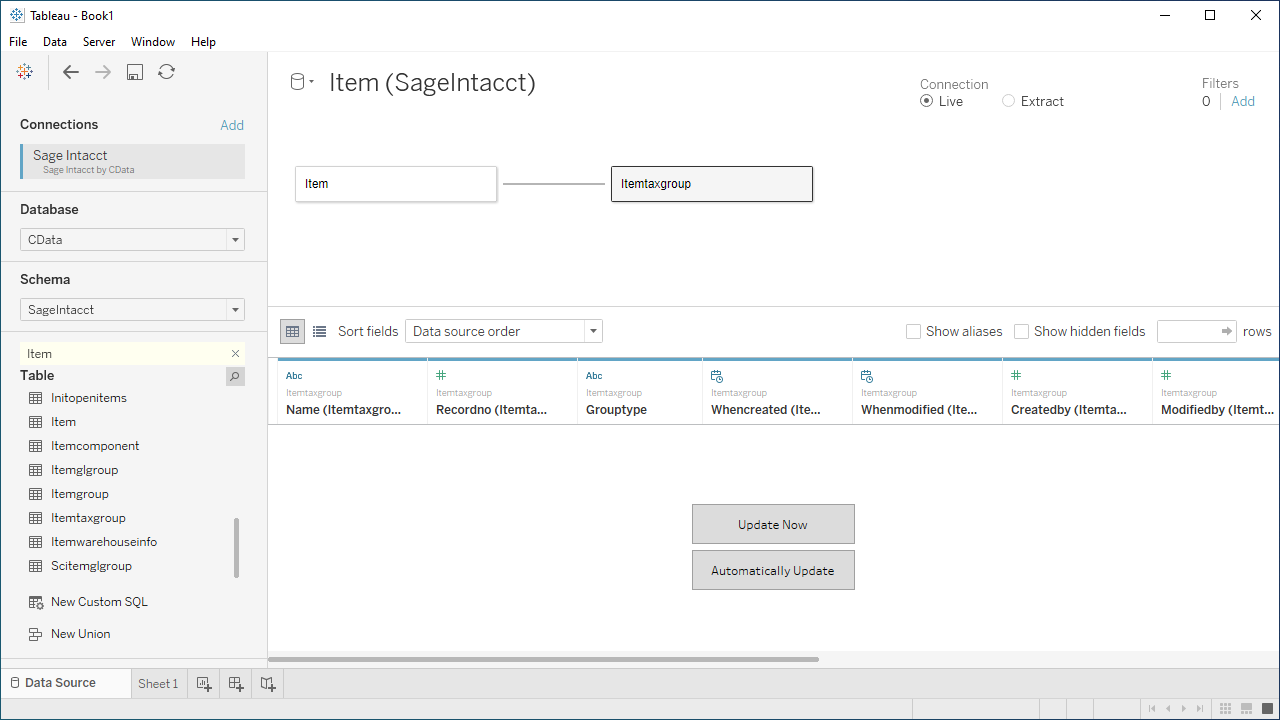
- Select Update Now or Automatically Update. Update Now lets you preview the first 10,000 rows of the data source (or enter the number of rows you want to see in the Rows text box). Automatically Update automatically reflects the changes in the preview area.
- Click the tab for your worksheet. Columns are listed as Dimensions and Measures, depending on the data type. The CData Tableau Connector discovers data types automatically, allowing you to leverage the powerful data processing and visualization features of Tableau.
- Drag a field from the Dimensions or Measures area to Rows or Columns. Tableau creates column or row headers.
- Select one of the chart types from the Show Me tab. Tableau displays the chart type that you selected.
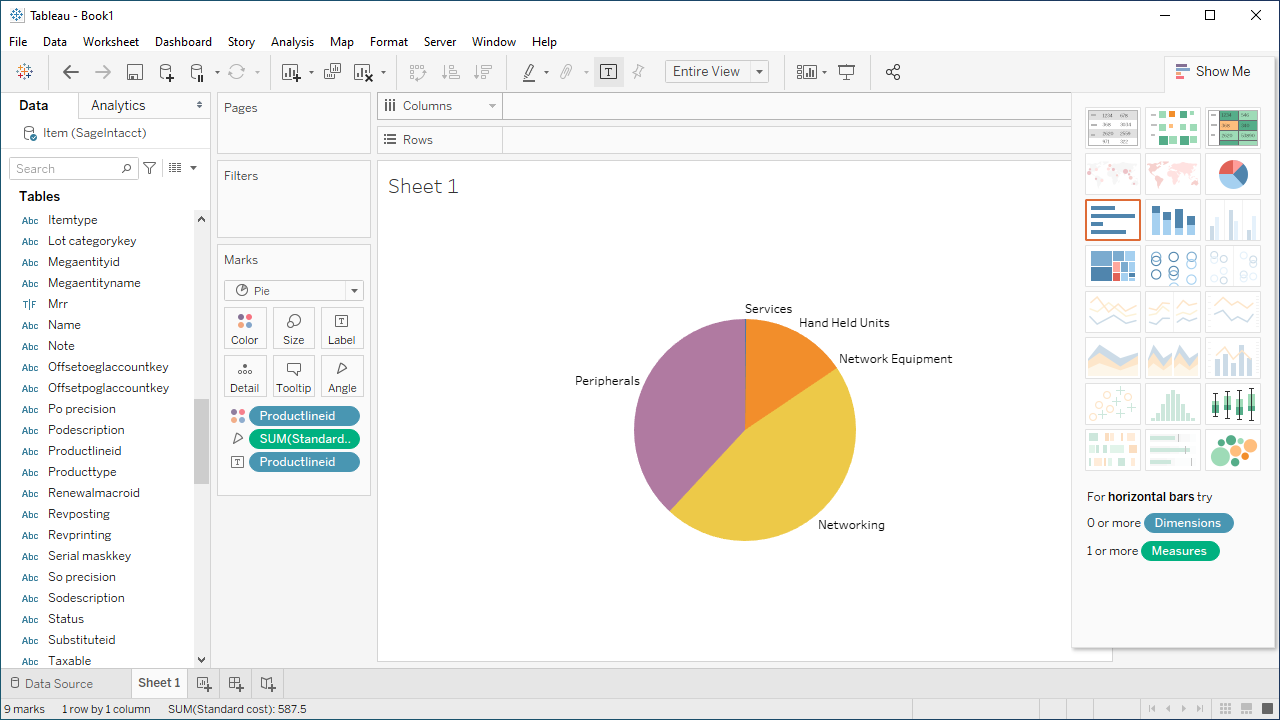
Using the CData Tableau Connector for Anaplan with Tableau, you can easily create robust visualizations and reports on Anaplan data. Download a free, 30-day trial and get started today.
Ready to get started?
Download a free trial of the Anaplan Tableau Connector to get started:
Download NowLearn more:
 Anaplan Tableau Connector
The fastest and easiest way to connect Tableau to Anaplan data. Includes comprehensive high-performance data access, real-time integration, extensive metadata discovery, and robust SQL-92 support.