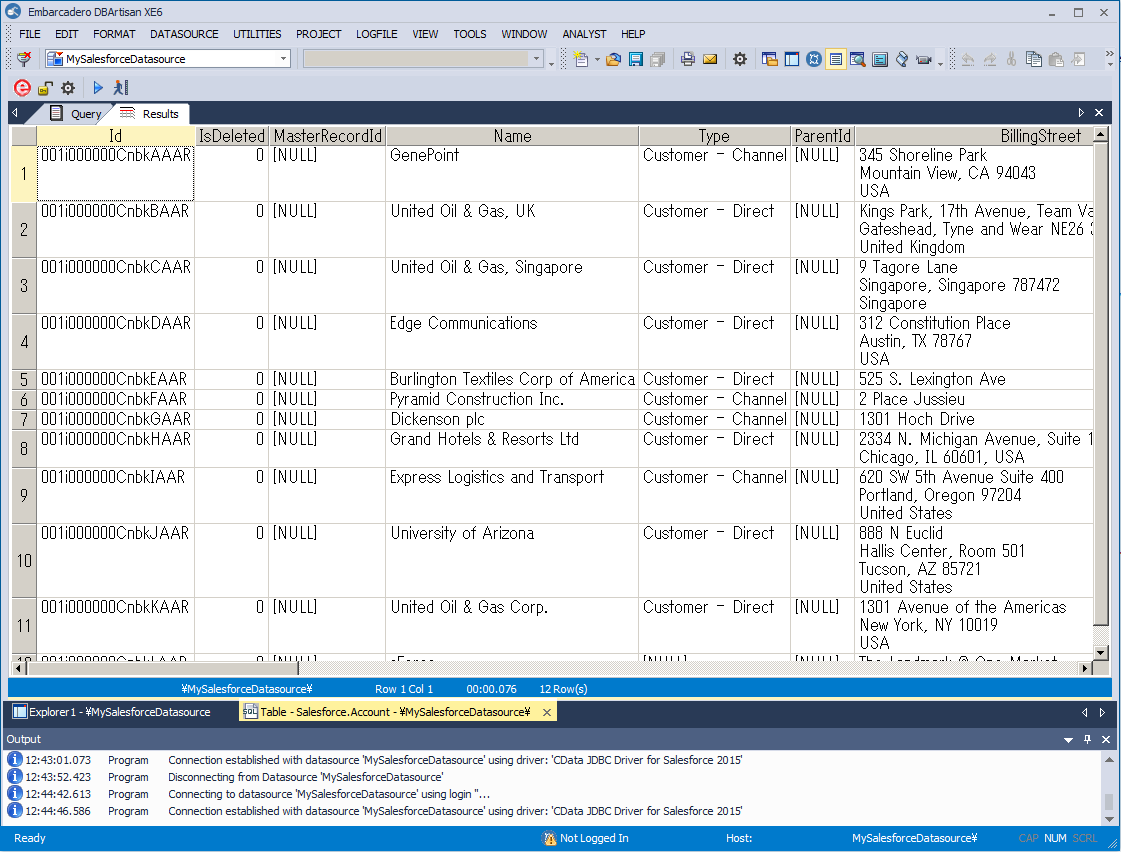
Manage ApprovalMax Data in DBArtisan as a JDBC Source

The CData JDBC Driver for ApprovalMax seamlessly integrates ApprovalMax data into database management tools like DBArtisan by enabling you to access ApprovalMax data as a database. This article shows how to create a JDBC source for ApprovalMax in DBArtisan. You can then edit data visually and execute standard SQL.
Integrate ApprovalMax Data into DBArtisan Projects
Follow the steps below to register ApprovalMax data as a database instance in your project:
- In DBArtisan, click Data Source -> Register Datasource.
- Select Generic JDBC.
- Click Manage.
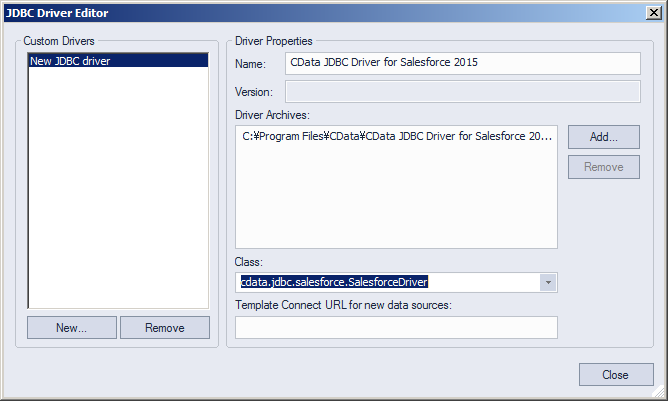
- In the resulting dialog, click New. Enter a name for the driver and click Add. In the resulting dialog, navigate to the driver JAR. The driver JAR is located in the lib subfolder of the installation directory.
-
In the Connection URL box, enter credentials and other required connection properties in the JDBC URL.
Start by setting the Profile connection property to the location of the ApprovalMax Profile on disk (e.g. C:\profiles\ApprovalMax.apip). Next, set the ProfileSettings connection property to the connection string for ApprovalMax (see below).
ApprovalMax API Profile Settings
To authenticate to ApprovalMax and connect to your own data or to allow other users to connect to their data, the ApprovalMax Public API requires the OAuth 2.0 authorization code flow.
First, you will need to register an OAuth application with ApprovalMax. Sign in to the ApprovalMax Developer Portal (https://developer.approvalmax.com/applications) and create a new application. Your OAuth application will be assigned a Client ID and a Client Secret, and you must register at least one Redirect URI (Callback URL).
A Premium ApprovalMax subscription (or active trial) is required to use the Public API.
After setting the following connection properties, you are ready to connect:
- AuthScheme: Set this to OAuth.
- InitiateOAuth: Set this to GETANDREFRESH. You can use InitiateOAuth to manage the process to obtain the OAuthAccessToken.
- OAuthClientId: Set this to the Client ID that is shown in your application settings on the ApprovalMax Developer Portal.
- OAuthClientSecret: Set this to the Client Secret that is shown in your application settings on the ApprovalMax Developer Portal.
- CallbackURL: Set this to the Redirect URI that is registered in your application settings.
- Scope: (Optional) Override the default OAuth scopes. The default value openid offline_access https://www.approvalmax.com/scopes/public_api/read grants read-only access to all tables in this profile and enables refresh tokens. Use the principle of least privilege when narrowing this scope.
The OAuth Authorization URL is https://identity.approvalmax.com/connect/authorize and the Token URL is https://identity.approvalmax.com/connect/token. Both authorization_code and refresh_token grant types are supported.
Built-in Connection String Designer
For assistance in constructing the JDBC URL, use the connection string designer built into the ApprovalMax JDBC Driver. Either double-click the JAR file or execute the jar file from the command-line.
java -jar cdata.jdbc.api.jarFill in the connection properties and copy the connection string to the clipboard.
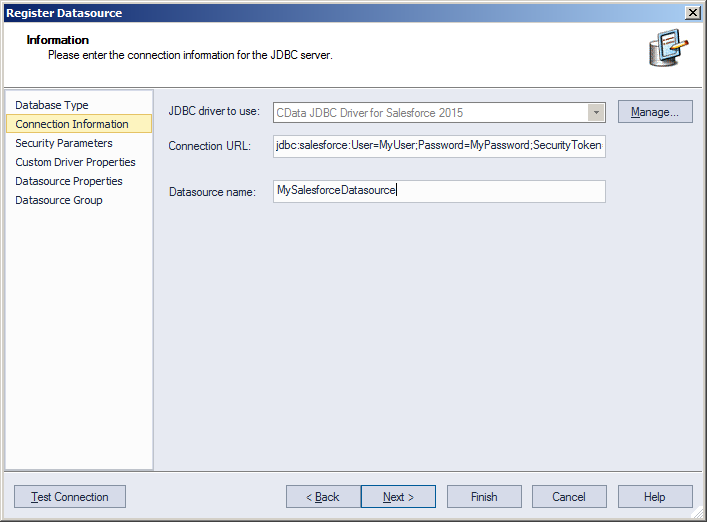
Below is a typical connection string:
jdbc:api:Profile=C:\profiles\ApprovalMax.apip;AuthScheme=OAuth;InitiateOAuth=GETANDREFRESH;OAuthClientId=your_client_id;OAuthClientSecret=your_client_secret;CallbackURL=your_callback_url; - Finish the wizard to connect to ApprovalMax data. ApprovalMax entities are displayed in the Datasource Explorer.
You can now work with ApprovalMax data as you work with any other database. See the driver help documentation for more information on the queries supported by the ApprovalMax API.