




Use Azure AI Foundry to Talk to Your Claude Compliance Data via CData Connect AI

Azure AI Foundry is Microsoft's comprehensive platform for building, deploying, and managing AI applications and agents. It provides a unified environment for creating intelligent agents that can automate tasks, answer questions, and assist with various business processes. When combined with CData Connect AI Remote MCP, you can leverage Azure AI Foundry to interact with your Claude Compliance data in real-time. This article outlines the process of connecting to Claude Compliance using Connect AI Remote MCP and creating an agent in Azure AI Foundry to interact with your Claude Compliance data.
CData Connect AI offers a dedicated cloud-to-cloud interface for connecting to Claude Compliance data. The CData Connect AI Remote MCP Server enables secure communication between Azure AI Foundry and Claude Compliance. This allows you to ask questions and take actions on your Claude Compliance data using Azure AI Foundry agents, all without the need for data replication to a natively supported database. With its inherent optimized data processing capabilities, CData Connect AI efficiently channels all supported SQL operations, including filters and JOINs, directly to Claude Compliance. This leverages server-side processing to swiftly deliver the requested Claude Compliance data.
In this article, we show how to build an agent in Azure AI Foundry to conversationally explore (or Vibe Query) your data. The connectivity principles apply to any Azure AI Foundry agent. With Connect AI you can build AI agents with access to live Claude Compliance data, plus hundreds of other sources.
Step 1: Create an Azure AI Foundry Resource
Before connecting to Claude Compliance data, you'll need to create an Azure AI Foundry resource in your Azure portal.
- Log into the Azure Portal.
- Click Create a resource and search for Microsoft Foundry.
-
Click Create to begin the resource creation wizard.
-
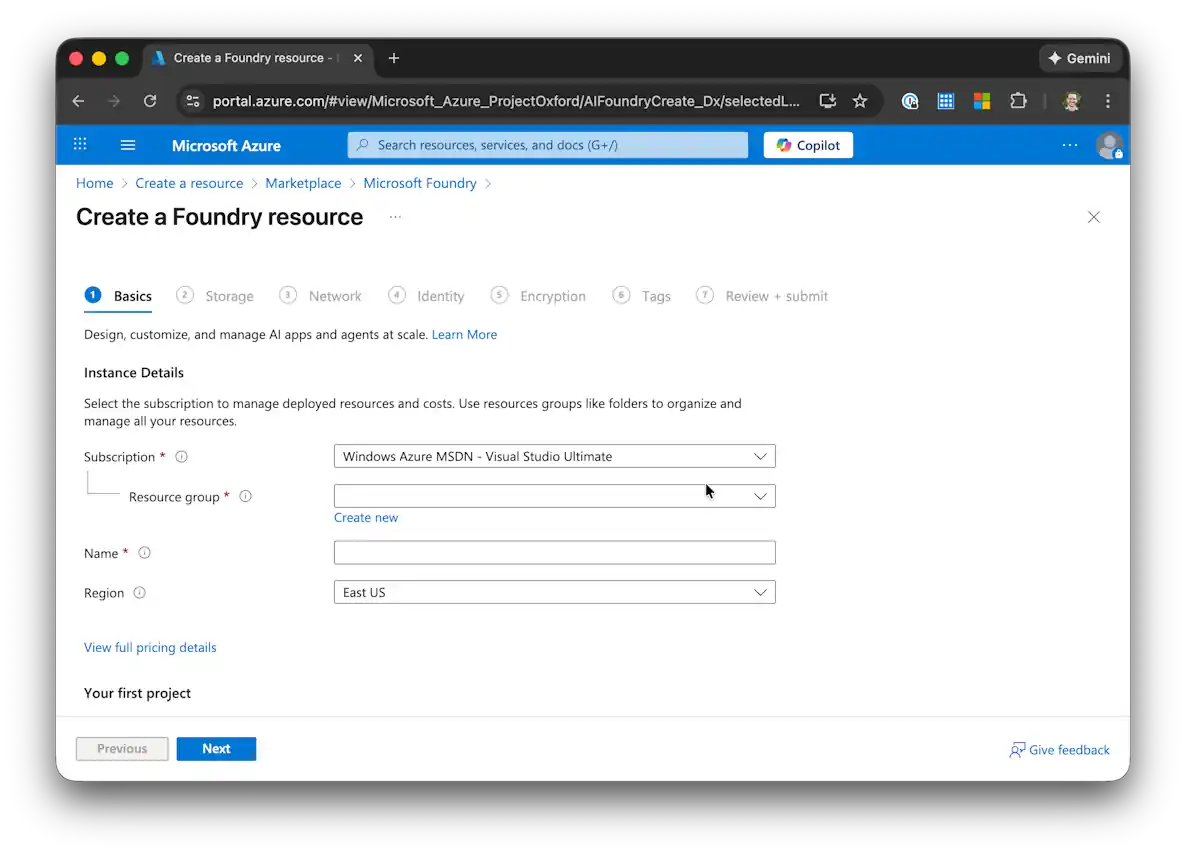
In the Basics tab:
- Select or create a Resource group
- Enter a Name for your Foundry resource
- Enter a Project name
- Click Next
- Configure the Storage, Network, Identity, Encryption, and Tags tabs according to your organization's requirements, clicking Next after each section.
-
On the Review + submit tab, review your settings and click Create.
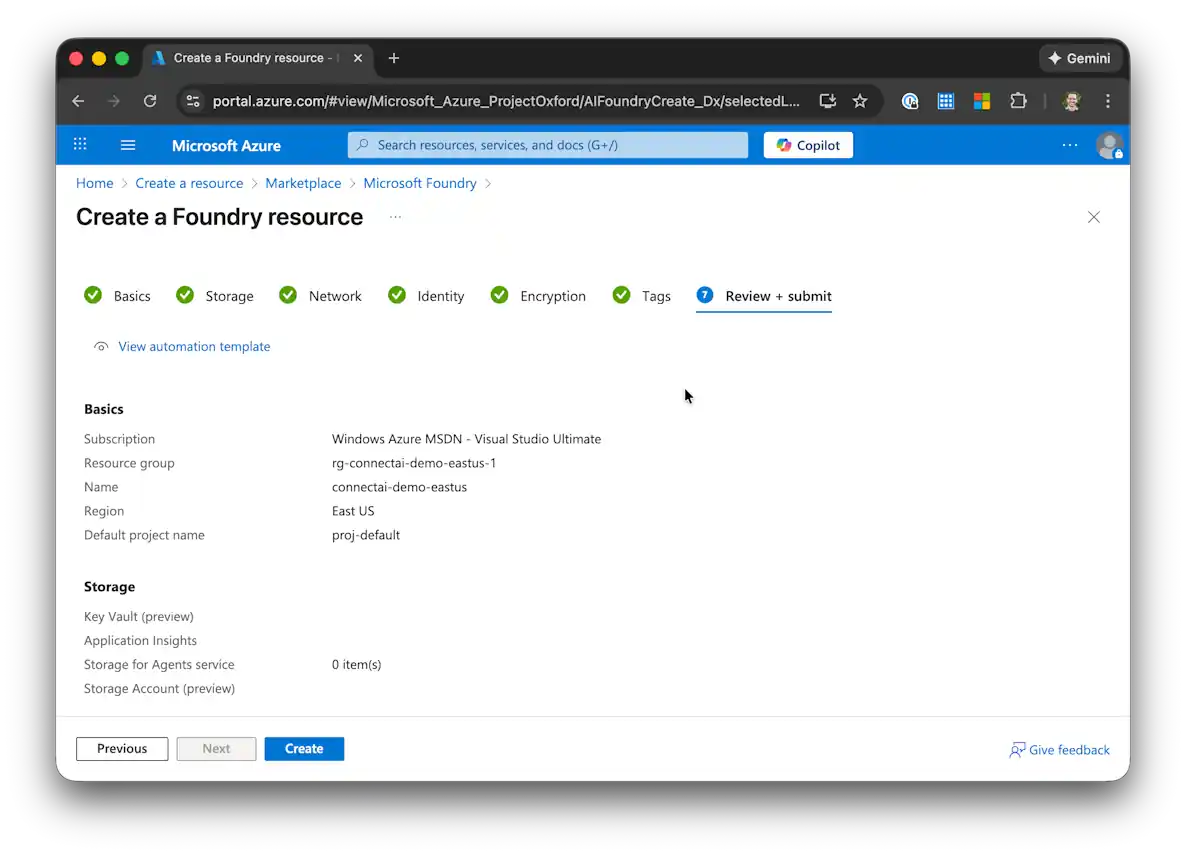
- Once the resource is created, click Go to resource.
-
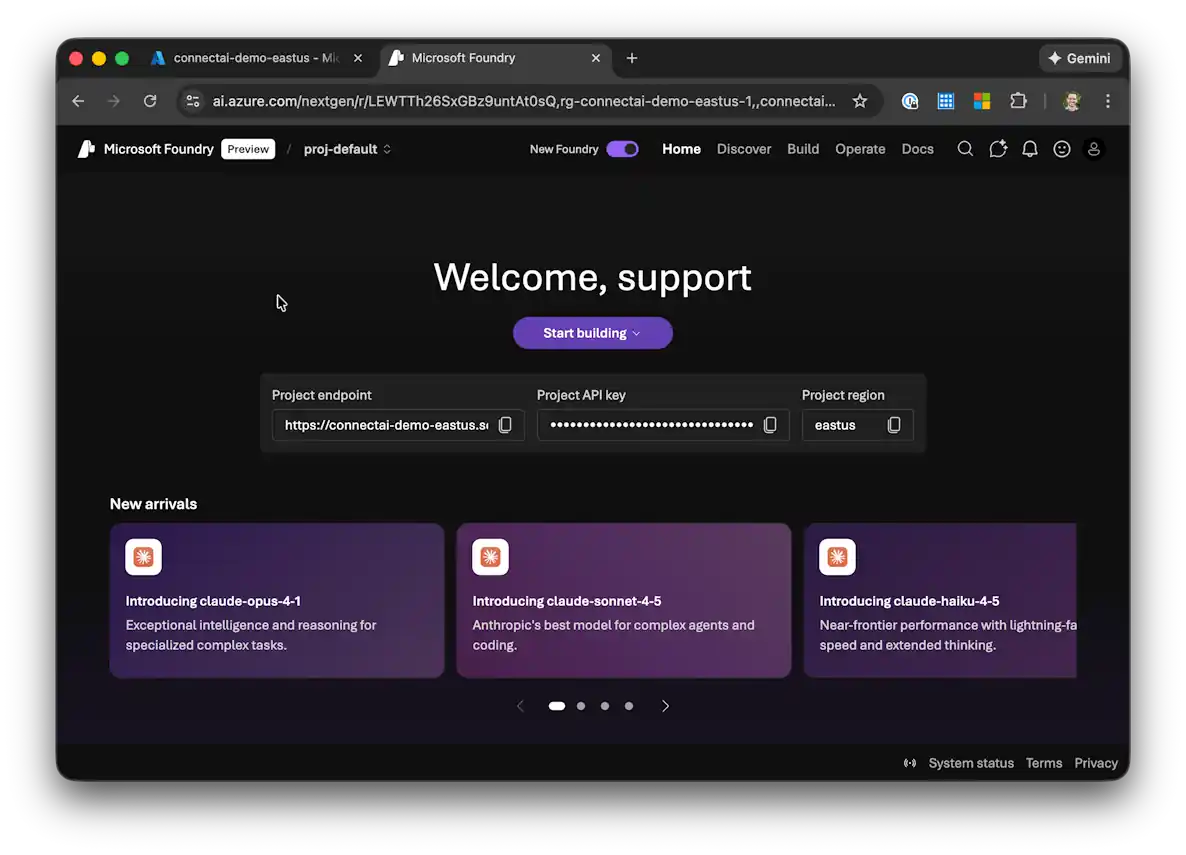
Click Go to Foundry portal to access the Azure AI Foundry portal.
Step 2: Configure Claude Compliance Connectivity for Azure AI Foundry
Connectivity to Claude Compliance from Azure AI Foundry is made possible through CData Connect AI Remote MCP. To interact with Claude Compliance data from Azure AI Foundry, we start by creating and configuring a Claude Compliance connection in CData Connect AI.
-
Log into Connect AI, click Connections and click Add Connection

-
Select "Claude Compliance" from the Add Connection panel

-
Enter the necessary authentication properties to connect to Claude Compliance.
The driver connects to Claude Compliance using a Compliance Access Key, the only supported authentication method. Set the following connection property:
- APIKey: The Compliance Access Key you created.
Creating a Compliance Access Key
- Enable the Compliance API for your organization.
- Sign in to claude.ai as a primary owner or organization owner and open Organization settings > API > Keys.
- Select Create Key and assign only the scopes your integration needs:
- read:compliance_activities for Activities and the typed activity views.
- read:compliance_org_data for organizations, roles, groups, and settings.
- read:compliance_user_data for users, chats, files, projects, and downloads.
- delete:compliance_user_data for the explicit Delete stored procedures.
- Create the key and copy it when it appears. The key starts with sk-ant-api01- and is shown only once.
Optionally, set OrganizationUUID to limit organization-scoped views (such as OrganizationUsers and ComplianceRoles) to a single linked organization. If it is left empty, those views default to the first available organization and do not include data from all linked organizations.
 Click Save & Test
-
Navigate to the Permissions tab in the Add Claude Compliance Connection page and update the User-based permissions.

Add a Personal Access Token
A Personal Access Token (PAT) is used to authenticate the connection to Connect AI from Azure AI Foundry. It is best practice to create a separate PAT for each service to maintain granularity of access.
- Click on the Gear icon () at the top right of the Connect AI app to open the settings page.
- On the Settings page, go to the Access Tokens section and click Create PAT.
-
Give the PAT a name and click Create.

- The personal access token is only visible at creation, so be sure to copy it and store it securely for future use.
With the connection configured and a PAT generated, we are ready to connect to Claude Compliance data from Azure AI Foundry.
Step 3: Create an AI Agent in Azure AI Foundry
Follow these steps to create an AI agent and connect it to CData Connect AI:
-
In the Azure AI Foundry portal, click New Foundry to create a new project.
-
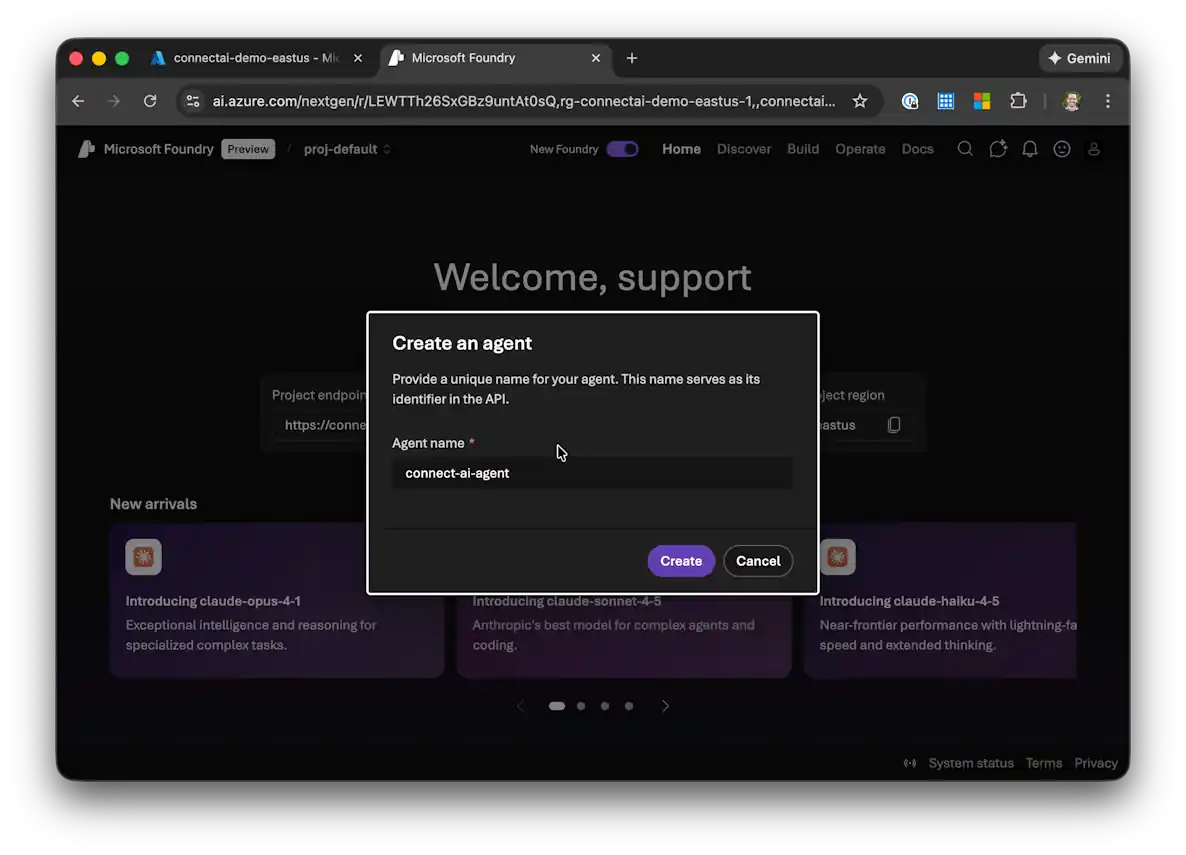
Click Start building and then select Create agent.
-
Enter a Name for your agent.
-
In the Setup section:
- Choose your preferred AI model
- Configure Instructions for how the agent should behave
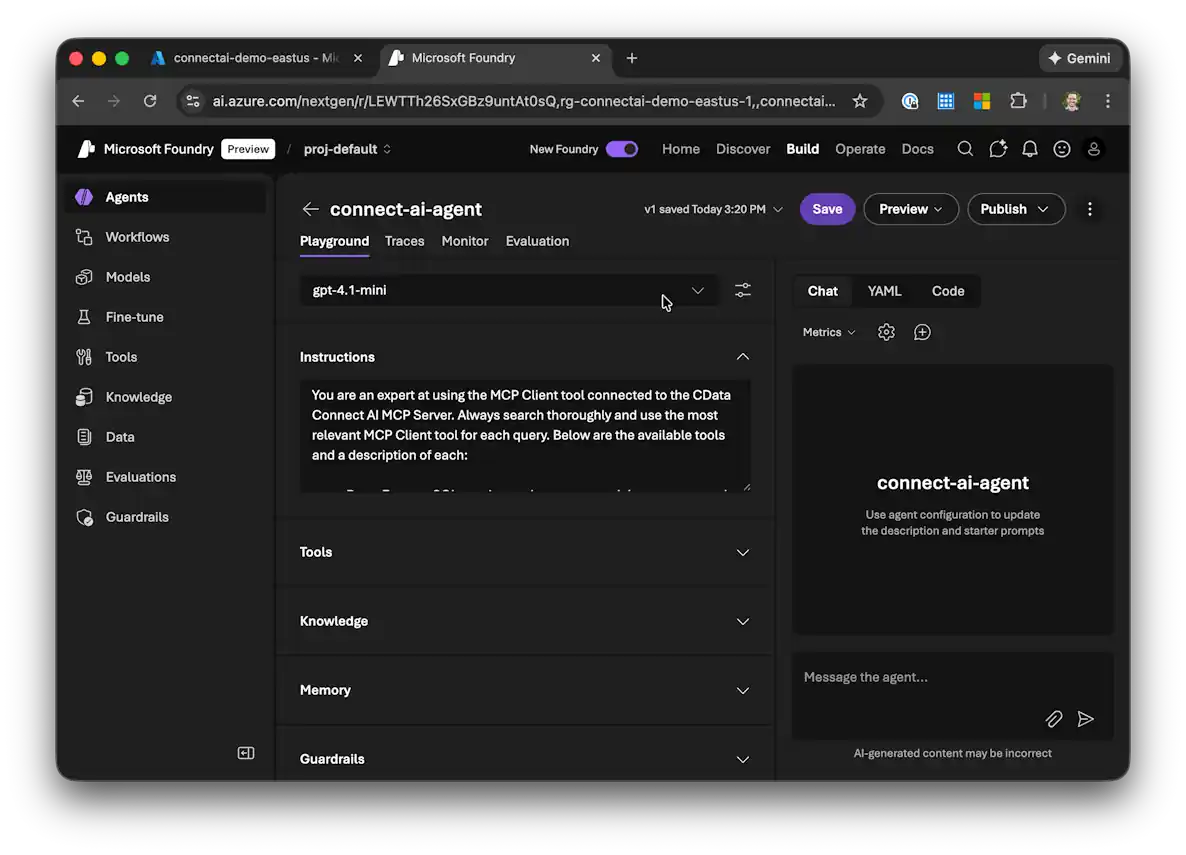
Step 4: Add the CData Connect AI MCP Tool
Now you'll add the CData Connect AI MCP Server as a custom tool for your agent:
-
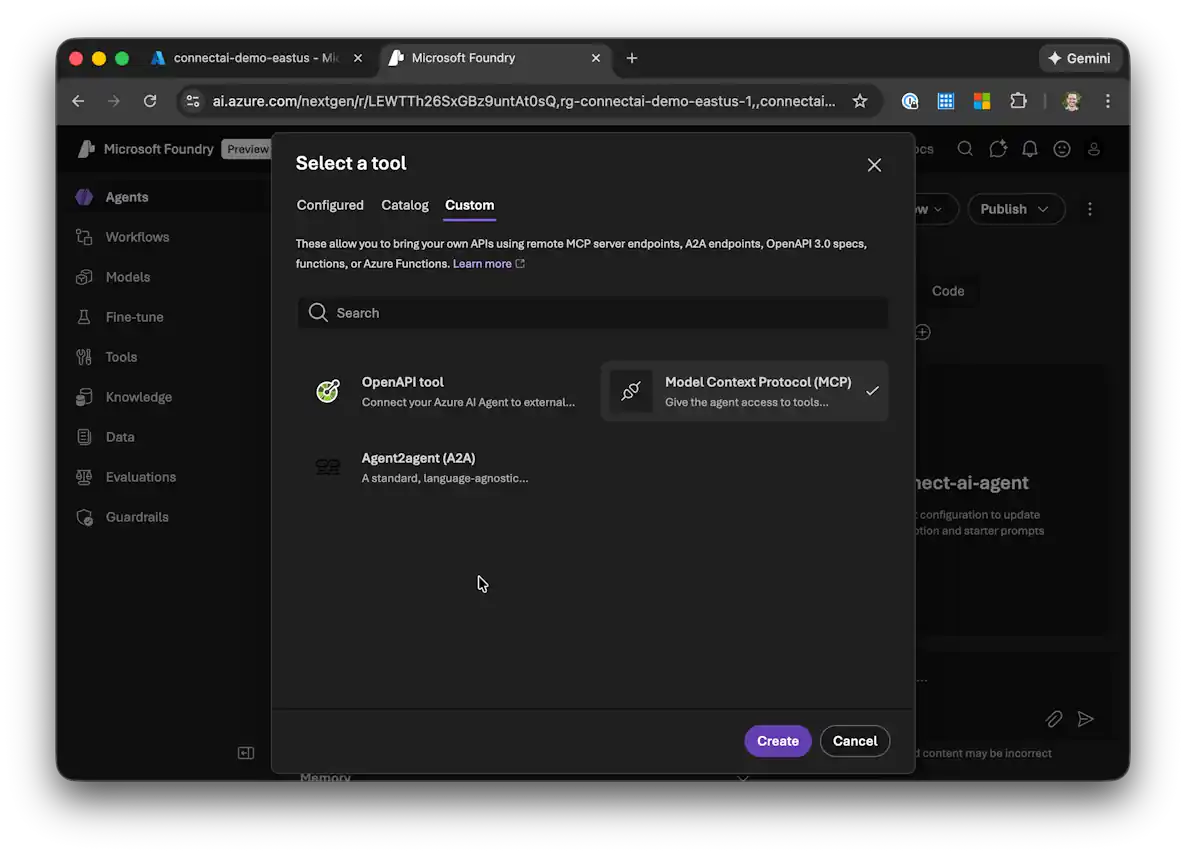
In the agent setup, navigate to the Tools section and click Add.
-
Select Custom from the tool options.
-
Choose Model Context Protocol and click Create.
-
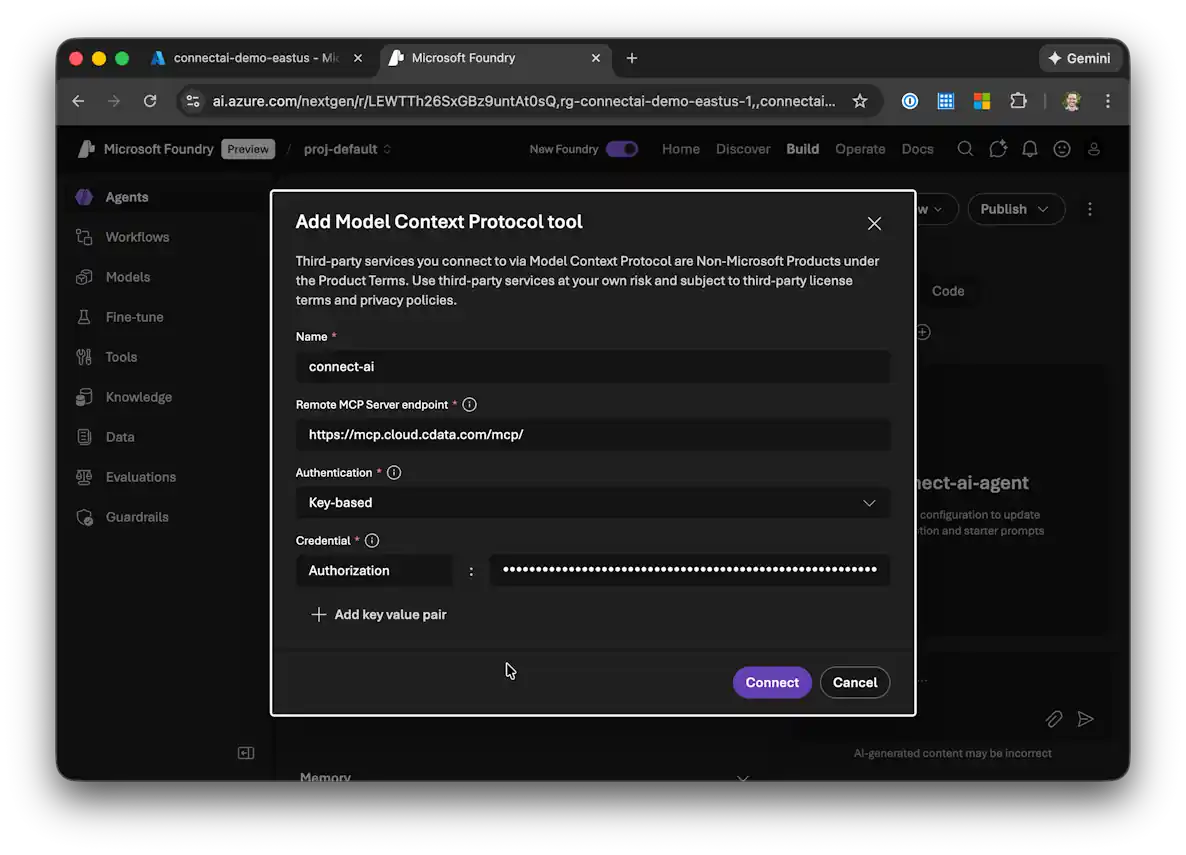
Enter a Name for the MCP tool (such as "CData Connect AI MCP Server").
-
In the Remote MCP Server endpoint field, enter: https://mcp.cloud.cdata.com/mcp/
-
For Authentication, select Key-based.
-
Configure the credential using:
- Header name: Authorization
- Value: Basic EMAIL:PAT, replacing EMAIL with your Connect AI email address and PAT with the personal access token you created earlier
-
Click Connect to establish the connection to CData Connect AI.
Optional: Provide Agent Context
You can enhance your agent's understanding by providing specific instructions about using the MCP Server tools. In the agent's Instructions section, you can add guidance such as:
You are an expert at using the MCP Client tool connected to the CData Connect AI MCP Server. Always search thoroughly and use the most relevant MCP Client tool for each query. Below are the available tools and a description of each:

queryData: Execute SQL queries against connected data sources and retrieve results. When you use the queryData tool, ensure you use the following format for the table name: catalog.schema.tableName
getCatalogs: Retrieve a list of available connections from CData Connect AI. The connection names should be used as catalog names in other tools and in any queries to CData Connect AI. Use the `getSchemas` tool to get a list of available schemas for a specific catalog.
getSchemas: Retrieve a list of available database schemas from CData Connect AI for a specific catalog. Use the `getTables` tool to get a list of available tables for a specific catalog and schema.
getTables: Retrieve a list of available database tables from CData Connect AI for a specific catalog and schema. Use the `getColumns` tool to get a list of available columns for a specific table.
getColumns: Retrieve a list of available database columns from CData Connect AI for a specific catalog, schema, and table.
getProcedures: Retrieve a list of stored procedures from CData Connect AI for a specific catalog and schema
getProcedureParameters: Retrieve a list of stored procedure parameters from CData Connect AI for a specific catalog, schema, and procedure.
executeProcedure: Execute stored procedures with parameters against connected data sources
Step 5: Chat with Your Claude Compliance Data
With your agent configured and connected to CData Connect AI, you can now interact with your Claude Compliance data using natural language:
-
In the Azure AI Foundry portal, navigate to the Chat with data section of your agent.
-
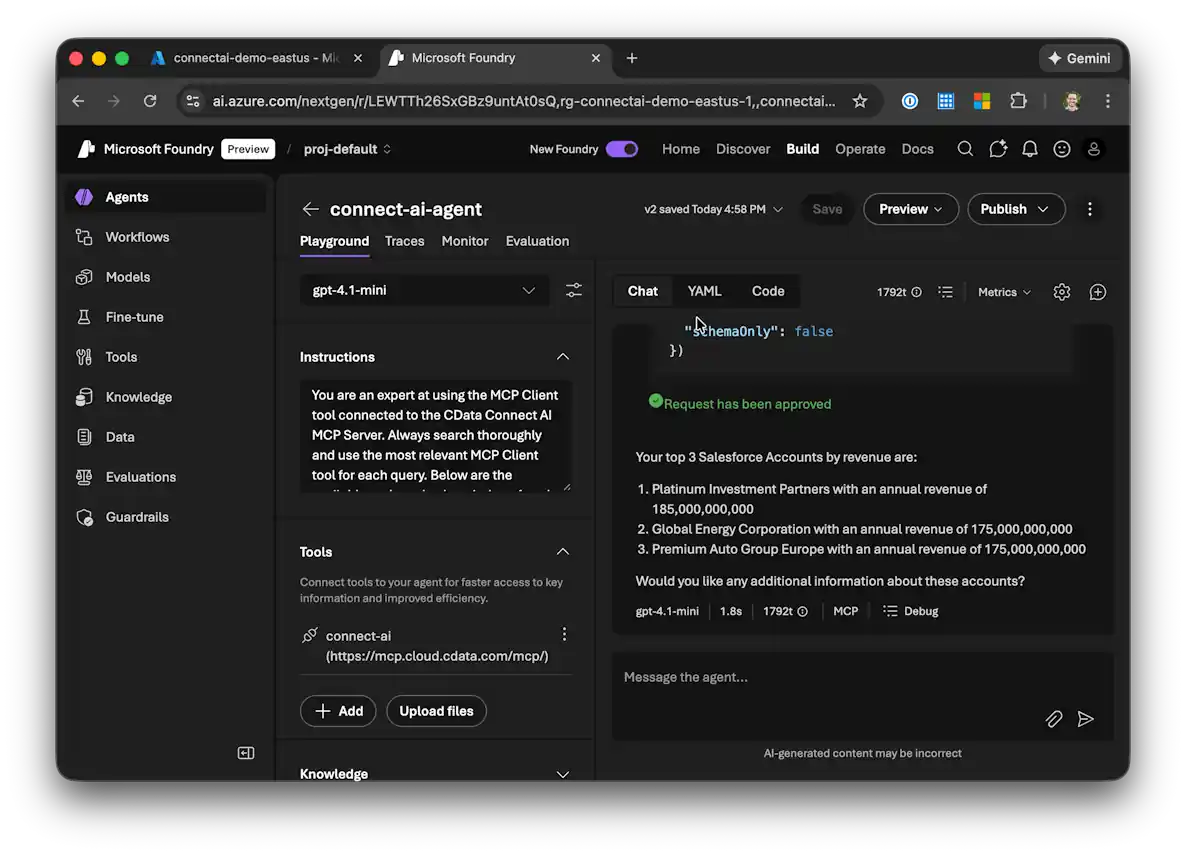
Start asking questions about your Claude Compliance data. For example:
- "Show me all customers from the last 30 days"
- "What are my top performing products?"
- "Analyze sales trends for Q4"
- "List all active projects with their current status"
-
The agent will use the CData Connect AI MCP Server to query your Claude Compliance data in real-time and provide responses based on live data.
Step 6: Publish Your Agent
Once you're satisfied with your agent's configuration and testing, click Publish to make your agent available for use in your organization.
Get CData Connect AI
To get live data access to hundreds of SaaS, Big Data, and NoSQL sources directly from your cloud applications, try CData Connect AI today!