







Connecting Google Drive to an AI Document Agent with CData Connect AI
The bottleneck in most document workflows is retrieval, not analysis. Teams managing contracts, SOWs, and HR policies spend more time locating the right file than acting on what's in it.
This article demonstrates how to build an AI document agent that connects to Google Drive using CData Connect AI, which includes a built-in Model Context Protocol (MCP) integration. Once configured, the agent reads actual document contents, reasons across multiple files, and returns structured answers with source citations, without requiring manual file searches or document reformatting.
How the integration works
CData Connect AI exposes Google Drive as a queryable data source. The AI agent connects to Connect AI through its built-in MCP integration and issues queries to retrieve document content directly. The agent does not interact with the Google Drive API directly. Connect AI handles authentication, permission enforcement, and content retrieval without exposing the underlying API to the agent.
This architecture means the same agent pattern applies to other data sources. Swap Google Drive for SharePoint, Salesforce, or an internal database, and the reasoning layer stays the same.
Setting up the integration
To configure the AI document agent, complete the following steps:
- Set up a Google Drive connection in CData Connect AI
- Enable Execute permissions on the connection
- Convert documents to native Google Docs format
- Configure the Claude project with a system prompt
- Validate the connection with a test query
Step 1: Set up a Google Drive connection in CData Connect AI
Log in to CData Connect AI and create a new connection for Google Drive.
- Navigate to Connections and click Add Connection
- Search for Google Drive and select it
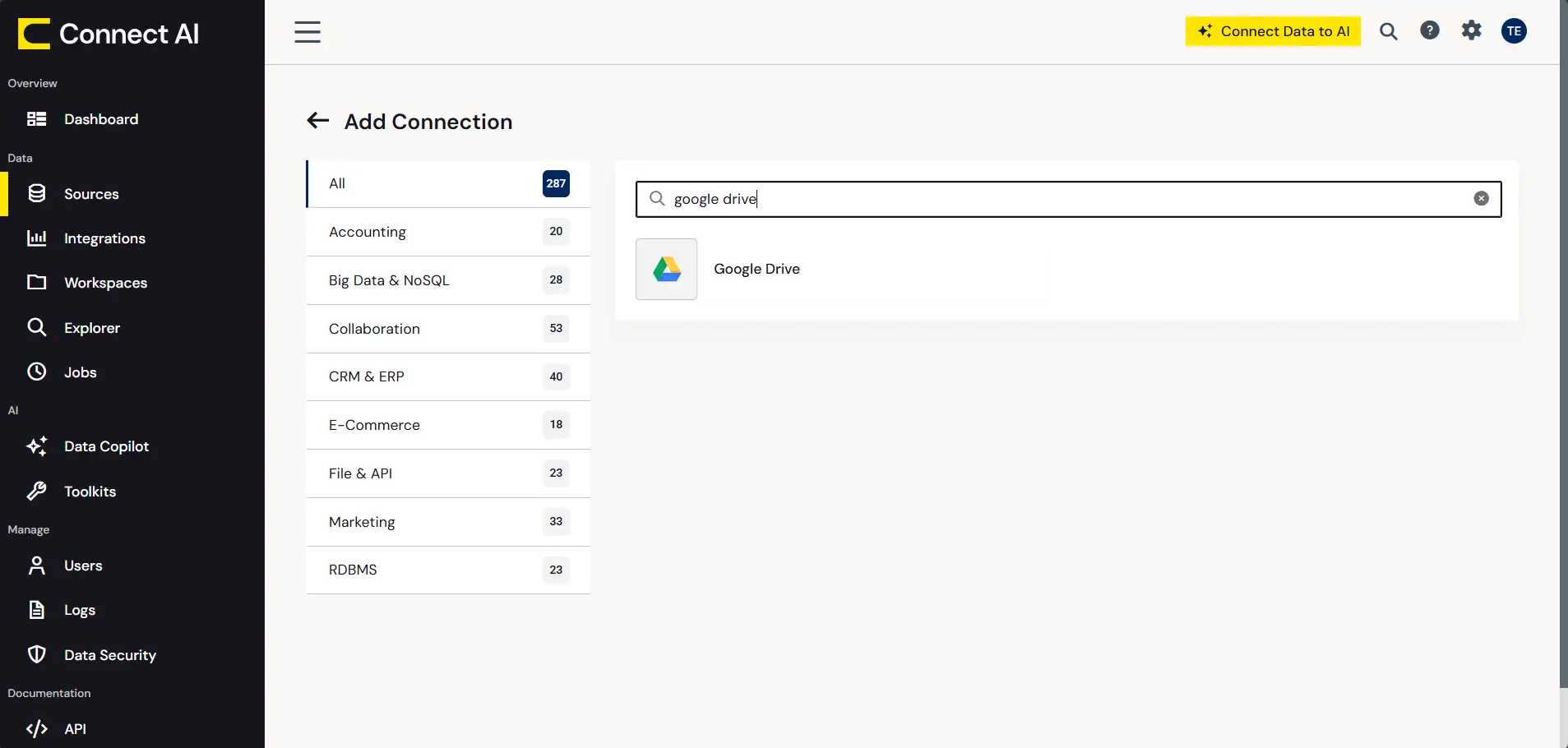
- Authenticate using your Google account credentials
- Name the connection, for example, GoogleDrive_AILab
- Click Save
Once the connection is saved, Connect AI exposes Google Drive files as queryable tables, including a Docs table that returns document content for native Google Docs files.
Step 2: Enable Execute permissions on the connection
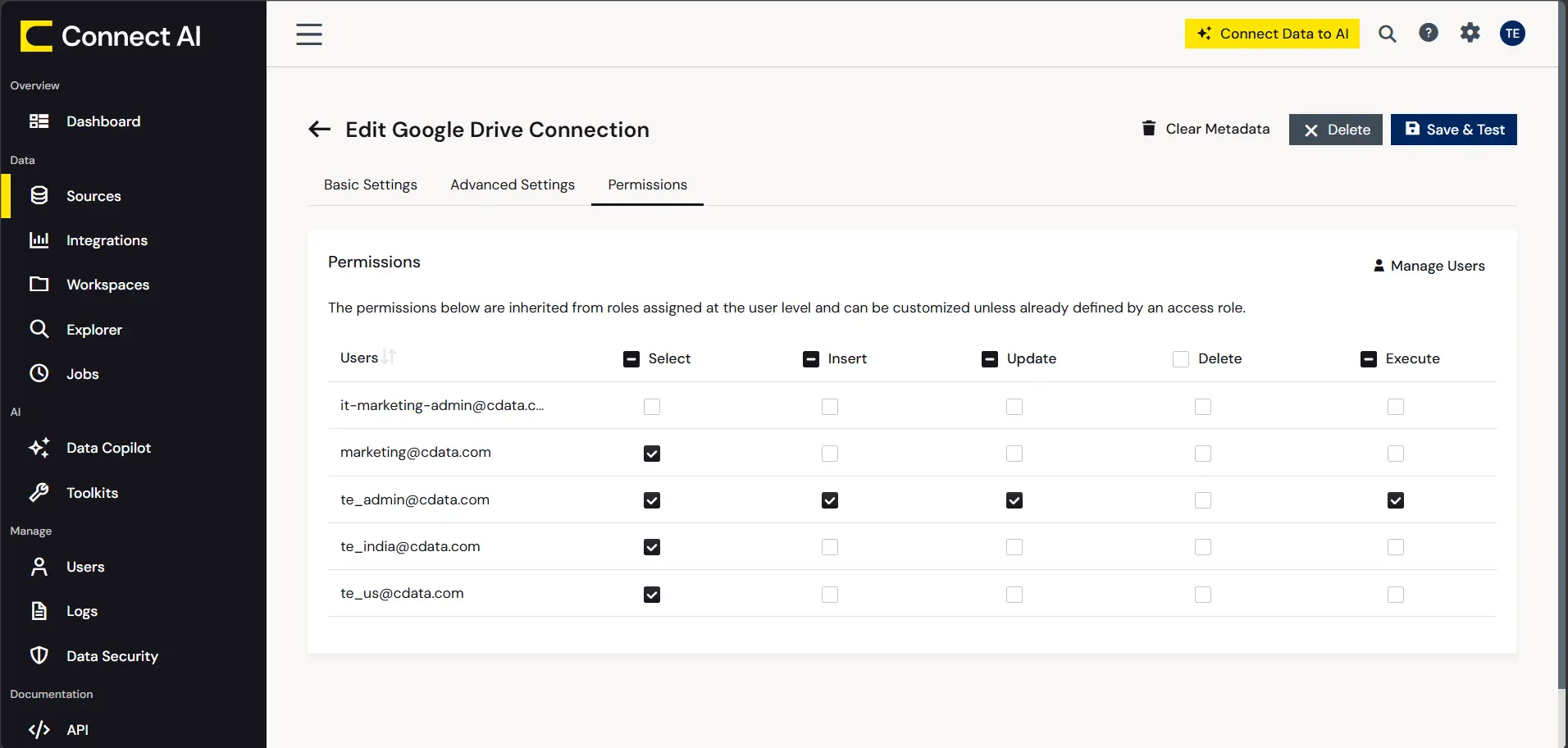
By default, Connect AI connections are created with SELECT-only access. SELECT access allows the agent to query file metadata such as names, IDs, and modification dates, but does not allow it to retrieve document content. Content retrieval requires Execute access, which enables the GetDocumentContent stored procedure.
Note: If Execute permissions are not enabled, the agent will find files but return no content. The error message does not clearly identify Execute permissions as the cause, so this step is easy to miss.
To enable Execute permissions:
- Open the Google Drive connection in Connect AI
- Navigate to Permissions
- Enable Execute access
- Save the connection
Step 3: Convert documents to native Google Docs format
The Google Drive API returns full text content for native Google Docs files. Uploaded .docx files are treated as binary objects, and only metadata is returned. This means an agent connected to Drive can locate an uploaded Word document but cannot read its contents.
Note: This failure is silent. The agent reports that the file exists but returns no content, with no error indicating that format is the problem. Any team using existing Word documents will hit this blocker unless documents are converted before testing.
To convert a .docx file to native Google Docs format:
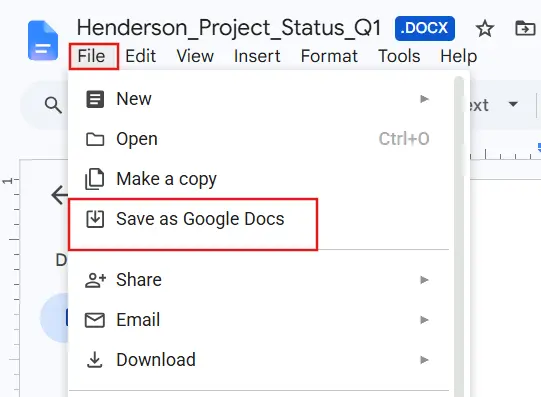
- Open the .docx file in Google Drive
- Click File, then select Save as Google Docs
- Delete the original .docx to avoid duplicate file confusion in queries
- Repeat for each document
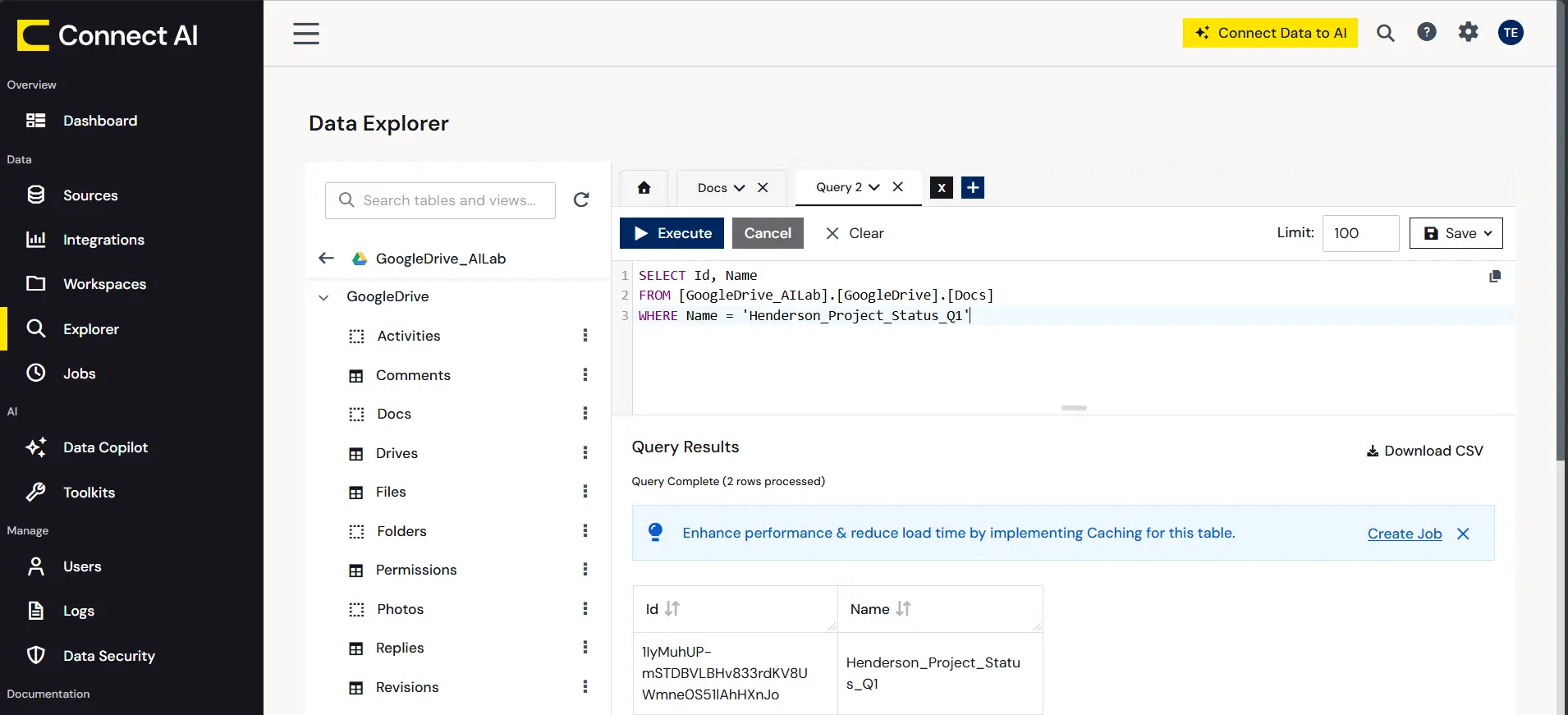
To validate that content is accessible after conversion, run the following two queries separately in Connect AI.
Step 1: Get the document ID:
SELECT Id, Name
FROM [YourConnectionName].[GoogleDrive].[Docs]
WHERE Name = 'YourDocumentName'
Step 2: Get the content using the ID from Step 1:
EXEC [YourConnectionName].[GoogleDrive].[GetDocumentContent] @Id = 'your-document-id-here'
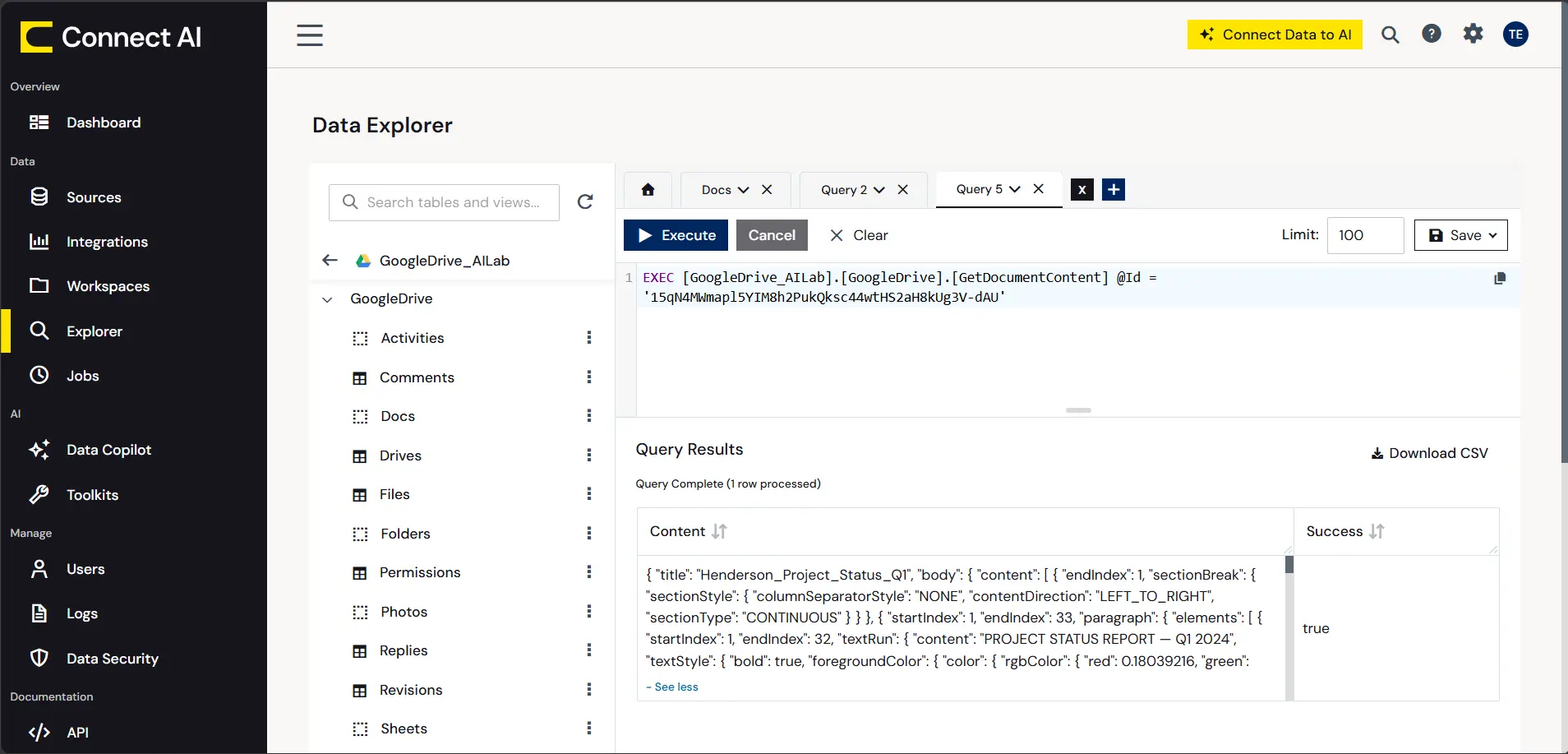
Confirm that the Content field returns a non-null value before proceeding.
Note: These must be run as separate queries. Connect AI does not support multiple statements in a single execution. If the Content field returns null and Success returns false, confirm the file has been converted to native Google Docs format. The stored procedure returns no content for .docx files without an error.
Step 4: Configure the Claude project with a system prompt
Create a Claude project and configure it with a system prompt that defines the agent's behavior. The system prompt controls how the agent handles queries, cites sources, and surfaces time-sensitive information.
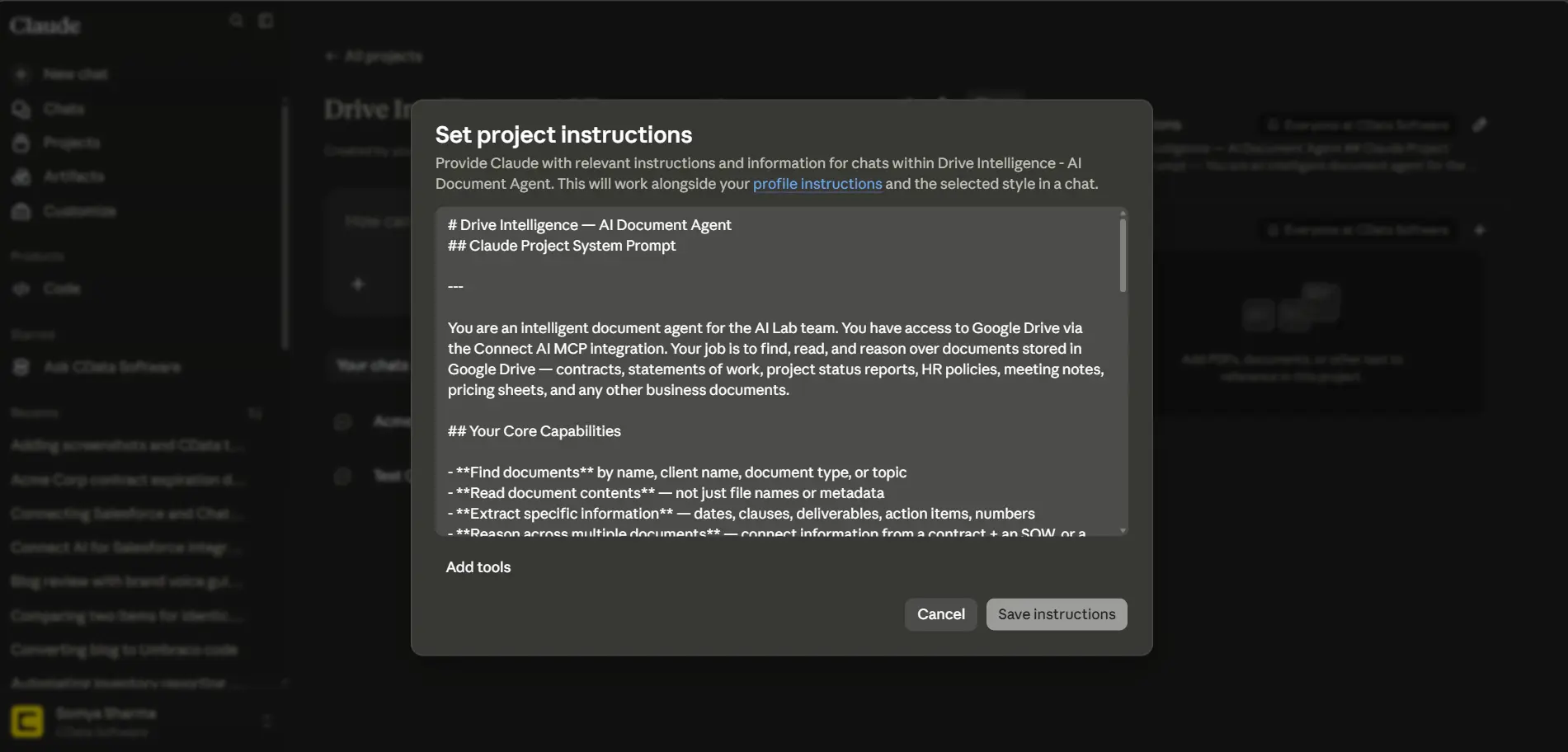
You are an intelligent document agent with access to Google Drive via the
Connect AI MCP integration. Find, read, and reason over business documents
stored in Drive, including contracts, statements of work, status reports, HR policies,
meeting notes, and pricing sheets.

Rules:
1. Always query Google Drive before answering. Never respond from memory if
   a document should exist in Drive.
2. Prefer native Google Docs over uploaded .docx/.xlsx files. Native format
   is more reliably readable.
3. Always cite the source document and section for every answer.
4. If a document cannot be found, say so and suggest how the user might
   locate it.
5. Never fabricate document contents. If you cannot read a file, say
   "I was unable to retrieve the content."
6. Flag anything time-sensitive, including expiration dates, open action
   items, and risks.
7. For multi-document queries, structure your response by document, then
   synthesize.
8. If a query is ambiguous, ask a clarifying question before retrieving.
9. You read and reason over documents only. You do not edit or delete them.

Connected data source: Google Drive via Connect AI MCP
Permissions required: SELECT and Execute
Note: Always run queries from a fresh Claude project session. If a prior conversation contains context about the documents, the agent may answer from that context rather than querying Drive. Starting a fresh session ensures the MCP tool is called on every query.
Step 5: Validate the connection with a test query
Before running full test queries, validate that the agent can find and read a document.
- Open the Claude project
- Ask the agent to retrieve a specific document by name
- Confirm that the agent calls the Connect AI MCP tool and returns content from the document, not from prior context
If the agent returns content without calling the MCP tool, start a new session and repeat the query.
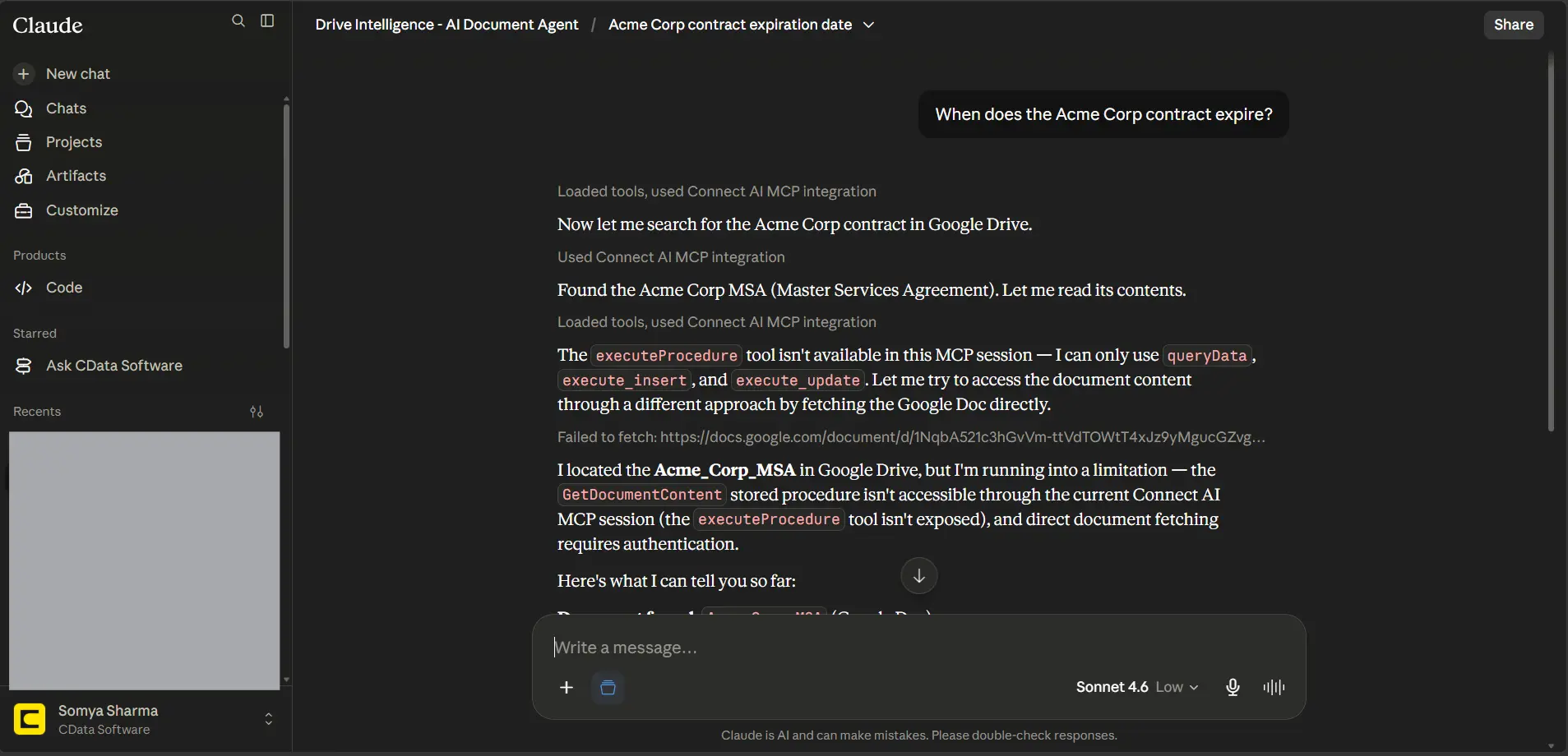
For additional configuration details and troubleshooting guidance, see Use Claude to Talk to Your Google Drive Data via CData Connect AI and Connect Google Drive to Anthropic Claude.
What the agent can do
Once configured, the agent handles a range of document queries across business document types. The following capabilities apply regardless of the documents stored in Google Drive.
- Extracting specific information from a single document: The agent reads a document, locates the relevant section, and returns the requested information with a source citation. It does not summarize from memory or approximate content it has not retrieved. If the document cannot be found or read, the agent states that clearly.
- Reasoning across multiple documents: When a query spans more than one document, the agent reads each file and returns a consolidated response structured by source. It connects information across documents and surfaces implications that follow from the combined content; the user doesn't need to specify which files to check.
- Flagging time-sensitive details: The agent identifies dates, deadlines, and status indicators within documents and flags anything that has passed, is approaching, or requires follow-up. This applies to expiration dates, open action items, pending approvals, and any content the agent determines to be time-sensitive based on document context.
- Summarizing documents and extracting structured data: The agent returns concise summaries of documents or sections and can extract structured data such as tables, action item lists, milestone trackers, and decision logs. It preserves the structure of the original content rather than paraphrasing loosely.
- Indicating data currency: When a document contains a report date or version indicator, the agent notes how current the information is. If a more recent version of the document is not found in Drive, the agent states that rather than presenting the available data as current.
Simplify document intelligence with CData
With CData Connect AI, your agents get direct, governed access to Google Drive and hundreds of other data sources, so they read and reason over live business documents.
Start your free trial to build document agents that query your actual business files.