




Bridge Claude Compliance Connectivity with Apache NiFi

Apache NiFi supports powerful and scalable directed graphs of data routing, transformation, and system mediation logic. When paired with the CData JDBC Driver for Claude Compliance, NiFi can work with live Claude Compliance data. This article describes how to connect to and query Claude Compliance data from an Apache NiFi Flow.
With built-in optimized data processing, the CData JDBC driver offers unmatched performance for interacting with live Claude Compliance data. When you issue complex SQL queries to Claude Compliance, the driver pushes supported SQL operations, like filters and aggregations, directly to Claude Compliance and utilizes the embedded SQL engine to process unsupported operations client-side (often SQL functions and JOIN operations). Its built-in dynamic metadata querying allows you to work with and analyze Claude Compliance data using native data types.
Connecting to Claude Compliance Data in Apache NiFi
- Download the CData JDBC Driver for Claude Compliance installer, unzip the package, run the .exe file to install the driver.
Copy the CData JDBC Driver JAR file (and license file if it exists), cdata.jdbc.claudecompliance.jar (and cdata.jdbc.claudecompliance.lic), to the Apache NiFi lib subfolder, for example, C:\nifi-1.3.0-bin\nifi-1.3.0\lib.
On Windows, the default location for the CData JDBC Driver is C:\Program Files\CData\CData JDBC Driver for Claude Compliance.
Start Apache NiFi by running the run-nifi.bat file in bin subfolder, for example, C:\nifi-1.3.0-bin\nifi-1.3.0\bin.
(OR)
Use the command prompt to navigate to the particular directory and run the run-nifi.bat file for example:
cd C:\nifi-1.3.0-bin\nifi-1.3.0\bin
.\run-nifi.bat
Navigate to the Apache NiFi UI in your web browser: It should be https://localhost:8443/nifi.
Note: If users are utilizing an older version of Apache NiFi, they should access it via http://localhost:8080/nifi. In earlier versions, HTTP was the protocol employed. However, in the most recent version, HTTPS is the standard. By default, HTTP operates on port 8080, while HTTPS uses port 8443.
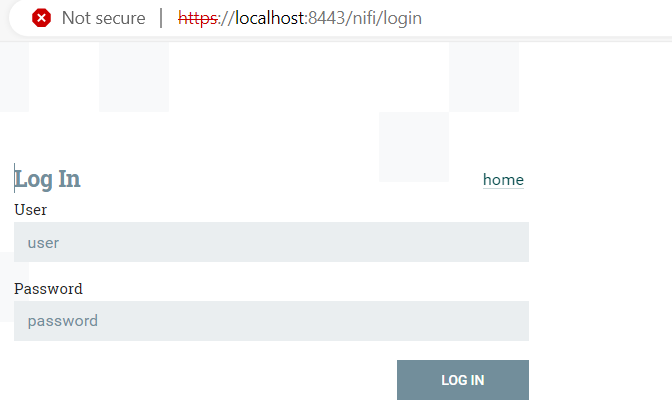
When accessing Apache NiFi via a URL, it prompts you to enter a username and password for login.
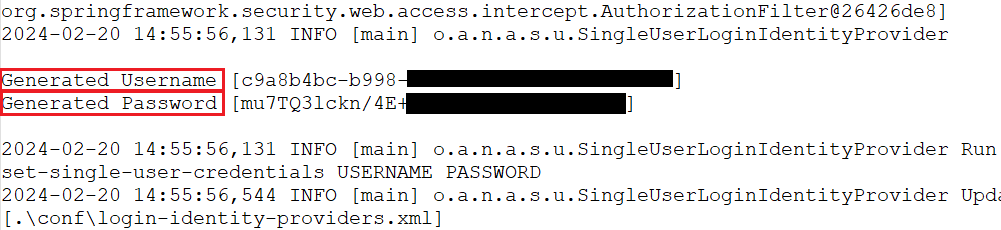
To retrieve login credentials, users should consult the 'App.log' file located within the log directory of their NiFi installation. This file typically contains the necessary details for accessing the NiFi interface.
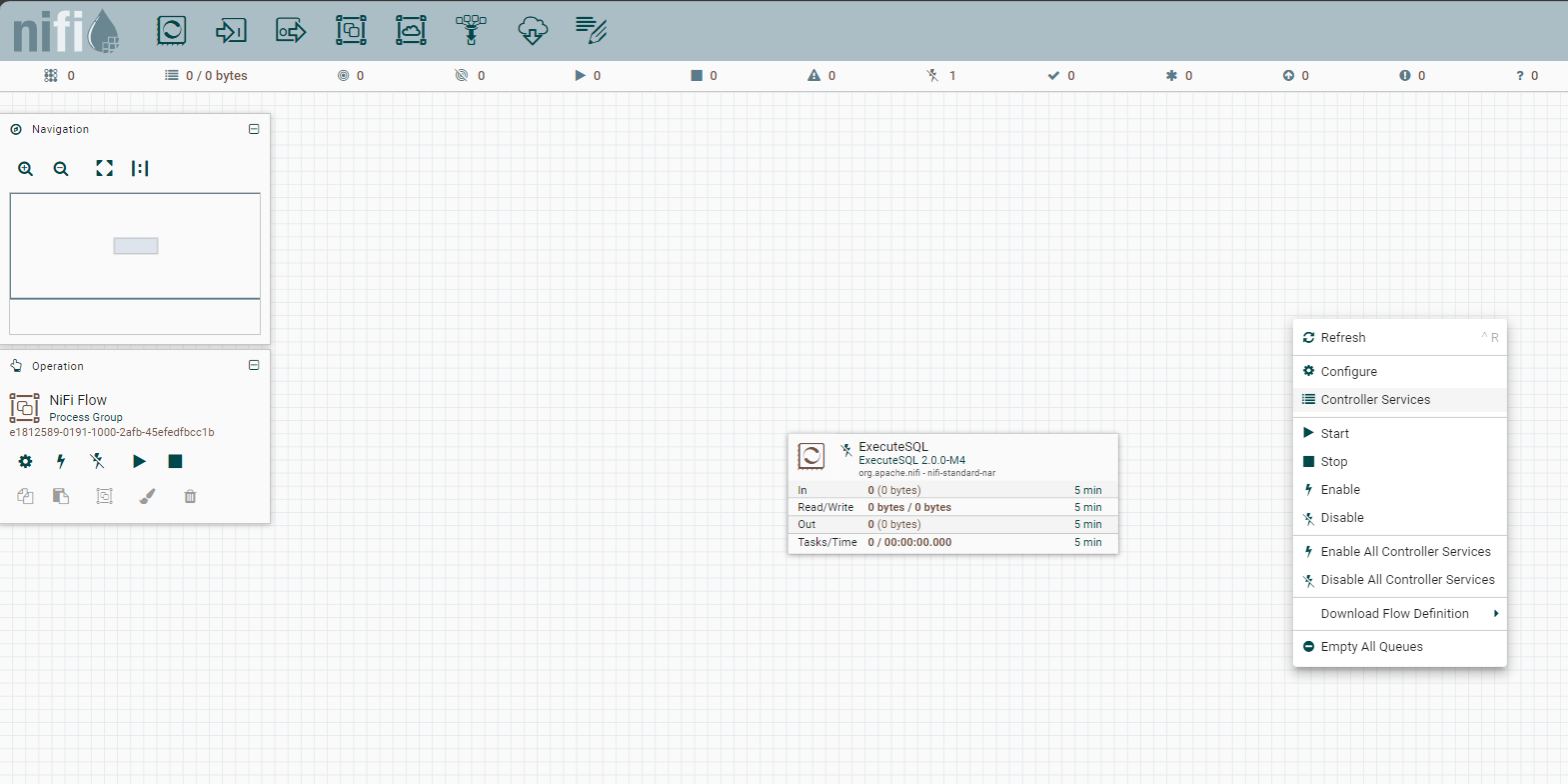
- Right-click on the Nifi Flow's workspace and click "Controller Services"
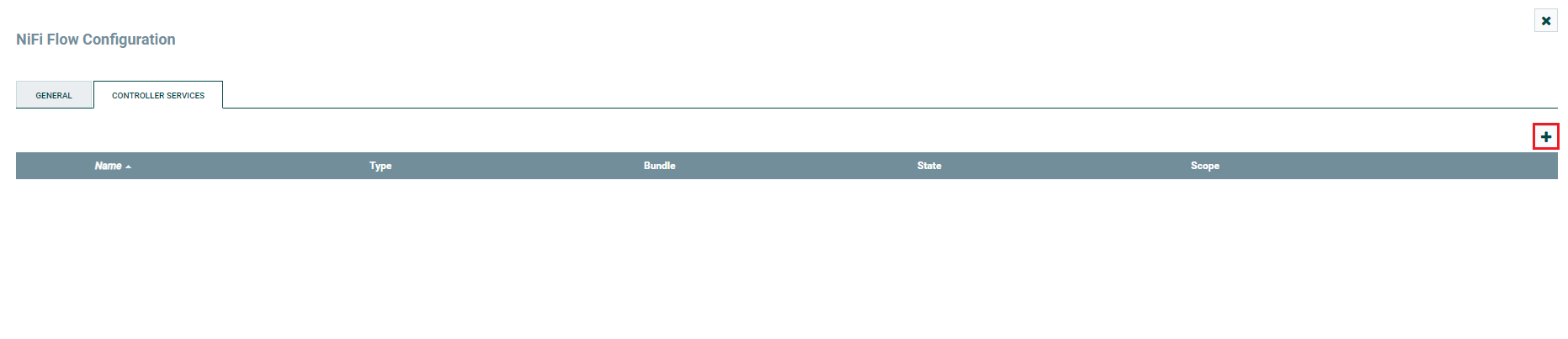
- Click the button to create a new controller service.
- In the Controller Services section, location the newly created "DBCPConnection Pool" and click the menu () >> Edit to configure the new connection.
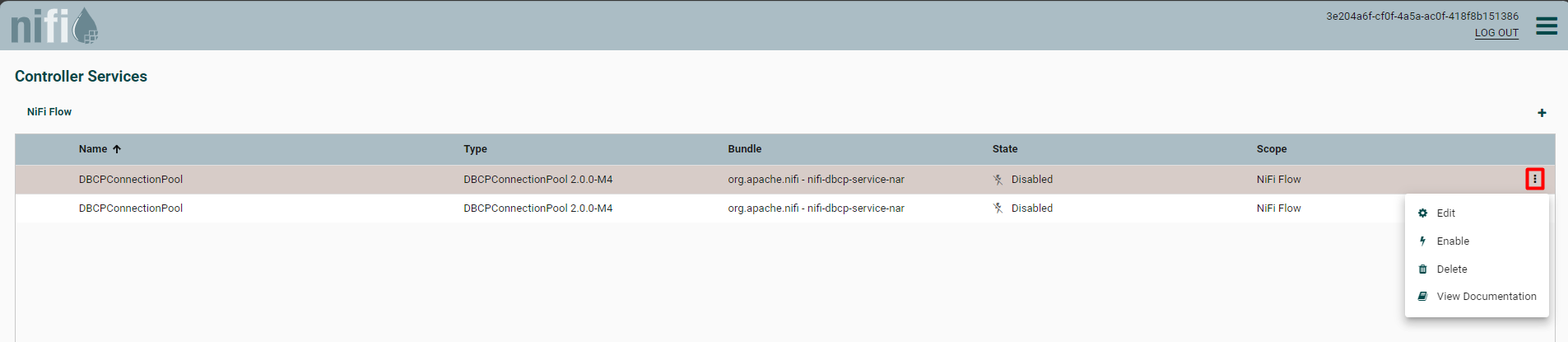
Fill in the properties:
- Database Connection URL: jdbc:claudecompliance:APIKey=your_compliance_access_key;
- Database Driver Class Name: cdata.jdbc.claudecompliance.ClaudeComplianceDriver
- Database Driver Location(s): Path to your Apache NiFi's lib folder where the JAR files are present.
Built-in Connection String Designer
For assistance in constructing the JDBC URL, use the connection string designer built into the Claude Compliance JDBC Driver. Either double-click the JAR file or execute the JAR file from the command-line.
java -jar cdata.jdbc.claudecompliance.jarFill in the connection properties and copy the connection string to the clipboard.
The driver connects to Claude Compliance using a Compliance Access Key, the only supported authentication method. Set the following connection property:
- APIKey: The Compliance Access Key you created.
Creating a Compliance Access Key
- Enable the Compliance API for your organization.
- Sign in to claude.ai as a primary owner or organization owner and open Organization settings > API > Keys.
- Select Create Key and assign only the scopes your integration needs:
- read:compliance_activities for Activities and the typed activity views.
- read:compliance_org_data for organizations, roles, groups, and settings.
- read:compliance_user_data for users, chats, files, projects, and downloads.
- delete:compliance_user_data for the explicit Delete stored procedures.
- Create the key and copy it when it appears. The key starts with sk-ant-api01- and is shown only once.
Optionally, set OrganizationUUID to limit organization-scoped views (such as OrganizationUsers and ComplianceRoles) to a single linked organization. If it is left empty, those views default to the first available organization and do not include data from all linked organizations.

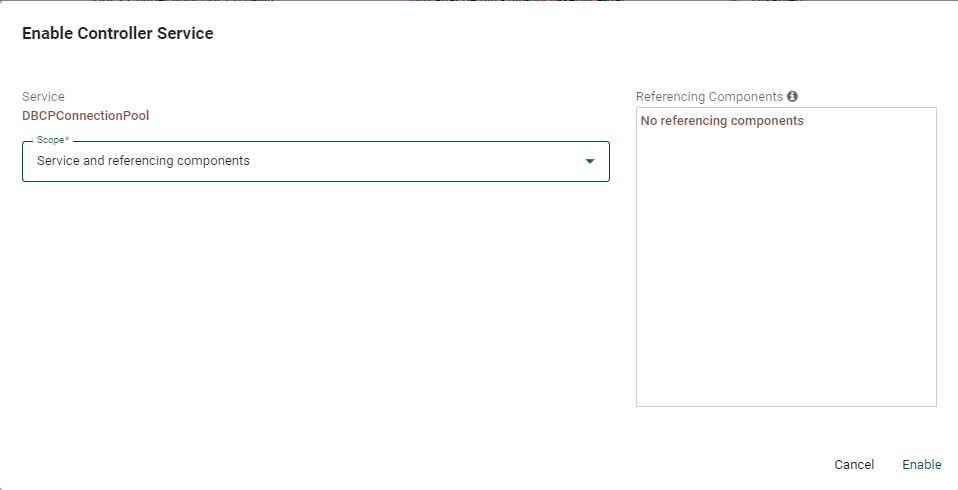
- In the Controller Services section, locate the newly created DBCPConnection Pool and click the menu () >> Enable to enable the new connection.
- In the "Enable Controller Service" window, set Scope to "Service and referencing components"
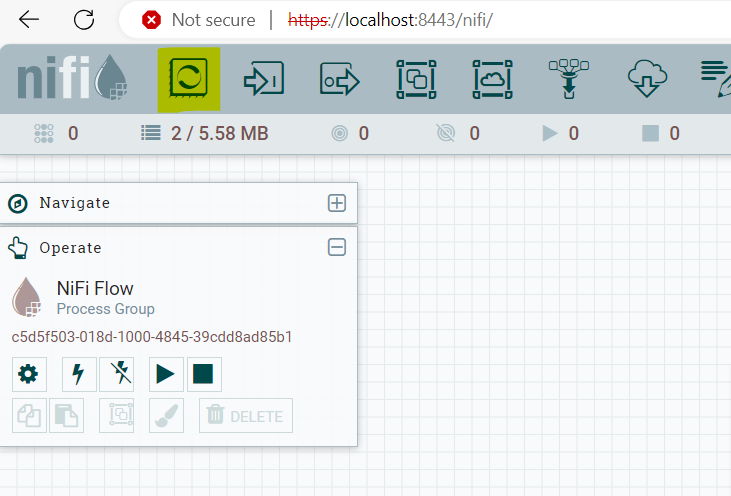
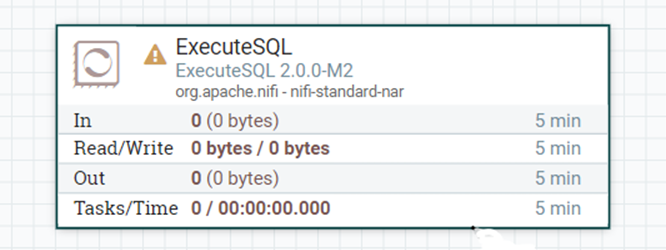
- To establish a connection and execute a select query, simply drag and drop the processor (indicated by the yellow highlight) into the workspace.
- Select the 'ExecuteSQL' processor and click the 'Add' button to make it visible in the workspace.
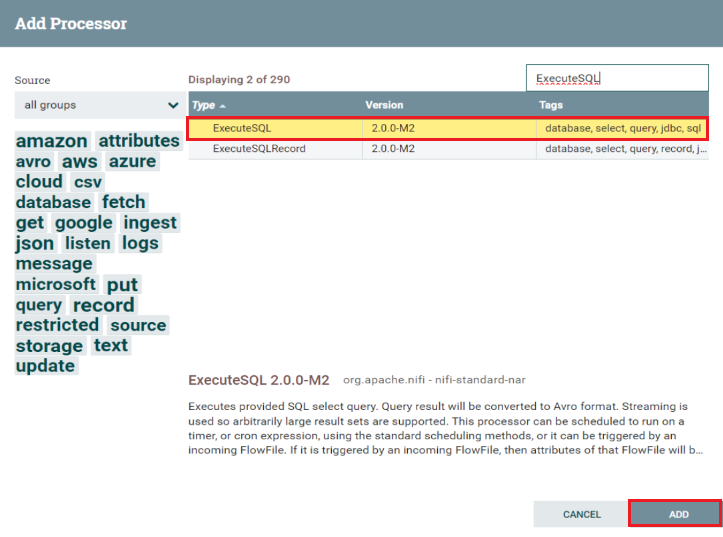
- Double-click on the added processor (ExecuteSQL)to open the connection page.
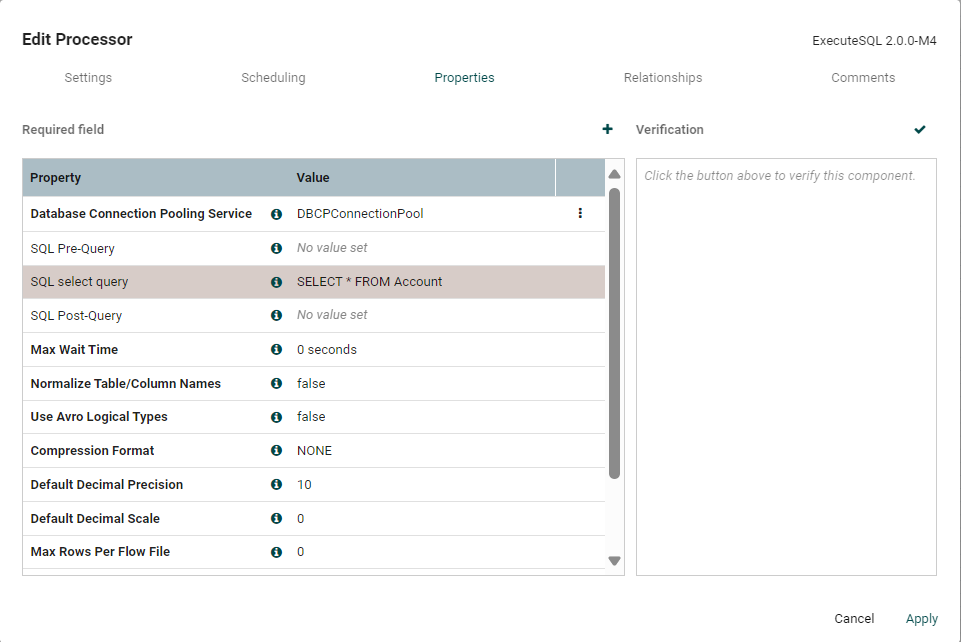
- In the Properties section, fill in the required information. Make sure to set the Database Connection Pooling Service to match the DBCPConnectionPool that you have created, and set your desired SQL query that you want to get executed in the SQL select query section.
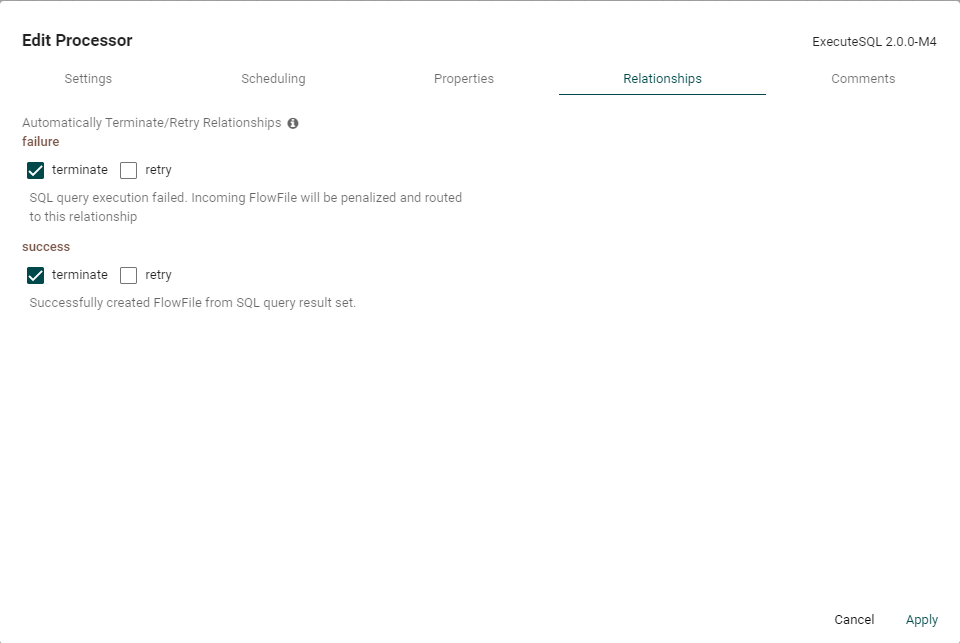
- Go to Relationships and make sure to select an option on how the component should proceed in case of success and failure of the execution process.
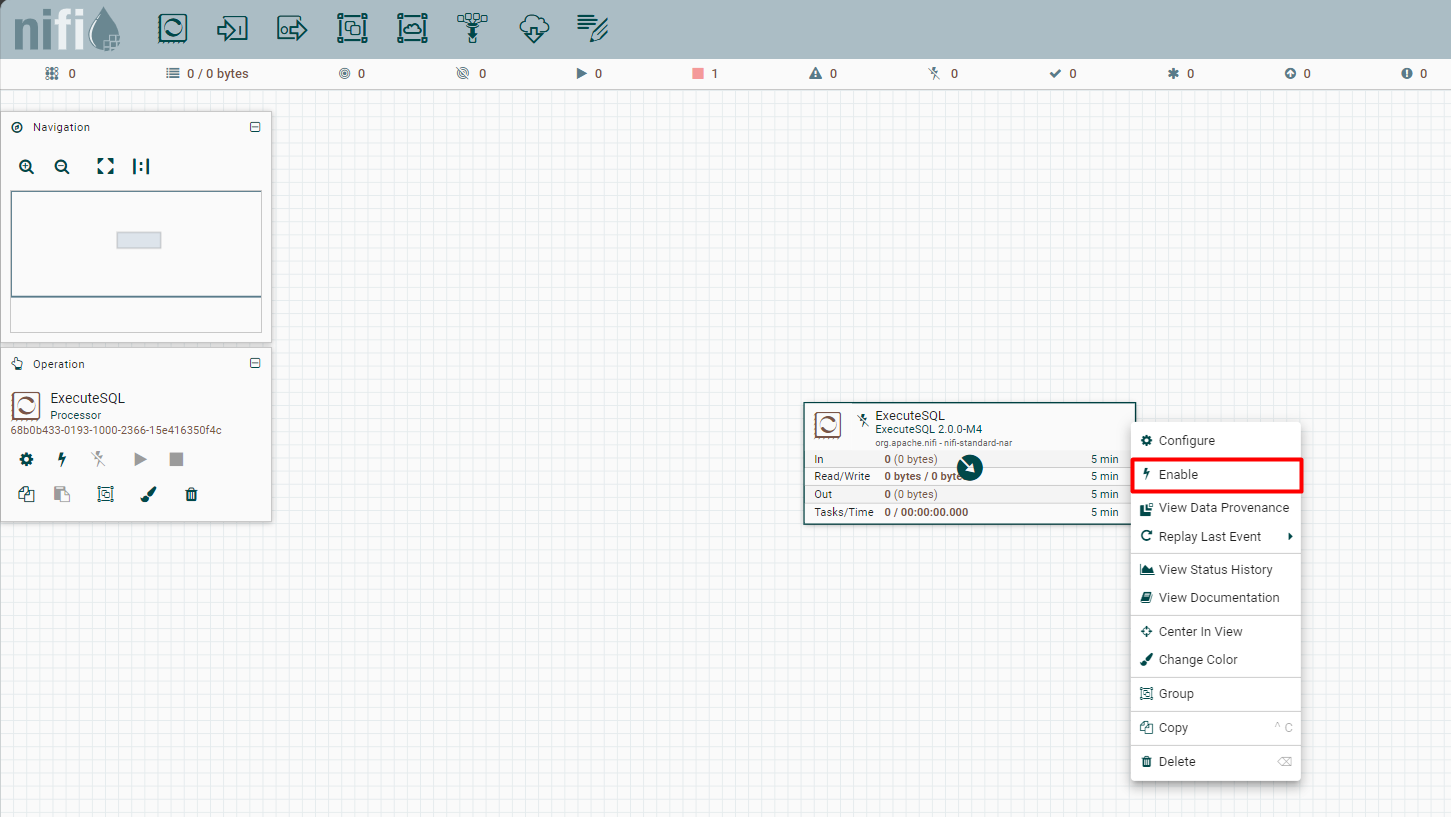
- You can enable the ExecuteSQL component by either selecting it and clicking Enable on the Operation section, or by right-clicking it and selecting Enable.
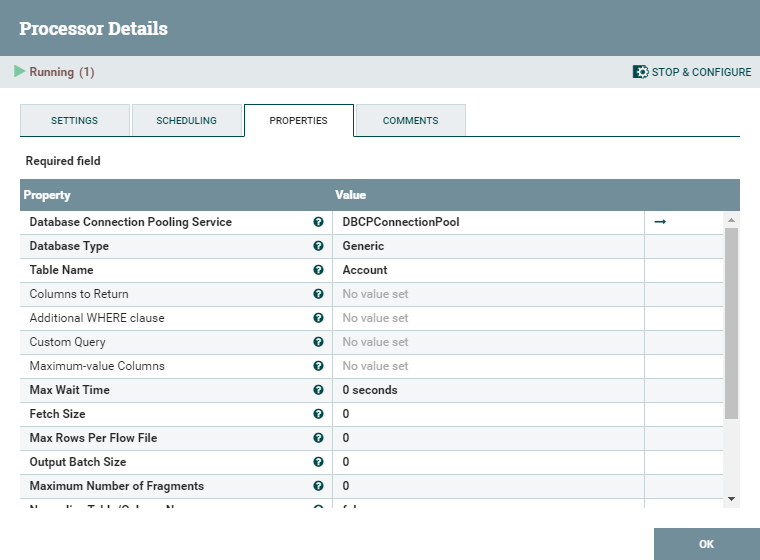
Your Claude Compliance data is now available for use in Apache NiFi. For example, you can use the DBCPConnection Pool as the source for a QueryDatabaseTable processor (shown below).
Download a free, 30-day trial of the CData JDBC Driver for Claude Compliance and start working with your live Claude Compliance data in Apache NiFi. Reach out to our Support Team if you have any questions.
Ready to get started?
Download a free trial of the Claude Compliance Driver to get started:
Download NowLearn more:
 Claude Compliance JDBC Driver
Rapidly create and deploy powerful Java applications that integrate with Claude Compliance data including Activities, Chats, ChatMessages, CodeArtifacts, ComplianceRoles, Organizations, OrganizationUsers, Projects, and more!