




Process & Analyze Claude Compliance Data in Databricks (AWS)

Databricks is a cloud-based service that provides data processing capabilities through Apache Spark. When paired with the CData JDBC Driver, customers can use Databricks to perform data engineering and data science on live Claude Compliance data. This article explains how to host the CData JDBC Driver in AWS, as well as connect to and process live Claude Compliance data in Databricks.
With built-in optimized data processing, the CData JDBC Driver offers unmatched performance for interacting with live Claude Compliance data. When you issue complex SQL queries to Claude Compliance, the driver pushes supported SQL operations, like filters and aggregations, directly to Claude Compliance and utilizes the embedded SQL engine to process unsupported operations client-side (often SQL functions and JOIN operations). Its built-in dynamic metadata querying allows you to work with and analyze Claude Compliance data using native data types.
Install the CData JDBC Driver in Databricks
To work with live Claude Compliance data in Databricks, install the driver on your Databricks cluster.
- Navigate to your Databricks administration screen and select the target cluster.
- On the Libraries tab, click "Install New."
- Select "Upload" as the Library Source and "Jar" as the Library Type.
- Upload the JDBC JAR file (cdata.jdbc.claudecompliance.jar) from the installation location (typically C:\Program Files\CData\CData JDBC Driver for Claude Compliance\lib).
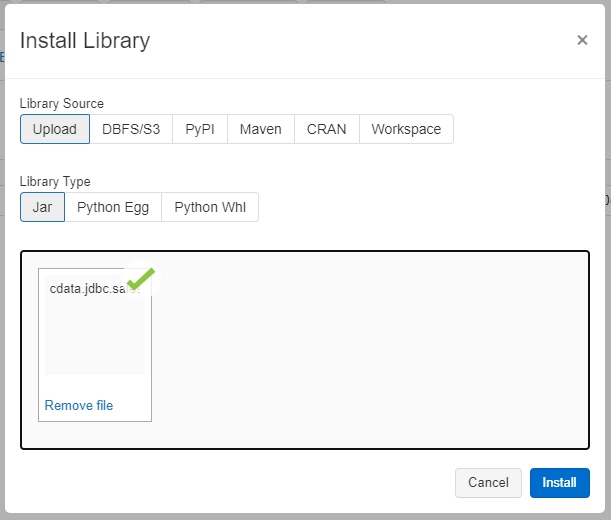
Access Claude Compliance Data in your Notebook: Python
With the JAR file installed, we are ready to work with live Claude Compliance data in Databricks. Start by creating a new notebook in your workspace. Name the notebook, select Python as the language (though Scala is available as well), and choose the cluster where you installed the JDBC driver. When the notebook launches, we can configure the connection, query Claude Compliance, and create a basic report.
Configure the Connection to Claude Compliance
Connect to Claude Compliance by referencing the JDBC Driver class and constructing a connection string to use in the JDBC URL. Additionally, you will need to set the RTK property in the JDBC URL (unless you are using a Beta driver). You can view the licensing file included in the installation for information on how to set this property.
Step 1: Connection Information
driver = "cdata.jdbc.claudecompliance.ClaudeComplianceDriver"
url = "jdbc:claudecompliance:RTK=5246...;APIKey=your_compliance_access_key;"
Built-in Connection String Designer
For assistance in constructing the JDBC URL, use the connection string designer built into the Claude Compliance JDBC Driver. Either double-click the JAR file or execute the jar file from the command-line.
java -jar cdata.jdbc.claudecompliance.jar
Fill in the connection properties and copy the connection string to the clipboard.
The driver connects to Claude Compliance using a Compliance Access Key, the only supported authentication method. Set the following connection property:
- APIKey: The Compliance Access Key you created.
Creating a Compliance Access Key
- Enable the Compliance API for your organization.
- Sign in to claude.ai as a primary owner or organization owner and open Organization settings > API > Keys.
- Select Create Key and assign only the scopes your integration needs:
- read:compliance_activities for Activities and the typed activity views.
- read:compliance_org_data for organizations, roles, groups, and settings.
- read:compliance_user_data for users, chats, files, projects, and downloads.
- delete:compliance_user_data for the explicit Delete stored procedures.
- Create the key and copy it when it appears. The key starts with sk-ant-api01- and is shown only once.
Optionally, set OrganizationUUID to limit organization-scoped views (such as OrganizationUsers and ComplianceRoles) to a single linked organization. If it is left empty, those views default to the first available organization and do not include data from all linked organizations.

Load Claude Compliance Data
Once you configure the connection, you can load Claude Compliance data as a dataframe using the CData JDBC Driver and the connection information.
Step 2: Reading the data
remote_table = spark.read.format ( "jdbc" ) \
	.option ( "driver" , driver) \
	.option ( "url" , url) \
	.option ( "dbtable" , "Projects") \
	.load ()
Display Claude Compliance Data
Check the loaded Claude Compliance data by calling the display function.
Step 3: Checking the result
display (remote_table.select ("Id"))
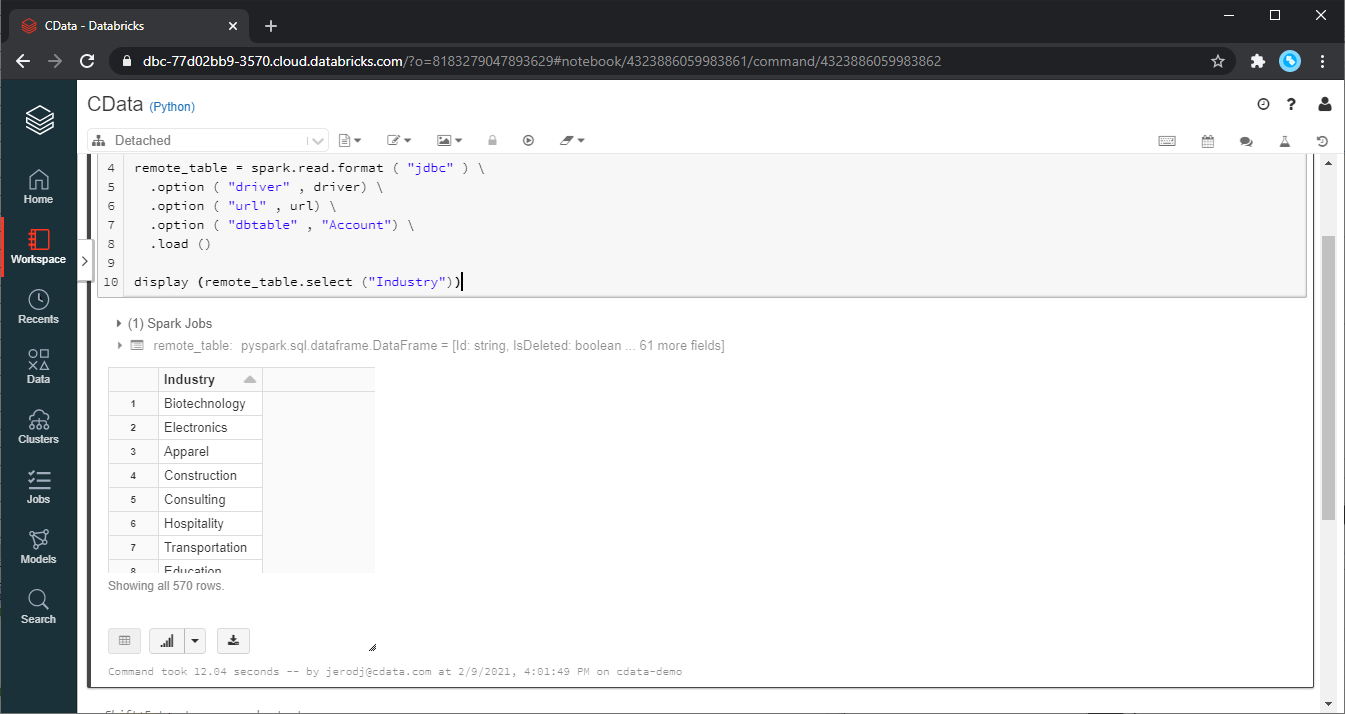
Analyze Claude Compliance Data in Databricks
If you want to process data with Databricks SparkSQL, register the loaded data as a Temp View.
Step 4: Create a view or table
remote_table.createOrReplaceTempView ( "SAMPLE_VIEW" )
With the Temp View created, you can use SparkSQL to retrieve the Claude Compliance data for reporting, visualization, and analysis.
% sql

SELECT Id, Name FROM SAMPLE_VIEW ORDER BY Name DESC LIMIT 5
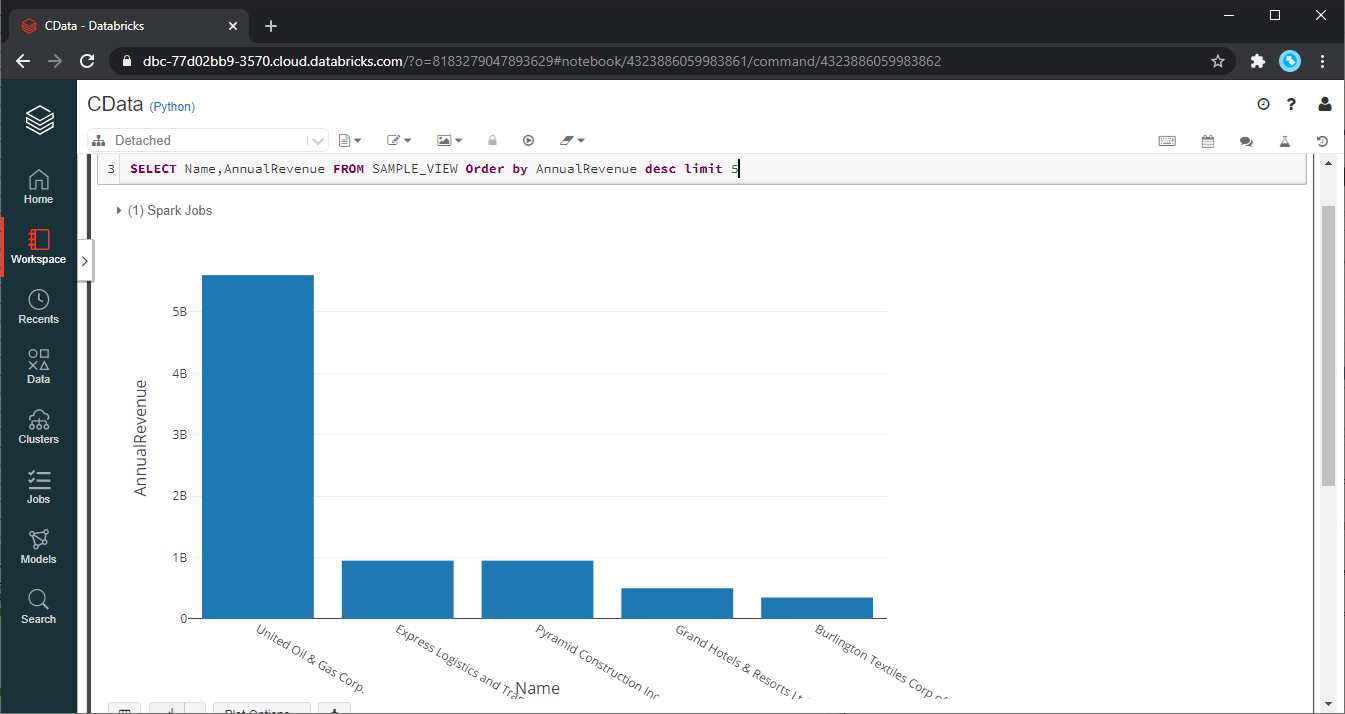
The data from Claude Compliance is only available in the target notebook. If you want to use it with other users, save it as a table.
remote_table.write.format ( "parquet" ) .saveAsTable ( "SAMPLE_TABLE" )
Download a free, 30-day trial of the CData JDBC Driver for Claude Compliance and start working with your live Claude Compliance data in Databricks. Reach out to our Support Team if you have any questions.
Ready to get started?
Download a free trial of the Claude Compliance Driver to get started:
Download NowLearn more:
 Claude Compliance JDBC Driver
Rapidly create and deploy powerful Java applications that integrate with Claude Compliance data including Activities, Chats, ChatMessages, CodeArtifacts, ComplianceRoles, Organizations, OrganizationUsers, Projects, and more!