




Connect to Claude Compliance Data from PowerBuilder via JDBC

The CData JDBC driver for Claude Compliance is a standards-based control that can be used from any platform or development technology that supports JDBC, including PowerBuilder. This article shows how to use the CData JDBC Driver for Claude Compliance in PowerBuilder.
This article shows how to create a basic PowerBuilder application that uses the CData JDBC Driver for Claude Compliance to retrieve data.
Connect to Claude Compliance Data from PowerBuilder
Follow the steps below to use the Database Painter tool to create a database profile based on an JDBC URL for Claude Compliance. You can use a database profile to save connection properties. In the Database Painter, you can graphically manipulate data as well as execute SQL queries.
Add the driver JAR to the PowerBuilder classpath. Set the CLASSPATH system environment variable to the path to the driver JAR, located in the lib subfolder of the installation directory.
Note: If you are using PowerBuilder Classic, you can also add the path to the driver JAR by clicking Tools -> System Options -> Java.
- Click Tools -> Database Painter.
- Right-click the JDBC node and click New Profile.
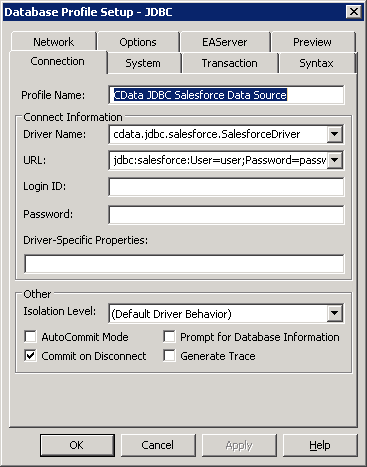
- In the Database Profile Setup dialog, enter the following:
- Profile Name: Enter a user-friendly name for the profile.
- Driver Name: Enter the class name of the driver, cdata.jdbc.claudecompliance.ClaudeComplianceDriver
- URL: Enter the JDBC URL.
The driver connects to Claude Compliance using a Compliance Access Key, the only supported authentication method. Set the following connection property:
- APIKey: The Compliance Access Key you created.
Creating a Compliance Access Key
- Enable the Compliance API for your organization.
- Sign in to claude.ai as a primary owner or organization owner and open Organization settings > API > Keys.
- Select Create Key and assign only the scopes your integration needs:
- read:compliance_activities for Activities and the typed activity views.
- read:compliance_org_data for organizations, roles, groups, and settings.
- read:compliance_user_data for users, chats, files, projects, and downloads.
- delete:compliance_user_data for the explicit Delete stored procedures.
- Create the key and copy it when it appears. The key starts with sk-ant-api01- and is shown only once.
Optionally, set OrganizationUUID to limit organization-scoped views (such as OrganizationUsers and ComplianceRoles) to a single linked organization. If it is left empty, those views default to the first available organization and do not include data from all linked organizations.
Built-in Connection String Designer
For assistance in constructing the JDBC URL, use the connection string designer built into the Claude Compliance JDBC Driver. Either double-click the JAR file or execute the jar file from the command-line.
java -jar cdata.jdbc.claudecompliance.jarFill in the connection properties and copy the connection string to the clipboard. A typical JDBC URL is below:
jdbc:claudecompliance:APIKey=your_compliance_access_key;
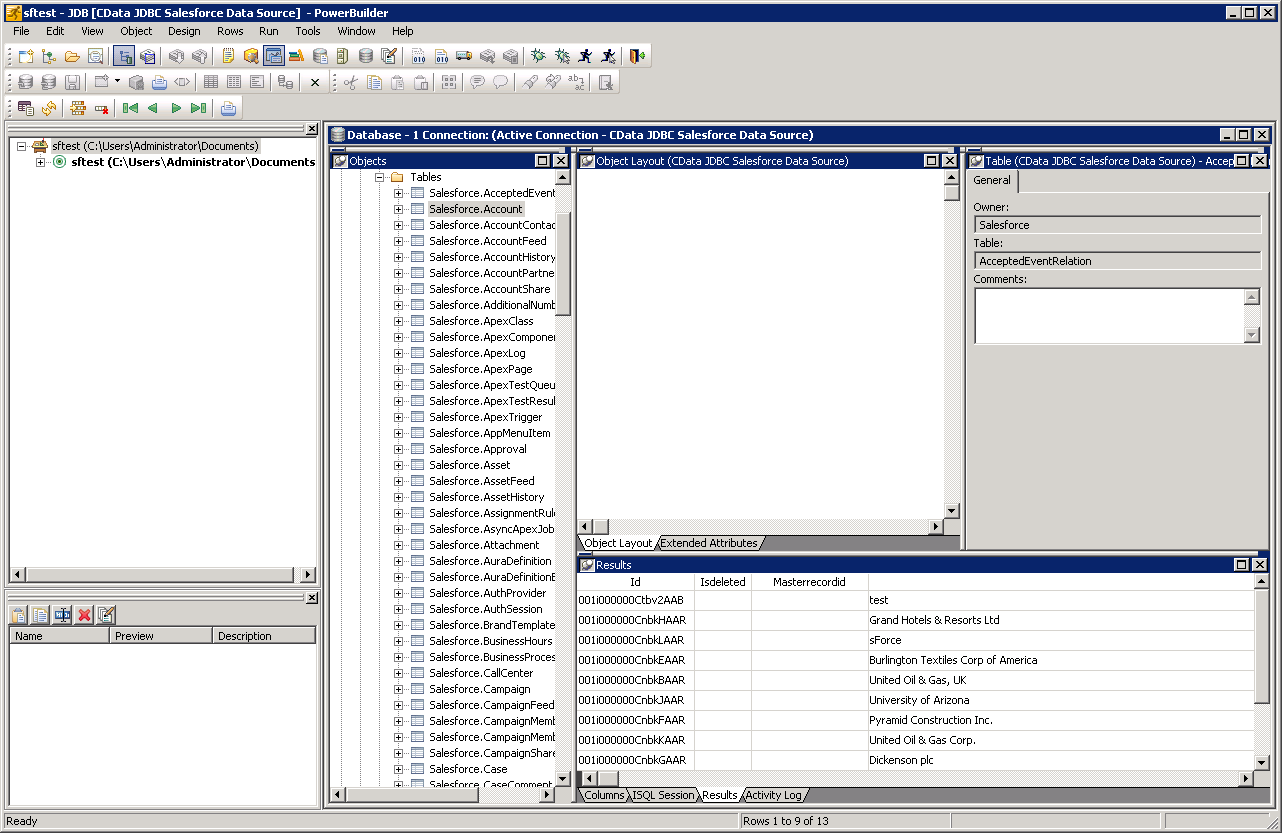
- To view and modify a table, right-click a table and then click Edit Data -> Grid.
Using Claude Compliance Data with PowerBuilder Controls
You can use standard PowerBuilder objects to connect to JDBC data sources and execute queries. The following example shows how to retrieve Claude Compliance data into a DataWindow. You can add the following code to the open method:
SQLCA.DBMS = "JDBC"
SQLCA.AutoCommit = False
SQLCA.DBParm = "Driver='cdata.jdbc.claudecompliance.ClaudeComplianceDriver',URL='jdbc:claudecompliance:APIKey=your_compliance_access_key;";
CONNECT USING SQLCA;
dw_projects.SetTransObject(SQLCA);
dw_projects.Retrieve();
Ready to get started?
Download a free trial of the Claude Compliance Driver to get started:
Download NowLearn more:
 Claude Compliance JDBC Driver
Rapidly create and deploy powerful Java applications that integrate with Claude Compliance data including Activities, Chats, ChatMessages, CodeArtifacts, ComplianceRoles, Organizations, OrganizationUsers, Projects, and more!