




How to connect to Claude Compliance Data with Squirrel SQL client

The CData JDBC Driver for Claude Compliance enables you to execute queries to Claude Compliance data in tools like Squirrel SQL Client. In this article, you will create a JDBC data source for Claude Compliance data and execute queries.
Add the JDBC Driver for Claude Compliance
Follow the steps below to add the driver JAR.
- In Squirrel SQL, click Windows -> View Drivers.
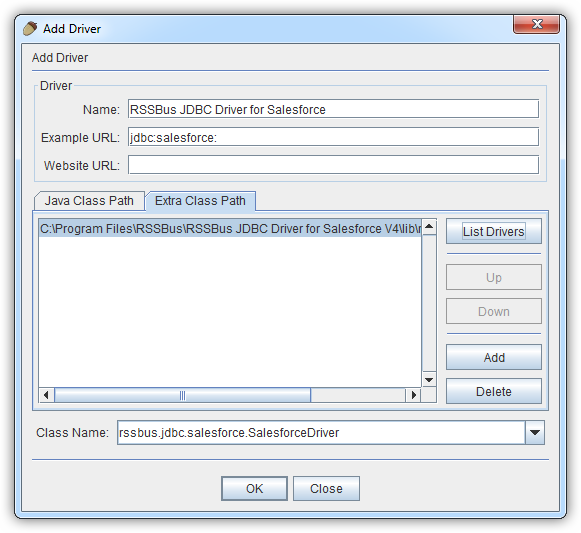
- Click the plus icon to open the Add Driver wizard.
- In the Name box, enter a user-friendly name for the driver; for example, CData JDBC Driver for Claude Compliance.
- In the Example URL box, enter jdbc:claudecompliance:
- In the Extra Class Path tab, click Add.
- In the file explorer dialog that opens, select the JAR file for the driver, located in the lib subfolder of the installation directory.
- Click List Drivers to populate the Class Name menu with the class name for the driver, cdata.jdbc.claudecompliance.ClaudeComplianceDriver.
Define Connection Properties
Follow the steps below to save connection properties in the driver alias.
- Click Windows -> View Aliases.
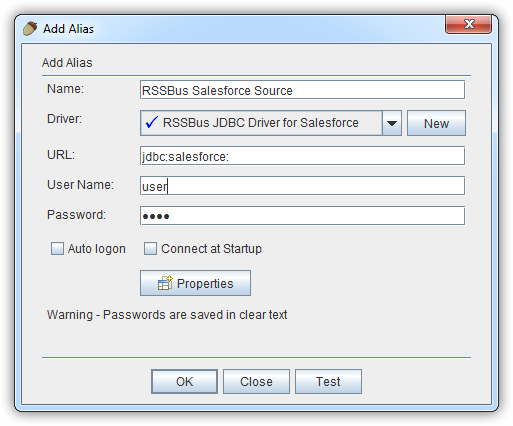
- In the pane that lists the aliases, click the plus icon.
In the Add Alias wizard that opens, the following fields are required for the JDBC driver:
- Name: Enter a name for the alias; for example, CData Claude Compliance Source.
- Driver: Select the CData JDBC Driver for Claude Compliance.
- URL: Enter jdbc:claudecompliance:
- If you want to define any additional properties, click Properties.
- In the Driver properties tab of the dialog that appears, select the Use driver properties checkbox.
- In the Specify column, select the checkboxes for the required connection properties.
The driver connects to Claude Compliance using a Compliance Access Key, the only supported authentication method. Set the following connection property:
- APIKey: The Compliance Access Key you created.
Creating a Compliance Access Key
- Enable the Compliance API for your organization.
- Sign in to claude.ai as a primary owner or organization owner and open Organization settings > API > Keys.
- Select Create Key and assign only the scopes your integration needs:
- read:compliance_activities for Activities and the typed activity views.
- read:compliance_org_data for organizations, roles, groups, and settings.
- read:compliance_user_data for users, chats, files, projects, and downloads.
- delete:compliance_user_data for the explicit Delete stored procedures.
- Create the key and copy it when it appears. The key starts with sk-ant-api01- and is shown only once.
Optionally, set OrganizationUUID to limit organization-scoped views (such as OrganizationUsers and ComplianceRoles) to a single linked organization. If it is left empty, those views default to the first available organization and do not include data from all linked organizations.
Below is a typical connection string:
jdbc:claudecompliance:APIKey=your_compliance_access_key;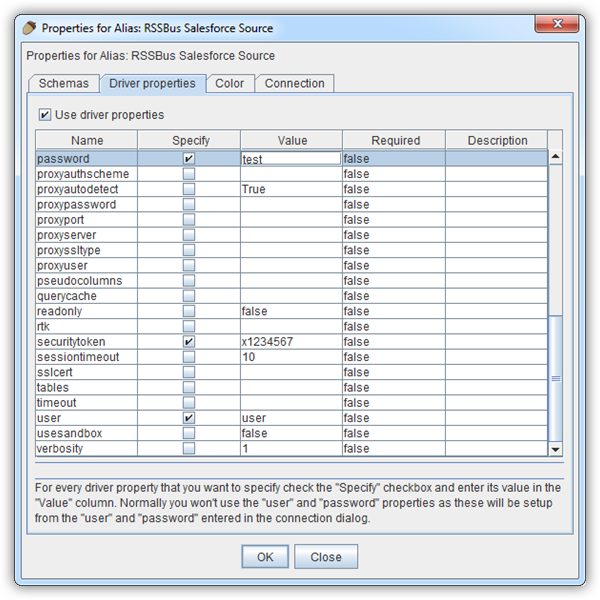
- In the dialog that appears after you click OK, click connect to test the connection.
Discover Schemas and Query Claude Compliance Data
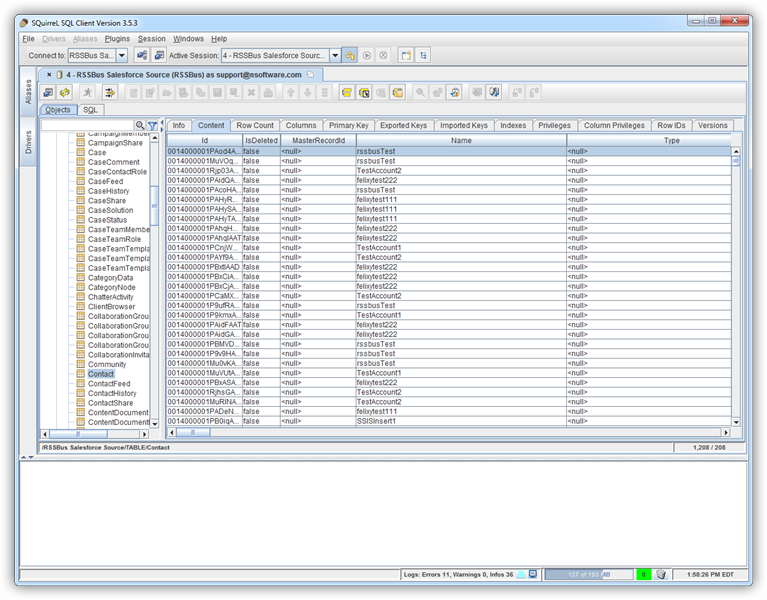
After the metadata has loaded, a new tab for the Claude Compliance data source is displayed. On the Objects subtab, you can discover schema information, such as the available tables and views.
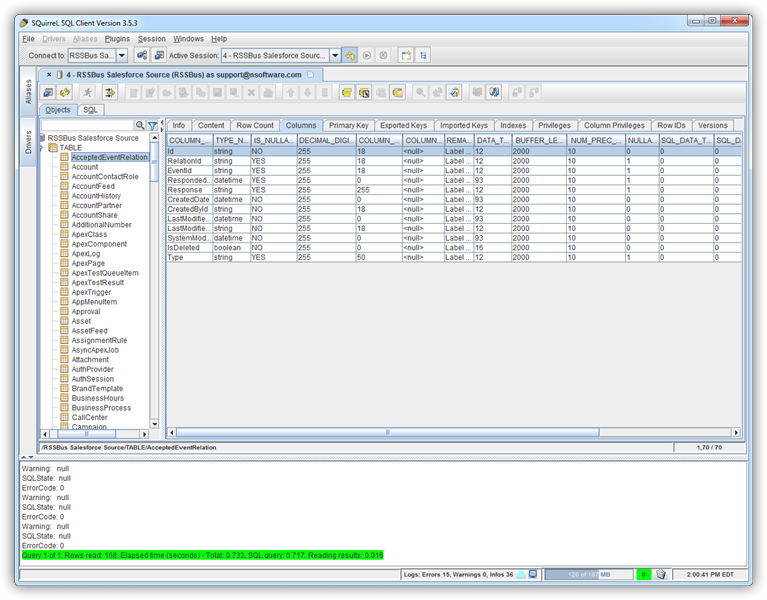
To view table data, select the table on the Objects tab. The table data is then loaded in a grid on the Content tab.
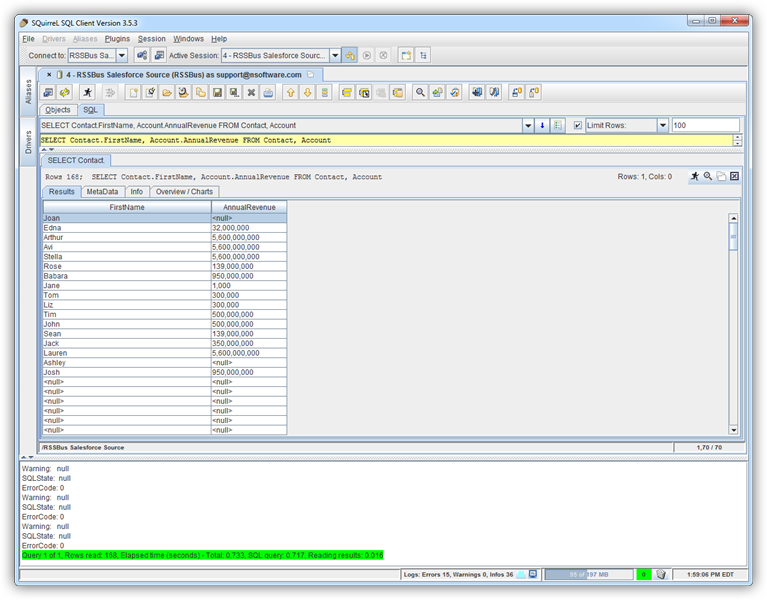
To execute an SQL query, enter the query on the SQL tab and then click Run SQL (the runner icon). For example:
SELECT Id, Name FROM Projects WHERE OrganizationUuid = 'abcdef01-2345-6789-abcd-ef0123456789'
Ready to get started?
Download a free trial of the Claude Compliance Driver to get started:
Download NowLearn more:
 Claude Compliance JDBC Driver
Rapidly create and deploy powerful Java applications that integrate with Claude Compliance data including Activities, Chats, ChatMessages, CodeArtifacts, ComplianceRoles, Organizations, OrganizationUsers, Projects, and more!