




Import Real-Time Claude Compliance Data via ODBC in ColdFusion to Build Applications

Adobe ColdFusion is a web and mobile application development platform. It uses its own scripting language, ColdFusion Markup Language (CFML), to create data-driven websites as well as generate remote services, such as REST. When ColdFusion is paired with the CData ODBC Driver for Claude Compliance, you can link your ColdFusion web and mobile applications to operational Claude Compliance data. This allows for your applications to be more robust and complete. This article details how to use the ODBC driver to create a table populated with Claude Compliance data from within a ColdFusion markup file.
To follow along with this tutorial, you need to install the CData ODBC Driver for Claude Compliance and Adobe ColdFusion.
Configuring the Connection
If you have not already, first specify connection properties in an ODBC DSN (Data Source Name). This is the last step of the driver installation process. You can use the Microsoft ODBC Data Source Administrator to create and configure ODBC DSNs.
The driver connects to Claude Compliance using a Compliance Access Key, the only supported authentication method. Set the following connection property:
- APIKey: The Compliance Access Key you created.
Creating a Compliance Access Key
- Enable the Compliance API for your organization.
- Sign in to claude.ai as a primary owner or organization owner and open Organization settings > API > Keys.
- Select Create Key and assign only the scopes your integration needs:
- read:compliance_activities for Activities and the typed activity views.
- read:compliance_org_data for organizations, roles, groups, and settings.
- read:compliance_user_data for users, chats, files, projects, and downloads.
- delete:compliance_user_data for the explicit Delete stored procedures.
- Create the key and copy it when it appears. The key starts with sk-ant-api01- and is shown only once.
Optionally, set OrganizationUUID to limit organization-scoped views (such as OrganizationUsers and ComplianceRoles) to a single linked organization. If it is left empty, those views default to the first available organization and do not include data from all linked organizations.
Adding a Data Source and Creating a Table
After creating a DSN, follow the steps below to add a new data source, test our connection to it, create a ColdFusion markup file, and, finally, import Claude Compliance Data and display it in a table in ColdFusion:
-
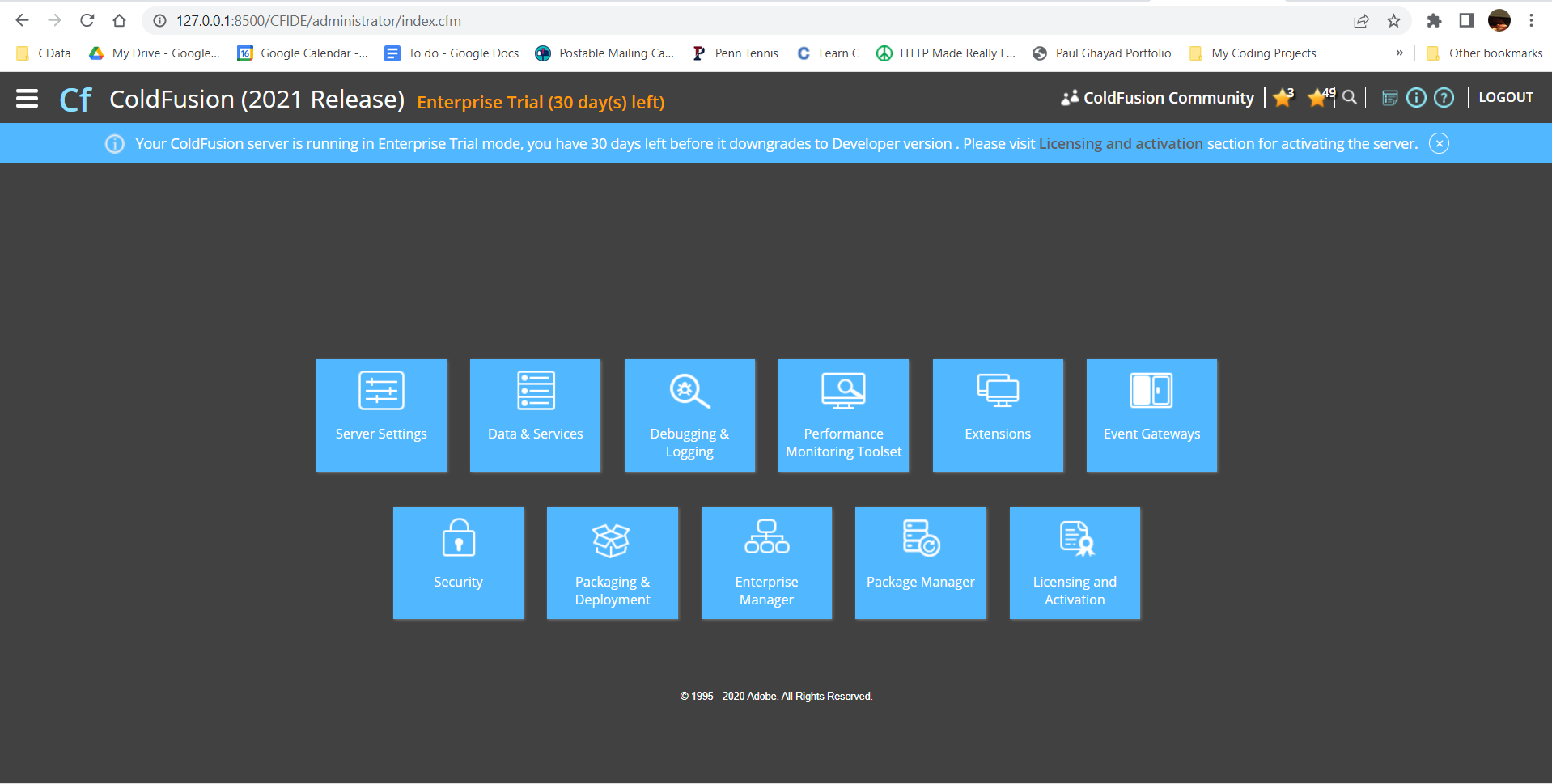
From the ColdFusion administrator interface, choose Data & Services.
-
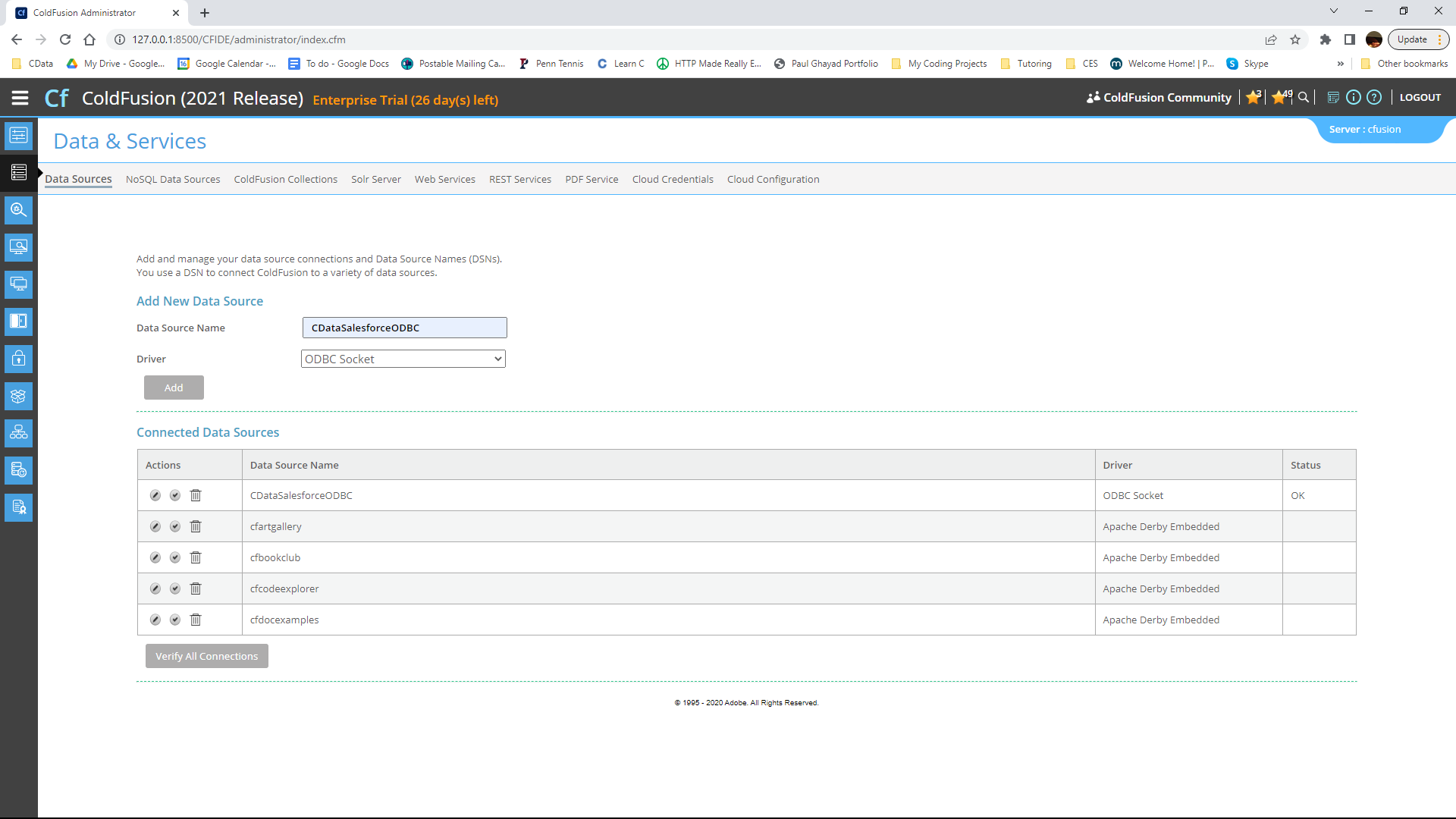
Here, click "Add New Data Source". The data source name can be any name, provided it conforms to the ColdFusion
variable naming conventions. For our ODBC driver, choose "ODBC Socket", then click the "Add" button.
-
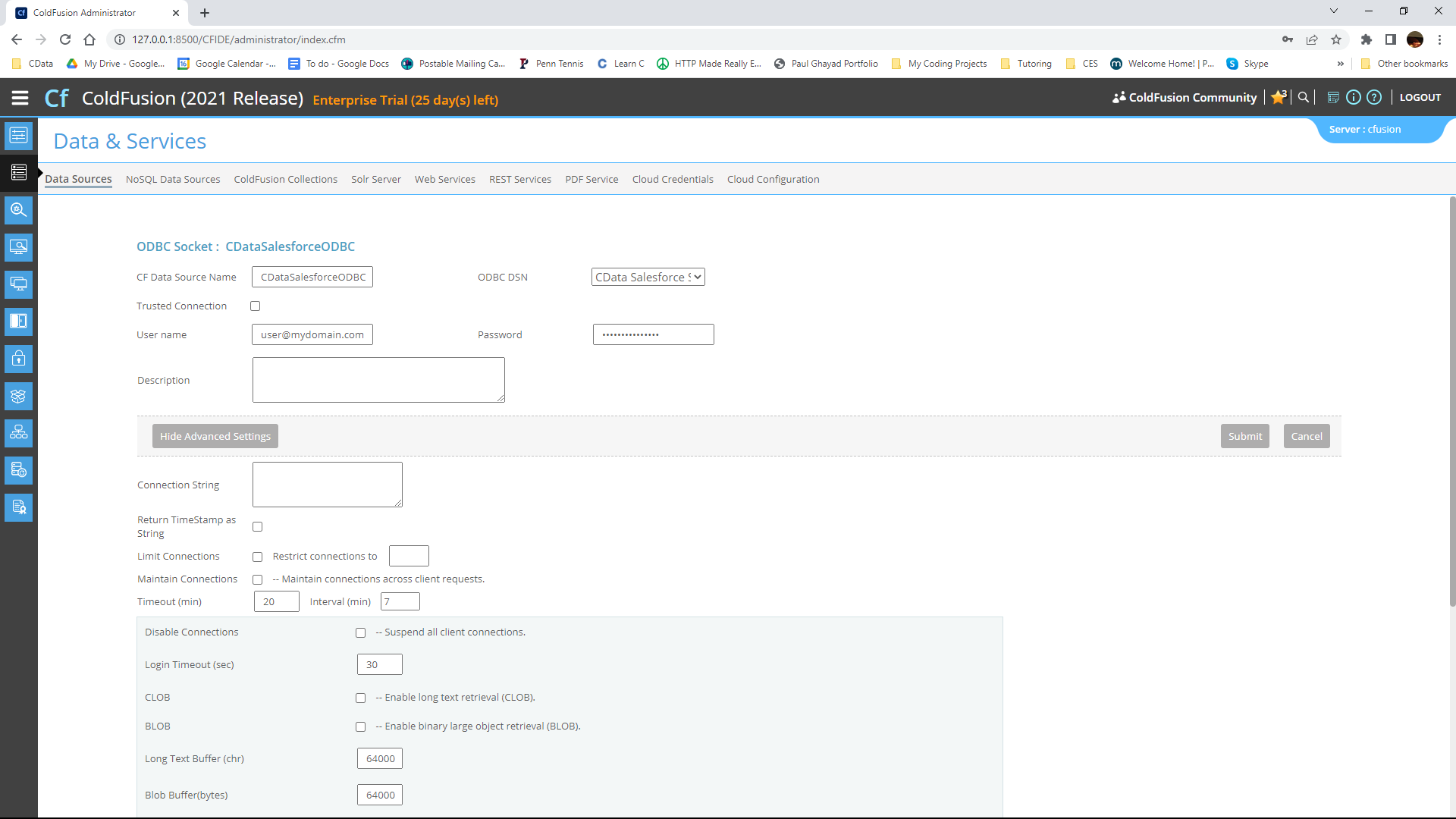
From the ODBC DSN Dropdown menu select CData Claude Compliance Sys. Under the Advanced Settings section, leave the
Connection String blank. Note that any properties specified in this input field will override the ones specified in the
DSN Configuration.
-
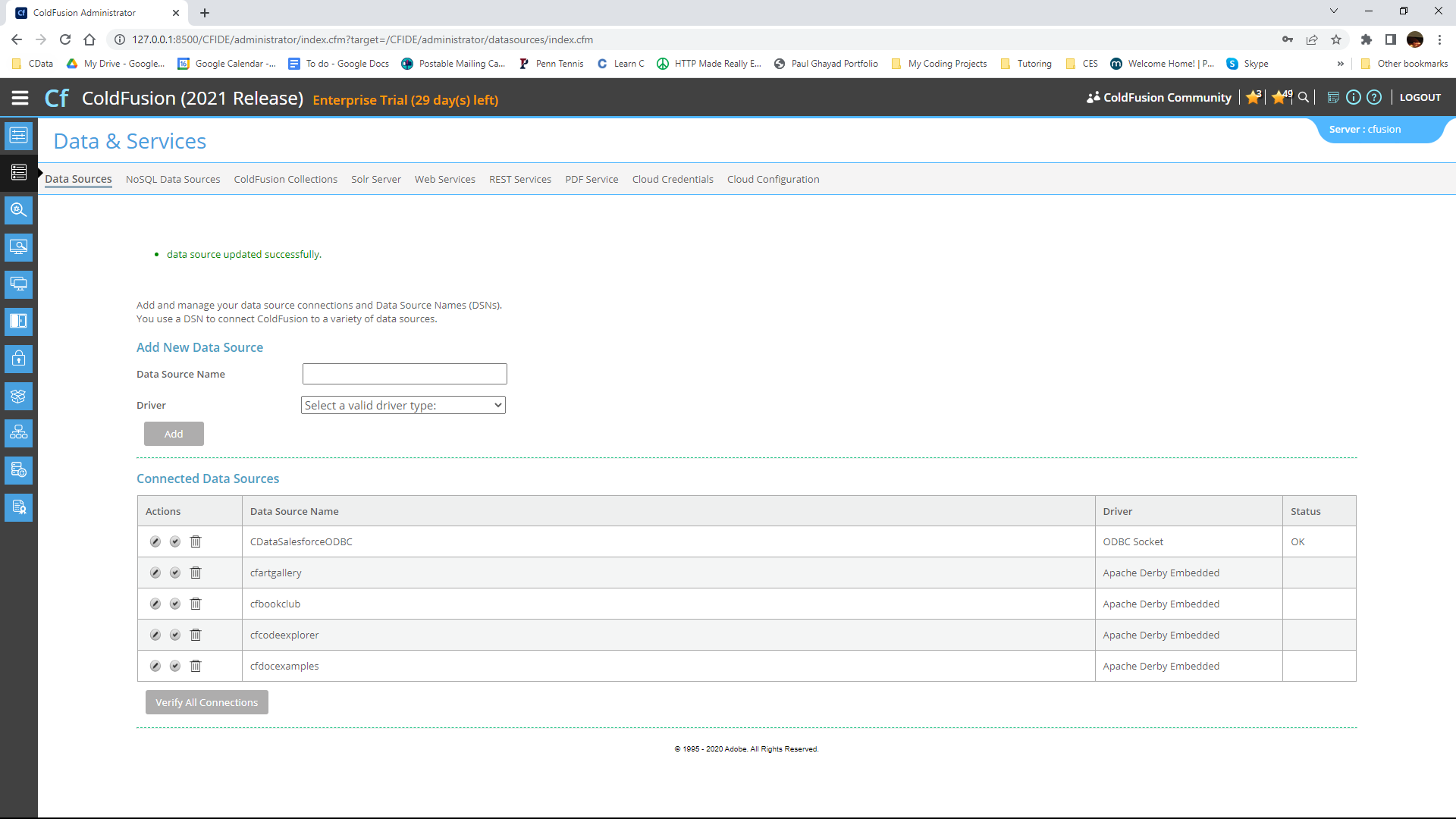
Now, test the connection by pressing the check mark to the left of the CDataClaude ComplianceODBC data source you just created.
When the data source reports an "OK" status, it is ready for use.
-
Next, create a new ColdFusion Markup file (.cfm) and place it in the wwwroot directory ("C:\ColdFusion2021\cfusion\wwwroot")
for ColdFusion.
The following code queries the data source:
        <cfquery name="Claude ComplianceQuery" dataSource="CDataClaude ComplianceODBC">
          SELECT * FROM Projects
        </cfquery>
And a CFTable can be used to quickly output the table in HTML:<cftable query = "Claude ComplianceQuery" border = "1" colHeaders colSpacing = "2" headerLines = "2" HTMLTable maxRows = "500" startRow = "1"> <cfcol header="<b>Id</b>" align="Left" width=2 text="Id"/> <cfcol header="<b>Name</b>" align="Left" width=15 text="Name"/> ... </cftable>Full code, including the HTML portion is available below:<html> <head><title>CData Software | Claude Compliance Projects Table Demo </title></head> <body> <cfoutput>#ucase("Claude Compliance Projects Table Demo")#</cfoutput> <cfquery name="Claude ComplianceQuery" dataSource="CDataClaude ComplianceODBC"> SELECT * FROM Projects </cfquery> <cftable query = "Claude ComplianceQuery" border = "1" colHeaders colSpacing = "2" headerLines = "2" HTMLTable maxRows = "500" startRow = "1"> <cfcol header="<b>Id</b>" align="Left" width=2 text="Id"/> <cfcol header="<b>Name</b>" align="Left" width=15 text="Name"/> ... </cftable> </body> </html> -
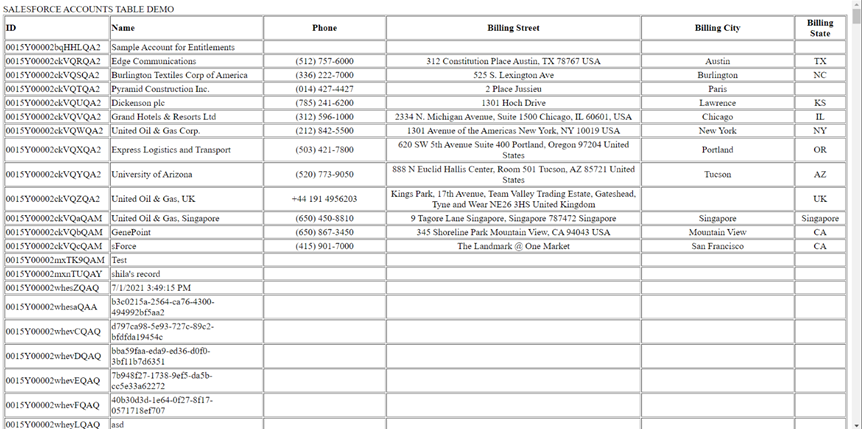
Finally, run the code in a browser. It produces a table populated with Claude Compliance data!
As a note, the CData ODBC Drivers also support parameterized queries using the cfqueryparam element. For example:
SELECT * FROM Account WHERE name = Get Started Today
Download a free, 30-day trial of the CData ODBC Driver for Claude Compliance and start building Claude Compliance-connected applications with Adobe ColdFusion. Reach out to our Support Team if you have any questions.
Ready to get started?
Download a free trial of the Claude Compliance ODBC Driver to get started:
Download NowLearn more:
 Claude Compliance ODBC Driver
The Claude Compliance ODBC Driver is a powerful tool that allows you to connect with live data from Claude Compliance, directly from any applications that support ODBC connectivity.
Access Claude Compliance data like you would a database - read Claude Compliance Activities, Chats, ChatMessages, CodeArtifacts, ComplianceRoles, Organizations, OrganizationUsers, Projects, etc. through a standard ODBC Driver interface.