




How to Access Live Claude Compliance Data in Power Automate Desktop via ODBC

The CData ODBC Driver for Claude Compliance enables you to access live Claude Compliance data in workflow automation tools like Power Automate. This article shows how to integrate Claude Compliance data into a simple workflow, moving Claude Compliance data into a CSV file.
Through optimized data processing, CData ODBC Drivers offer unmatched performance for interacting with live Claude Compliance data in Microsoft Power Automate. When you issue complex SQL queries from Power Automate to Claude Compliance, the driver pushes supported SQL operations, like filters and aggregations, directly to Claude Compliance and utilizes the embedded SQL engine to process unsupported operations client-side (e.g. SQL functions and JOIN operations).
Connect to Claude Compliance as an ODBC Data Source
If you have not already, first specify connection properties in an ODBC DSN (data source name). This is the last step of the driver installation. You can use the Microsoft ODBC Data Source Administrator to create and configure ODBC DSNs.
The driver connects to Claude Compliance using a Compliance Access Key, the only supported authentication method. Set the following connection property:
- APIKey: The Compliance Access Key you created.
Creating a Compliance Access Key
- Enable the Compliance API for your organization.
- Sign in to claude.ai as a primary owner or organization owner and open Organization settings > API > Keys.
- Select Create Key and assign only the scopes your integration needs:
- read:compliance_activities for Activities and the typed activity views.
- read:compliance_org_data for organizations, roles, groups, and settings.
- read:compliance_user_data for users, chats, files, projects, and downloads.
- delete:compliance_user_data for the explicit Delete stored procedures.
- Create the key and copy it when it appears. The key starts with sk-ant-api01- and is shown only once.
Optionally, set OrganizationUUID to limit organization-scoped views (such as OrganizationUsers and ComplianceRoles) to a single linked organization. If it is left empty, those views default to the first available organization and do not include data from all linked organizations.
When you configure the DSN, you may also want to set the Max Rows connection property. This will limit the number of rows returned, which is especially helpful for improving performance when designing workflows.
Integrate Claude Compliance Data into Power Automate Workflows
After configuring the DSN for Claude Compliance, you are ready to integrate Claude Compliance data into your Power Automate workflows. Open Microsoft Power Automate, add a new flow, and name the flow.
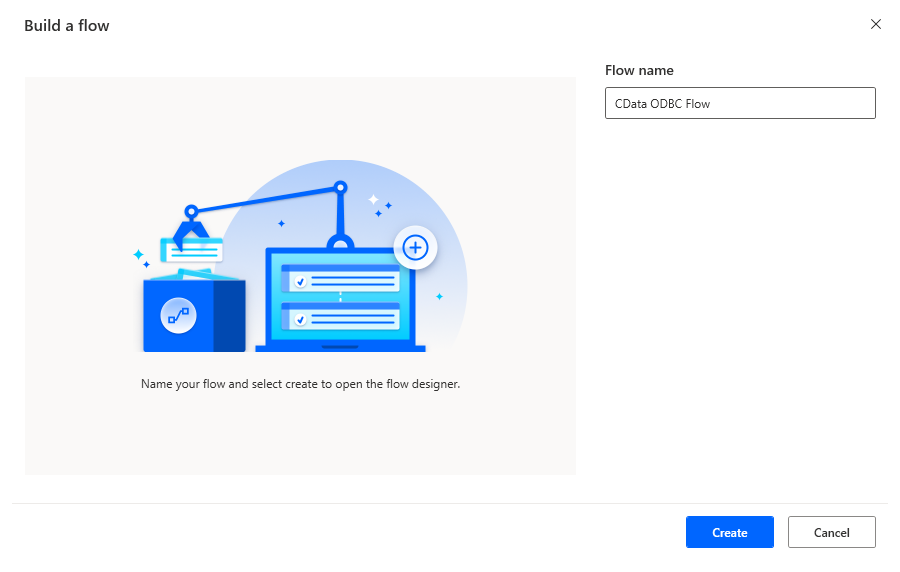
In the flow editor, you can add the actions to connect to Claude Compliance, query Claude Compliance using SQL, and write the query results to a CSV document.
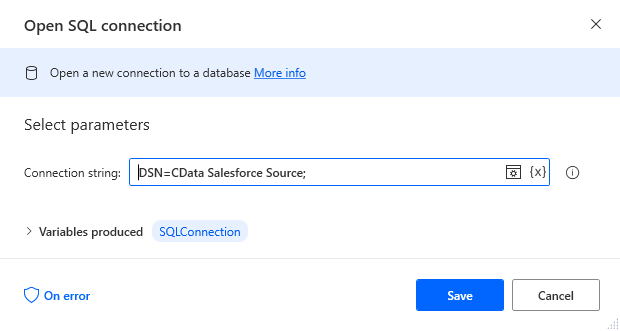
Add an Open SQL Connection Action
Add an "Open SQL connection" action (Actions -> Database) and configure the properties.
- Connection string: DSN=CData Claude Compliance Source
After configuring the action, click Save.
Add an Execute SQL Statement Action
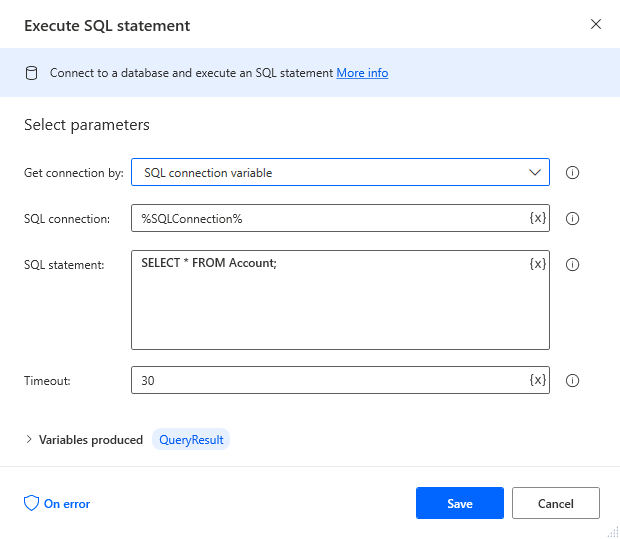
Add an "Execute SQL statement" action (Actions -> Database) and configure the properties.
- Get connection by: SQL connection variable
- SQL connection: %SQLConnection% (the variable from the "Open SQL connection" action above)
- SQL statement: SELECT * FROM Projects
After configuring the action, click Save.
Add a Write to CSV File Action
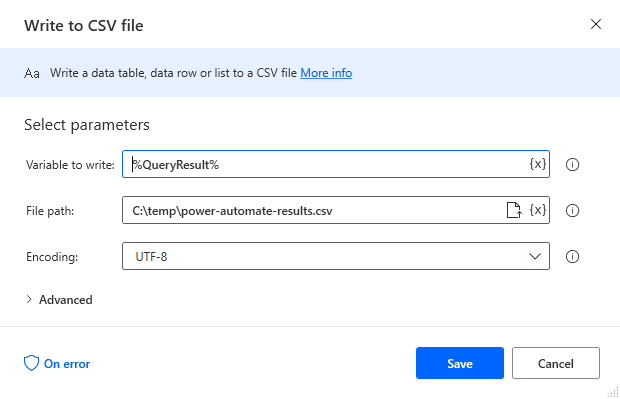
Add a "Write to CSV file" action (Actions -> File) and configure the properties.
- Variable to write to: %QueryResult% (the variable from the "Execute SQL statement" action above)
- File path: set to a file on disk
- Configure Advanced settings as needed.
After configuring the action, click Save.
Add a Close SQL Connection Action
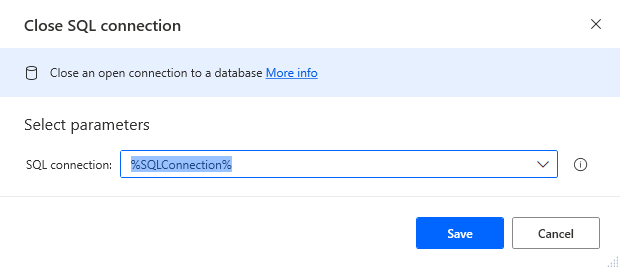
Add a "Close SQL connection" action (Actions -> Database) and configure the properties.
- SQL Connection: %SQLConnection% (the variable from the "Open SQL connection" action above)
After configuring the action, click Save.
Save & Run the Flow
Once you have configured all the actions for the flow, click the disk icon to save the flow. Click the play icon to run the flow.
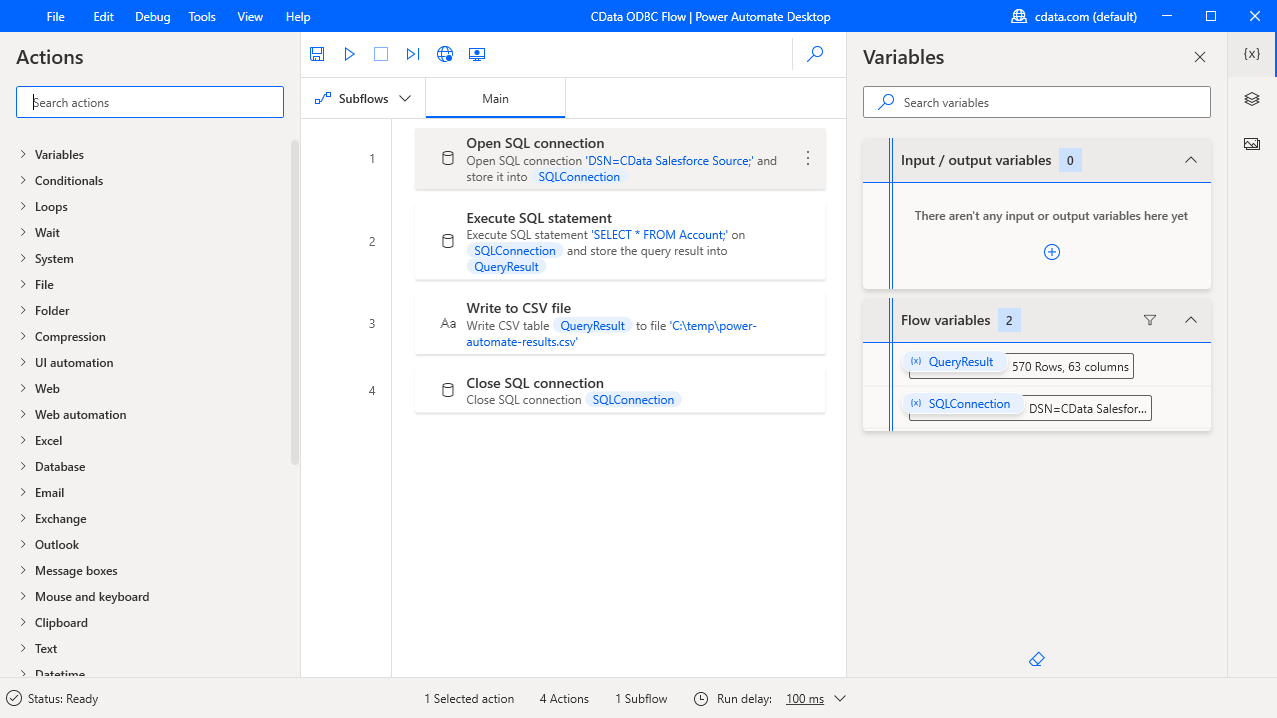
Now you have a workflow to move Claude Compliance data into a CSV file.
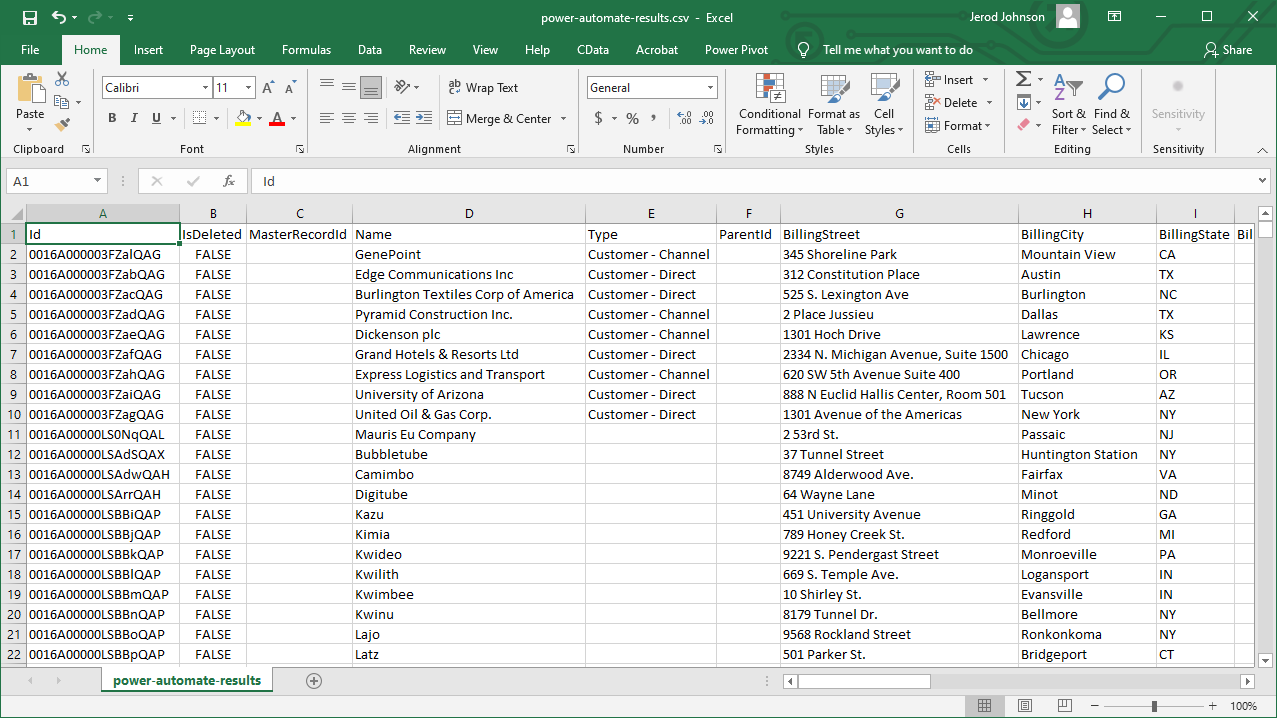
With the CData ODBC Driver for Claude Compliance, you get live connectivity to Claude Compliance data within your Microsoft Power Automate workflows.
Related Power Automate Articles
This article explains how to use the CData ODBC Driver for Claude Compliance with Power Automate Desktop. Check out our other articles for more ways to work with Power Automate (Desktop & Online):
Ready to get started?
Download a free trial of the Claude Compliance ODBC Driver to get started:
Download NowLearn more:
 Claude Compliance ODBC Driver
The Claude Compliance ODBC Driver is a powerful tool that allows you to connect with live data from Claude Compliance, directly from any applications that support ODBC connectivity.
Access Claude Compliance data like you would a database - read Claude Compliance Activities, Chats, ChatMessages, CodeArtifacts, ComplianceRoles, Organizations, OrganizationUsers, Projects, etc. through a standard ODBC Driver interface.