




Getting Started with the CData SSIS Components for Claude Compliance
This guide explains everything you need to get started with the CData SSIS Components for Claude Compliance. You'll learn how to install the components, activate your license, configure your first SSIS connection manager, and build a data flow task to move and transform Claude Compliance data in your SQL Server Integration Services workflows.
Installation & Licensing
System Requirements
- Windows: Windows 10/11 or Windows Server 2016+
- Visual Studio: Visual Studio 2015 or later
- SQL Server: SQL Server 2014, 2016, 2017, 2019, or 2022
Installing the SSIS Components
- Download the SSIS Components installer for Claude Compliance from your CData account or the evaluation download page
- Run the installer and follow the installation wizard
- The installer automatically registers the Connection Manager, Source, and Destination components with Visual Studio
- When prompted, activate your license using the product key sent to you by the CData Orders Team:
XXXX-XXXX-XXXX-XXXX-XXXX- Note: To run a trial, choose the Trial Key option.
Enabling SSIS in Visual Studio 2022
If you are using Visual Studio 2022, the SQL Server Integration Services Projects extension must be installed.
- In Visual Studio, select Extensions > Manage Extensions
- Search for SQL Server Integration Services Projects 2022
- Click Install
- Close Visual Studio and run the downloaded Microsoft.DataTools.IntegrationServices.exe installer
- Reopen Visual Studio. The Integration Services Project template will now appear when creating a new project
Activating Your License
During installation, you are prompted to activate the SSIS Component license. If you need to update or change activation:
License Activation
The installer automatically prompts you to add your license. During installation, you can choose to:
- Use your existing subscription license key, or
- Enter your trial license
To activate a full subscription license, contact the CData Orders Team and request your product key at [email protected].
Enter the license key in the installer when prompted. Once activated, the components will be licensed and ready to use inside Visual Studio without any additional steps.
Runtime Licensing
When deploying SSIS packages, a Runtime Key (RTK) can also be used:
- Set the RTK property in the Connection Manager before deployment
Common Licensing Questions
Can I use my license on multiple machines?
Yes, depending on your subscription tier. Contact [email protected] for details.
I lost my license key. How do I retrieve it?
Email [email protected] with your order number, and we'll resend your license key.
How do I transfer my license to another machine?
Yes. When transferring the license to a different machine, you will need to submit a License Transfer Request on our site linked below:
https://www.cdata.com/lic/transfer/After the License Transfer Request is submitted and successfully processed, an activation will be added to your Product Key and you will be able to activate the full license on the other machine. Once this process is finished, the license on the previous machine will be invalid.
You may also view and upgrade licenses in the self-service portal at portal.cdata.com.
Connection Configuration
Once the components are installed and licensed, you can configure a connection to Claude Compliance using an SSIS Connection Manager. This Connection Manager stores all authentication and connection properties used by the Source and Destination components.
Creating a Connection Manager
- In the bottom Connection Managers panel of your SSIS package, right-click and select New Connection
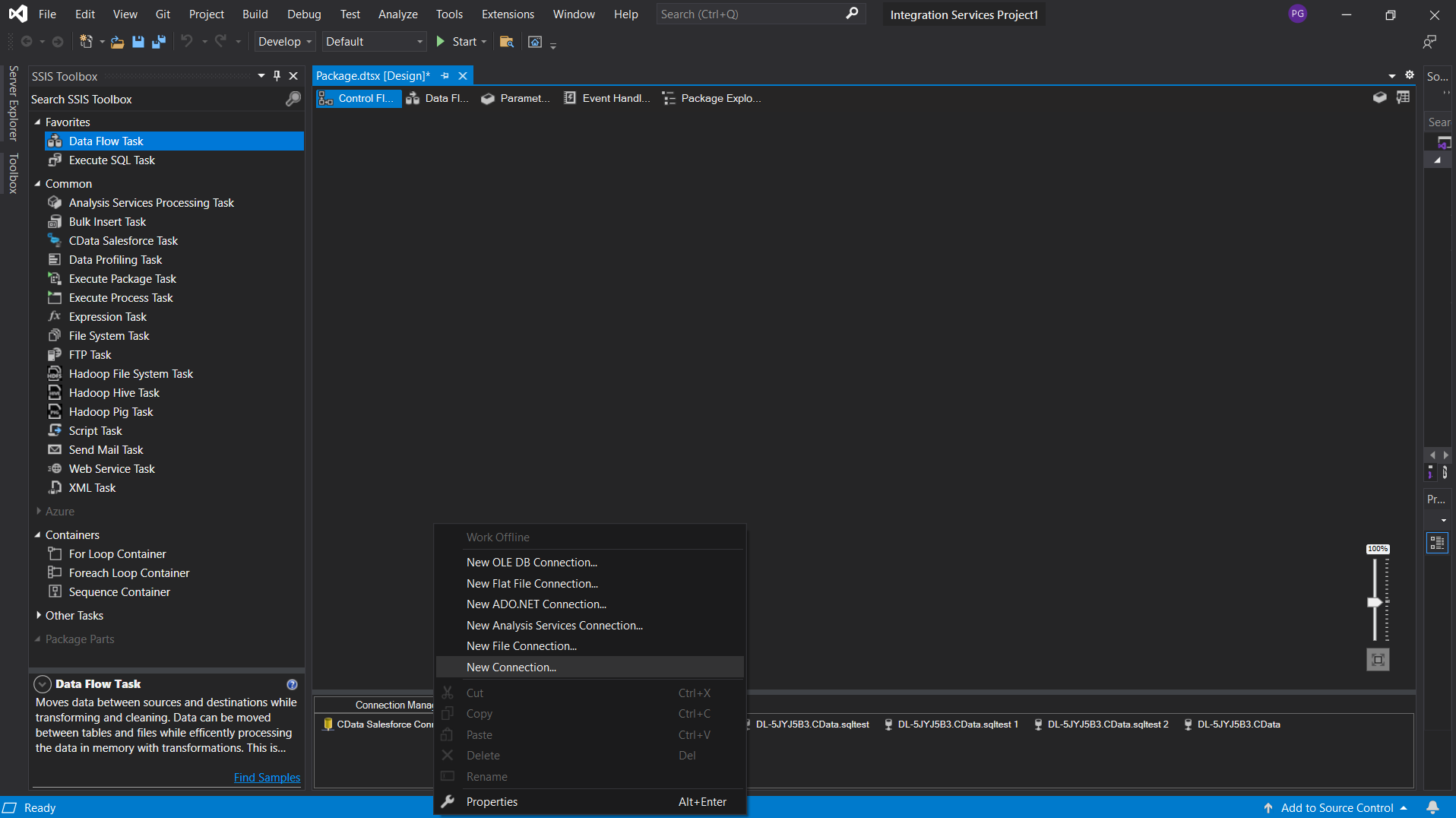
- Select CData SSIS Components for Claude Compliance from the list
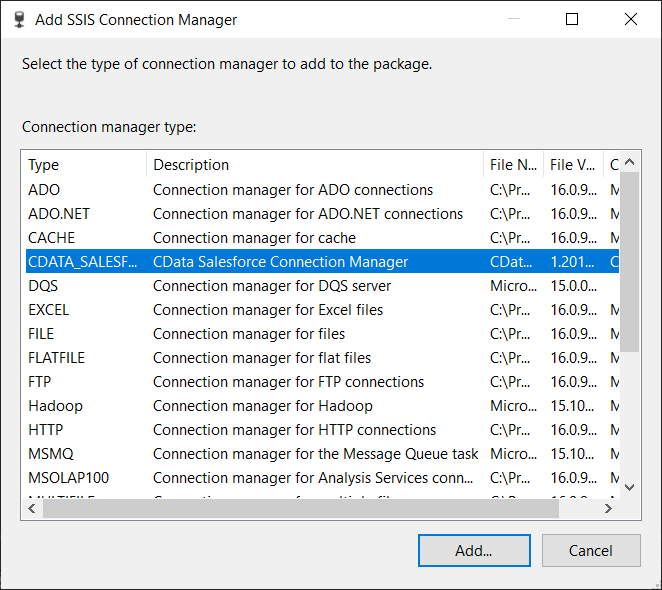
- Click Add to open the Connection Manager UI
- Enter the required authentication properties (OAuth, API token, client credentials, etc.) depending on your Claude Compliance
- APIKey: The Compliance Access Key you created.
- Enable the Compliance API for your organization.
- Sign in to claude.ai as a primary owner or organization owner and open Organization settings > API > Keys.
- Select Create Key and assign only the scopes your integration needs:
- read:compliance_activities for Activities and the typed activity views.
- read:compliance_org_data for organizations, roles, groups, and settings.
- read:compliance_user_data for users, chats, files, projects, and downloads.
- delete:compliance_user_data for the explicit Delete stored procedures.
- Create the key and copy it when it appears. The key starts with sk-ant-api01- and is shown only once.
- Click Test Connection to confirm connectivity
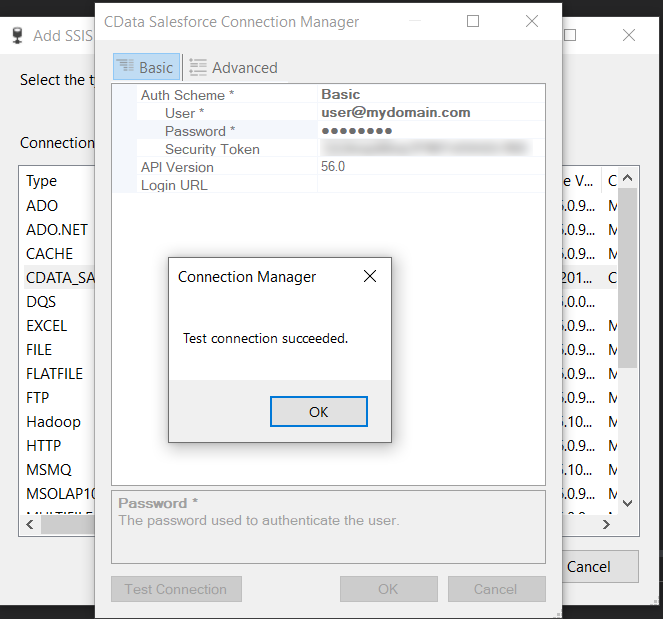
Configuring Connection Properties
The driver connects to Claude Compliance using a Compliance Access Key, the only supported authentication method. Set the following connection property:
Creating a Compliance Access Key
Optionally, set OrganizationUUID to limit organization-scoped views (such as OrganizationUsers and ComplianceRoles) to a single linked organization. If it is left empty, those views default to the first available organization and do not include data from all linked organizations.
Building an SSIS Data Flow
With a Connection Manager created, you can now pull data from Claude Compliance or push data into it using SSIS data flow tasks.
Creating a Data Flow Task
- In the Control Flow tab, drag a Data Flow Task onto the design surface
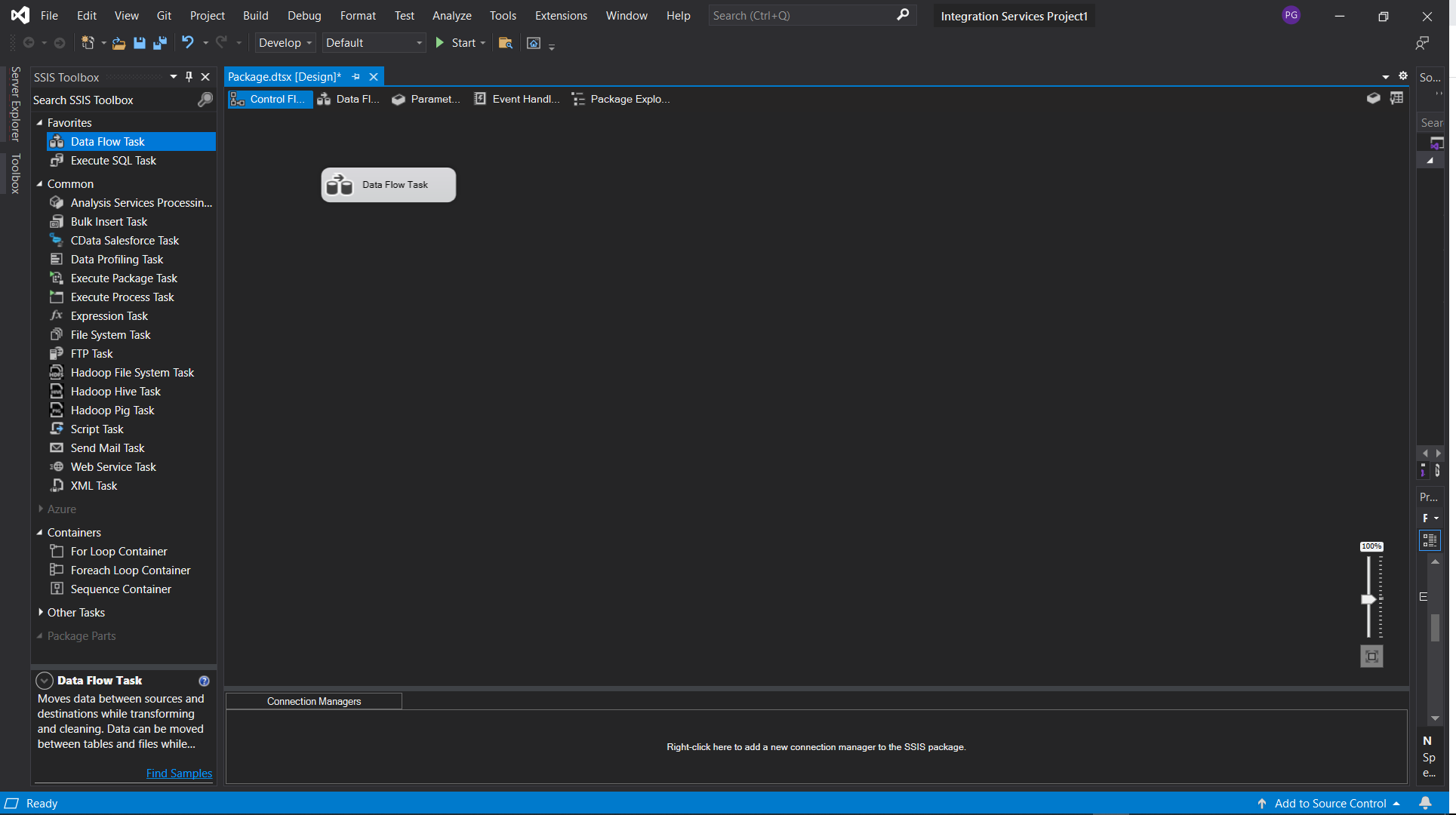
- Double-click the task to open the Data Flow workspace
Using the Source Component
- In the SSIS Toolbox, drag the CData Claude Compliance Source component into the Data Flow
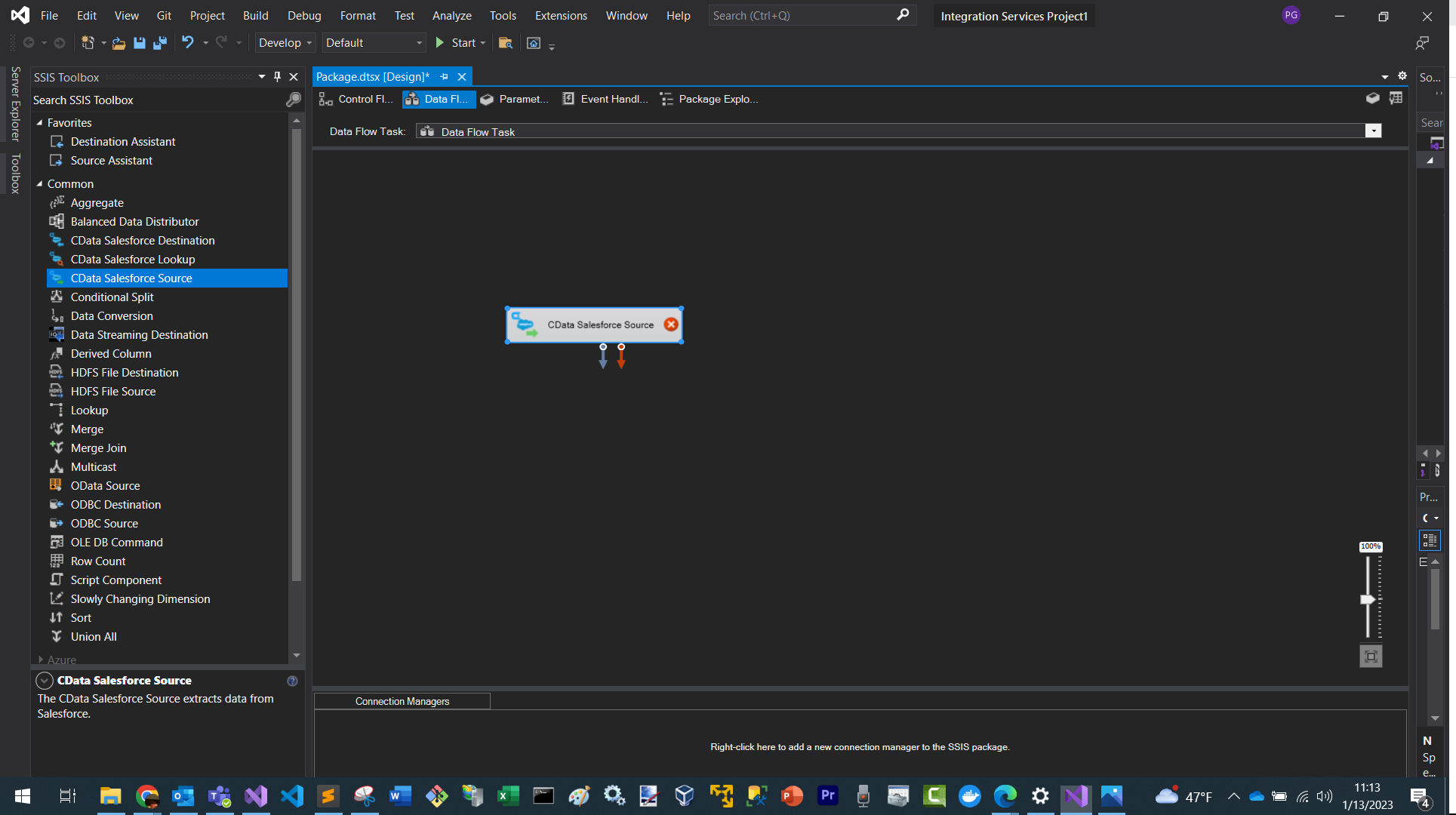
- Double-click it to open the Source Editor
- Select the CData Claude Compliance Connection Manager you created
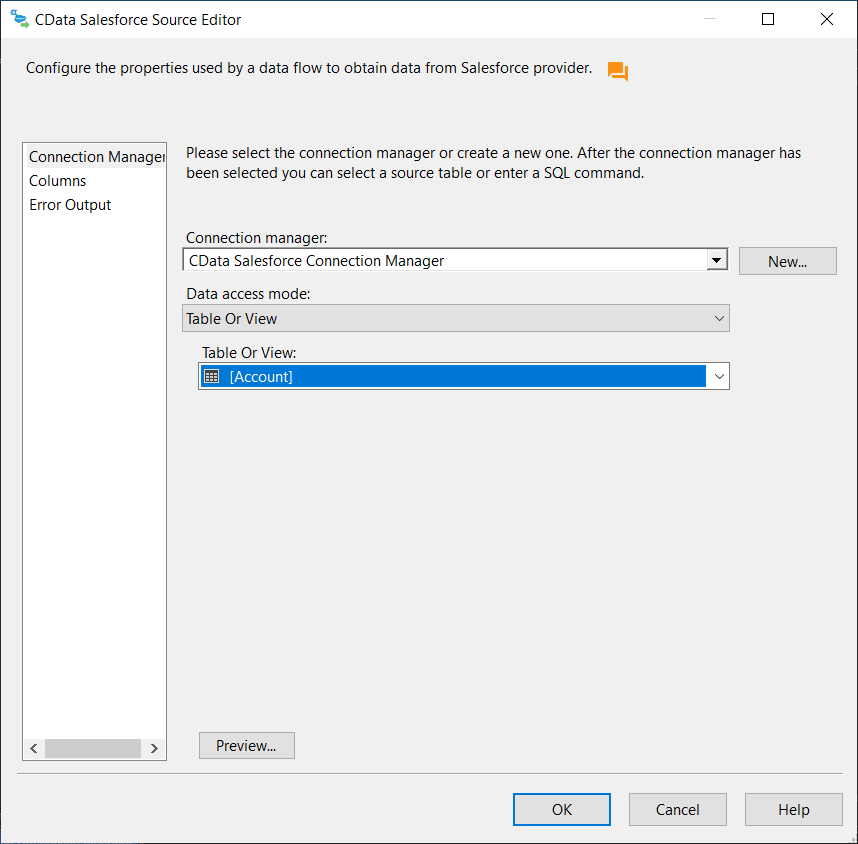
- Choose a table or view to extract records from
- Click OK to save your configuration
Using the Destination Component
- Drag a SQL Server Destination onto the canvas
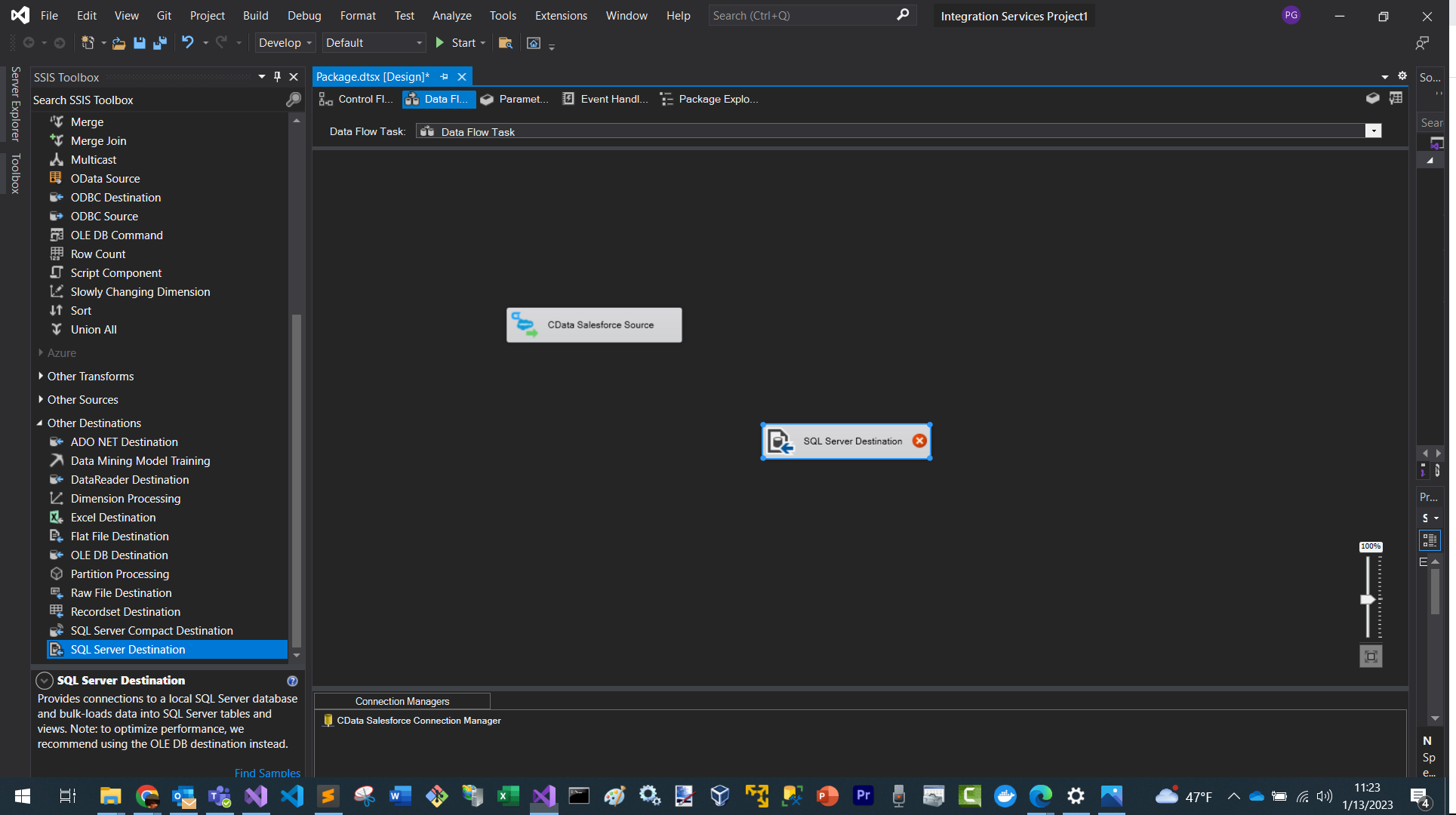
- Double-click it to open the Destination Editor
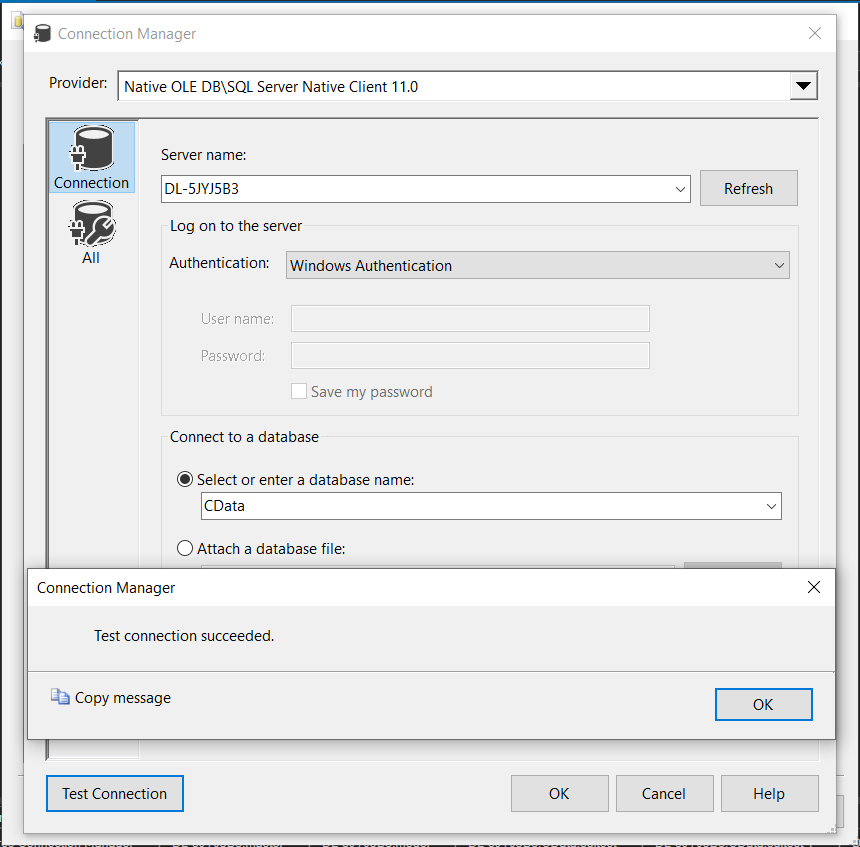
- Select an existing table or click New to auto-generate a table based on the Source schema
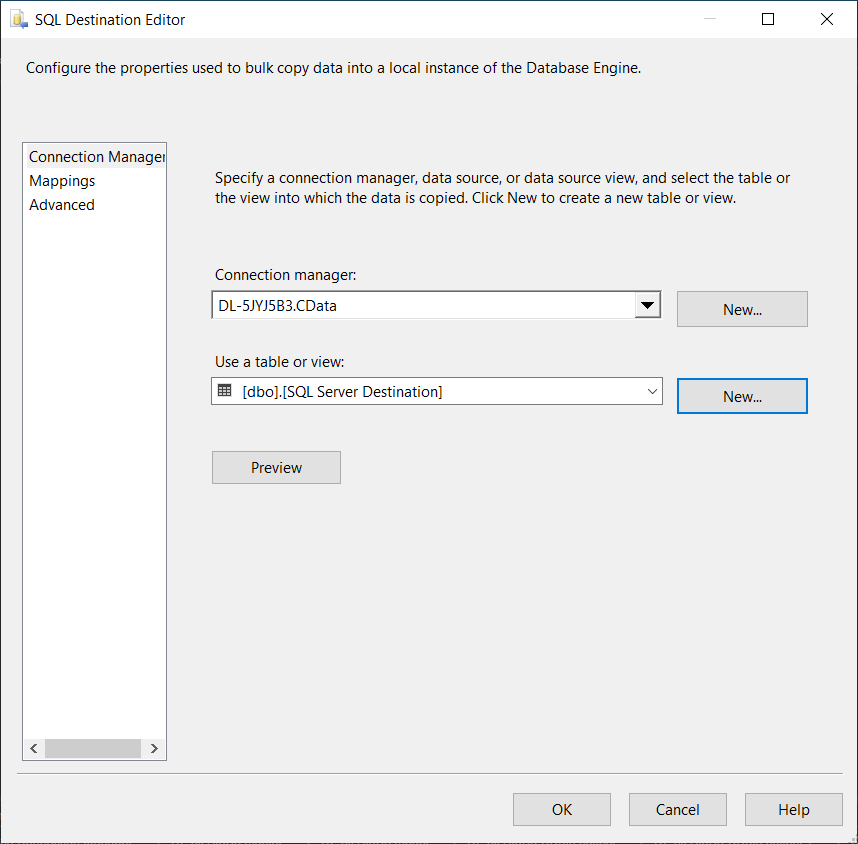
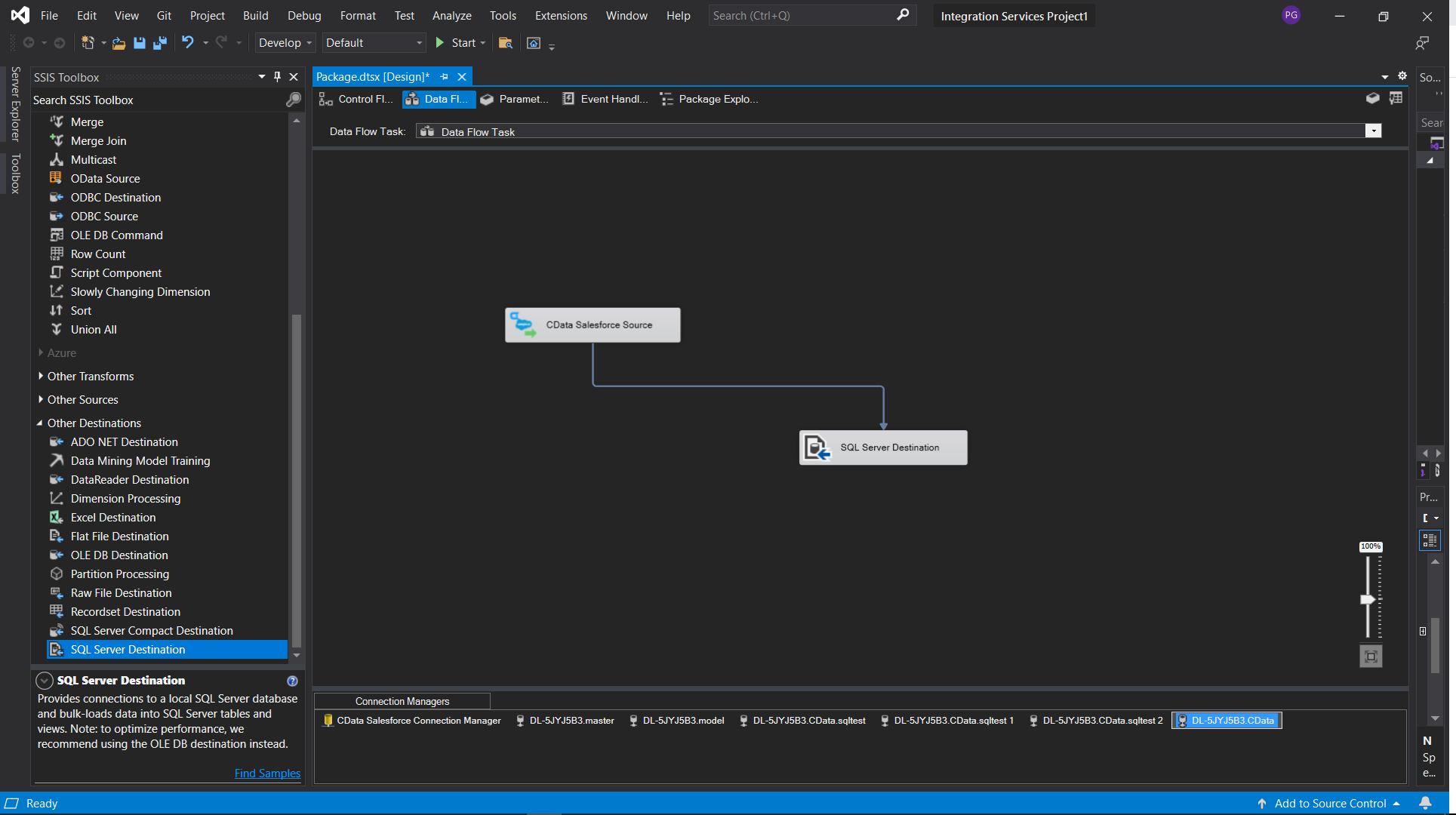
- Connect the Source output to the Destination input and map the columns as needed
- At this point you have created a data flow task for replicating your Claude Compliance data to a SQL Server database
Testing Your Data Flow
- Return to the Control Flow tab
- Click Start Debugging
- Monitor the progress indicators
- Review row counts and ensure data is loading as expected
Common Connection Issues
Authentication Failed
Solution: Verify OAuth settings, client IDs, secrets, or token permissions for your Claude Compliance. Contact [email protected] for OAuth troubleshooting.
Cannot Reach Server
Solution: Check firewall, proxy, and VPN configurations. Contact [email protected] for specific port requirements.
Table Not Found
Solution: Confirm you selected the correct schema or database when querying Claude Compliance.
What's Next
Now that you have installed, licensed, and configured the SSIS Components, here are scenarios you can use to explore our SSIS tools:
| SSIS Component | Article Title |
|---|---|
| BIML | Use Biml to Build SSIS Tasks to Replicate Claude Compliance to SQL Server |
| SSIS Import | Import Claude Compliance Data into SQL Server using SSIS |
Get Support
If you need assistance at any point:
- Technical Support: [email protected]
- Community Forum: CData Community Site
- Help Documentation: Installed locally and available online
FAQs
Installation & Licensing
- Do I need administrator rights to install the SSIS Components?
Yes, administrator rights are required to install components for use across Visual Studio. - Do I need an RTK to deploy to Azure Data Factory?
Yes. Set the RTK property in the Connection Manager before publishing.
Connecting
- Can I use multiple Claude Compliance accounts?
Create separate Connection Managers for each account. - Can I connect through a proxy?
Yes. Configure proxy settings in the Connection Manager properties. - How do I test my connection?
Click Test Connection in the Connection Manager UI.
Performance & Troubleshooting
- Why is my data flow slow?
Add filters, limit rows, and ensure batching settings are configured in the Source component. - How do I enable logging?
Add the following to your connection manager:- Logfile: /path/to/logfile.log
- Verbosity: 3
Be prepared to securely upload the log file upon request when reaching out to [email protected] for troubleshooting analysis.
For questions not covered in this FAQ, contact [email protected].
Ready to get started?
Download a free trial of the Claude Compliance SSIS Component to get started:
Download NowLearn more:
 Claude Compliance SSIS Components
Powerful SSIS Source Components that allow you to easily connect SQL Server with Claude Compliance through SSIS Workflows.
Use the Claude Compliance Data Flow Components to synchronize with Claude Compliance Activities, Chats, ChatMessages, CodeArtifacts, ComplianceRoles, Organizations, OrganizationUsers, Projects, and more. Perfect for data synchronization, local back-ups, workflow automation, and more!