How to Connect to & Open CleverPush Data in Microsoft Excel

The CData ODBC driver for CleverPush uses the standard ODBC interface to link CleverPush data with applications like Microsoft Access and Excel. Follow the steps below to use Microsoft Query to import CleverPush data into a spreadsheet and provide values to a parameterized query from cells in a spreadsheet.
If you have not already, first specify connection properties in an ODBC DSN (data source name). This is the last step of the driver installation. You can use the Microsoft ODBC Data Source Administrator to create and configure ODBC DSNs.
Start by setting the Profile connection property to the location of the Cleverpush Profile on disk (e.g. C:\profiles\Cleverpush.apip). Next, set the ProfileSettings connection property to the connection string for Cleverpush (see below).
Cleverpush API Profile Settings
CleverPush uses private API keys to authenticate requests. Your API key is passed as the Authorization request header value on every API call.
You can find your private API key in the CleverPush dashboard under Settings > API. Use the private key (not the public key) for server-side access.
After setting the following connection properties, you are ready to connect:
- AuthScheme: Set this to APIKey.
- APIKey: Set this to your CleverPush private API key.
Optional Connection Properties
- ChannelId: Set this to your default CleverPush channel identifier. Most tables require a channel filter. Setting this property allows queries without specifying ChannelId in every WHERE clause.
You can then work with live CleverPush data in Excel.
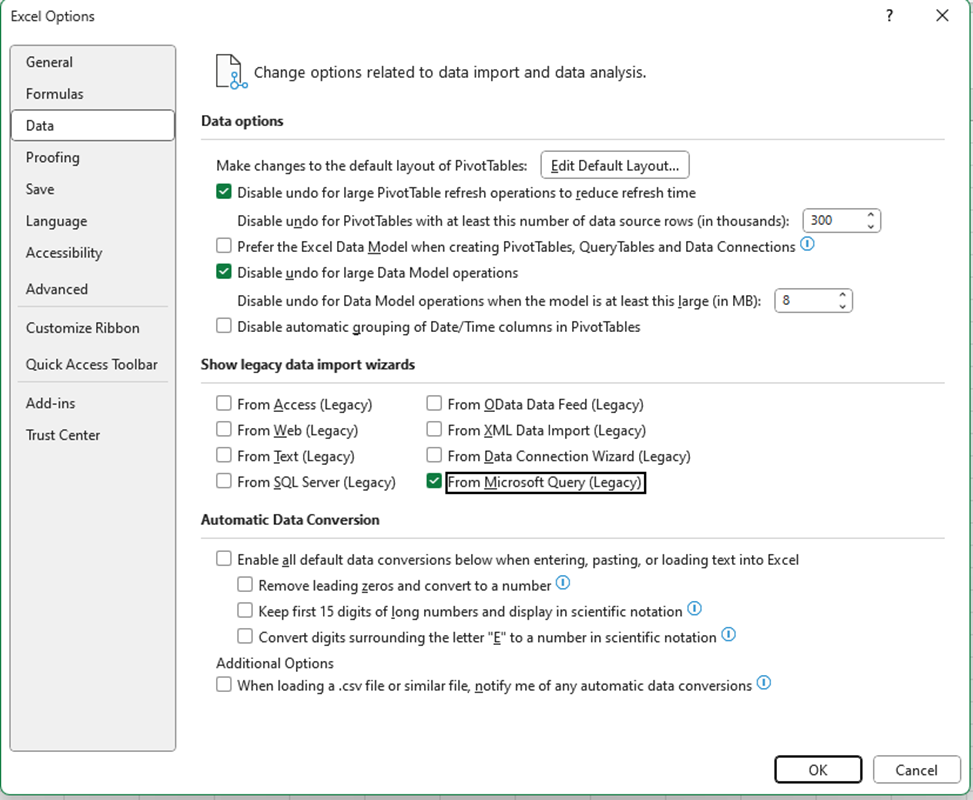
NOTE: In recent versions of Excel, Microsoft Query is not visible by default. To enable visibility, Navigate to Options > Data and check From Microsoft Query (Legacy) under the Show legacy data import wizards section.
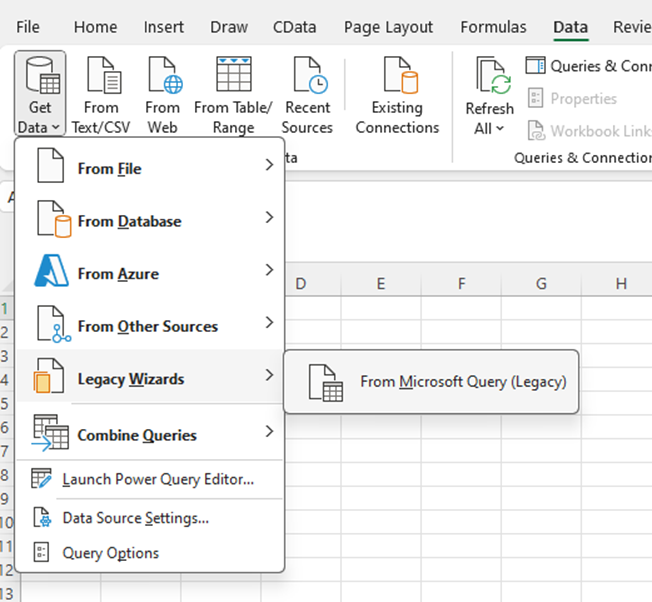
- In Excel, open the Data tab and choose Get Data -> Legacy Wizards -> From Microsoft Query (Legacy).
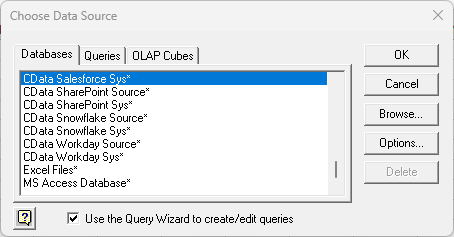
- Choose the API DSN. Select the option to use Query Wizard to create/edit queries.
- In the Query Wizard, expand the node for the table you would like to import into your spreadsheet. Select the columns you want to import and click the arrow to add them to your query. Alternatively, select the table name to add all columns for that table.
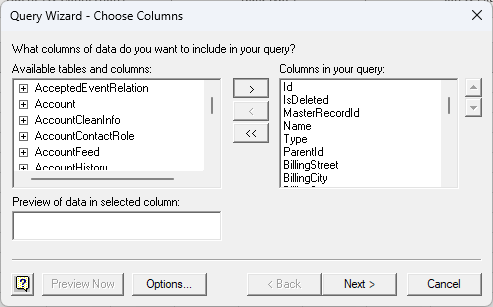
- The Filter Data page allows you to specify criteria. For example, you can limit results by setting a date range.
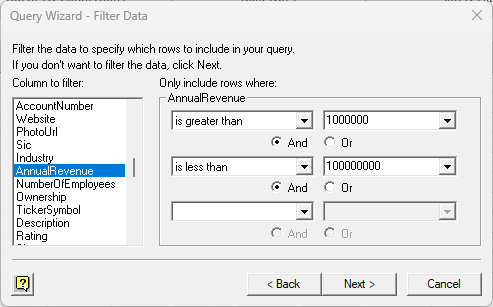
- If you want to use parameters in your query, select the option to edit the query in Microsoft Query.
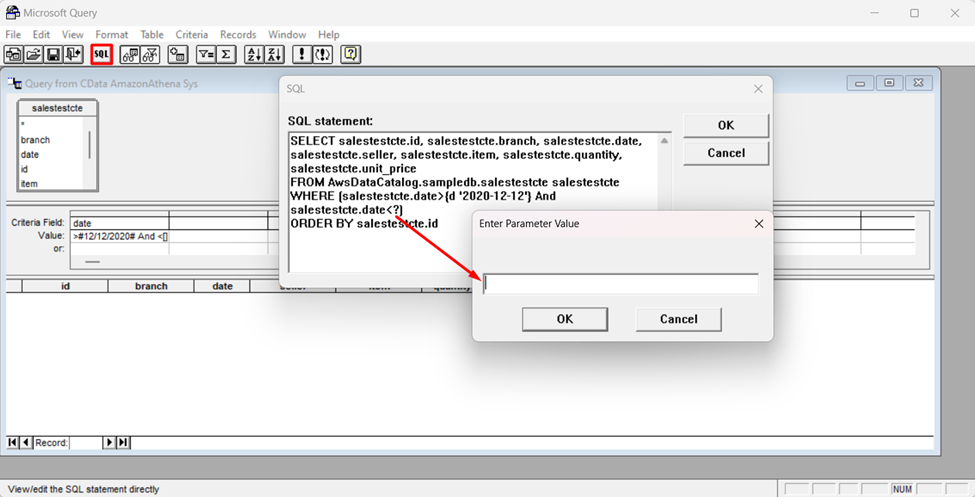
To set a parameter in the query, you will need to modify the SQL statement directly. To do this, click the SQL button in the Query Editor. If you set filter criteria earlier, you should have a WHERE clause already in the query.
To use a parameter, use a "?" character as the wildcard character for a field's value in the WHERE clause. For example, if you are importing the Segments, you can set "ChannelId=?".
- Close the SQL dialog when you are finished editing the SQL statement. You will be prompted to enter a parameter value. In the next step, you will select a cell to provide this value. So, leave the box in the dialog blank.
-
Click File -> Return Data to Microsoft Excel. The Import Data dialog is displayed. Enter a cell where results should be imported.
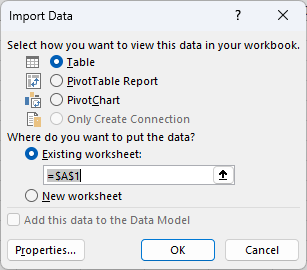
- Close the Import Data dialog. You will be prompted to enter a parameter value. Click the button next to the parameter box to select a cell. Select the option to automatically refresh the spreadsheet when the value changes.