Analyze CleverPush Data in R via ODBC

Access CleverPush data with pure R script and standard SQL. You can use the CData ODBC Driver for CleverPush and the RODBC package to work with remote CleverPush data in R. By using the CData Driver, you are leveraging a driver written for industry-proven standards to access your data in the popular, open-source R language. This article shows how to use the driver to execute SQL queries to CleverPush data and visualize CleverPush data in R.
Install R
You can complement the driver's performance gains from multi-threading and managed code by running the multithreaded Microsoft R Open or by running R linked with the BLAS/LAPACK libraries. This article uses Microsoft R Open (MRO).
Connect to CleverPush as an ODBC Data Source
Information for connecting to CleverPush follows, along with different instructions for configuring a DSN in Windows and Linux environments.
Start by setting the Profile connection property to the location of the Cleverpush Profile on disk (e.g. C:\profiles\Cleverpush.apip). Next, set the ProfileSettings connection property to the connection string for Cleverpush (see below).
Cleverpush API Profile Settings
CleverPush uses private API keys to authenticate requests. Your API key is passed as the Authorization request header value on every API call.
You can find your private API key in the CleverPush dashboard under Settings > API. Use the private key (not the public key) for server-side access.
After setting the following connection properties, you are ready to connect:
- AuthScheme: Set this to APIKey.
- APIKey: Set this to your CleverPush private API key.
Optional Connection Properties
- ChannelId: Set this to your default CleverPush channel identifier. Most tables require a channel filter. Setting this property allows queries without specifying ChannelId in every WHERE clause.
When you configure the DSN, you may also want to set the Max Rows connection property. This will limit the number of rows returned, which is especially helpful for improving performance when designing reports and visualizations.
Windows
If you have not already, first specify connection properties in an ODBC DSN (data source name). This is the last step of the driver installation. You can use the Microsoft ODBC Data Source Administrator to create and configure ODBC DSNs.
Linux
If you are installing the CData ODBC Driver for CleverPush in a Linux environment, the driver installation predefines a system DSN. You can modify the DSN by editing the system data sources file (/etc/odbc.ini) and defining the required connection properties.
/etc/odbc.ini
[CData API Source]
Driver = CData ODBC Driver for CleverPush
Description = My Description
Profile = C:\profiles\Cleverpush.apip
ProfileSettings = 'APIKey = my_api_key'
For specific information on using these configuration files, please refer to the help documentation (installed and found online).
Load the RODBC Package
To use the driver, download the RODBC package. In RStudio, click Tools -> Install Packages and enter RODBC in the Packages box.
After installing the RODBC package, the following line loads the package:
library(RODBC)
Note: This article uses RODBC version 1.3-12. Using Microsoft R Open, you can test with the same version, using the checkpoint capabilities of Microsoft's MRAN repository. The checkpoint command enables you to install packages from a snapshot of the CRAN repository, hosted on the MRAN repository. The snapshot taken Jan. 1, 2016 contains version 1.3-12.
library(checkpoint)
checkpoint("2016-01-01")
Connect to CleverPush Data as an ODBC Data Source
You can connect to a DSN in R with the following line:
conn <- odbcConnect("CData API Source")
Schema Discovery
The driver models CleverPush APIs as relational tables, views, and stored procedures. Use the following line to retrieve the list of tables:
sqlTables(conn)
Execute SQL Queries
Use the sqlQuery function to execute any SQL query supported by the CleverPush API.
segments <- sqlQuery(conn, "SELECT Id, Name FROM Segments WHERE ChannelId = 'your_channel_id'", believeNRows=FALSE, rows_at_time=1)
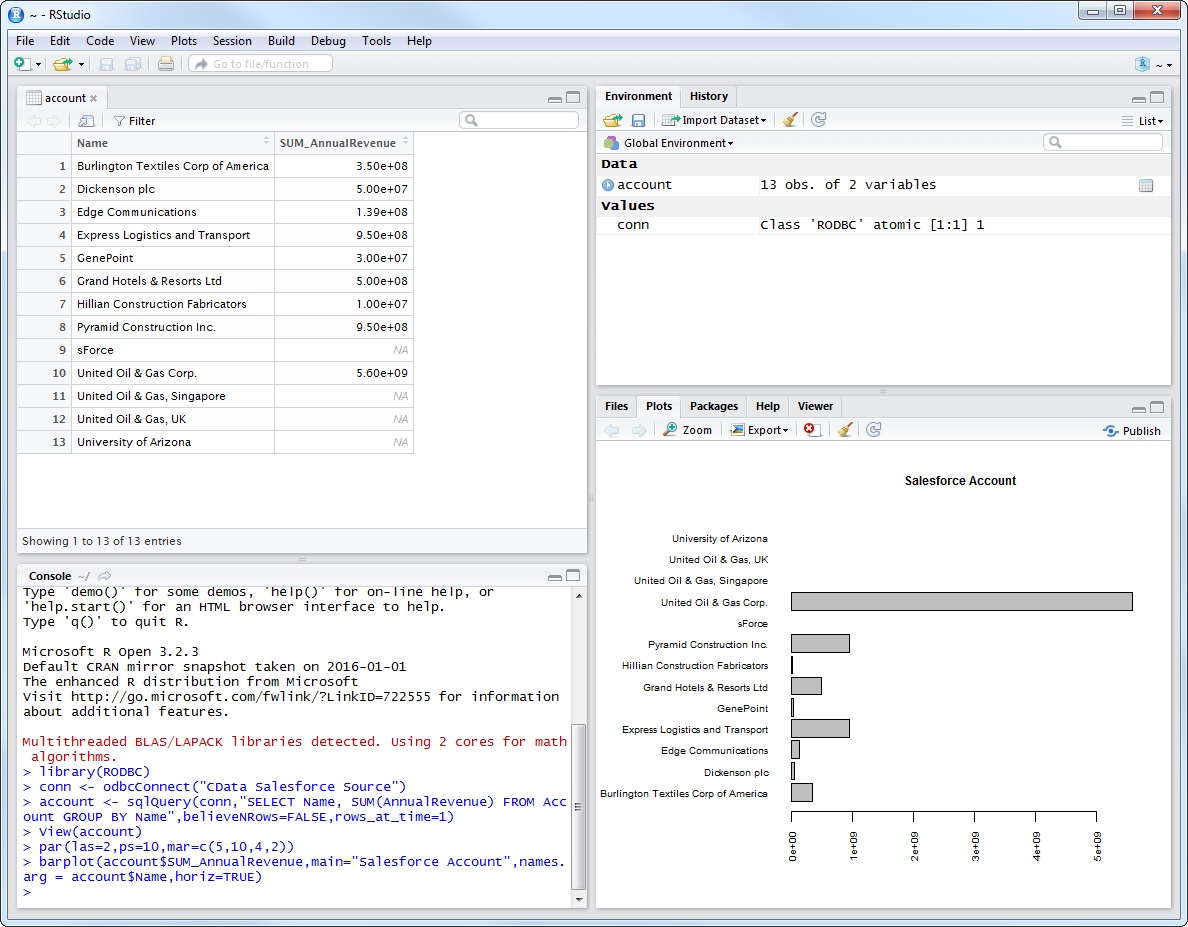
You can view the results in a data viewer window with the following command:
View(segments)
Plot CleverPush Data
You can now analyze CleverPush data with any of the data visualization packages available in the CRAN repository. You can create simple bar plots with the built-in bar plot function:
par(las=2,ps=10,mar=c(5,15,4,2))
barplot(segments$Name, main="CleverPush Segments", names.arg = segments$Id, horiz=TRUE)