Copper Reporting and Star Schemas in OBIEE

The CData ODBC Driver for Copper is a standard database driver that can integrate real-time access to Copper data into your data warehouse or directly into your reporting tool. This article shows how to bypass the data warehouse and import operational Copper data into Oracle Business Intelligence Enterprise Edition (OBIEE).
See the knowledge base for ODBC integrations with ETL tools like Informatica PowerCenter. For an ETL solution into Oracle Warehouse Builder, use the driver with the Oracle ODBC Gateway to Access Copper Data as a Remote Oracle Database.
Connect to Copper as an ODBC Data Source
If you have not already, first specify connection properties in an ODBC DSN (data source name). This is the last step of the driver installation. You can use the Microsoft ODBC Data Source Administrator to create and configure ODBC DSNs.
Start by setting the Profile connection property to the location of the Copper Profile on disk (e.g. C:\profiles\Copper.apip). Next, set the ProfileSettings connection property to the connection string for Copper (see below).
Copper API Profile Settings
In Copper CRM, go to Settings > Integrations > API Keys and click Generate API Key. Provide both the API key and the email address associated with your account.
When you configure the DSN, you may also want to set the Max Rows connection property. This will limit the number of rows returned, which is especially helpful for improving performance when designing reports and visualizations.
Import Copper Metadata
Follow the steps below to use the OBIEE Client Tools to import Copper metadata into an OBIEE repository. You can then integrate Copper data into your business models.
Open the Administration Tool and click File -> New Repository.
- In the Connection Type menu, select ODBC 3.5 and select the CData DSN.
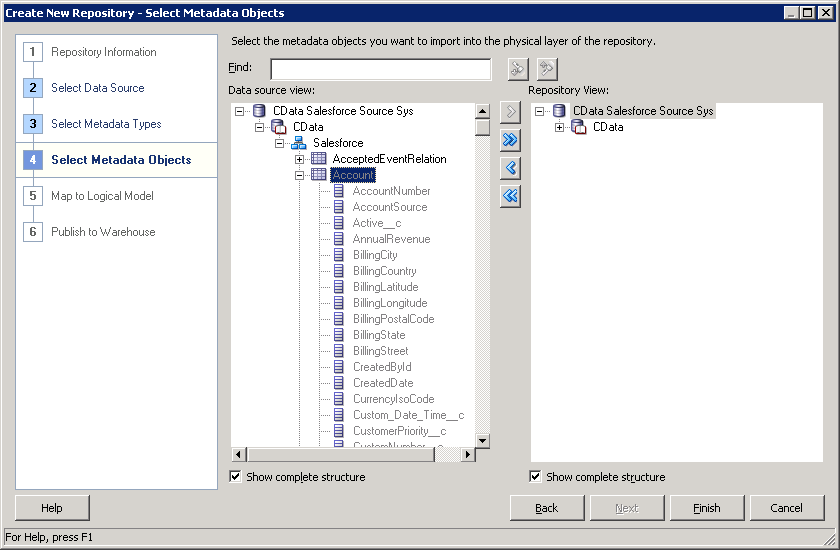
- Select the metadata types you want to import under the Relational Sources option and then select Copper tables.