






Integrating LangGraph with Databricks Data via CData Connect AI

LangGraph is a framework for building and visualizing intelligent, graph-based AI workflows that combine reasoning models (LLMs) with tool integrations and data operations. By integrating it with the CData Connect AI, you can enable agents to securely access, query, and act on live enterprise data in real-time via a standardized toolset.
CData Connect AI is a managed MCP-platform that allows you to expose your data sources (such as Databricks) through the Model Context Protocol (MCP). This means your AI agents can work with metadata, catalogs, tables, and SQL-enabled data access from over 350 data sources, without complex ETL or custom integrations.
This article explores how to register the MCP endpoint in LangGraph, configure data source connectivity via CData Connect AI, and build a workflow that queries and visualizes live data (for example, Databricks objects) on demand. It demonstrates how to use the built-in MCP toolset (getCatalogs, getSchemas, getTables, queryData, etc.) to enable natural-language agents to interact with your enterprise data securely and interactively.
About Databricks Data Integration
Accessing and integrating live data from Databricks has never been easier with CData. Customers rely on CData connectivity to:
- Access all versions of Databricks from Runtime Versions 9.1 - 13.X to both the Pro and Classic Databricks SQL versions.
- Leave Databricks in their preferred environment thanks to compatibility with any hosting solution.
- Secure authenticate in a variety of ways, including personal access token, Azure Service Principal, and Azure AD.
- Upload data to Databricks using Databricks File System, Azure Blog Storage, and AWS S3 Storage.
While many customers are using CData's solutions to migrate data from different systems into their Databricks data lakehouse, several customers use our live connectivity solutions to federate connectivity between their databases and Databricks. These customers are using SQL Server Linked Servers or Polybase to get live access to Databricks from within their existing RDBMs.
Read more about common Databricks use-cases and how CData's solutions help solve data problems in our blog: What is Databricks Used For? 6 Use Cases.
Getting Started
Prerequisites
- An account in CData Connect AI.
- Python version 3.10 or higher, to install the LangGraph packages.
- Generate and save an OpenAI API key.
- Install Visual Studio Code in your system.
- Obtain and save the LangGraph API key from LangGraph.
Step 1: Configure Databricks Connectivity for LangGraph
Before LangGraph can access Databricks, a Databricks connection must be created in CData Connect AI. This connection is then exposed to LangGraph through the remote MCP server.
- Log in to Connect AI click Sources, and then click + Add Connection

- From the available data sources, choose Databricks

-
Enter the necessary authentication properties to connect to Databricks.
To connect to a Databricks cluster, set the properties as described below.
Note: The needed values can be found in your Databricks instance by navigating to Clusters, and selecting the desired cluster, and selecting the JDBC/ODBC tab under Advanced Options.
- Server: Set to the Server Hostname of your Databricks cluster.
- HTTPPath: Set to the HTTP Path of your Databricks cluster.
- Token: Set to your personal access token (this value can be obtained by navigating to the User Settings page of your Databricks instance and selecting the Access Tokens tab).

- Click Save & Test
- Once authenticated, open the Permissions tab in the Databricks connection and configure user-based permissions as required

Generate a Personal Access Token (PAT)
LangGraph authenticates to Connect AI using an account email and a Personal Access Token (PAT). Creating separate PATs for each integration is recommended to maintain granular access control.
- In Connect AI, select the Gear icon in the top-right to open Settings
- Under Access Tokens, select Create PAT
- Provide a descriptive name for the token and select Create

- Copy the token and store it securely. The PAT will only be visible during creation
With the Databricks connection configured and a PAT generated, LangGraph is prepared to connect to Databricks data through the CData MCP server.
Step 2: Set up your development environment
Set up your project directory and install the required dependencies to connect LangGraph with CData Connect AI and use OpenAI LLM for reasoning. This setup enables LangGraph to call the Databricks MCP server tools exposed by Connect AI while OpenAI processes the natural language reasoning.
- Create a new folder for your LangGraph project:
mkdir LangGraph cd LangGraph
- Install the required Python packages:
pip install langgraph langchain-openai langchain-mcp-adapters python-dotenv "langgraph-cli[inmem]"
- Ensure you have Python 3.10+ and a valid OpenAI API key configured in your environment.
Step 3: Configure the MCP connection environment variables
LangGraph uses environment variables to connect to the CData Connect AI and define the API credentials and configuration settings. Store these credentials in a .env file to keep them secure and reusable. LangGraph automatically reads this file at runtime, so the script can authenticate and communicate with the MCP server without hardcoding sensitive information.
- Create a new file named .env in your project directory.
- Add the following environment variables to define your LangGraph, CData Connect AI, and OpenAI configuration:
# LangSmith (Optional)
LANGSMITH_API_KEY=lsv2_pt_xxxx   #LangSmith API Key
LANGCHAIN_TRACING_V2=true
LANGCHAIN_PROJECT=LangGraph-Demo

# MCP Configuration
MCP_BASE_URL=https://mcp.cloud.cdata.com/mcp   #MCP Server URL
MCP_AUTH=base64encoded(EMAIL:PAT)   #Base64 encoded Connect AI Email:PAT
OPENAI_API_KEY=sk-proj-xxxx
- Save the file. LangGraph uses these values to authenticate with the CData Connect AI Databricks MCP server to connect with the Databricks data and initialize the OpenAI model for reasoning.
Note: You can generate the Base64-encoded authorization string using any online Base64 encoder, such as Base64 encoding tool. Encode your CData Connect AI username and PAT (obtained in the prerequisites).
Step 4: Create the LangGraph agent script
In this step, you need to create a Python script that connects LangGraph to your CData Connect AI MCP server. The script retrieves the available MCP tools, such as getCatalogs, getSchemas, and queryData, builds a LangGraph workflow, and runs a natural language prompt against your connected Databricks data.
The workflow uses the MCP to securely retrieve live Databricks data from Connect AI and uses OpenAI GPT-4o to interpret and reason over that data. You also expose the graph so you can visualize it later in LangGraph Studio.
Create the file
Create a new Python file named test.py inside your LangGraph project folder.
Add the following code
Use the following script into test.py:
import asyncio
import os
import operator
from typing_extensions import TypedDict, Annotated
from dotenv import load_dotenv

from langgraph.graph import StateGraph, START, END
from langchain.agents import create_agent
from langchain_mcp_adapters.client import MultiServerMCPClient
from langchain_openai import ChatOpenAI
from langchain_core.messages import BaseMessage, HumanMessage

# Load environment variables
load_dotenv()

# Define the agent state
class AgentState(TypedDict):
    messages: Annotated[list[BaseMessage], operator.add]

# Define the async agent logic
async def run_agent(user_prompt: str) -> str:
    MCP_BASE_URL = os.getenv("MCP_BASE_URL")
    MCP_AUTH = os.getenv("MCP_AUTH")
    OPENAI_API_KEY = os.getenv("OPENAI_API_KEY")

    print("Connecting to the MCP server...")
    mcp_client = MultiServerMCPClient(
        connections={
            "default": {
                "transport": "streamable_http",
                "url": MCP_BASE_URL,
                "headers": {"Authorization": f"Basic {MCP_AUTH}"} if MCP_AUTH else {},
            }
        }
    )

    print("Loading available MCP tools...")
    all_mcp_tools = await mcp_client.get_tools()
    print(f"Loaded tools: {[tool.name for tool in all_mcp_tools]}")

    # Initialize the LLM
    llm = ChatOpenAI(model="gpt-4o", temperature=0.2, api_key=OPENAI_API_KEY)

    print("Creating the LangGraph agent...")
    agent = create_agent(
        model=llm,
        tools=all_mcp_tools,
        system_prompt="You are a helpful assistant. Use tools when needed."
    )

    # Build the workflow graph
    builder = StateGraph(AgentState)
    builder.add_node("agent", agent)
    builder.add_edge(START, "agent")
    builder.add_edge("agent", END)
    graph_instance = builder.compile()

    print(f"Processing user query: {user_prompt}\n")
    initial_state = {"messages": [HumanMessage(content=user_prompt)]}
    result = await graph_instance.ainvoke(initial_state)
    print(f"Agent Response:\n{result['messages'][-1].content}")

# Expose the graph for visualization
builder = StateGraph(AgentState)
builder.add_node(
    "agent",
    create_agent(
        model=ChatOpenAI(model="gpt-4o", temperature=0.2, api_key=os.getenv("OPENAI_API_KEY")),
        tools=[],
        system_prompt="You are a helpful assistant."
    )
)
builder.add_edge(START, "agent")
builder.add_edge("agent", END)
graph = builder.compile()

if __name__ == "__main__":
    import argparse
    parser = argparse.ArgumentParser()
    parser.add_argument("--serve", action="store_true", help="Run visualization server")
    args = parser.parse_args()

    if args.serve:
        print("To visualize the graph, run:")
        print("langgraph dev")
    else:
        asyncio.run(run_agent("List the first 2 catalogs available"))
Step 5: Configure the LangGraph project
Configure the LangGraph project so the CLI recognizes the workflow graph and environment settings. Create a configuration file that registers the graph for use in LangGraph Studio or during local visualization runs.
Create the configuration file
Create a new file named langgraph.json in your project directory.
Add the following configuration
Use the content below in the langgraph.json file:
{
  "dependencies": ["."],
  "graphs": {
    "agent": "./test.py:graph"
  },
  "env": ".env"
}
Step 6: Prompt Databricks using LangGraph (via Connect AI)
Run the LangGraph development server to view and interact with your workflow in LangGraph Studio. This allows direct visualization of how the agent processes prompts, invokes tools, and retrieves Databricks data through the MCP server.
Start the LangGraph development server
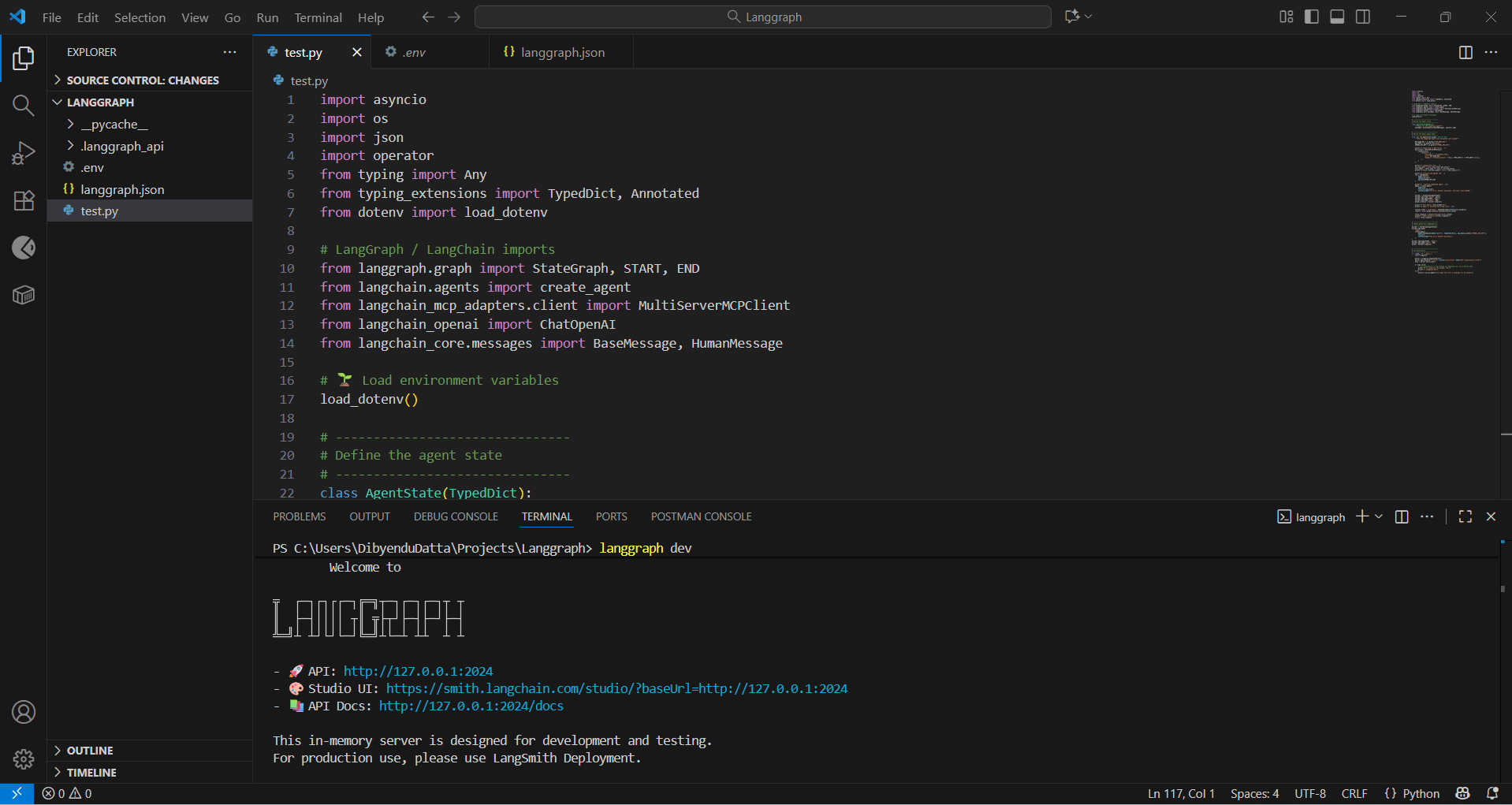
Open a terminal in your project directory and run:
langgraph dev
Access the Studio interface
After the server starts, LangGraph launches a local API and provides a link to the Studio UI:
https://smith.langchain.com/studio/?baseUrl=http://127.0.0.1:2024
Ideally, the link opens automatically when the command is run. If not, open this link in your browser to load the LangGraph Studio dashboard.
Interact with the agent
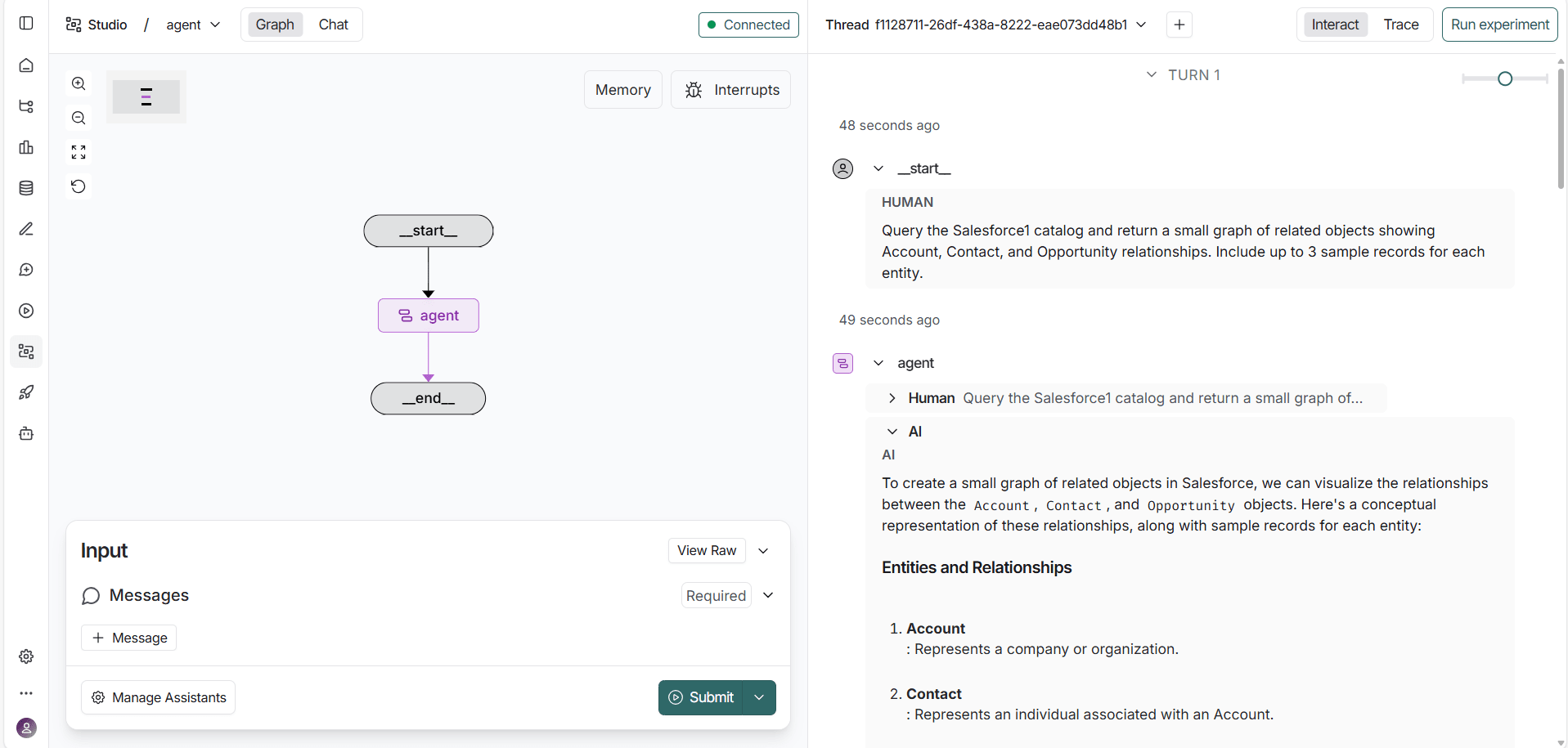
In the Studio interface, enter a natural language prompt such as:
Show all Databricks tables available in my catalog
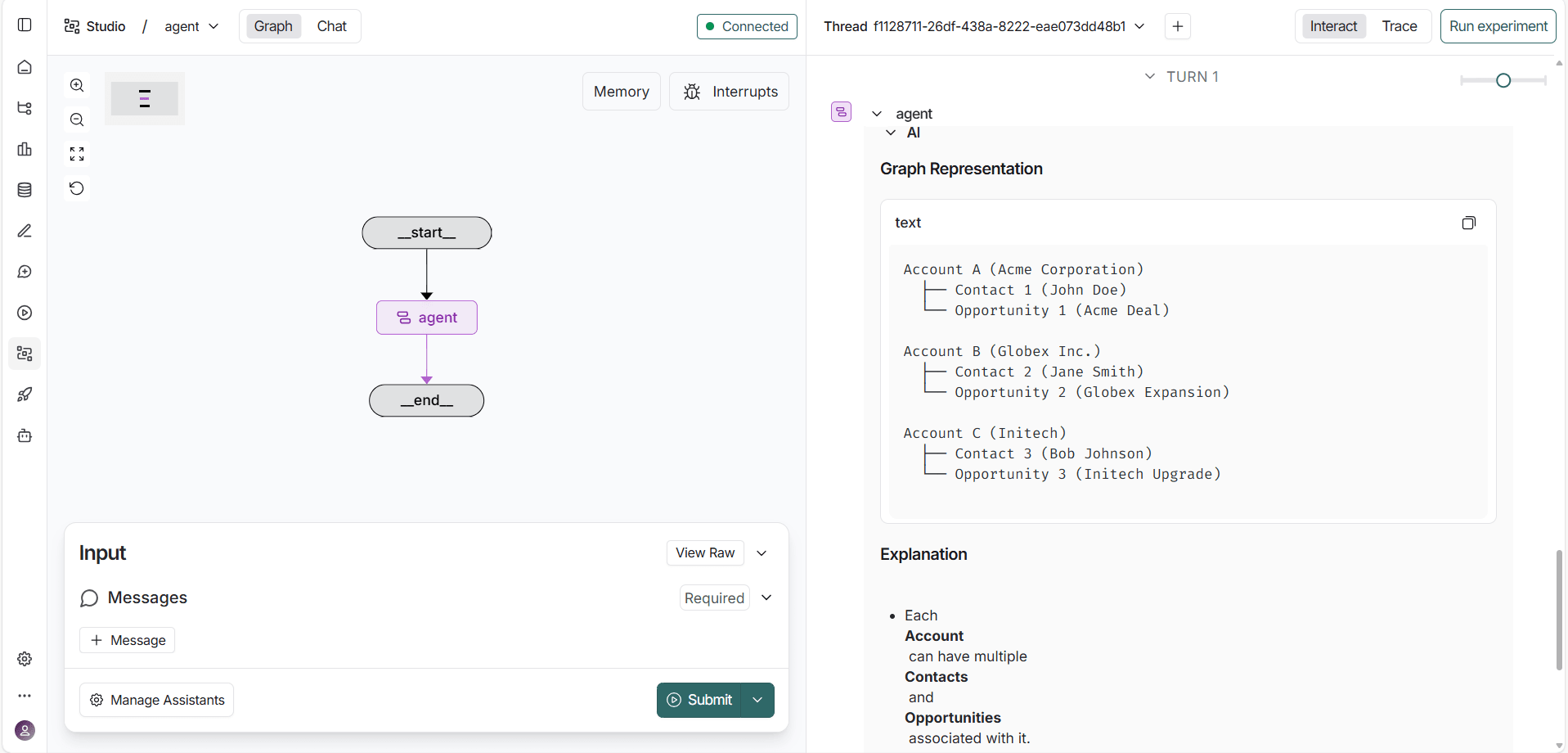
LangGraph displays a real-time visualization of the agent's reasoning flow, showing how it interprets the prompt, calls the appropriate MCP tools, and retrieves live data from Databricks.
Get CData Connect AI
To get live data access to 300+ SaaS, Big Data, and NoSQL sources directly from your cloud applications, try CData Connect AI today!
