






Integrate LibreChat with Live Databricks Data via CData Connect AI

LibreChat is an open-source, self-hosted AI chat platform that brings together multiple LLM providers, agents, and assistants behind a single interface. It also supports the Model Context Protocol (MCP), so you can connect external tools and data sources directly to the chat and pull in live data from the systems you already work with.
By integrating LibreChat with CData Connect AI through the built-in MCP Server, LibreChat gains governed, real-time access to live Databricks data. This enables you to list catalogs, explore schemas, and query records from Databricks data using natural language prompts, with all data access running securely against authorized sources.
This article explains how to configure Databricks connectivity in Connect AI, generate the required personal access token, install LibreChat, register the Connect AI MCP Server, configure an LLM provider, and verify the integration by querying live Databricks data from the LibreChat interface.
About Databricks Data Integration
Accessing and integrating live data from Databricks has never been easier with CData. Customers rely on CData connectivity to:
- Access all versions of Databricks from Runtime Versions 9.1 - 13.X to both the Pro and Classic Databricks SQL versions.
- Leave Databricks in their preferred environment thanks to compatibility with any hosting solution.
- Secure authenticate in a variety of ways, including personal access token, Azure Service Principal, and Azure AD.
- Upload data to Databricks using Databricks File System, Azure Blog Storage, and AWS S3 Storage.
While many customers are using CData's solutions to migrate data from different systems into their Databricks data lakehouse, several customers use our live connectivity solutions to federate connectivity between their databases and Databricks. These customers are using SQL Server Linked Servers or Polybase to get live access to Databricks from within their existing RDBMs.
Read more about common Databricks use-cases and how CData's solutions help solve data problems in our blog: What is Databricks Used For? 6 Use Cases.
Getting Started
Step 1: Configure Databricks connectivity for LibreChat
Connectivity to Databricks from LibreChat is made possible through Connect AI's Remote MCP Server. To interact with Databricks data from LibreChat, start by creating and configuring a Databricks connection in Connect AI.
- Log into Connect AI, click Sources, and then click Add Connection
- Select Databricks from the Add Connection panel
-
Enter the necessary authentication properties to connect to Databricks.
To connect to a Databricks cluster, set the properties as described below.
Note: The needed values can be found in your Databricks instance by navigating to Clusters, and selecting the desired cluster, and selecting the JDBC/ODBC tab under Advanced Options.
- Server: Set to the Server Hostname of your Databricks cluster.
- HTTPPath: Set to the HTTP Path of your Databricks cluster.
- Token: Set to your personal access token (this value can be obtained by navigating to the User Settings page of your Databricks instance and selecting the Access Tokens tab).

- Click Save & Test
- Navigate to the Permissions tab and update user-based permissions



Add a Personal Access Token
A Personal Access Token (PAT) is used to authenticate the connection to Connect AI from LibreChat. It is best practice to create a separate PAT for each integration to maintain granular access control.
- Click the gear icon () at the top right of the Connect AI app to open Settings
- On the Settings page, go to the Access Tokens section and click Create PAT
- Give the PAT a descriptive name and click Create
- Copy the token when displayed and store it securely. It will not be shown again

With the Databricks connection configured and a PAT generated, LibreChat can now connect to Databricks data through Connect AI.
Step 2: Install LibreChat and configure Connect AI MCP
Next, install LibreChat locally and configure the Connect AI Remote MCP Server so that the chat interface can discover and call live data tools through Connect AI.
- Install LibreChat by following the official installation guide. If you are using the npm setup, make sure MongoDB and MeiliSearch are installed and running locally
-
Once the installation is complete, start LibreChat and open http://localhost:3080/ in your browser to access the chat interface
-
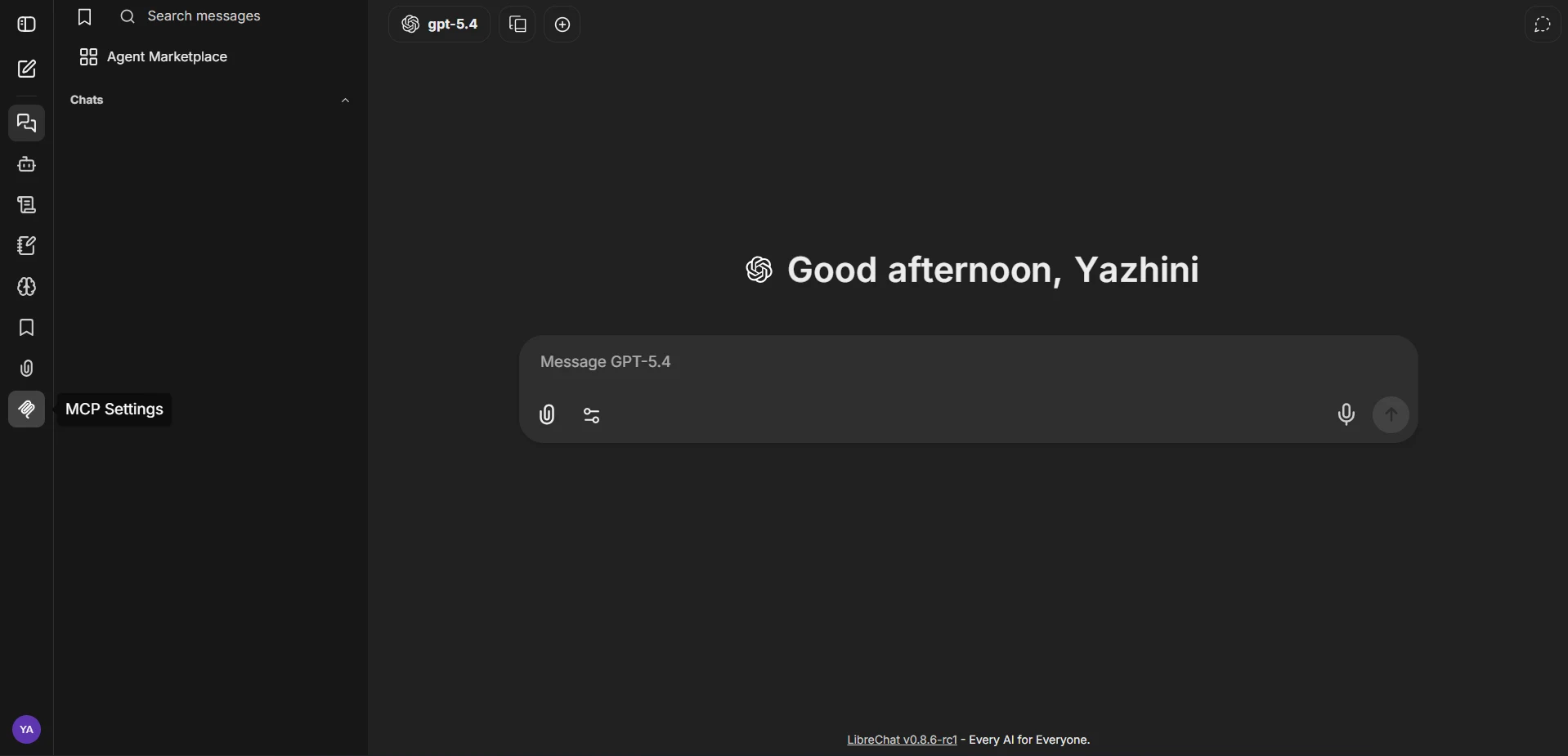
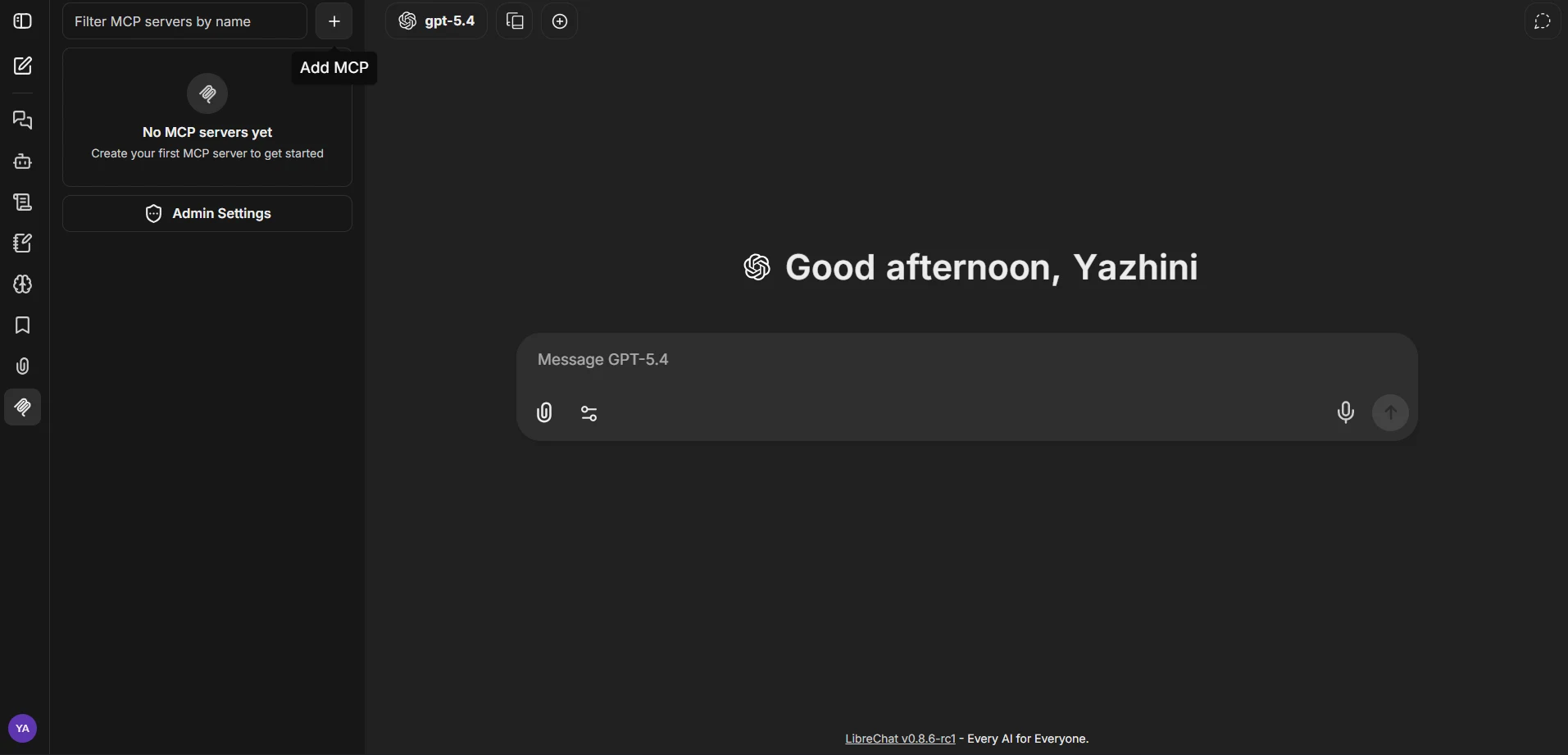
In the left navigation bar, click the MCP Settings icon, then click Add MCP
-
In the Add MCP panel, configure the server with the following values:
- Name: CData MCP, or any name of your choice
- Description: Optional description for the server
- MCP Server URL: https://mcp.cloud.cdata.com/mcp
- Transport: Streamable HTTPS
- Authentication: API Key
- Header Format: Basic
- API Key: base64-encoded value of email:PAT
Note: LibreChat will use Basic authentication with Connect AI. Combine your Connect AI user email and the PAT you created earlier in the format email:PAT, then base64 encode the combined string and paste it in the API Key field. For example, [email protected]:ABC123...XYZ789 base64-encoded becomes something like: dXNlckBkb21haW4uY29tOkFCQzEyMy4uLlhZWjc4OQ==
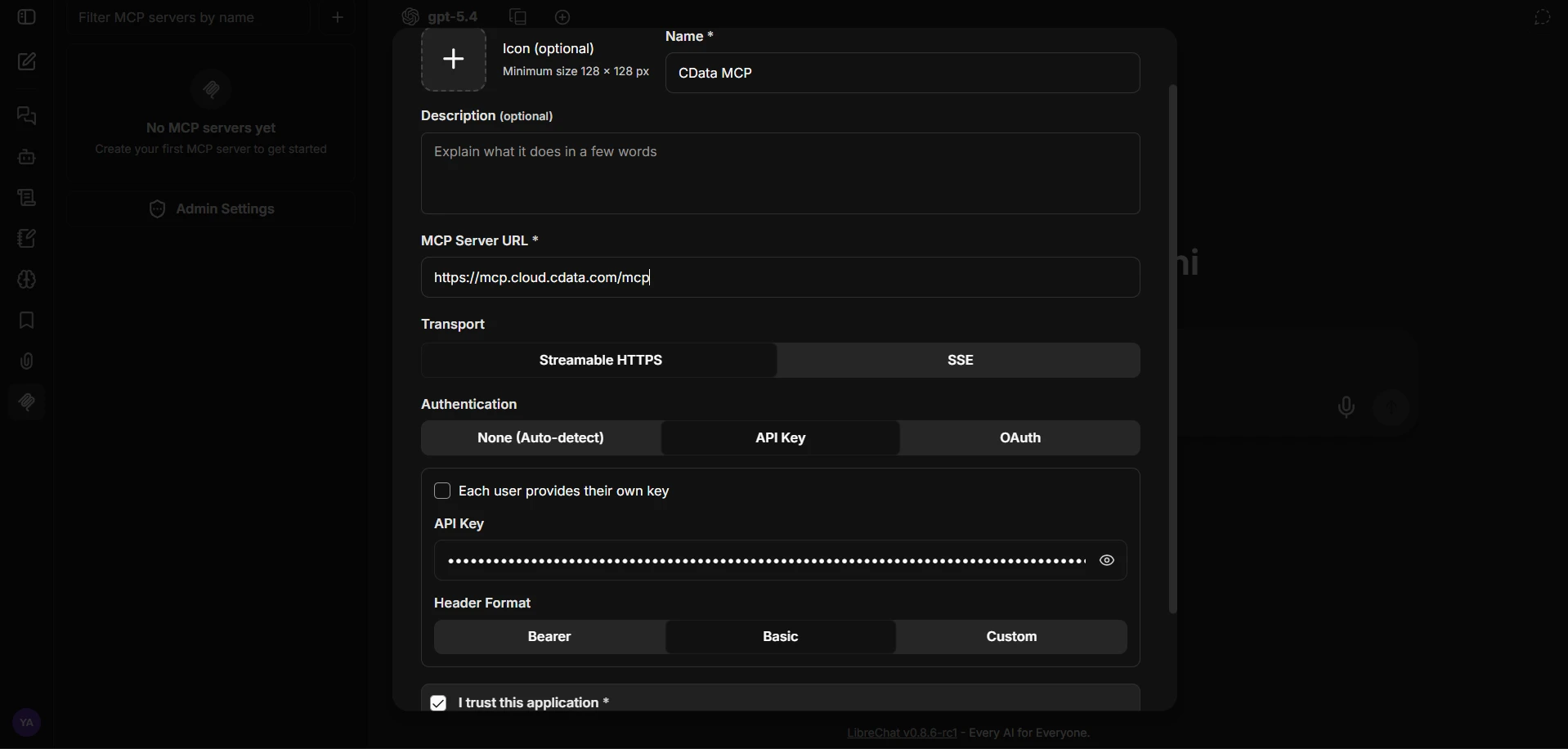
- Check I trust this application and click Add to save the server
-
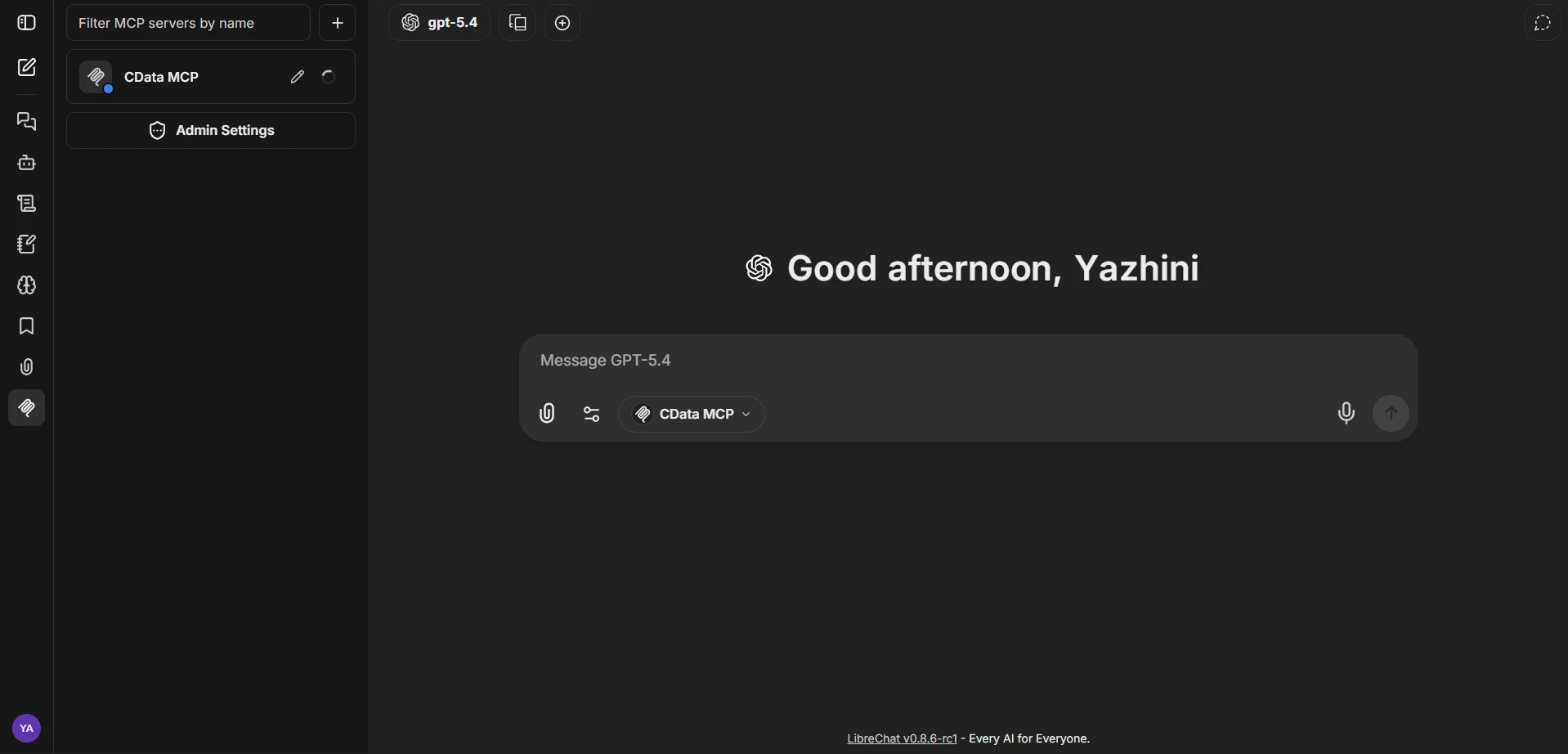
The CData MCP server now appears in the left navigation bar. Click the connect icon next to it to establish the connection to Connect AI
Enable the MCP server and configure an LLM provider
LibreChat requires at least one LLM provider to power the chat. Enable the MCP server in the chat input and add an API key for your preferred provider so the model can interpret prompts and call MCP tools through Connect AI.
-
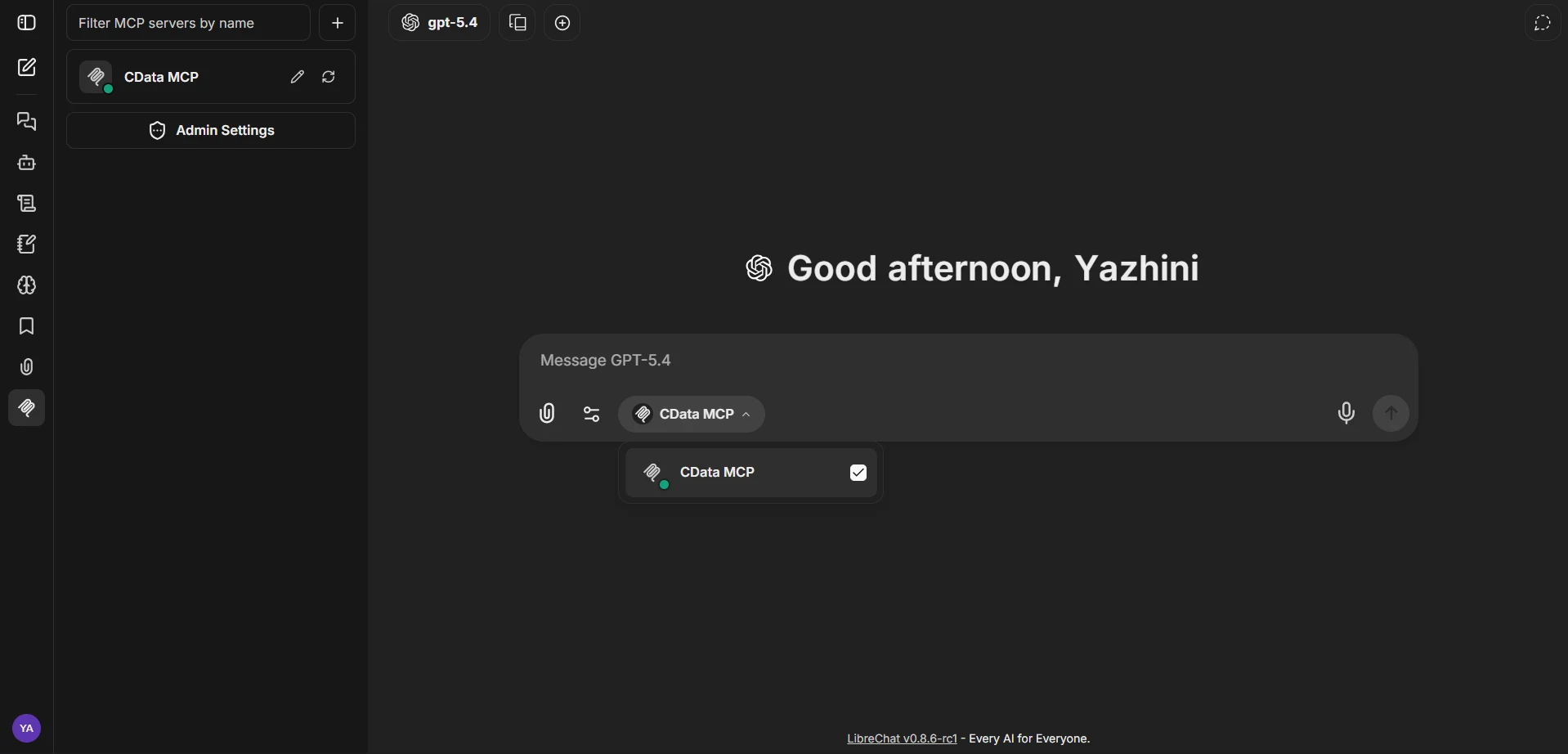
In the chat interface, click the MCP selector at the bottom of the input box and confirm that CData MCP is checked so the tools are exposed to the chat
-
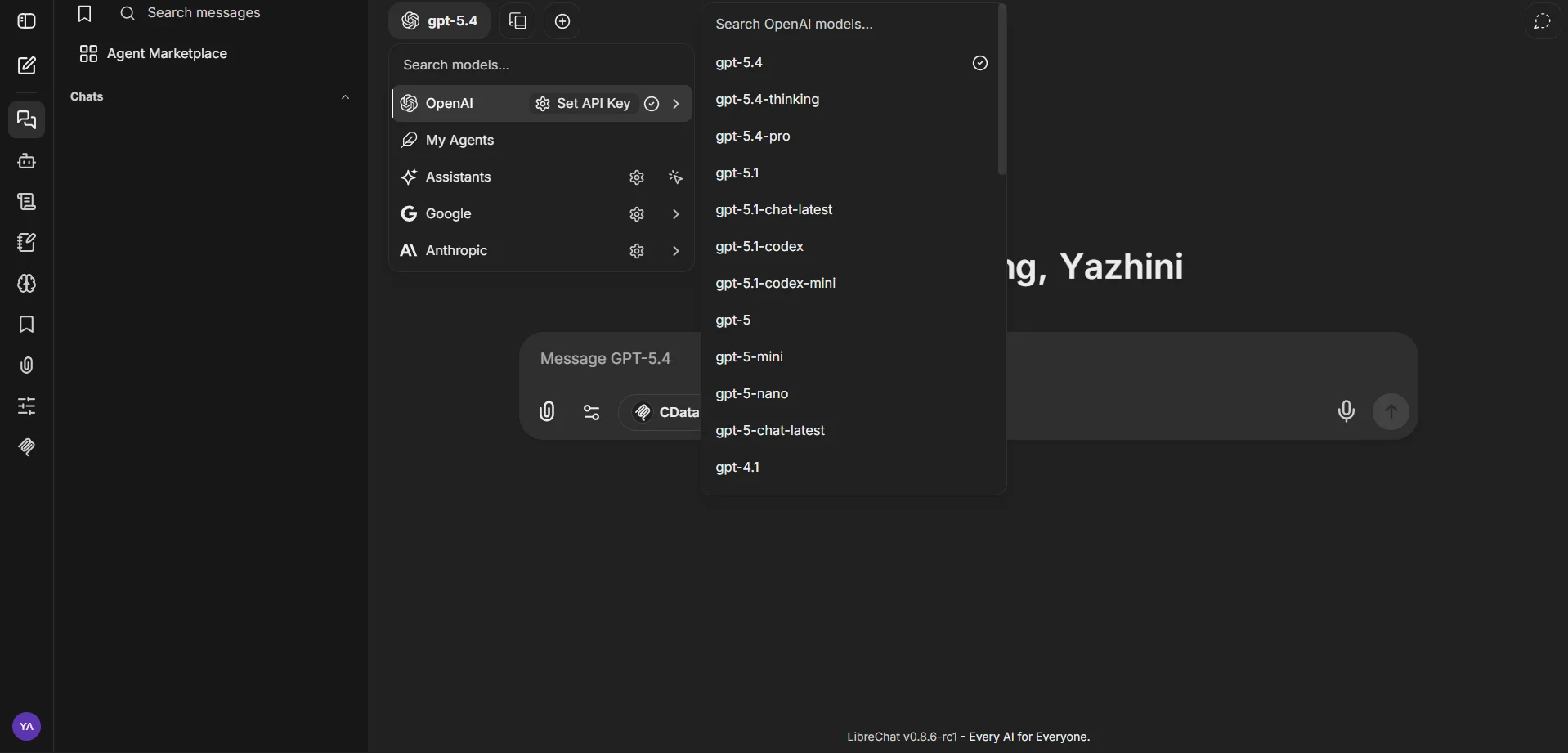
At the top of the chat, click the model selector and choose your preferred LLM provider (e.g., OpenAI, Anthropic, Google) and model
-
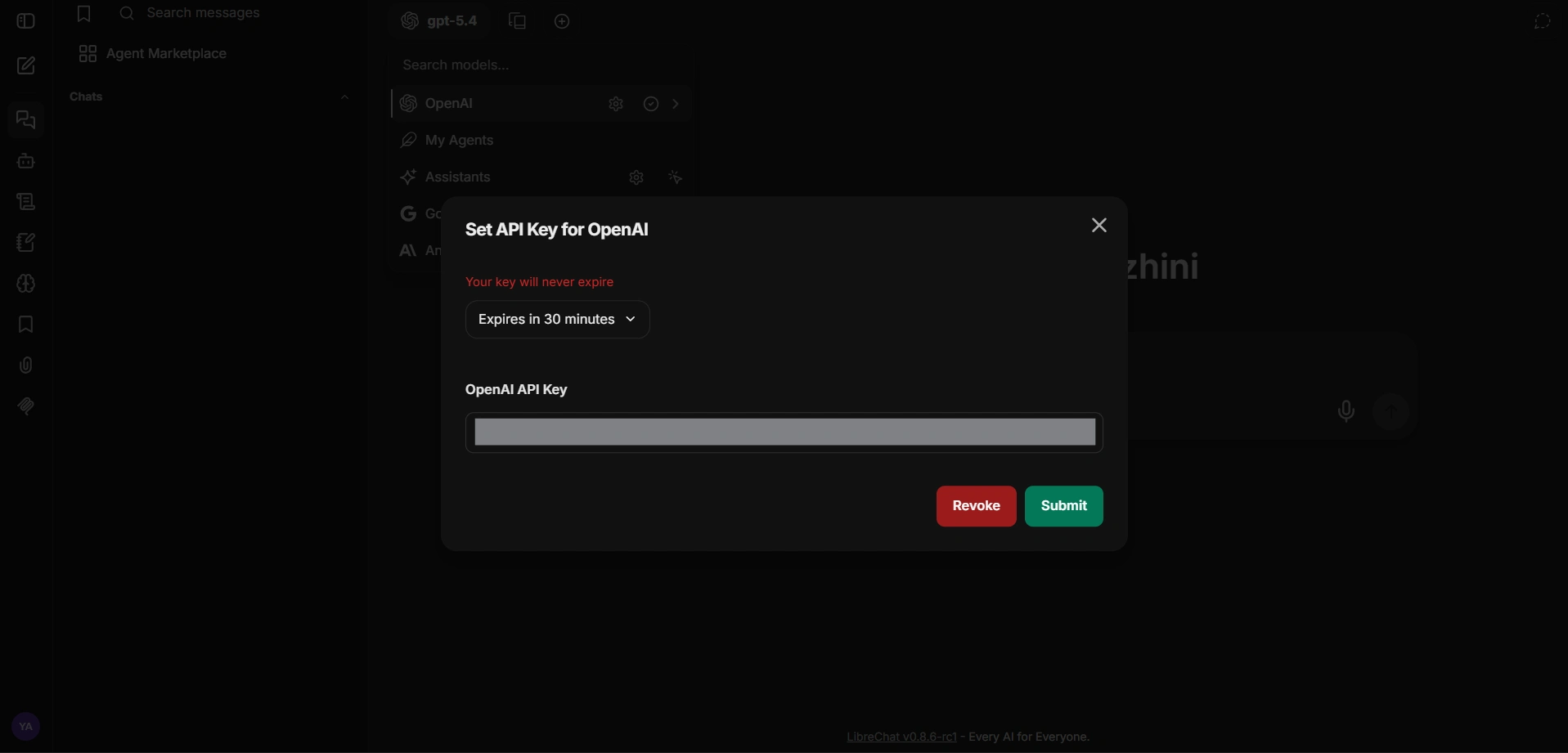
Click Set API Key next to the chosen provider, paste your provider API key, and click Submit
With the MCP server and an LLM provider configured, LibreChat is ready to query live Databricks data through Connect AI.
Step 3: Query live Databricks data from LibreChat
With the integration complete, use the LibreChat chat input to interact with live Databricks data through natural language prompts handled by the configured LLM.
-
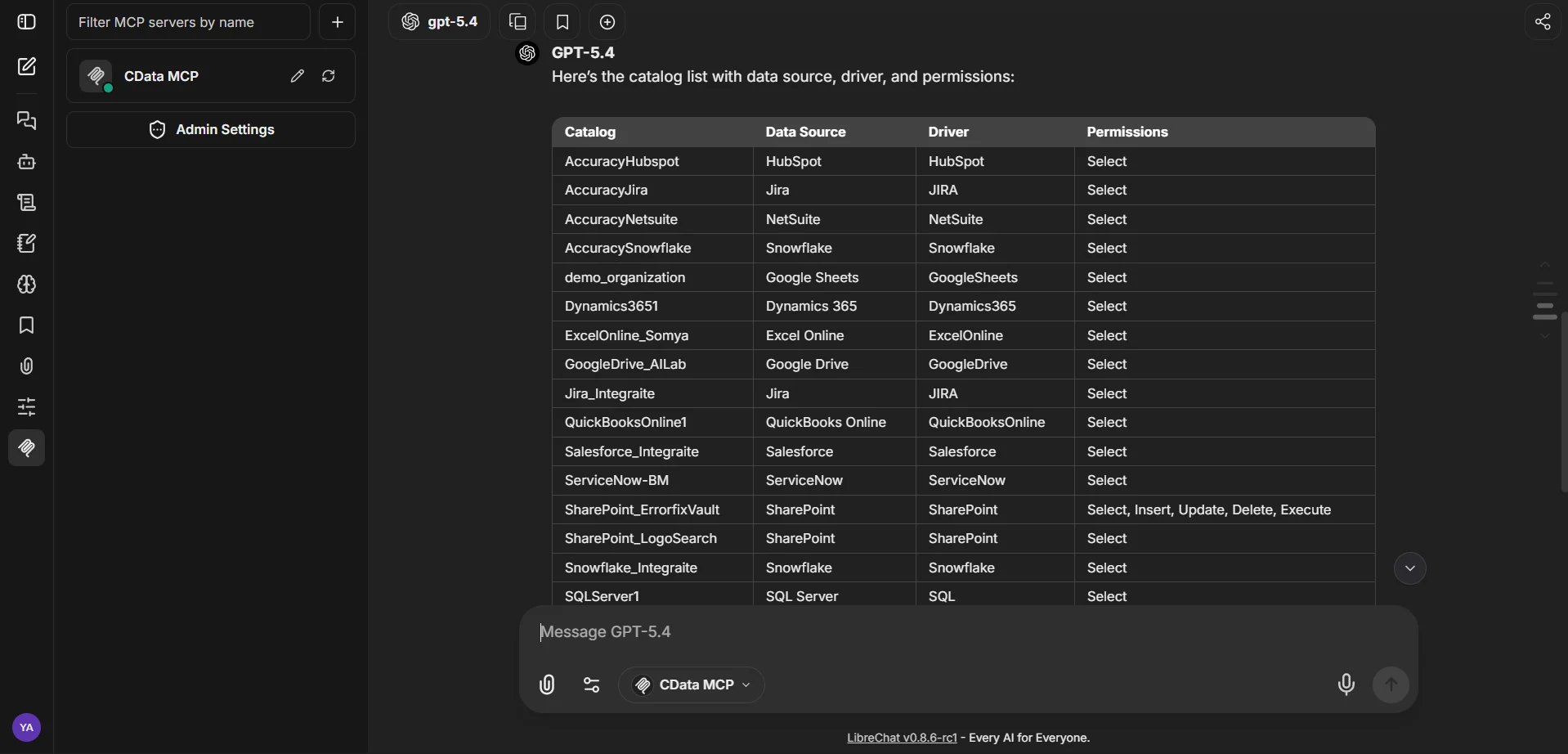
With the CData MCP server enabled and a model selected, type a prompt in the chat input, for example:
- List all catalogs in my cdata mcp
- Show the available schemas and tables for Databricks
- Query the top 5 records from a table in Databricks data
-
LibreChat calls the Connect AI MCP Server and returns live results from Databricks data
At this point, your LibreChat instance communicates with the Connect AI MCP Server and retrieves live Databricks data through remote MCP tools directly from the chat interface.
Get CData Connect AI
To access hundreds of SaaS, Big Data, and NoSQL sources directly from your cloud applications, try CData Connect AI today! Download a free 14-day trial, and as always, our world-class Support Team is available to assist you with any questions you may have.