






Build Charts with Oracle Eloqua Reporting Data in Clear Analytics

The CData ODBC driver for Oracle Eloqua Reporting enables access to live data from Oracle Eloqua Reporting under the ODBC standard, allowing you work with Oracle Eloqua Reporting data in a wide variety of BI, reporting, and ETL tools and directly, using familiar SQL queries. This article shows how to use Clear Analytics, a Microsoft Excel Add-In, to connect to Oracle Eloqua Reporting as an ODBC source and create queries, tables, and charts (including PivotTables) based on Oracle Eloqua Reporting data.
Connect to Oracle Eloqua Reporting Data
Configure the ODBC Data Source Name
If you have not already done so, provide values for the required connection properties in the data source name (DSN). You can use the built-in Microsoft ODBC Data Source Administrator to configure the DSN. This is also the last step of the driver installation. See the "Getting Started" chapter in the help documentation for a guide to using the Microsoft ODBC Data Source Administrator to create and configure a DSN.
Oracle Eloqua Reporting supports the following authentication methods:
- Basic authentication (User and Password)
- OAuth 2.0 code grant flow
- OAuth 2.0 password grant flow
Basic Authentication (User and Password)
To perform authentication with a user and password, specify these properties:
- AuthScheme: Basic.
- Company: The company name associated with your Oracle Eloqua Reporting account.
- User: Your login account name.
- Password: Your login password.
OAuth Authentication (Code Grant Flow)
To authenticate with the OAuth code grant flow, you must set AuthScheme to OAuth and create a custom OAuth application. For information about how to create a custom OAuth application, see the Help documentation.
Then set the following properties:
- InitiateOAuth: GETANDREFRESH. Used to automatically get and refresh the OAuthAccessToken.
- OAuthClientId: The client Id assigned when you registered your application.
- OAuthClientSecret: The client secret that was assigned when you registered your application.
- CallbackURL: The redirect URI that was defined when you registered your application.
When you connect, the driver opens Oracle Eloqua Reporting's OAuth endpoint in your default browser. Log in and grant permissions to the application. When the access token expires, the driver refreshes it automatically.
OAuth Authentication (Password Grant Flow)
With the OAuth password grant flow, you can use your OAuth application's credentials alongside your user credentials to authenticate without the need to grant permission manually via a browser prompt. You must create an OAuth app (see the Help documentation) to use this authentication method.
Set the following properties:
- AuthScheme: OAuthPassword
- Company: The company's unique identifier.
- User: Your login account name.
- Password: Your login password.
- OAuthClientId: The client Id assigned when you registered your custom OAuth application.
- OAuthClientSecret: The client secret assigned when you registered your custom OAuth application.
When you configure the DSN, you may also want to set the Max Rows connection property. This will limit the number of rows returned, which is especially helpful for improving performance when designing reports and visualizations.
Configure the Data Source in Clear Analytics
- Open Excel and navigate to the CLEAR ANALYTICS ribbon. Once there, open the Data Manager.
- Select Database as the data source.
- In the Set Connection section, click the option to create a new database.
- Select Microsoft ODBC Data Source as the data source and click OK.
- Select the DSN you already configured from the drop-down menu.
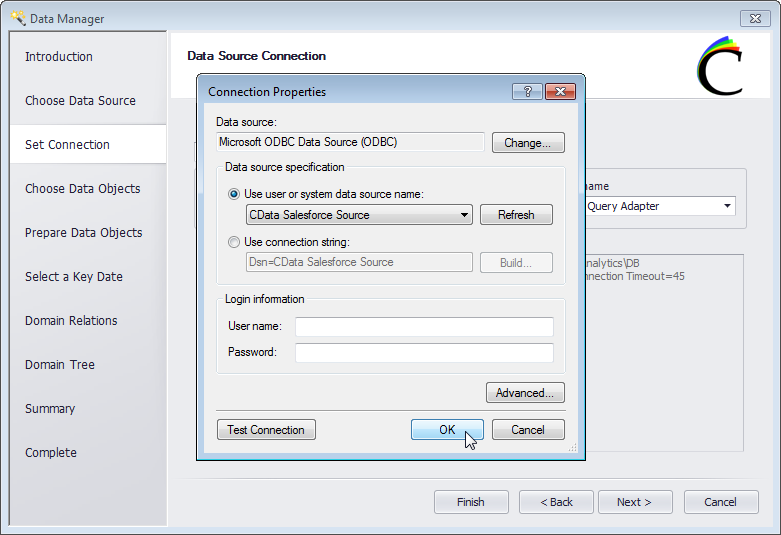
- Back on the Set Connection section, select Standard (ANSI ODBC) Query Builder as the SQL Builder Provider and click Next.
- Select the Schema/Owner and choose the domains (tables) that you wish to use in Clear Analytics.
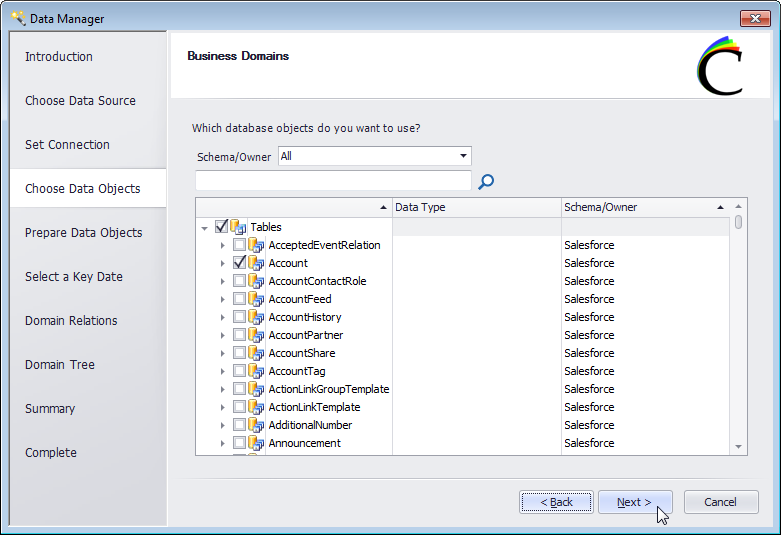
- Prepare your data objects as needed by customizing the display names and descriptions of the tables and columns.
- For the vast majority of the CData ODBC Drivers, you will not set a key date for your domains.
- In the Domain Relations section, add any relational information between tables.
- In the Domain Tree section, create groups for your data and add the available items to the groups.
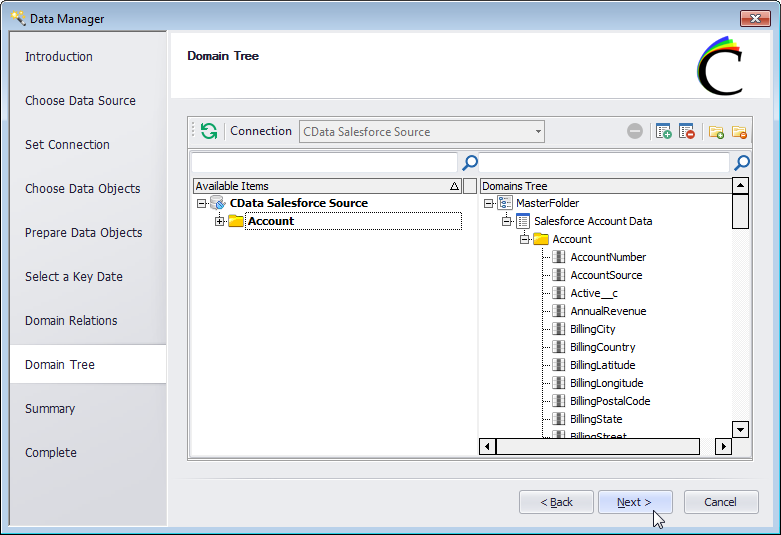
- Review the summary of your data and click Finish.
Create a Chart with Oracle Eloqua Reporting Data
You are now ready to create a chart with Oracle Eloqua Reporting data.
Create a New Query
- Click Repository in the CLEAR ANALYTICS ribbon.
- Create a new query.
- Select the columns you wish to retrieve.
- Set the aggregation type for your data (use the blank entry if you do not wish to aggregate the data).
- Set filters and formulas by dragging columns to the lower window.
- Name your query and click Save.
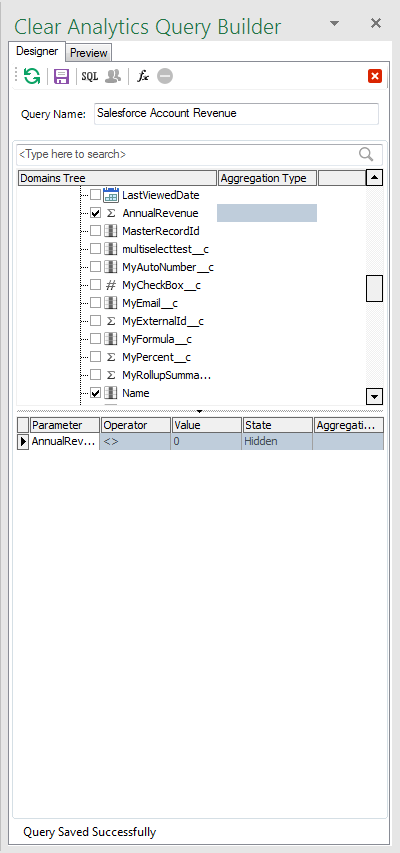
Build a Chart Based on a Query Report
With the query created, you are now ready to execute a report and display a chart.- Click Report Explorer in the CLEAR ANALYTICS ribbon.
- In the Report Explorer pane, click the 'New Report' icon in the toolbar.
- Select the query you just created.
- Name the report and click 'Save and Execute'.
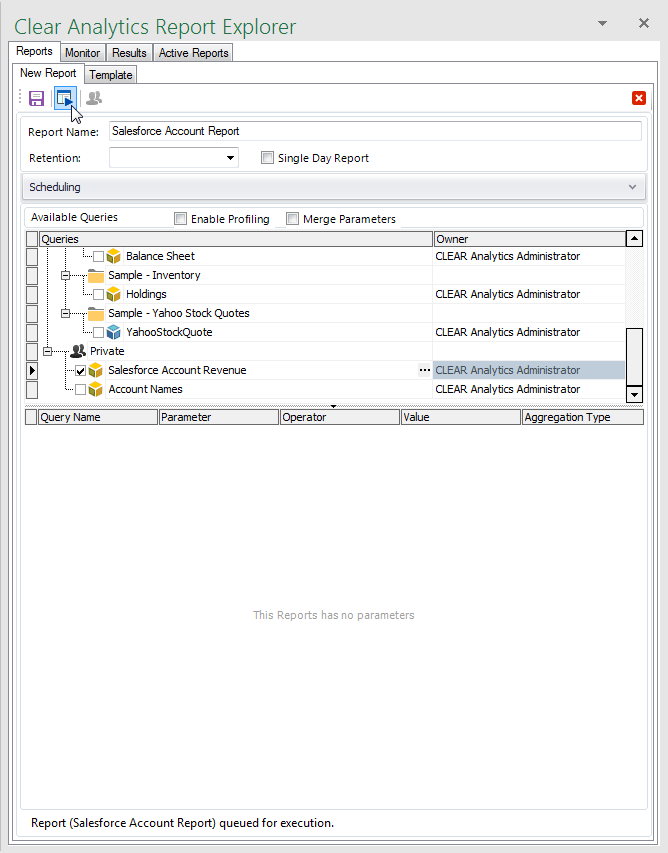
- Click the Results tab within the Report Explorer
- Expand your report and drag the chart to the Excel spreadsheet.
- In the resulting PivotChart window, drag the fields (columns) to the Filters, Legends, Axis (Categories), and Values windows.
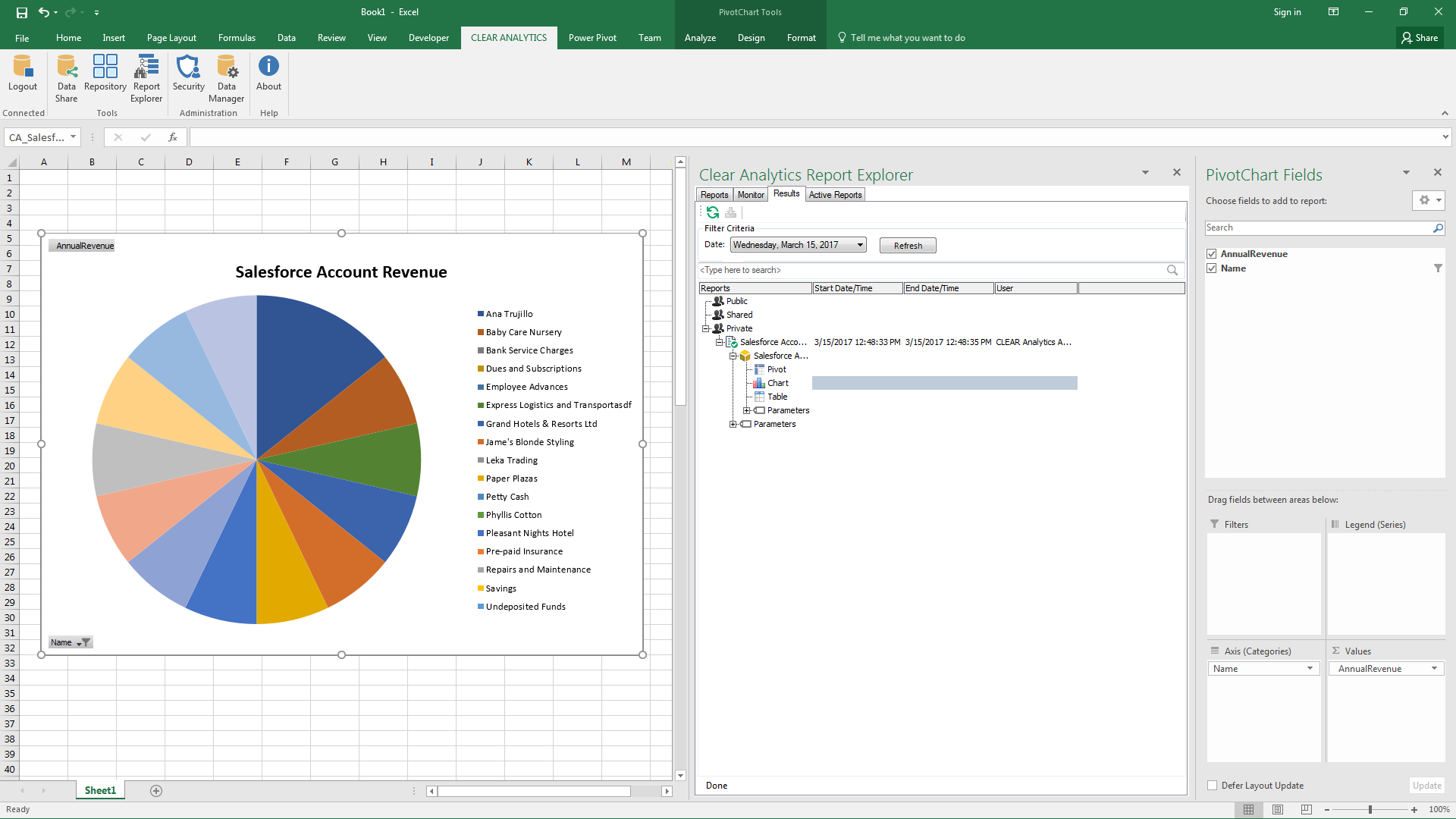
With a new data source in Clear Analytics established and a chart created, you are ready to begin analysis of Oracle Eloqua Reporting data. With the ODBC Driver for Oracle Eloqua Reporting and Clear Analytics, you can perform self-service analytics in Excel with live data, directly from Oracle Eloqua Reporting.
Ready to get started?
Download a free trial of the Oracle Eloqua Reporting ODBC Driver to get started:
Download NowLearn more:
 Oracle Eloqua Reporting ODBC Driver
The Oracle Eloqua Reporting ODBC Driver is a powerful tool that allows you to connect with live data from Oracle Eloqua Reporting, directly from any applications that support ODBC connectivity.
Access Oracle Eloqua Reporting data like you would a database - read, write, and update Oracle Eloqua Reporting 0, etc. through a standard ODBC Driver interface.
