






How to Query FreeAgent Data in MySQL Workbench

You can use the SQL Gateway from the ODBC Driver for FreeAgent to query FreeAgent data through a MySQL interface. Follow the procedure below to start the MySQL remoting service of the SQL Gateway and work with live FreeAgent data in MySQL Workbench.
Connect to FreeAgent Data
If you have not already done so, provide values for the required connection properties in the data source name (DSN). You can use the built-in Microsoft ODBC Data Source Administrator to configure the DSN. This is also the last step of the driver installation. See the "Getting Started" chapter in the help documentation for a guide to using the Microsoft ODBC Data Source Administrator to create and configure a DSN.
Start by setting the Profile connection property to the location of the FreeAgent Profile on disk (e.g. C:\profiles\FreeAgent.apip). Next, set the ProfileSettings connection property to the connection string for FreeAgent (see below).
FreeAgent API Profile Settings
Register an OAuth application via the FreeAgent Developer Dashboard to obtain your Client ID and Client Secret.
Configure the SQL Gateway
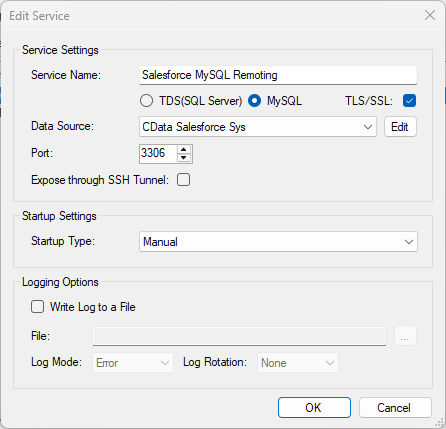
See the SQL Gateway Overview to set up connectivity to FreeAgent data as a virtual MySQL database. You will configure a MySQL remoting service that listens for MySQL requests from clients. The service can be configured in the SQL Gateway UI.
Query FreeAgent from MySQL Workbench
The steps below outline connecting to the virtual FreeAgent database created in the SQL Gateway from MySQL Workbench and issuing basic queries to work with live FreeAgent data.
Connect to FreeAgent through the SQL Gateway
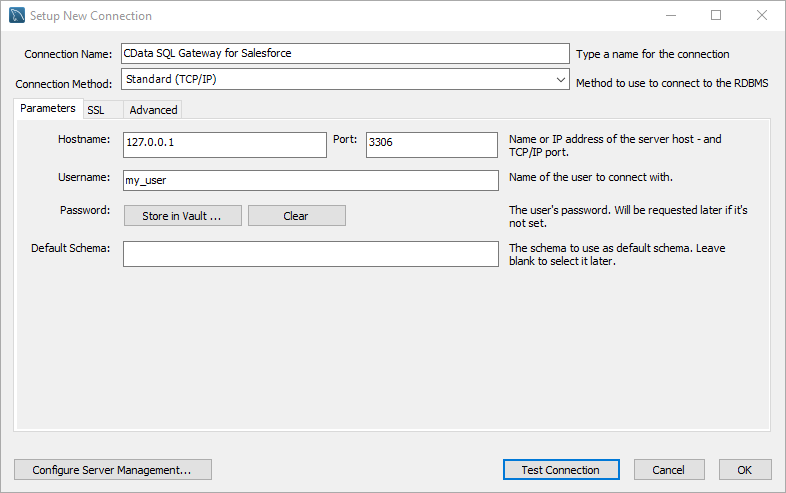
- In MySQL Workbench, click to add a new MySQL connection.
- Name the connection (CData SQL Gateway for FreeAgent).
- Set the Hostname, Port, and Username parameters to connect to the SQL Gateway.
- Click Store in Vault to set and store the password.
- Click Test Connection to ensure the connection is configured properly and click OK.
NOTE: When we refer to Username and Password, we mean the credentials for the user(s) created for the SQL Gateway.
Query FreeAgent Data
- Open the connection you just created (CData SQL Gateway for FreeAgent).
- Click File -> New Query Tab.
- Write a SQL query to retrieve FreeAgent data, like SELECT * FROM `CData API Sys`.BankAccounts;
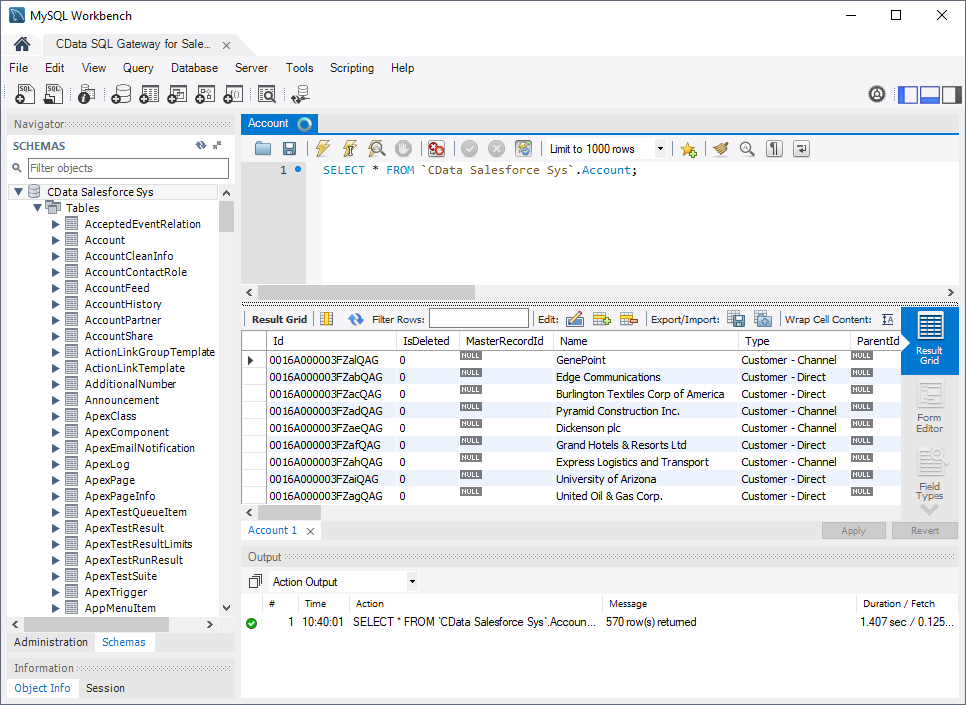
With access to live FreeAgent data from MySQL Workbench, you can easily work with FreeAgent, just like you would a MySQL database. Get started now with a free, 30-day trial of the CData API Driver for ODBC and the CData SQL Gateway.