




Connect to JD Edwards Data from Blazor Apps

Blazor is a framework for developing modern, client-side web UIs using .NET technology. Instead of coding in JavaScript, developers can use the familiar C# language and .NET libraries to build app UIs.
The CData ADO.NET Provider for JD Edwards can be used with standard ADO.NET interfaces, such as LINQ and Entity Framework, to interact with live JD Edwards data. Since Blazor supports .NET Core, developers can use CData ADO.NET Providers in Blazor apps. In this article, we will guide you to build a simple Blazor app that talks to JD Edwards using standard SQL queries.
Install the CData ADO.NET Provider for JD Edwards
CData ADO.NET Providers allow users to access JD Edwards just like they would access SQL Server, using simple SQL queries.
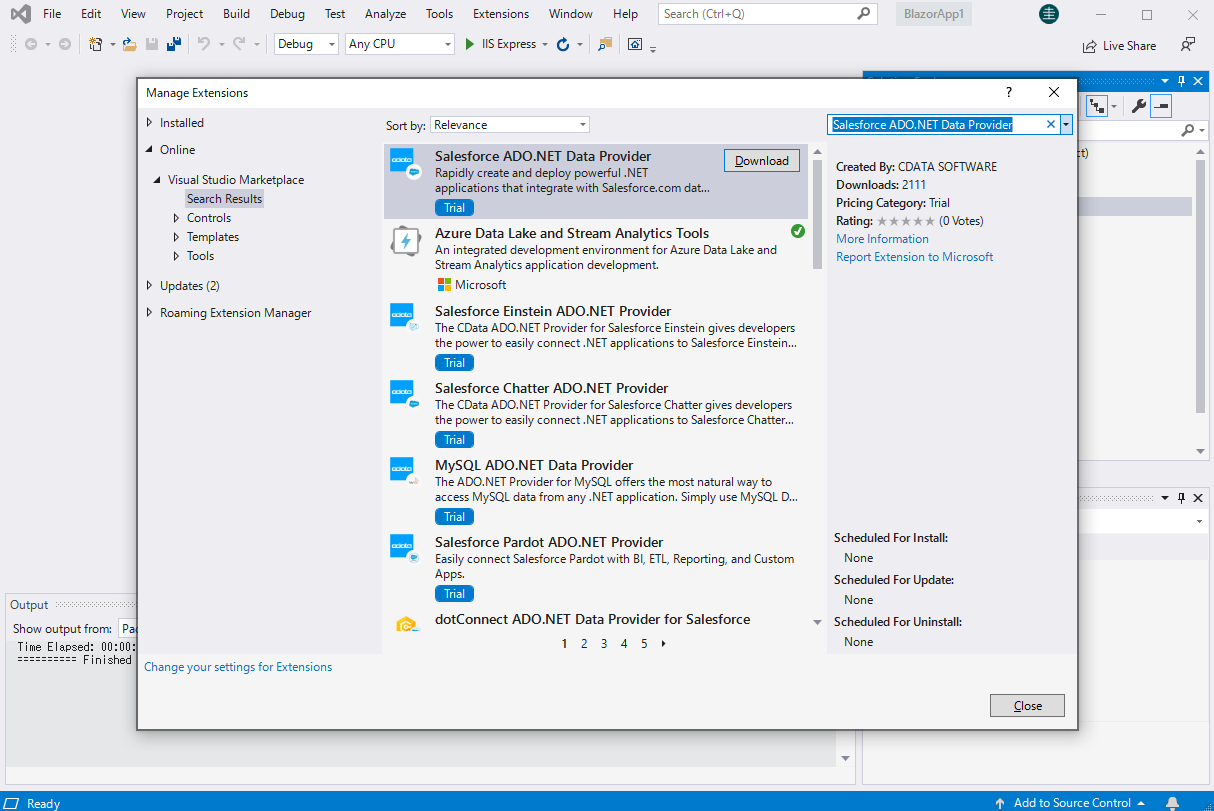
Install the JD Edwards ADO.NET Data Provider from the CData website or from NuGet. Search NuGet for "JD Edwards ADO.NET Data Provider."
Create a JD Edwards-Connected Blazor App
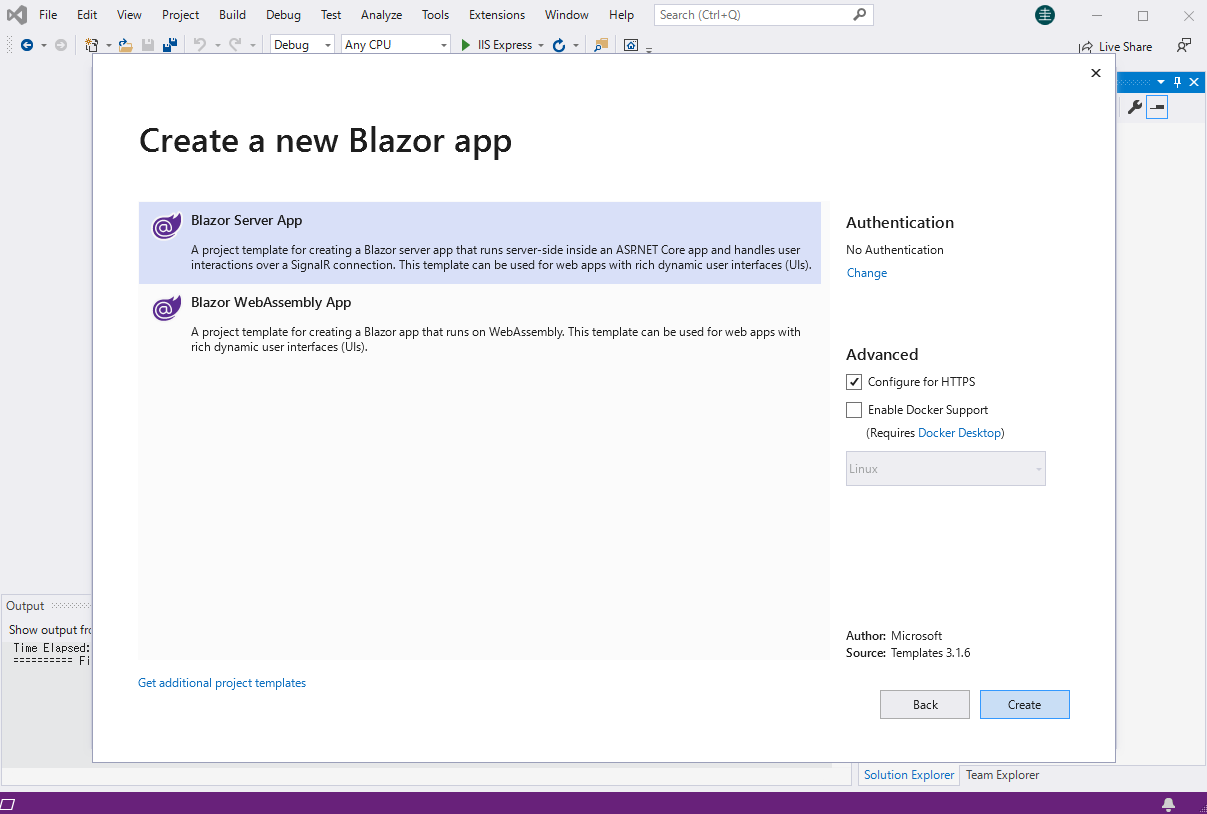
Start by creating a Blazor project that references the CData ADO.NET Provider for JD Edwards
- Create a Blazor project on Visual Studio.
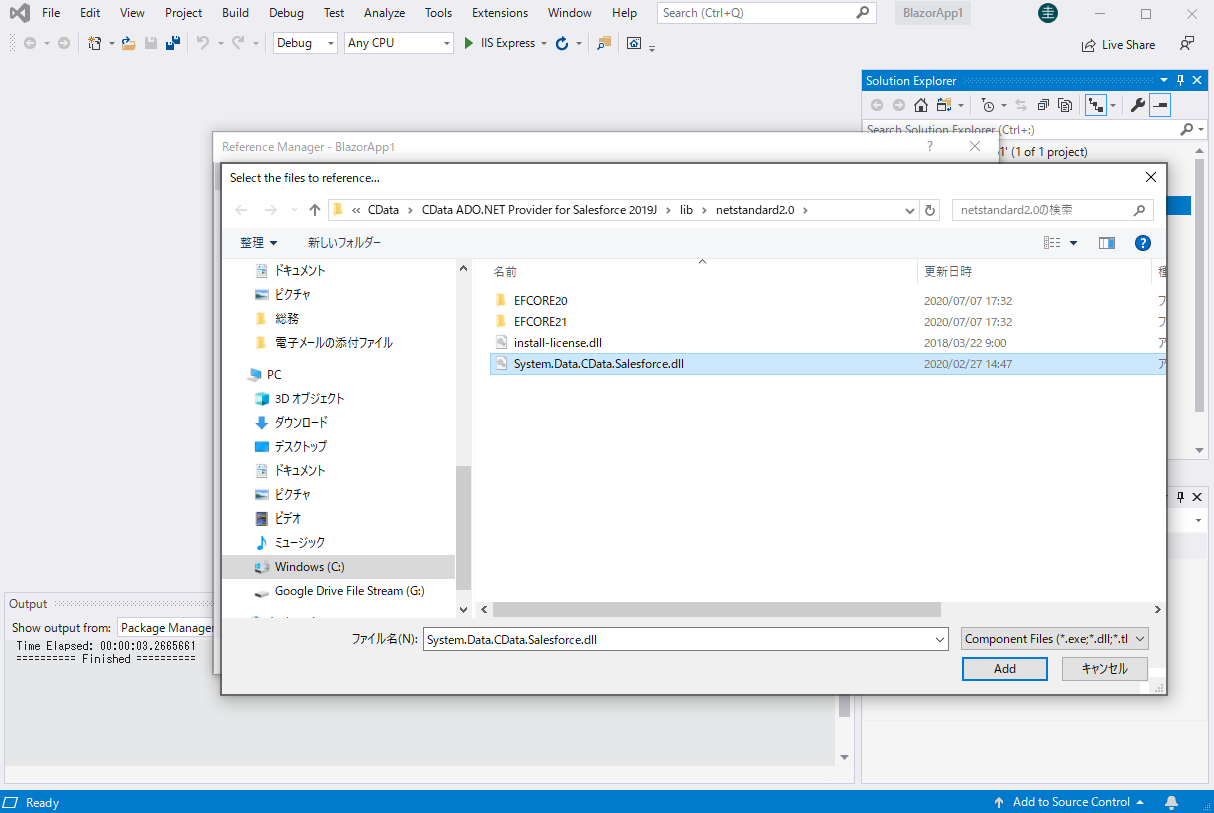
- From the Solution Explorer, right click Dependencies, then click Add Project Reference.
- In the Reference Manager, click the Browse button, and choose the .dll file of the installed ADO.NET Provider (e.g. System.Data.CData.JDEdwards.dll, typically located at C:\Program Files\CData\CData ADO.NET Provider for JD Edwards\lib etstandard2.0).
SELECT JD Edwards Data from the Blazor App
- Open the Index.razor file from the Project page.
- In a JDEdwardsConnection object, set the connection string:
The driver connects to JD Edwards through your Application Interface Services (AIS) Server. Set the following connection properties:
- URL: The base HTTPS URL of your AIS Server (e.g., https://jde-ais.example.com:8300).
- User: Your JD Edwards username.
- Password: Your JD Edwards password.
- Environment (optional): The JD Edwards environment to use (e.g., PD920 for production or DV920 for development). If not specified, the AIS Server's default environment is used.
- Role (optional): The JD Edwards role for the session. If not specified, the AIS Server's default role is used.
- DeviceName (optional): An identifier for the connecting device or application, used for auditing and logging on the AIS Server.
- Jasserver (optional): The specific Java Application Server (JAS) instance to route requests through, useful in clustered environments.
Choosing Which Data Is Exposed
JD Edwards organizes tables and business views by System Code, and the driver exposes each System Code as its own schema. Use these properties to control which schemas are available:
- DataModel: One or more ERP modules (comma-separated) whose System Codes are exposed as schemas, or All to expose every System Code in the connected instance. Defaults to FinancialManagement.
- SystemCodes: A comma-separated list of additional System Codes to expose alongside those from DataModel (e.g., 42,43).
When you connect, the driver sends your credentials to the AIS Server to obtain a session token and caches it. The driver requests a new token automatically before the session expires.
For example: URL=https://your-jde-environment-app.example.com;User=admin;Password=myPassword;
- The code below creates a simple Blazor app for displaying JD Edwards data, using standard SQL to query JD Edwards just like SQL Server.
@page "/" @using System.Data; @using System.Data.CData.JDEdwards; <h1>Hello, world!</h1> Welcome to your Data app. <div class="row"> <div class="col-12"> @using (JDEdwardsConnection connection = new JDEdwardsConnection( "URL=https://your-jde-environment-app.example.com;User=admin;Password=myPassword;")) { var sql = "SELECT DocumentNumber, Amount FROM AccountsPayable.AccountLedger WHERE BusinessUnit = '100'"; var results = new DataTable(); JDEdwardsDataAdapter dataAdapter = new JDEdwardsDataAdapter(sql, connection); dataAdapter.Fill(results); <table class="table table-bordered"> <thead class="thead-light"> <tr> @foreach (DataColumn item in results.Rows[0].Table.Columns) { <th scope="col">@item.ColumnName</th> } </tr> </thead> <tbody> @foreach (DataRow row in results.Rows) { <tr> @foreach (var column in row.ItemArray) { <td>@column.ToString()</td> } </tr> } </tbody> </table> } </div> </div> - Rebuild and run the project. The ADO.NET Provider renders JD Edwards data as an HTML table in the Blazor app.
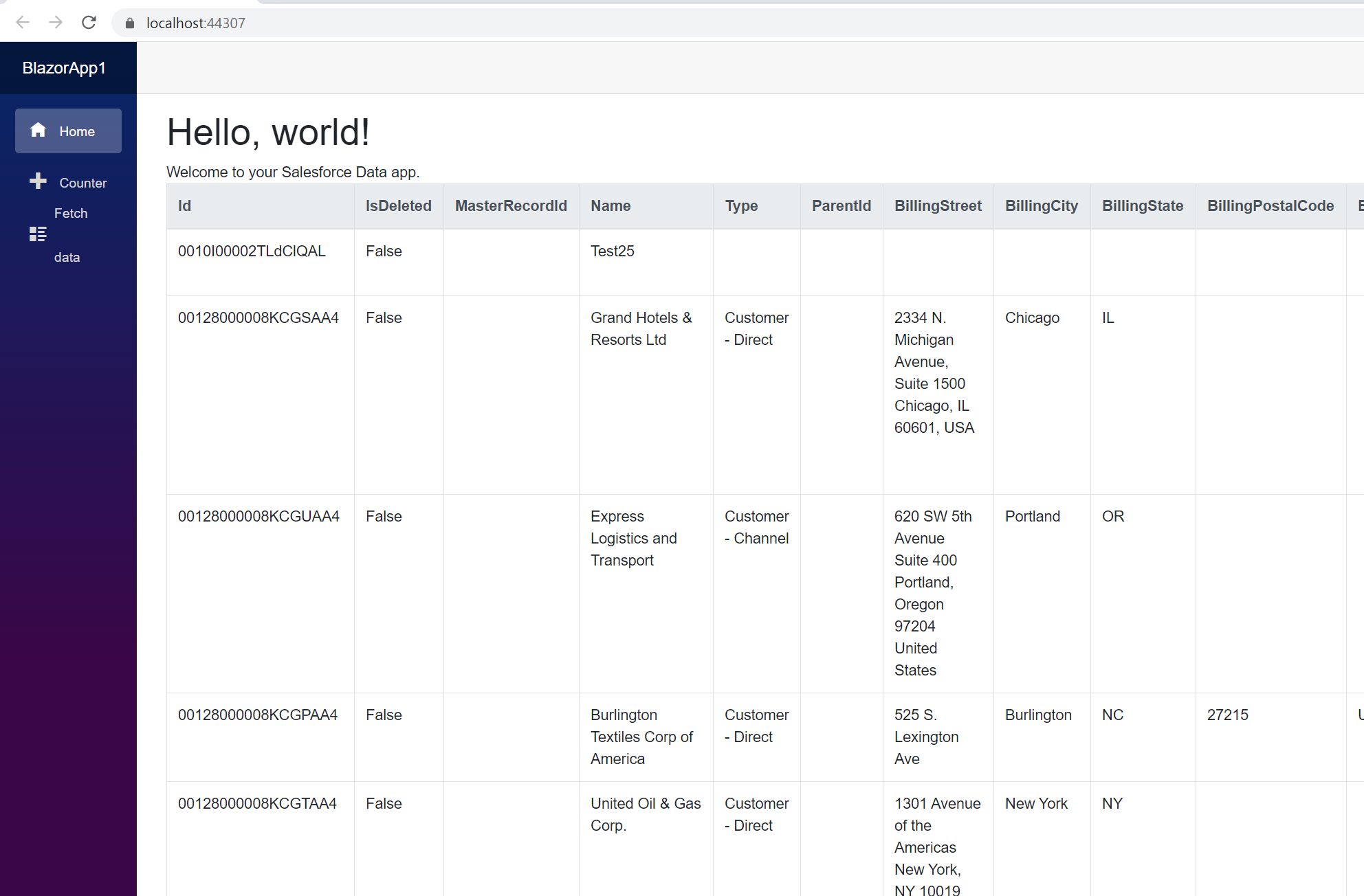
At this point, you have a JD Edwards-connected Blazor app, capable of working with live JD Edwards data just like you would work with a SQL Server instance. Download a free, 30-day trial and start working with live JD Edwards data in your Blazor apps today.
Ready to get started?
Download a free trial of the JD Edwards Data Provider to get started:
Download NowLearn more:
 JD Edwards ADO.NET Provider
Rapidly create and deploy powerful .NET applications that integrate with JD Edwards data including AccountLedger, ProposalofPayment, ContractRevenueSummary, EmployeeEnrollment, RentIncreaseAmounts, and more!