




Link JD Edwards with FileMaker Pro

This article shows how to use the CData JDBC Driver for JD Edwards to integrate with the External SQL Sources (ESS) feature in FileMaker Pro, which allows you to link records in FileMaker Pro with related records in your other operational data stores.
You will use the MySQL Remoting feature to access JD Edwards as a remote MySQL database. The CData JDBC Driver for JD Edwards implements both the JDBC and MySQL standards to integrate with applications like FileMaker Pro that support connections to traditional databases like MySQL but not generic JDBC connections.
Selecting a FileMaker Pro Integration
There are two data access modes in FileMaker Pro:
- Data Import: JD Edwards data is copied into a FileMaker Pro database and can be refreshed on demand. To streamline this solution, use the CData ODBC driver, as FileMaker Pro supports ODBC natively, but it does not support JDBC. To use this approach, see ODBC JD Edwards Integration in FileMaker Pro.
- ESS: Instead of working with a local copy of the data, you can use the JDBC driver to create an external SQL source. The remote data can be modified in FileMaker Pro and tables can be used in the relationships graph like standard FileMaker Pro tables.
Outlining the ESS Setup
The JDBC driver is part of a data access chain. Compared to a native ODBC integration, FileMaker Pro integrations that use MySQL remoting have several additional components. This article shows how to link each of the following components with FileMaker Pro:
- The CData JDBC driver.
- The CData MySQL Remoting daemon (included with the driver).
- An ODBC driver for MySQL.
On Windows, FileMaker Pro requires the official MySQL driver, the MySQL Connector\ODBC (currently, the best option is Connector\ODBC 8.0.11).
On macOS, FileMaker Pro requires the Actual Technologies Open Databases ODBC driver.
An ODBC driver manager.
On Windows, the driver manager is built in. On macOS, you will need to install a driver manager before installing the ODBC driver; install the iODBC driver manager.
Start the Remoting Daemon
Follow the steps below to enable the MySQL Remoting feature:
-
Open Terminal and change to the lib subfolder in the installation folder.
$ cd "/Applications/CData/CData JDBC Driver for JD Edwards/lib" - Edit the configuration file (cdata.jdbc.jdedwards.remoting.ini by default):
- Update the [databases] section with the JDBC Connection URL for JD Edwards:
jdedwards = "URL=https://your-jde-environment-app.example.com;User=admin;Password=myPassword;"The driver connects to JD Edwards through your Application Interface Services (AIS) Server. Set the following connection properties:
- URL: The base HTTPS URL of your AIS Server (e.g., https://jde-ais.example.com:8300).
- User: Your JD Edwards username.
- Password: Your JD Edwards password.
- Environment (optional): The JD Edwards environment to use (e.g., PD920 for production or DV920 for development). If not specified, the AIS Server's default environment is used.
- Role (optional): The JD Edwards role for the session. If not specified, the AIS Server's default role is used.
- DeviceName (optional): An identifier for the connecting device or application, used for auditing and logging on the AIS Server.
- Jasserver (optional): The specific Java Application Server (JAS) instance to route requests through, useful in clustered environments.
Choosing Which Data Is Exposed
JD Edwards organizes tables and business views by System Code, and the driver exposes each System Code as its own schema. Use these properties to control which schemas are available:
- DataModel: One or more ERP modules (comma-separated) whose System Codes are exposed as schemas, or All to expose every System Code in the connected instance. Defaults to FinancialManagement.
- SystemCodes: A comma-separated list of additional System Codes to expose alongside those from DataModel (e.g., 42,43).
When you connect, the driver sends your credentials to the AIS Server to obtain a session token and caches it. The driver requests a new token automatically before the session expires.
See the help documentation for more information about the available connection properties and other configuration options for remoting.
- Update the [databases] section with the JDBC Connection URL for JD Edwards:
Start the MySQL daemon by specifying the configuration file or settings on the command line. The example below uses the included sample configuration file.
$ java -jar cdata.jdbc.jdedwards.jar -f "cdata.jdbc.jdedwards.remoting.ini"
Create the DSN
After connecting successfully to JD Edwards and starting the MySQL daemon, create a MySQL ODBC data source. When working with ODBC data sources, you specify connection properties in a DSN (data source name).
If you have not already obtained an ODBC driver and driver manager, refer to "Outlining the ESS Setup" to determine the components supported for your platform.
macOS
Follow the steps below to use the iODBC graphical administrator tool:
- Open iODBC by searching in the launchpad.
- On the System DSN tab, click Add and select Actual Open Source Databases.
- Provide the following information to complete the wizard:
- Name: Enter the DSN.
- Server: Enter 127.0.0.1 or the address of the machine where the MySQL daemon is running.
- Port: Enter the port that the daemon is listening on. For example, 3306.
- Database: Enter the name of a database specified in the config file for the daemon. For example, JDEdwards.
- In the Metadata tab, check the boxes for:
- "Ignore schema in column specifications"
- "Don't use INFORMATION_SCHEMA for metadata"
- Click Test Connection and enter your credentials in the dialog.
Windows
You can use the built-in Microsoft ODBC Data Source Administrator to create the ODBC DSN.
- From the Control Panel, select Set Up Data Sources (ODBC). The ODBC Data Source Administrator is displayed.
- On the System DSN tab, click Add and select the MySQL ODBC driver.
- Provide the following information to complete the wizard:
- Name: Enter the DSN.
- Server: Enter 127.0.0.1 or the address of the machine where the MySQL daemon is running.
- Port: Enter the port that the daemon is listening on. For example, 3306.
- Database: Enter the name of a database specified in the config file for the daemon. For example, JDEdwards.
- In the Metadata tab, check the boxes for:
- "Ignore schema in column specifications"
- "Don't use INFORMATION_SCHEMA for metadata"
- Click Test Connection and enter your credentials in the dialog.
Create JD Edwards Shadow Tables
Shadow tables exist in an external SQL source but can be used in much the same way as other tables in your FileMaker database; you can add them in the relationships graph, browse data, and create layouts on them.
- Click File -> Manage -> Database.
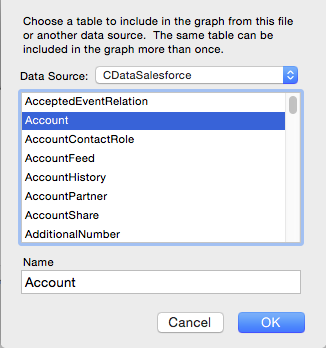
- On the Relationships tab of the resulting dialog, click the Add a Table button in the Table/Relationships section.
- In the Data Source menu, select Add ODBC Data Source and then select the DSN you created in the previous section.
After specifying the username and password for the DSN, you can add JD Edwards tables to the relationships graph. You can now scroll through, sort, and summarize JD Edwards data by clicking View -> Browse Mode, just as you would a remote MySQL database.
Ready to get started?
Download a free trial of the JD Edwards Driver to get started:
Download NowLearn more:
 JD Edwards JDBC Driver
Rapidly create and deploy powerful Java applications that integrate with JD Edwards data including AccountLedger, ProposalofPayment, ContractRevenueSummary, EmployeeEnrollment, RentIncreaseAmounts, and more!