




JD Edwards Reporting and Star Schemas in OBIEE

The CData ODBC Driver for JD Edwards is a standard database driver that can integrate real-time access to JD Edwards data into your data warehouse or directly into your reporting tool. This article shows how to bypass the data warehouse and import operational JD Edwards data into Oracle Business Intelligence Enterprise Edition (OBIEE).
See the knowledge base for ODBC integrations with ETL tools like Informatica PowerCenter. For an ETL solution into Oracle Warehouse Builder, use the driver with the Oracle ODBC Gateway to Access JD Edwards Data as a Remote Oracle Database.
Connect to JD Edwards as an ODBC Data Source
If you have not already, first specify connection properties in an ODBC DSN (data source name). This is the last step of the driver installation. You can use the Microsoft ODBC Data Source Administrator to create and configure ODBC DSNs.
The driver connects to JD Edwards through your Application Interface Services (AIS) Server. Set the following connection properties:
- URL: The base HTTPS URL of your AIS Server (e.g., https://jde-ais.example.com:8300).
- User: Your JD Edwards username.
- Password: Your JD Edwards password.
- Environment (optional): The JD Edwards environment to use (e.g., PD920 for production or DV920 for development). If not specified, the AIS Server's default environment is used.
- Role (optional): The JD Edwards role for the session. If not specified, the AIS Server's default role is used.
- DeviceName (optional): An identifier for the connecting device or application, used for auditing and logging on the AIS Server.
- Jasserver (optional): The specific Java Application Server (JAS) instance to route requests through, useful in clustered environments.
Choosing Which Data Is Exposed
JD Edwards organizes tables and business views by System Code, and the driver exposes each System Code as its own schema. Use these properties to control which schemas are available:
- DataModel: One or more ERP modules (comma-separated) whose System Codes are exposed as schemas, or All to expose every System Code in the connected instance. Defaults to FinancialManagement.
- SystemCodes: A comma-separated list of additional System Codes to expose alongside those from DataModel (e.g., 42,43).
When you connect, the driver sends your credentials to the AIS Server to obtain a session token and caches it. The driver requests a new token automatically before the session expires.
When you configure the DSN, you may also want to set the Max Rows connection property. This will limit the number of rows returned, which is especially helpful for improving performance when designing reports and visualizations.
Import JD Edwards Metadata
Follow the steps below to use the OBIEE Client Tools to import JD Edwards metadata into an OBIEE repository. You can then integrate JD Edwards data into your business models.
Open the Administration Tool and click File -> New Repository.
- In the Connection Type menu, select ODBC 3.5 and select the CData DSN.
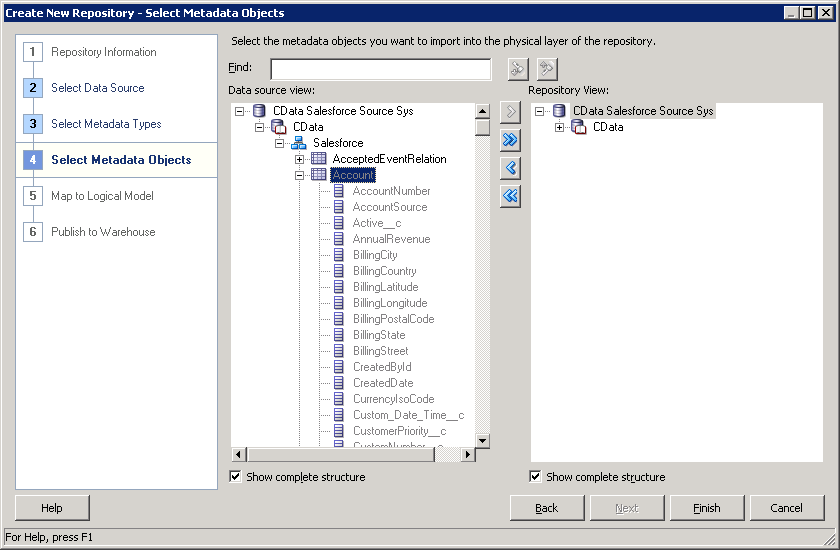
- Select the metadata types you want to import under the Relational Sources option and then select JD Edwards tables.
Ready to get started?
Download a free trial of the JD Edwards ODBC Driver to get started:
Download NowLearn more:
 JD Edwards ODBC Driver
The JD Edwards ODBC Driver is a powerful tool that allows you to connect with live data from JD Edwards, directly from any applications that support ODBC connectivity.
Access JD Edwards data like you would a database - read JD Edwards AccountLedger, ProposalofPayment, ContractRevenueSummary, EmployeeEnrollment, RentIncreaseAmounts, etc. through a standard ODBC Driver interface.