






How to Connect Jira Data to Gemini Enterprise via CData Connect AI

Gemini Enterprise is Google's enterprise AI assistant, available as part of Google Workspace. With native support for Custom MCP Server data stores, Gemini Enterprise can be extended to query and act on live enterprise data via the Model Context Protocol (MCP). When combined with CData Connect AI Remote MCP, Gemini Enterprise can interact with Jira data in real time using natural language — without data replication or custom integration logic.
CData Connect AI offers a dedicated cloud-to-cloud interface for connecting to Jira data via a single managed MCP endpoint. The CData Connect AI Remote MCP Server enables secure communication between Gemini Enterprise and Jira, allowing users to ask questions and take actions on live Jira data through natural language prompts.
This article explains how to connect Gemini Enterprise to live Jira data through CData Connect AI by creating a Custom MCP Server data store — giving users access to Jira data directly from the Gemini Enterprise chat interface.
About Jira Data Integration
CData simplifies access and integration of live Jira data. Our customers leverage CData connectivity to:
- Gain bi-directional access to their Jira objects like issues, projects, and workflows.
- Use SQL stored procedures to perform functional actions like changing issues status, creating custom fields, download or uploading an attachment, modifying or retrieving time tracking settings, and more.
- Authenticate securely using a variety of methods, including username and password, OAuth, personal access token, API token, Crowd or OKTA SSO, LDAP, and more.
Most users leverage CData solutions to integrate Jira data with their database or data warehouse, whether that's using CData Sync directly or relying on CData's compatibility with platforms like SSIS or Azure Data Factory. Others are looking to get analytics and reporting on live Jira data from preferred analytics tools like Tableau and Power BI.
Learn more about how customers are seamlessly connecting to their Jira data to solve business problems from our blog: Drivers in Focus: Collaboration Tools.
Getting Started
Prerequisites
- A CData Connect AI account with at least one active connection (e.g., Jira)
- A Gemini Enterprise account (trial available)
- A Google Cloud project with billing enabled
- The Google Cloud CLI installed and configured
- In your Google Cloud account:
- Override the organization policy for Custom MCP data stores (learn more).
- Grant the Discovery Engine Editor role to the administrator (learn more).
Step 1: Configure Jira connectivity for Gemini Enterprise
Connectivity to Jira from Gemini Enterprise is made possible through CData Connect AI Remote MCP. To interact with Jira data from Gemini Enterprise, start by creating and configuring a Jira connection in CData Connect AI.
- Log into Connect AI, click Sources, and then click Add Connection
- Select "Jira" from the Add Connection panel
-
Enter the necessary authentication properties to connect to Jira.
To connect to JIRA, provide the User and Password. Additionally, provide the Url; for example, https://yoursitename.atlassian.net.

- Click Save & Test
-
Navigate to the Permissions tab in the Add Jira Connection page and update the User-based permissions.



Create an OAuth App in CData Connect AI
Gemini Enterprise uses OAuth 2.0 Authorization Code with PKCE to authenticate users against the CData Connect AI MCP Server. This requires creating a user-based OAuth App in your CData Connect AI account.
- Click the Gear icon () in the top-right corner of Connect AI to open Settings.
- Navigate to OAuth Apps and click + Create App. The Create OAuth App dialog appears.
- Enter the following settings:
- Name — Enter a descriptive name (e.g., GeminiEnterpriseOAuth).
- Authentication Flow — Select User-based (Authorization Code).
- Callback URL — Enter https://vertexaisearch.cloud.google.com/oauth-redirect.
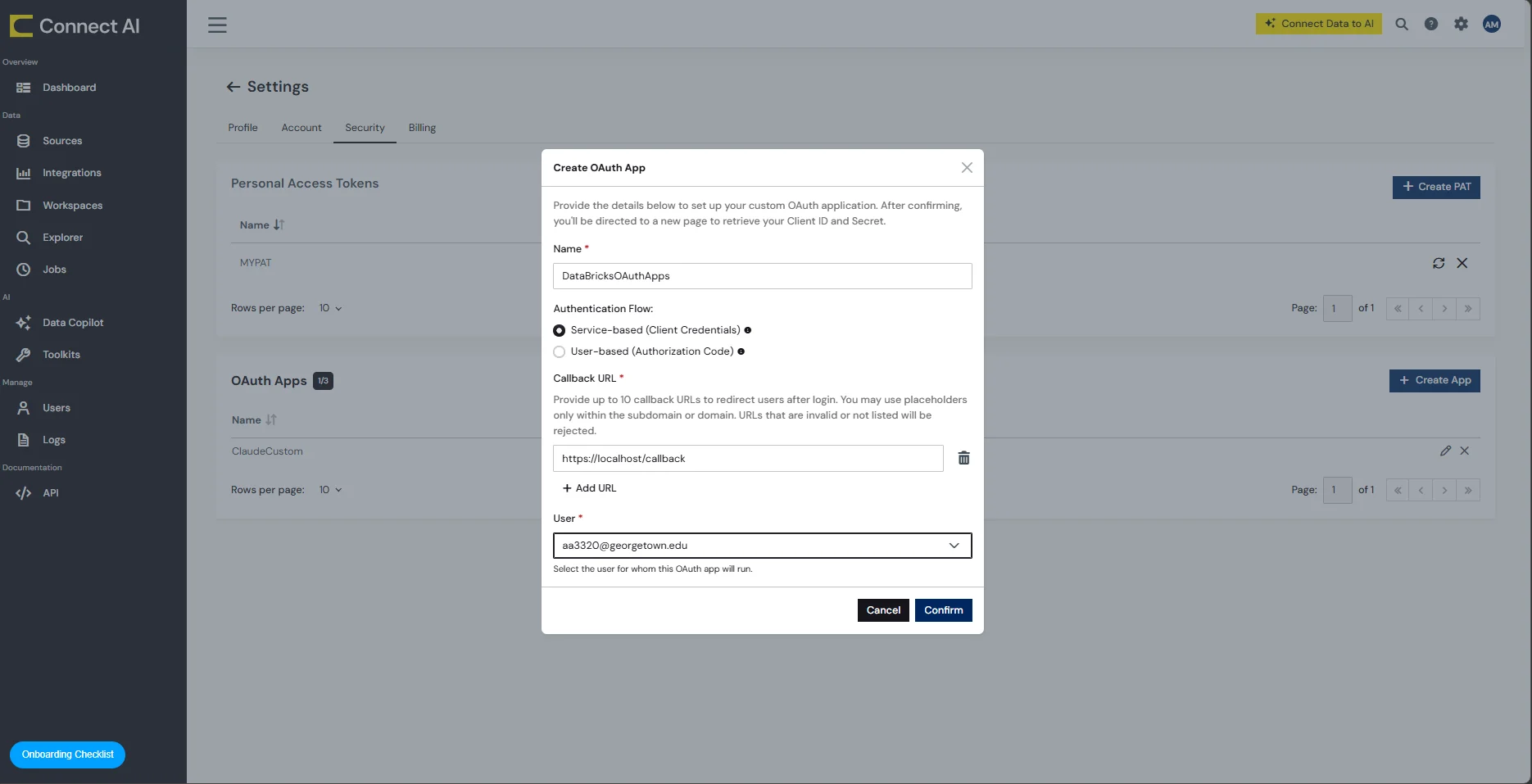
- Click Confirm. CData Connect AI creates the OAuth App and generates a Client ID and Client Secret.
- Copy both the Client ID and Client Secret values. You will need them in Step 5.
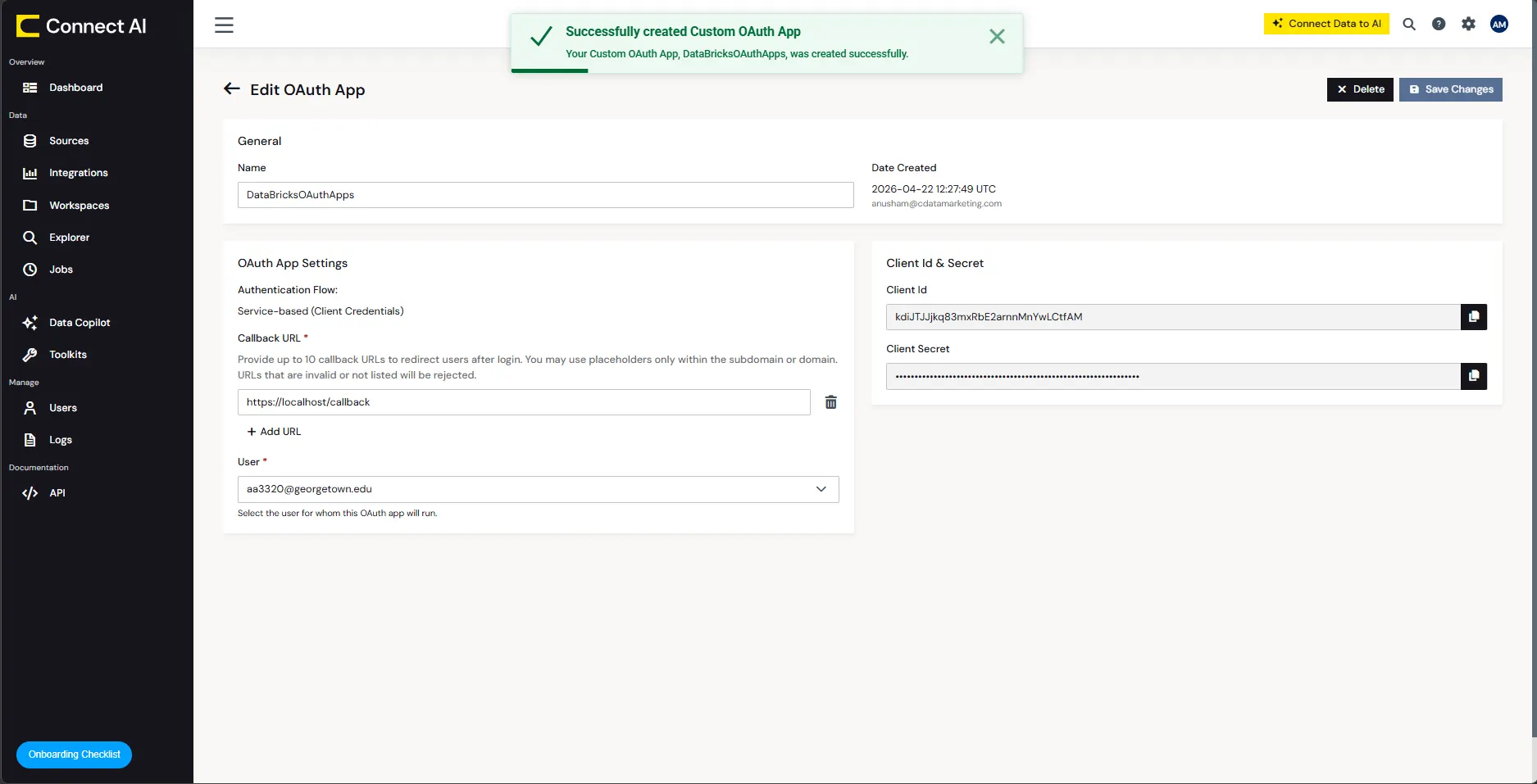
With the connection configured and an OAuth App created, we are ready to create the custom MCP server data store in Gemini Enterprise.
Step 2: Create the custom MCP server data store
- Open Gemini Enterprise and navigate to the Data stores screen.
- Click Create data store.
- On the Select a data source page, enter Custom MCP Server in the Search sources field. The Custom MCP Server card displays.
- Click Add MCP server. The MCP Server Configuration page displays.
- In the Authentication settings section, enter values in the following required fields:
- MCP Server URL: https://mcp.cloud.cdata.com/mcp
- Authorization URL: https://cloud-login.cdata.com/authorize
- Token URL: https://cloud-login.cdata.com/oauth/token
- Client ID and Client Secret: From the OAuth App created in Step 1
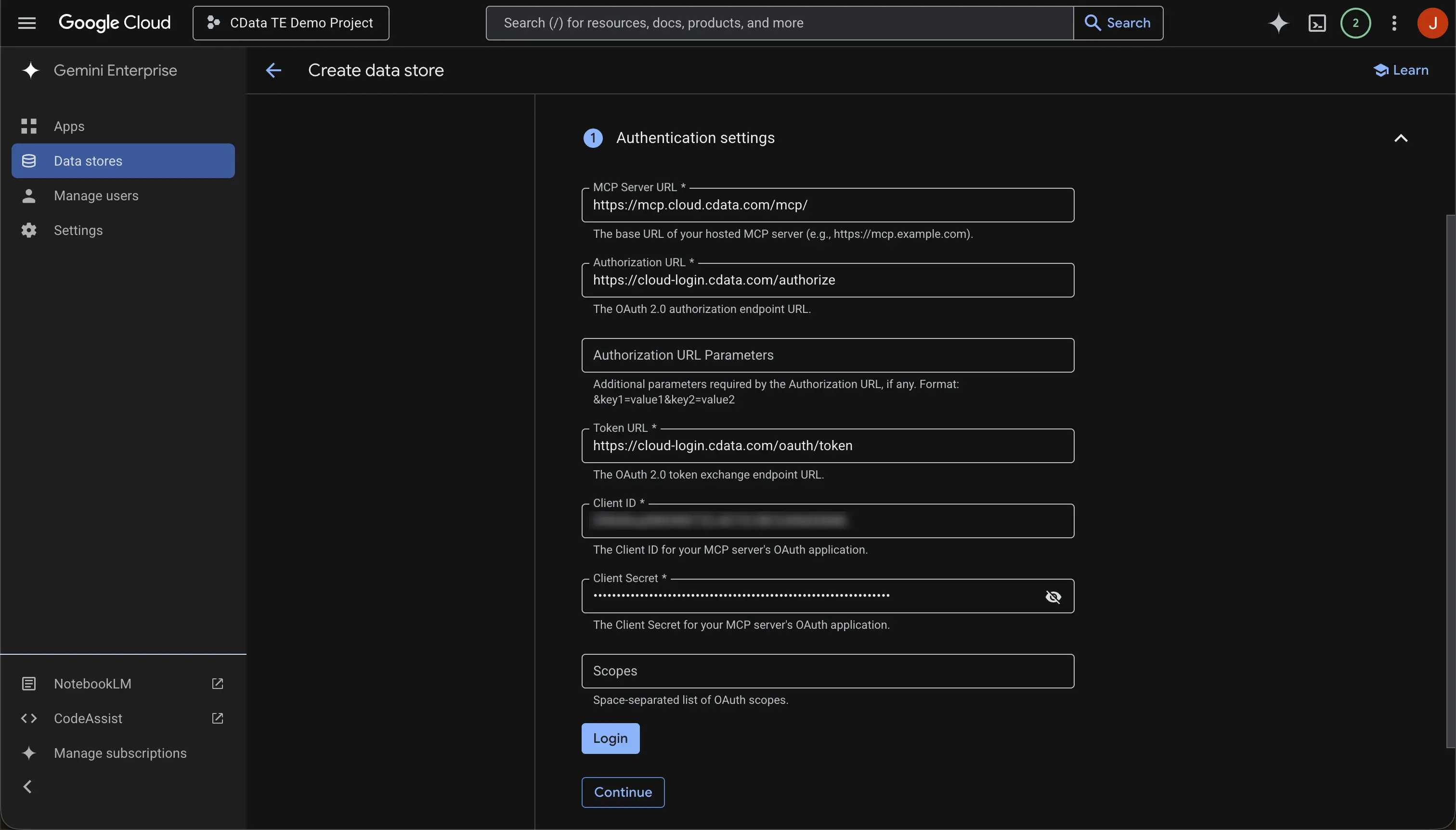
- Click Login, and complete the sign-in.
- Click Continue, and the Advanced options section opens.
In the MCP Server Description field, enter a description that helps Gemini Enterprise understand what the server does and when to use it. For more information, see Write effective MCP server descriptions and instructions.
Click Continue.
In the Configure your data connector section, select the Location of your data connector from the Multi-region field list.
In Your data connector name, enter a name for your data store.
Click Create. Gemini Enterprise creates your data store and displays your data stores on the Data Stores page.
Note: By default, no tools or actions from your custom MCP servers are enabled. You must enable the tools or actions.
Step 3: Enable actions
After creating the custom MCP server data store, you must enable at least one tool or action before it can be used in Gemini Enterprise.
- Go to your custom MCP server data store.
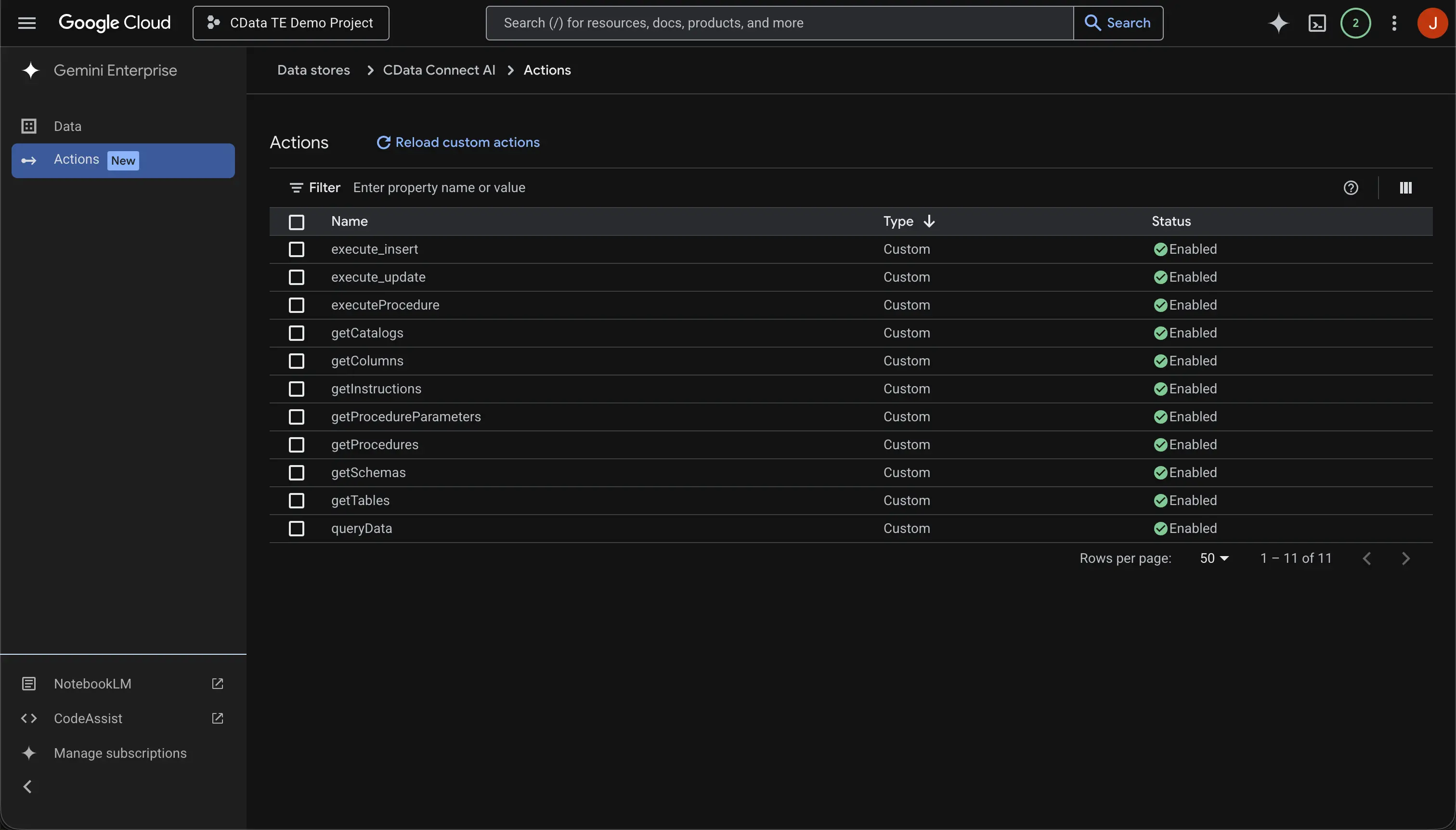
Open the Actions tab and select Reload custom actions to reauthenticate.
Note: This action performs a tools/list call on the MCP server to retrieve available tools, which are then displayed on the screen.
- Select the actions to enable.
- Click Enable actions.
Step 4: Connect the MCP server data store to a Gemini Enterprise app
After creating the custom MCP server data store and enabling actions, you must connect the data store to a Gemini Enterprise app before it can be used.
- In the Google Cloud console, go to the Gemini Enterprise page.
- From the navigation menu, click Apps.
- Select the Gemini Enterprise app where you want to connect your data store.
- From the navigation menu of the app, click Connected data sources.
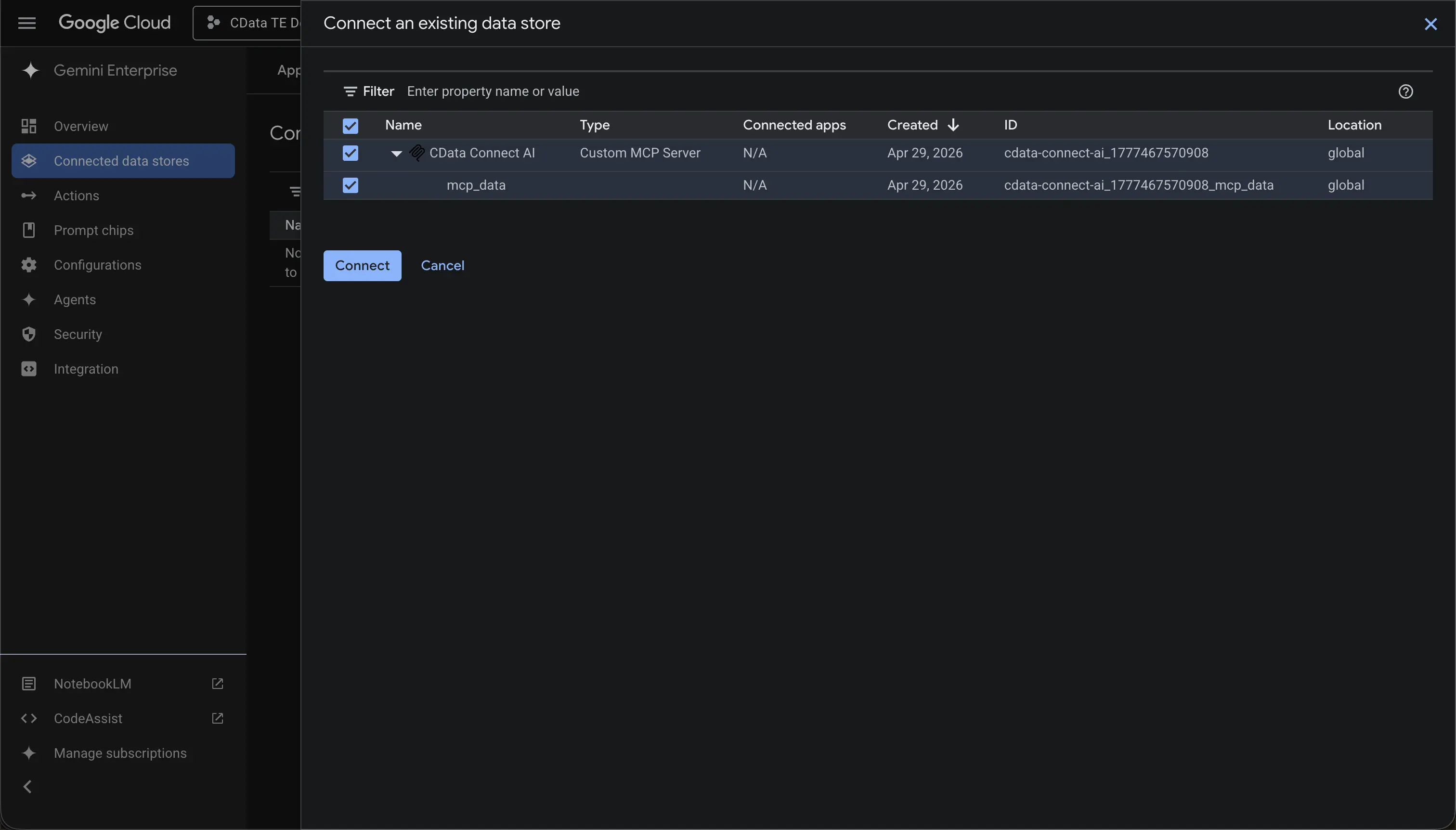
- Click Add existing data stores and select your data store.
- Click Connect.
Step 5: Query live Jira data with natural language
With the data store connected, Gemini Enterprise users can interact with live Jira data using natural language from the Gemini Enterprise web application. Each user authenticates with their own Connect AI credentials via the OAuth flow on first use.
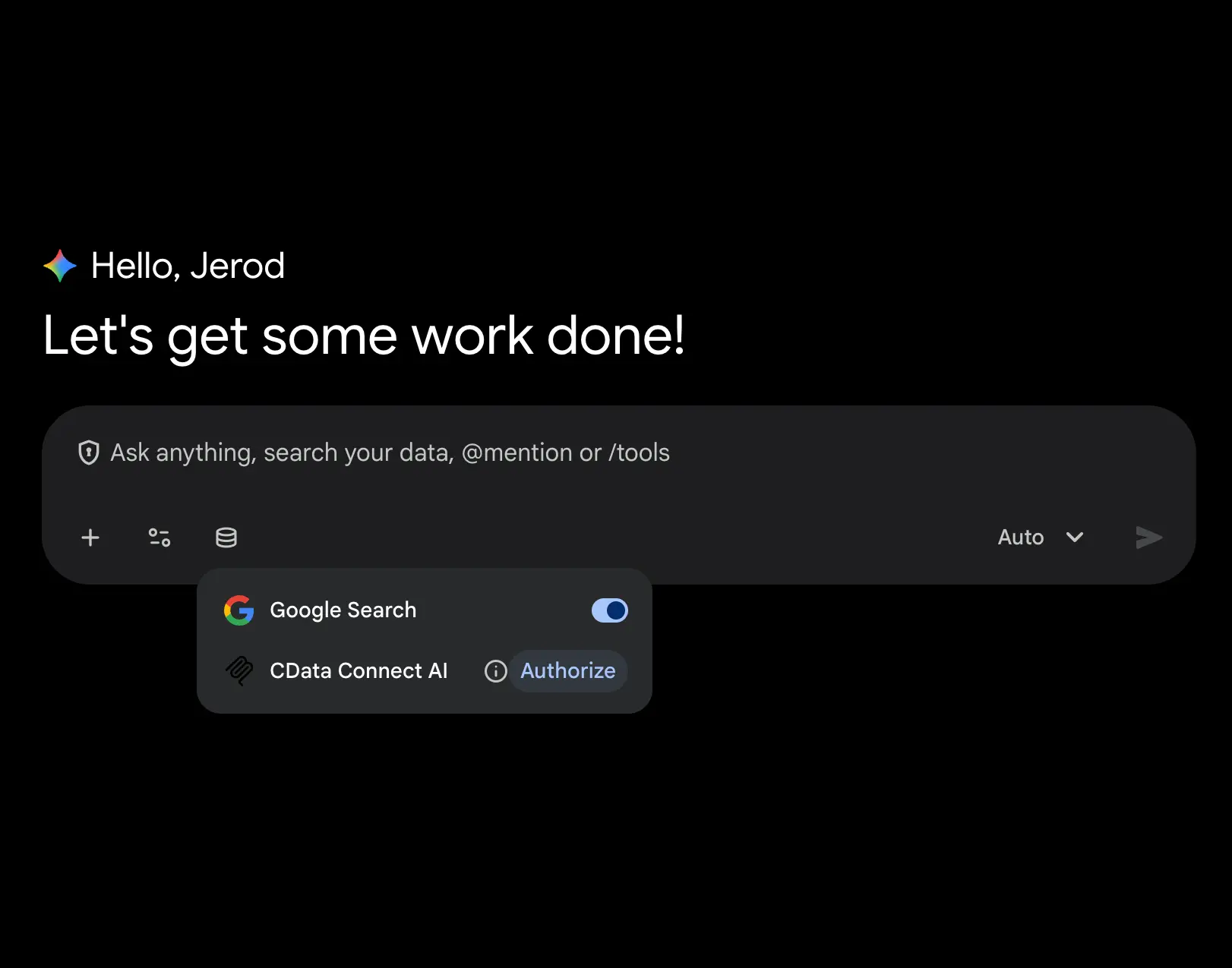
- Open Gemini Enterprise, click Connections and authorize CData Connect AI.
-
Ask natural language questions about your Jira data:
- "Show me all Jira data from the last 30 days"
- "What are the top records in Jira data by revenue?"
- "List all active Jira data and their current status"
- "Summarize Jira data activity for this quarter"
- The agent automatically discovers available connections in Connect AI, identifies the most relevant Jira connection, generates SQL, and returns results — all without requiring the user to write queries or understand the underlying data structure.
Get CData Connect AI
To get live data access to hundreds of SaaS, Big Data, and NoSQL sources directly from Gemini Enterprise and other AI platforms, try CData Connect AI today!