




How to Query LINE Data in MySQL Workbench

You can use the SQL Gateway from the ODBC Driver for LINE to query LINE data through a MySQL interface. Follow the procedure below to start the MySQL remoting service of the SQL Gateway and work with live LINE data in MySQL Workbench.
Connect to LINE Data
If you have not already done so, provide values for the required connection properties in the data source name (DSN). You can use the built-in Microsoft ODBC Data Source Administrator to configure the DSN. This is also the last step of the driver installation. See the "Getting Started" chapter in the help documentation for a guide to using the Microsoft ODBC Data Source Administrator to create and configure a DSN.
Start by setting the Profile connection property to the location of the LINE Profile on disk (e.g. C:\profiles\LINE.apip). Next, set the ProfileSettings connection property to the connection string for LINE (see below).
LINE API Profile Settings
The LINE Messaging API uses Channel Access Token authentication. To obtain a Channel Access Token:
- Log in to the LINE Developers Console at https://developers.line.biz
- Select your provider and open your Messaging API channel.
- Navigate to the Messaging API tab.
- Under Channel access token, click Issue to generate a long-lived token.
- Copy the generated token.
After obtaining your Channel Access Token, set the following connection properties:
- AuthScheme: Set this to APIKey.
Set the following in the ProfileSettings connection property:
- APIKey: Set this to your LINE Channel Access Token.
Configure the SQL Gateway
See the SQL Gateway Overview to set up connectivity to LINE data as a virtual MySQL database. You will configure a MySQL remoting service that listens for MySQL requests from clients. The service can be configured in the SQL Gateway UI.
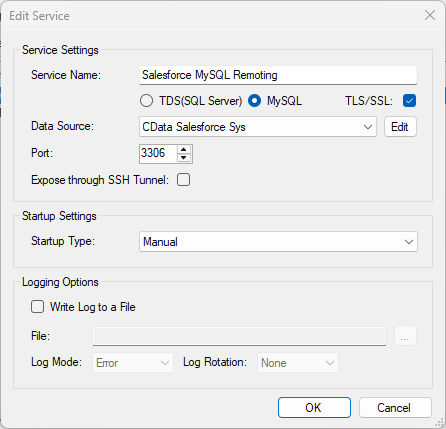
Query LINE from MySQL Workbench
The steps below outline connecting to the virtual LINE database created in the SQL Gateway from MySQL Workbench and issuing basic queries to work with live LINE data.
Connect to LINE through the SQL Gateway
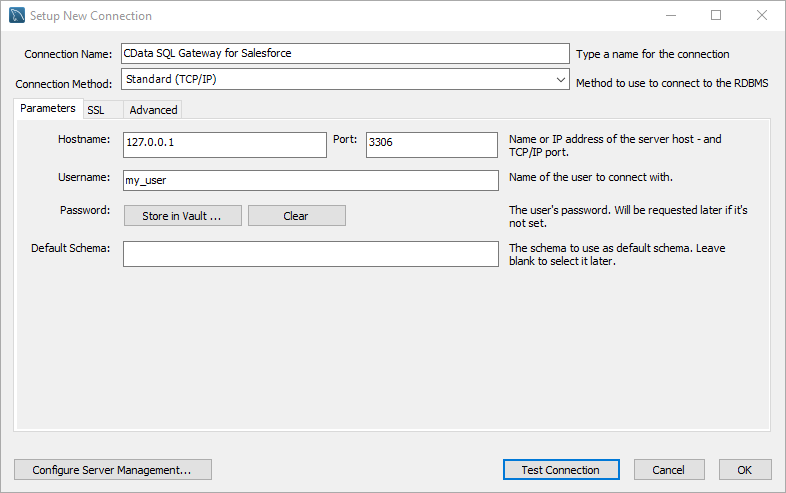
- In MySQL Workbench, click to add a new MySQL connection.
- Name the connection (CData SQL Gateway for LINE).
- Set the Hostname, Port, and Username parameters to connect to the SQL Gateway.
- Click Store in Vault to set and store the password.
- Click Test Connection to ensure the connection is configured properly and click OK.
NOTE: When we refer to Username and Password, we mean the credentials for the user(s) created for the SQL Gateway.
Query LINE Data
- Open the connection you just created (CData SQL Gateway for LINE).
- Click File -> New Query Tab.
- Write a SQL query to retrieve LINE data, like SELECT * FROM `CData API Sys`.ReplyMessageDelivery;
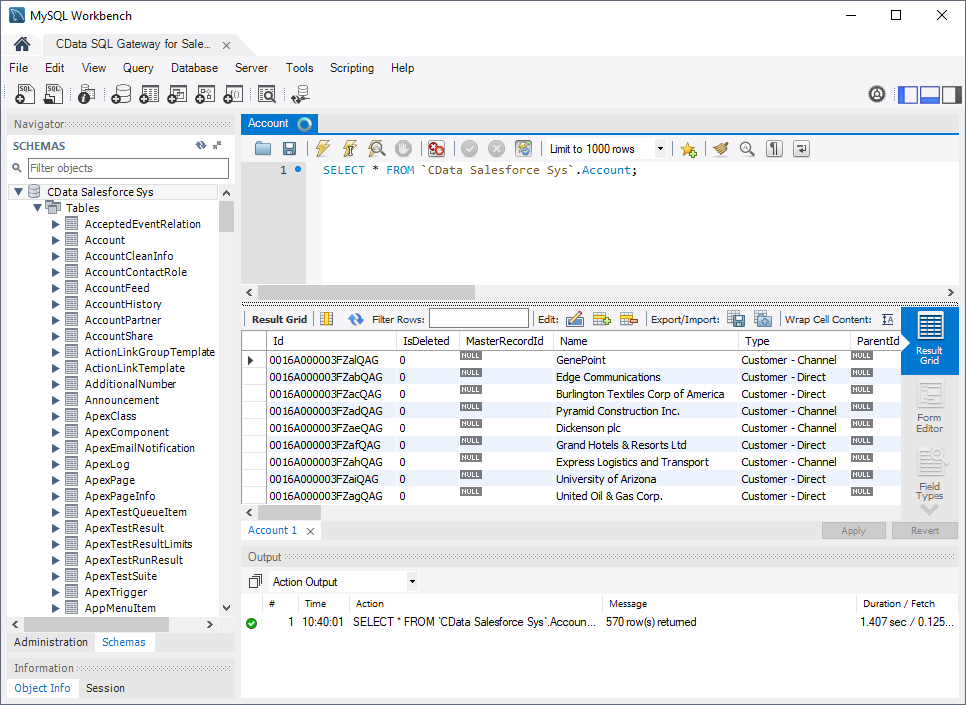
With access to live LINE data from MySQL Workbench, you can easily work with LINE, just like you would a MySQL database. Get started now with a free, 30-day trial of the CData API Driver for ODBC and the CData SQL Gateway.