




Visualize Live Linear Data in the Power BI Service

Power BI transforms your company's data into rich visuals for you to collect and organize so you can focus on what matters to you. When paired with CData Connect AI, you get instant access to Linear data for visualizations, dashboards, and more. This article shows how to build and publish a dataset from Linear data in Power BI and then create reports on Linear data in the Power BI service.
CData Connect AI provides a pure SQL interface for Linear, allowing you to easily build reports from live Linear data in Power BI — with no need to replicate the data. As you build visualizations, Power BI generates SQL queries to gather data. Using optimized data processing out of the box, CData Connect AI pushes all supported SQL operations (filters, JOINs, etc) directly to Linear, leveraging server-side processing to quickly return Linear data.
NOTE: You can also import Linear data into Power BI through Connect AI (instead of using the on-premise gateway). Read how in the related Knowledge Base article.
Configure Linear Connectivity for Power BI
Connectivity to Linear from Power BI is made possible through CData Connect AI. To work with Linear data from Power BI, we start by creating and configuring a Linear connection.
- Log into Connect AI, click Sources, and then click Add Connection
- Select "Linear" from the Add Connection panel
-
Enter the necessary authentication properties to connect to Linear.
You can authenticate to Linear with a personal API key or with OAuth 2.0. The API key is the simplest option for connecting with your own Linear account.
Authenticating with an API Key
Set the following connection properties:
- AuthScheme: Set this to APIKey.
- APIKey: A Linear personal API key.
To create a personal API key, log in to Linear, open Settings > Security & access > Personal API keys, select New API key, and create it. Copy the key immediately, because Linear shows it only once.
Authenticating with OAuth
OAuth requires a custom OAuth application registered in Linear (Settings > API > OAuth applications), which provides the OAuthClientId and OAuthClientSecret. Two flows are supported:
- Authorization code: Set AuthScheme to OAuth, InitiateOAuth to GETANDREFRESH, and provide OAuthClientId, OAuthClientSecret, and the CallbackURL defined in your application (e.g., http://localhost:33333). The driver opens Linear in your browser so you can grant access.
- Client credentials: Set AuthScheme to OAuthClient and provide OAuthClientId and OAuthClientSecret. This authenticates the application itself, with no browser interaction, and suits machine-to-machine integrations.
By default, the driver requests the read,write scopes. The driver refreshes the access token automatically when it expires.

- Click Save & Test
-
Navigate to the Permissions tab in the Add Linear Connection page and update the User-based permissions.



Add a Personal Access Token
When connecting to Connect AI through the REST API, the OData API, or the Virtual SQL Server, a Personal Access Token (PAT) is used to authenticate the connection to Connect AI. It is best practice to create a separate PAT for each service to maintain granularity of access.
- Click on the Gear icon () at the top right of the Connect AI app to open the settings page.
- On the Settings page, go to the Access Tokens section and click Create PAT.
-
Give the PAT a name and click Create.

- The personal access token is only visible at creation, so be sure to copy it and store it securely for future use.
With the connection configured and a PAT generated, you are ready to connect to Linear data from Power BI.
Connecting to Connect AI from Power BI
To connect to and visualize live Linear data in the Power BI service, install the on-premise data gateway, add a data source to the gateway from the Power BI service, and publish a dataset from Power BI Desktop to the service.
Install the On-Premises Data Gateway
The Microsoft on-premise data gateway provides secure data transfer between connected data sources and various cloud-based Microsoft tools and platforms. You can read more about the gateway in the Microsoft documentation.
You can download and install the gateway from the Power BI service:
- Log in to PowerBI.com.
- Click the Download menu and click Data Gateway.
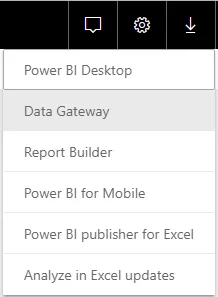
- Follow the instructions for installation, making note of the name of the gateway.
Add Linear as a Data Source to the Power BI Service
Once you have installed the data gateway, you add Connect AI as a data source to the Power BI service:
- Log in to PowerBI.com.
- Click the Settings menu and click "Manage gateways."
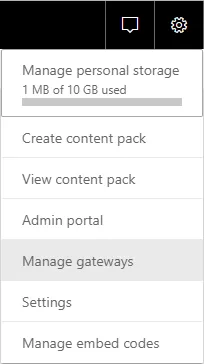
- Click "ADD DATA SOURCE" and configure the connection to Connect AI:
- Set Data Source Name to something like ConnectAILinear.
- Choose SQL Server as the Data Source Type.
- Set Server to tds.cdata.com,14333.
- Set Database to the name of your Linear connection (e.g. Linear1).
- Set Authentication Method to Basic.
- Set Username to a Connect AI user (e.g. [email protected])
- Set Password to the PAT for the user above.
Publish a Dataset from Power BI Desktop
With the gateway installed and Connect AI added as a datasource to the Power BI service, you can publish a dataset from Power BI Desktop to the service.
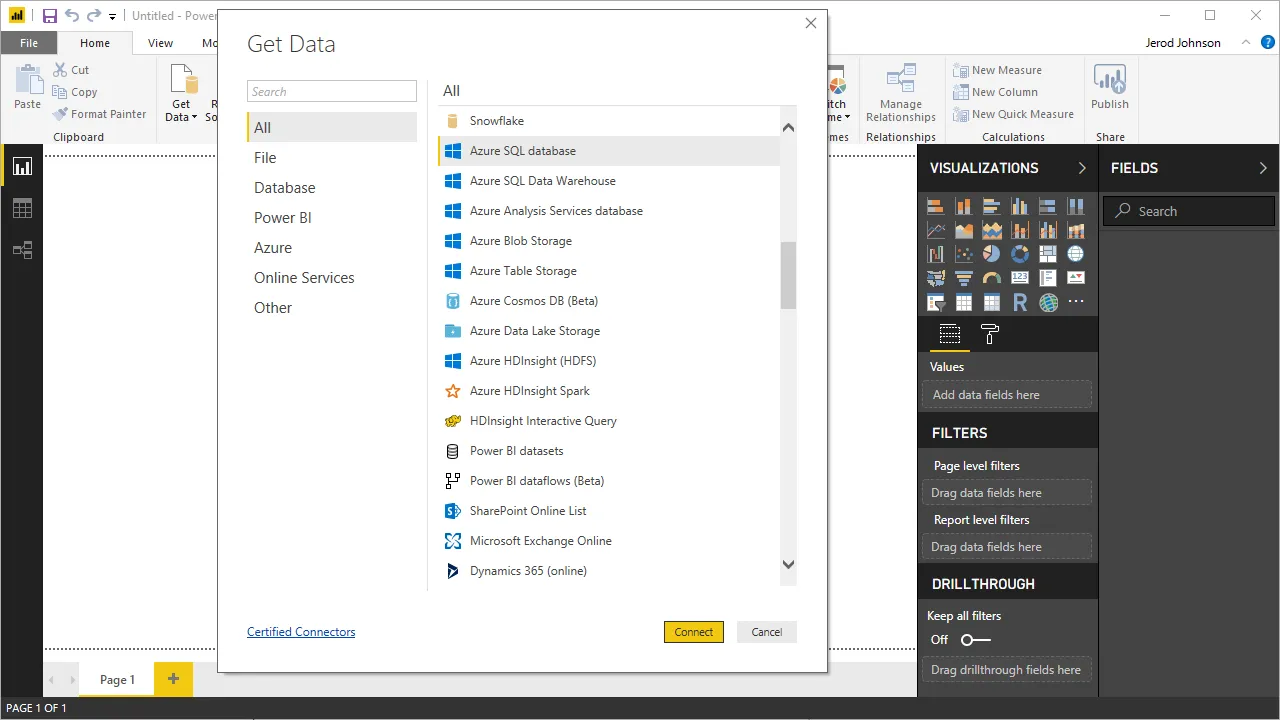
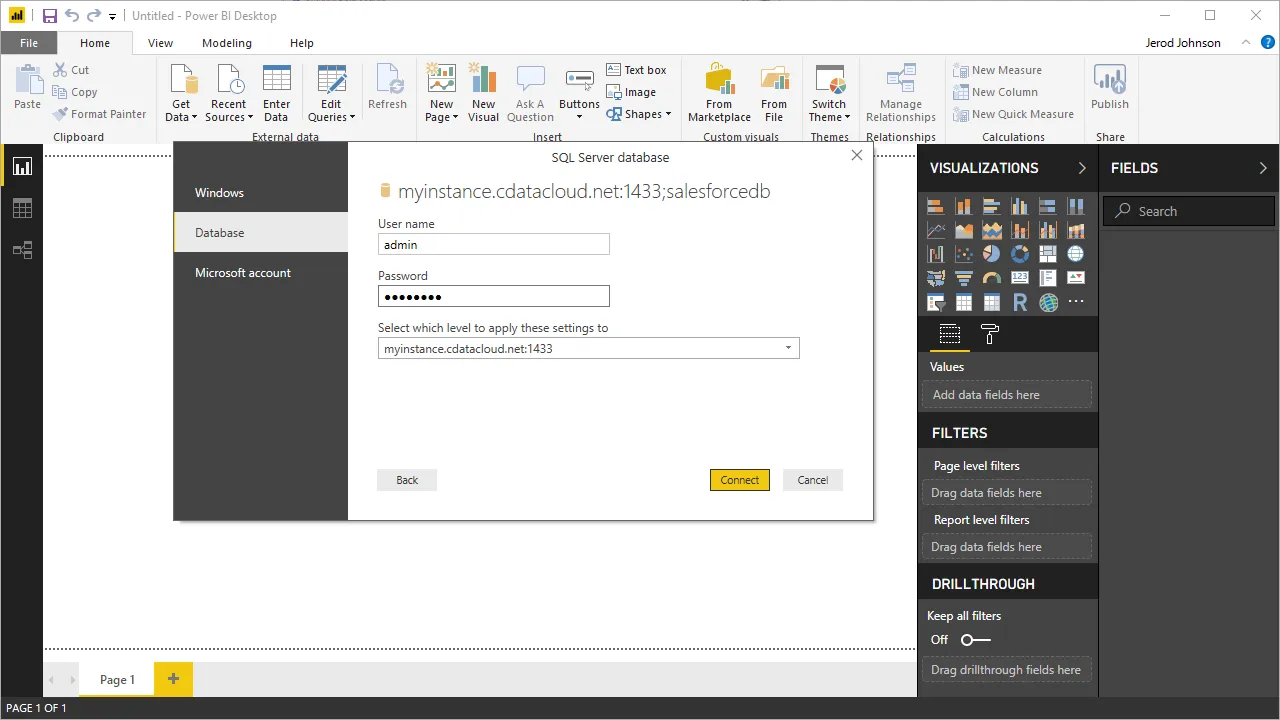
- Open Power BI, click Get Data -> More, then select SQL Server database, and click Connect.
- Set the connection properties and click OK.
- Set Server to tds.cdata.com,14333.
- Set Database to the name of your Linear connection (e.g. Linear1).
- Set Data Connectivity mode to DirectQuery*.
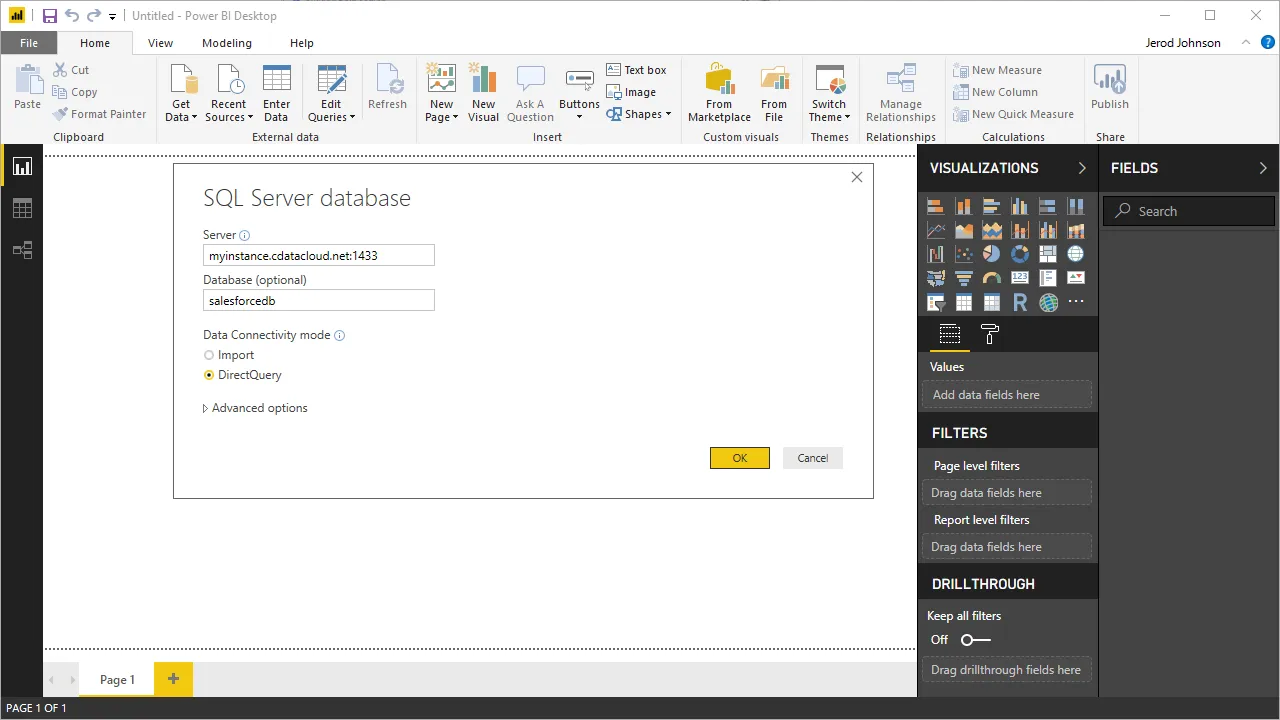 * DirectQuery enables live query processing and real-time visualizations of Linear data.
- In the authentication wizard, select Database, set the User name and Password properties, and click Connect.
- Select the table(s) to visualize in the Navigator dialog.
- In the Query Editor, you can customize your dataset by filtering, sorting, and summarizing Linear columns. Click Edit to open the query editor. Right-click a raw to filter the rows. Right-click a column header to perform options like the following:
- Change column data types
- Remove a column
- Group by columns
Power BI detects each column's data type from the Linear metadata reported by Connect AI.
Power BI records your modifications to the query in the Applied Steps section, adjusting the underlying data retrieval query that is executed to the remote Linear data. When you click Close and Apply, Power BI executes the data Retrieval query.
Otherwise, click Load to pull the data into Power BI.
- Define any relationships between the selected entities on the Relationships tab.
- Click Publish (from the Home menu) and select a Workspace.
Build Reports and Dashboards on Linear Data in the Power BI Service
Now that you have published a dataset to the Power BI service, you can create new reports and dashboards based on the published data:
- Log in to PowerBI.com.
- Click Workspaces and select a workspace.
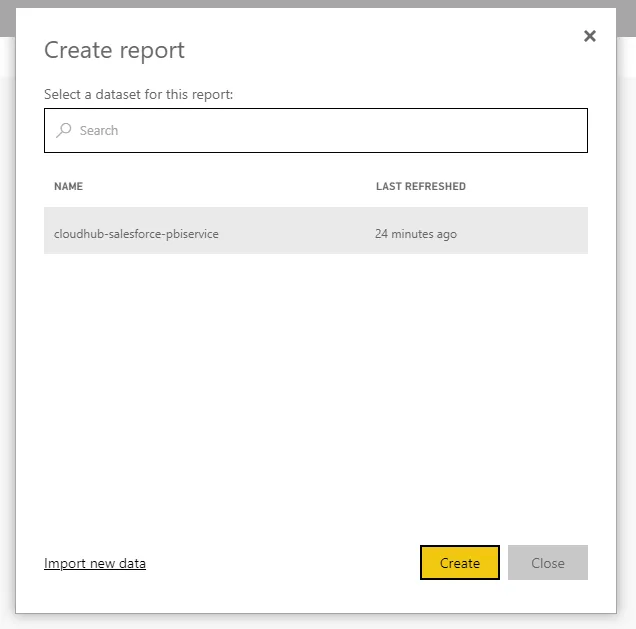
- Click Create and select Report.
- Select the published dataset for the report.
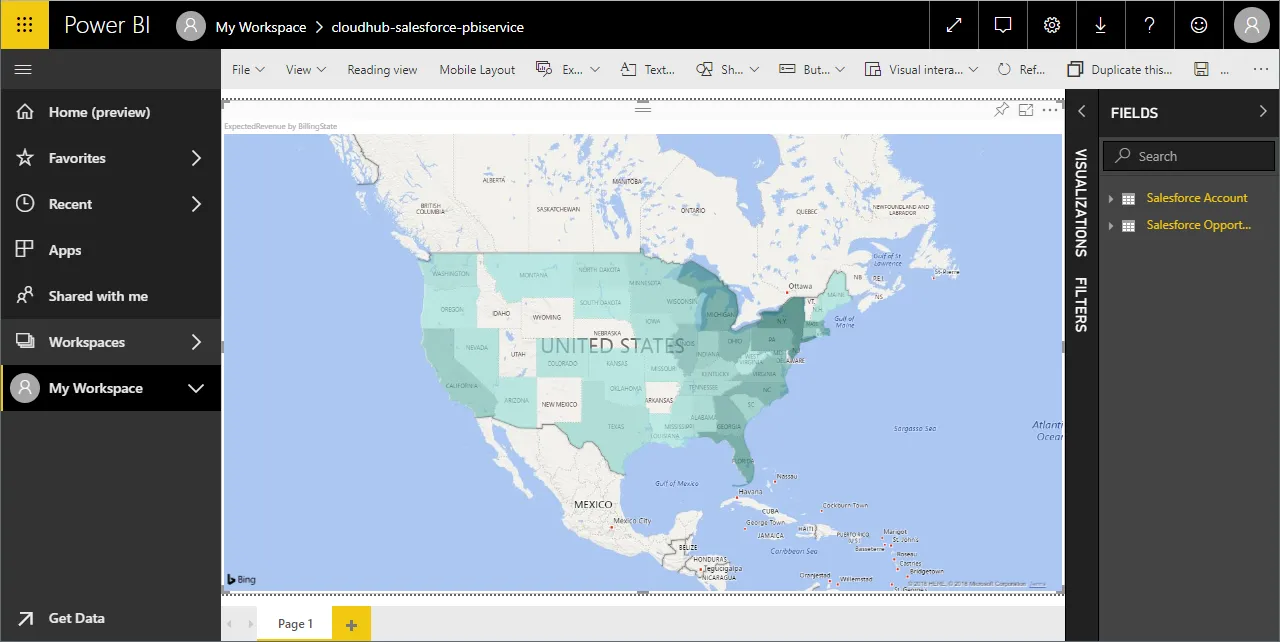
- Choose fields and visualizations to add to your report.
Live Access to Linear Data from Cloud Applications
Now you have a direct connection to live Linear data from the Power BI service. You can create more data sources and new visualizations, build reports, and more — all without replicating Linear data.
To get live data access to hundreds of SaaS, Big Data, and NoSQL sources directly from your cloud applications, sign up for a free trial of CData Connect AI.