




Access Linear Data in Mule Applications Using the CData JDBC Driver

The CData JDBC Driver for Linear connects Linear data to Mule applications enabling read functionality with familiar SQL queries. The JDBC Driver allows users to easily create Mule applications to backup, transform, report, and analyze Linear data.
This article demonstrates how to use the CData JDBC Driver for Linear inside of a Mule project to create a Web interface for Linear data. The application created allows you to request Linear data using an HTTP request and have the results returned as JSON. The exact same procedure outlined below can be used with any CData JDBC Driver to create a Web interface for the hundreds of available data sources.
- Create a new Mule Project in Anypoint Studio.
- Add an HTTP Connector to the Message Flow.
- Configure the address for the HTTP Connector.
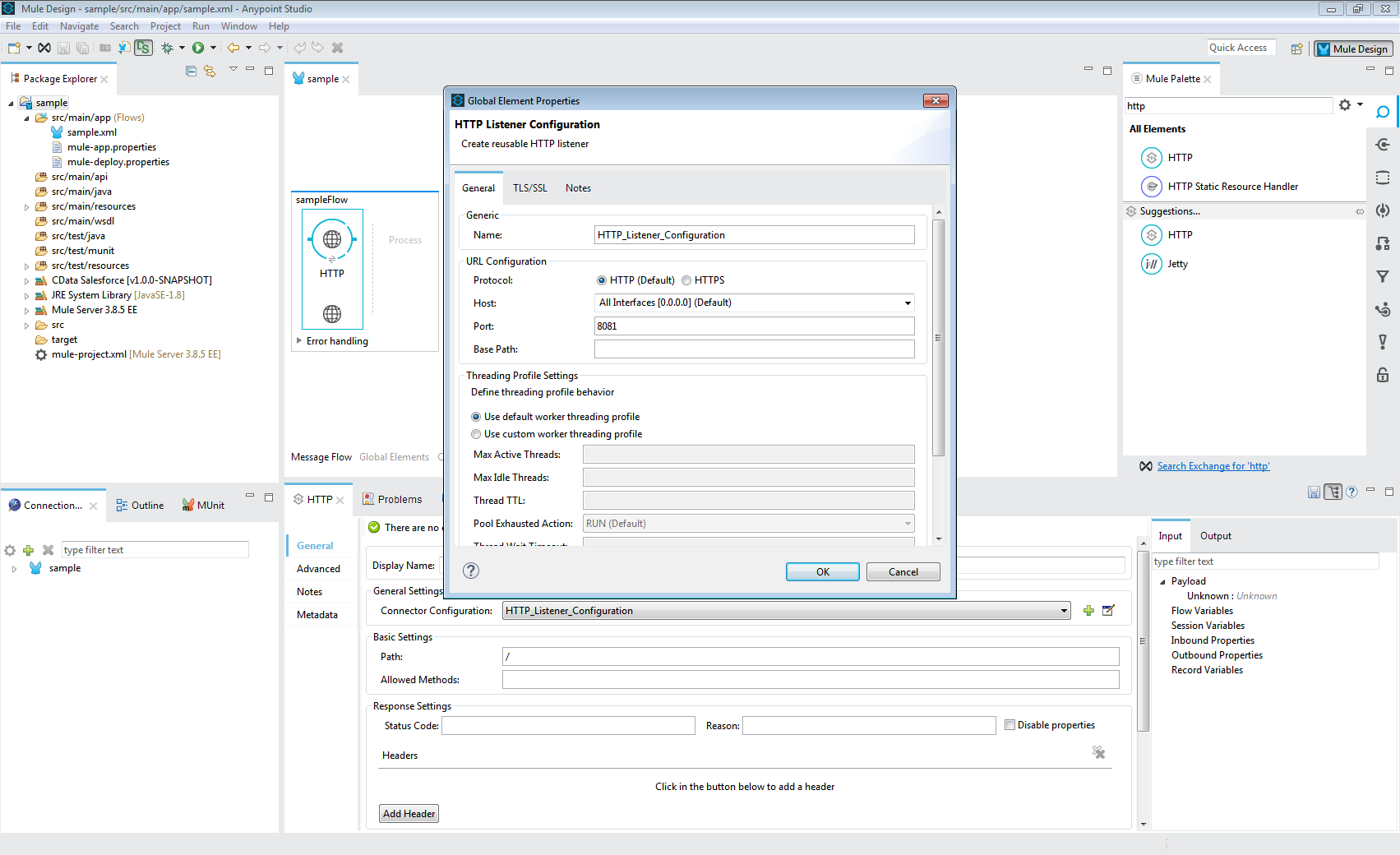
- Add a Database Select Connector to the same flow, after the HTTP Connector.
- Create a new Connection (or edit an existing one) and configure the properties.
- Set Connection to "Generic Connection"
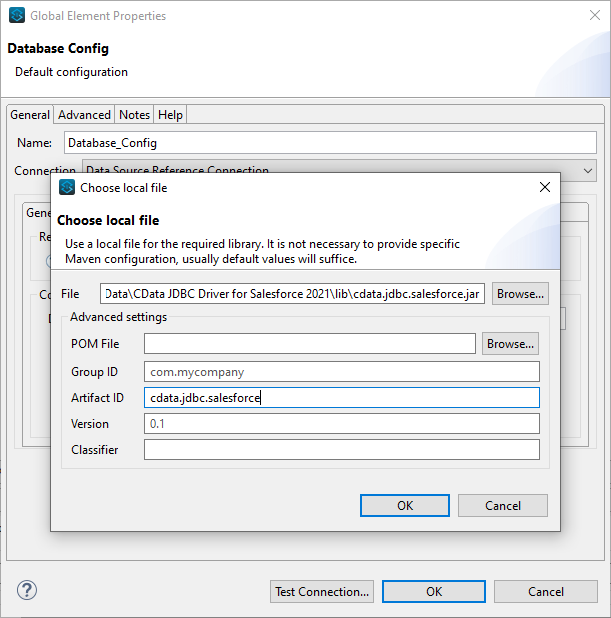
- Select the CData JDBC Driver JAR file in the Required Libraries section (e.g. cdata.jdbc.linear.jar).
- Set the URL to the connection string for Linear
You can authenticate to Linear with a personal API key or with OAuth 2.0. The API key is the simplest option for connecting with your own Linear account.
Authenticating with an API Key
Set the following connection properties:
- AuthScheme: Set this to APIKey.
- APIKey: A Linear personal API key.
To create a personal API key, log in to Linear, open Settings > Security & access > Personal API keys, select New API key, and create it. Copy the key immediately, because Linear shows it only once.
Authenticating with OAuth
OAuth requires a custom OAuth application registered in Linear (Settings > API > OAuth applications), which provides the OAuthClientId and OAuthClientSecret. Two flows are supported:
- Authorization code: Set AuthScheme to OAuth, InitiateOAuth to GETANDREFRESH, and provide OAuthClientId, OAuthClientSecret, and the CallbackURL defined in your application (e.g., http://localhost:33333). The driver opens Linear in your browser so you can grant access.
- Client credentials: Set AuthScheme to OAuthClient and provide OAuthClientId and OAuthClientSecret. This authenticates the application itself, with no browser interaction, and suits machine-to-machine integrations.
By default, the driver requests the read,write scopes. The driver refreshes the access token automatically when it expires.
Built-in Connection String Designer
For assistance in constructing the JDBC URL, use the connection string designer built into the Linear JDBC Driver. Either double-click the JAR file or execute the jar file from the command-line.
java -jar cdata.jdbc.linear.jarFill in the connection properties and copy the connection string to the clipboard.
- Set the Driver class name to cdata.jdbc.linear.LinearDriver.
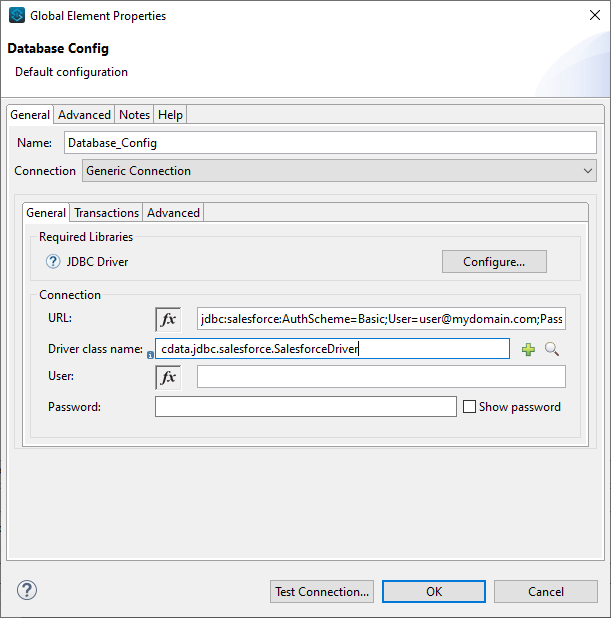
- Click Test Connection.
- Set the SQL Query Text to a SQL query to request Linear data. For example:
SELECT id, name FROM Team WHERE key = 'ENG'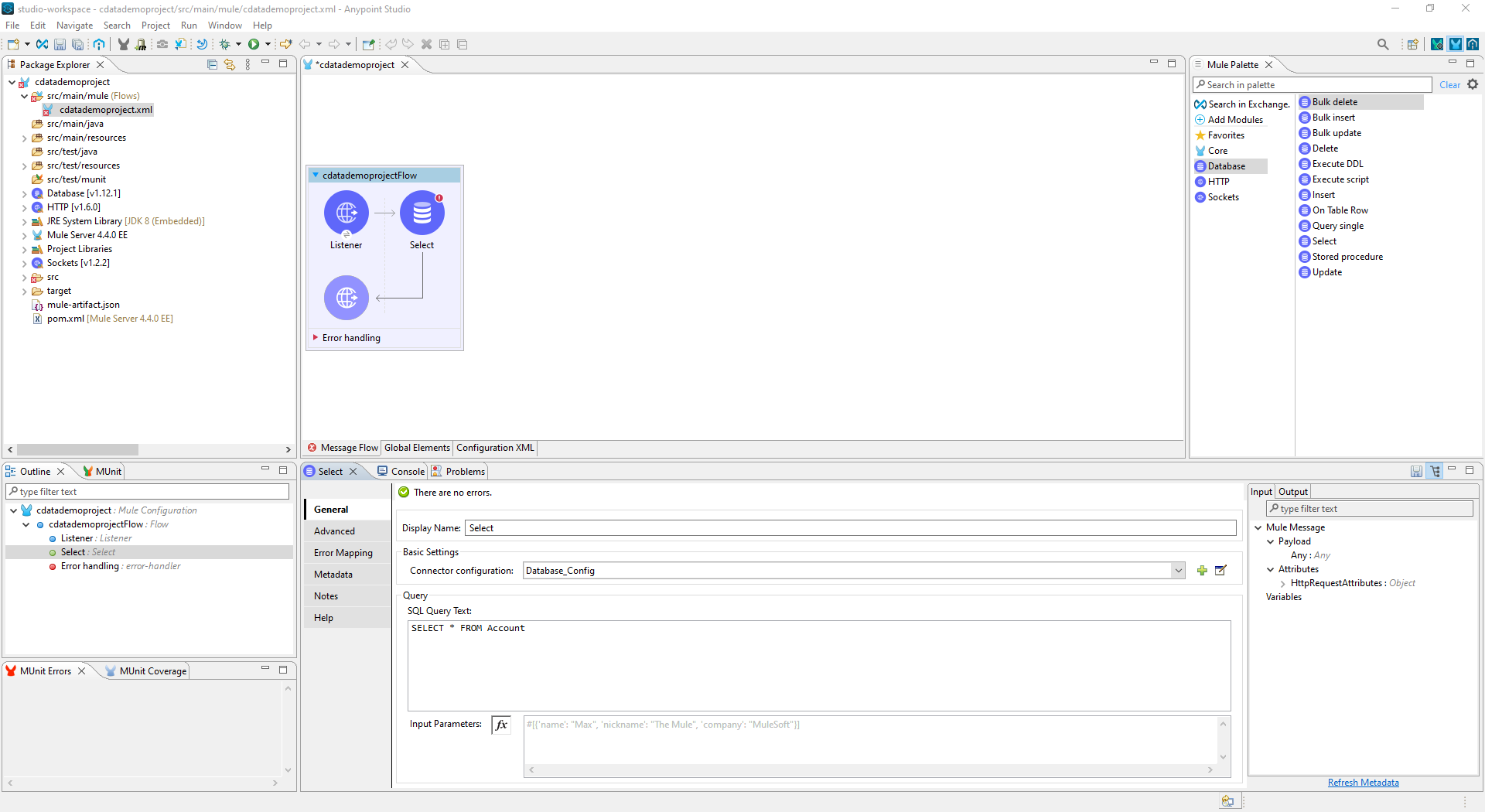
- Add a Transform Message Component to the flow.
- Set the Output script to the following to convert the payload to JSON:
%dw 2.0
output application/json
---
payload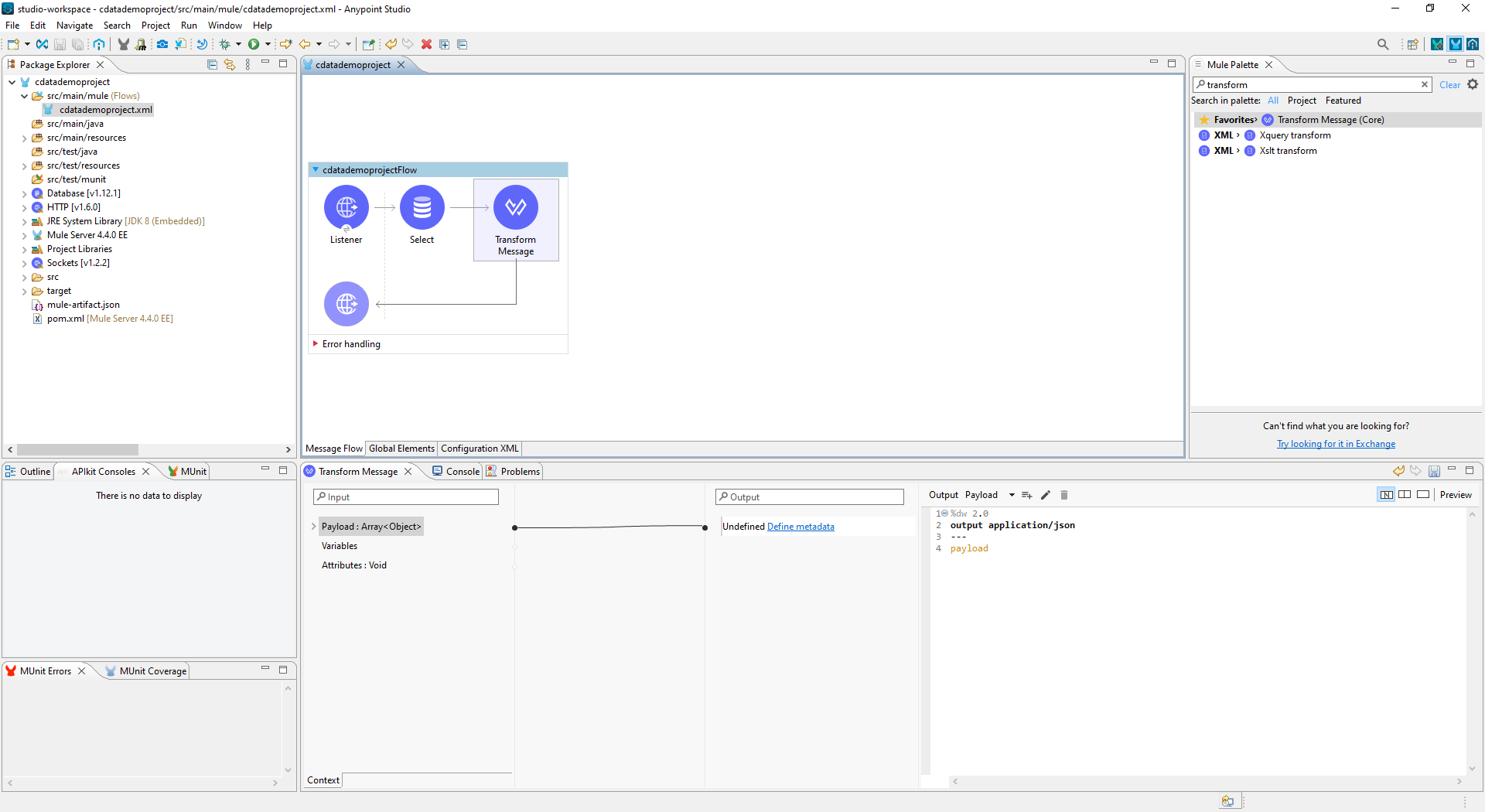
- To view your Linear data, navigate to the address you configured for the HTTP Connector (localhost:8081 by default): http://localhost:8081. The Linear data is available as JSON in your Web browser and any other tools capable of consuming JSON endpoints.
At this point, you have a simple Web interface for working with Linear data (as JSON data) in custom apps and a wide variety of BI, reporting, and ETL tools. Download a free, 30 day trial of the JDBC Driver for Linear and see the CData difference in your Mule Applications today.
Ready to get started?
Download a free trial of the Linear Driver to get started:
Download NowLearn more:
 Linear JDBC Driver
Rapidly create and deploy powerful Java applications that integrate with Linear data including AgentSession, Comment, Customer, Cycle, Initiative, Integration, Issue, ProjectStatus, Release, Team, User, and more!