






Use the CData ODBC Driver for Nuclia in MicroStrategy Desktop

MicroStrategy is an analytics and mobility platform that enables data-driven innovation. When paired with the CData ODBC Driver for Nuclia, you gain database-like access to live Nuclia data from MicroStrategy, expanding your reporting and analytics capabilities. In this article, we walk through adding Nuclia as a data source in MicroStrategy Desktop and creating a simple visualization of Nuclia data.
The CData ODBC Driver offers unmatched performance for interacting with live Nuclia data in MicroStrategy due to optimized data processing built into the driver. When you issue complex SQL queries from MicroStrategy to Nuclia, the driver pushes supported SQL operations, like filters and aggregations, directly to Nuclia and utilizes the embedded SQL Engine to process unsupported operations (often SQL functions and JOIN operations) client-side. With built-in dynamic metadata querying, you can visualize and analyze Nuclia data using native MicroStrategy data types.
Connect to Nuclia as an ODBC Data Source
Information for connecting to Nuclia follows, along with different instructions for configuring a DSN in Windows and Linux environments.
Using API Key Authentication
Nuclia uses API key authentication for accessing Knowledge Box data. To obtain an API key:
- Log in to the Nuclia Cloud Dashboard at https://nuclia.cloud
- Navigate to your Knowledge Box settings
- Go to the Service Accounts section
- Create a new service account or copy an existing API key
After obtaining your API key, set the following connection properties:
- AuthScheme: Set this to APIKey.
- APIKey: Set this to your Nuclia service account API key.
- KbId: Set this to your Knowledge Box UUID.
- Zone: Set this to your Nuclia deployment zone (e.g., aws-us-east-2-1).
Example Connection String
Profile=C:\profiles\Nuclia.apip;AuthScheme=APIKey;APIKey=your_service_account_key;KbId=your_kb_uuid;Zone=aws-us-east-2-1;
Connecting to Nuclia
Once the authentication is configured, you can connect to Nuclia and query data from any of the available tables such as Resources, KnowledgeBox, LabelSets, and ProcessingStatus.
When you configure the DSN, you may also want to set the Max Rows connection property. This will limit the number of rows returned, which is especially helpful for improving performance when designing reports and visualizations.
Windows
If you have not already, first specify connection properties in an ODBC DSN (data source name). This is the last step of the driver installation. You can use the Microsoft ODBC Data Source Administrator to create and configure ODBC DSNs.
Linux
If you are installing the CData ODBC Driver for Nuclia in a Linux environment, the driver installation predefines a system DSN. You can modify the DSN by editing the system data sources file (/etc/odbc.ini) and defining the required connection properties.
/etc/odbc.ini
[CData API Sys]
Driver = CData ODBC Driver for Nuclia
Description = My Description
Profile = C:\profiles\Nuclia.apip
AuthScheme = APIKey
APIKey = your_service_account_key
KbId = your_kb_uuid
Zone = aws-us-east-2-1
For specific information on using these configuration files, please refer to the help documentation (installed and found online).
Connect to and Visualize Nuclia Data using MicroStrategy Desktop
In addition to connecting Nuclia in MicroStrategy enterprise products, you can connect to Nuclia in MicroStrategy Desktop. Follow the steps below to add Nuclia data as a dataset and create visualizations and reports of Nuclia data.
- Open MicroStrategy Desktop and create a new dossier.
- In the datasets panel, click New Data, select Databases, and select Type a Query as the Import Option.
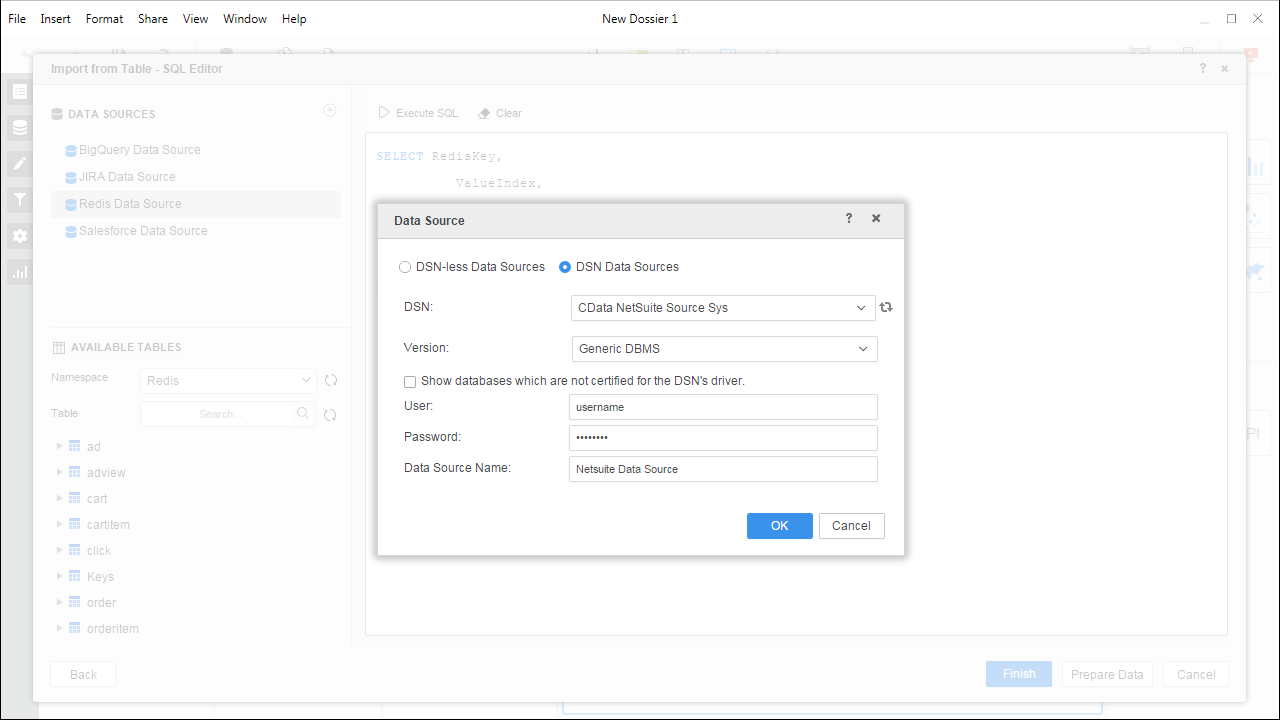
- Add a new data source and choose DSN data sources.
- Choose the DSN you previously configured (likely CData API Sys) and select Generic DBMS in the Version menu.
- Set the User and Password properties for the DSN (or use placeholder values) and name the data source.
- Select the new database instance to view the tables. You may need to manually click the search icon in the Available Tables section to see the tables.
- Create a SQL query for the Nuclia data (see below) and click Execute SQL to test the query.
SELECT * FROM KnowledgeBox
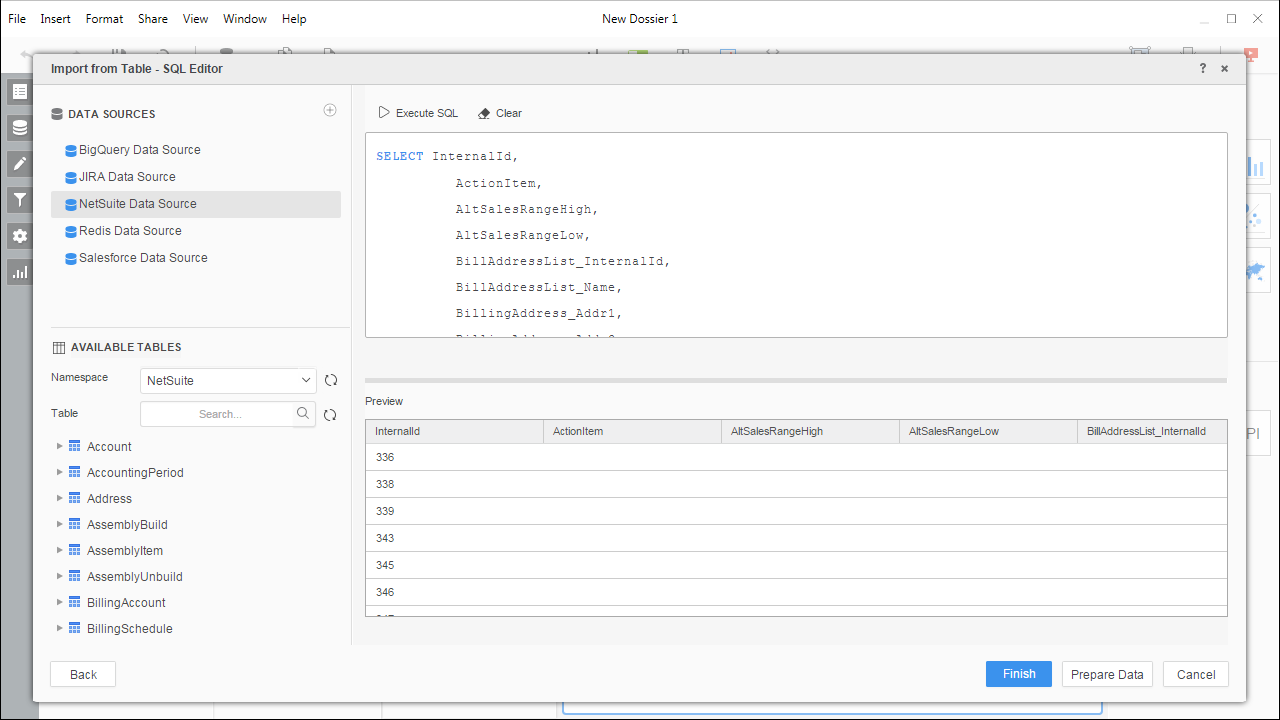 NOTE: Since we create a live connection, we can execute a SELECT * query and utilize the filtering and aggregation features native to the MicroStrategy products.
 - Click Finish and choose to connect live.
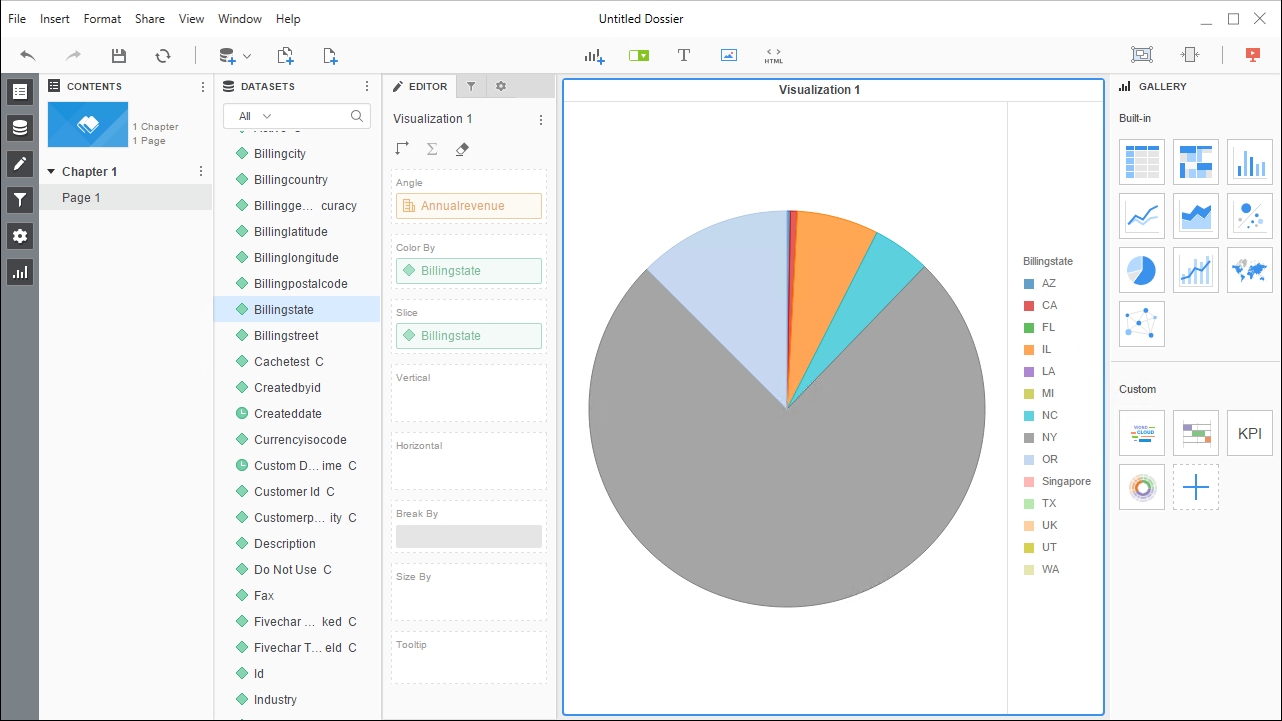
- Choose a visualization, choose fields to display (data types are discovered automatically through dynamic metadata discovery) and apply any filters to create a new visualization of Nuclia data. Where possible, the complex queries generated by the filters and aggregations will be pushed down to Nuclia, while any unsupported operations (which can include SQL functions and JOIN operations) will be managed client-side by the CData SQL Engine embedded in the driver.
- Once you are finished configuring the dossier, click File -> Save.
Using the CData ODBC Driver for Nuclia in MicroStrategy Desktop, you can easily create robust visualizations and reports on Nuclia data. Read our other articles on connecting to Nuclia in MicroStrategy and connecting to Nuclia in MicroStrategy Web for more examples.