






Integrating Outlook Data in Talend Cloud Data Management Platform

Qlik's Talend Cloud Data Management Platform supports various data environments, enabling analytics for smarter decisions, operational data sharing, data and application modernization, and establishing data excellence for risk reduction. When paired with the CData API Driver for JDBC, you can improve data integration, quality, and governance for your Outlook Data. This article shows how you can easily integrate to Outlook using a CData JDBC Driver in Talend Cloud Data Management, and then view the data for simultaneous use in your workflow.
Prerequisites
Before connecting the CData JDBC Driver to view and work with your data in Talend Cloud Data Management Platform, make sure to download and install the latest version of Talend Studio on your system. Also, ensure that you have the required prerequisites.
- A Talend Cloud Data Management account with appropriate permissions.
- The CData API Driver for JDBC, which can be downloaded from the CData website.
Connect to Outlook in Talend as a JDBC data source
Access Talend Data Management Cloud
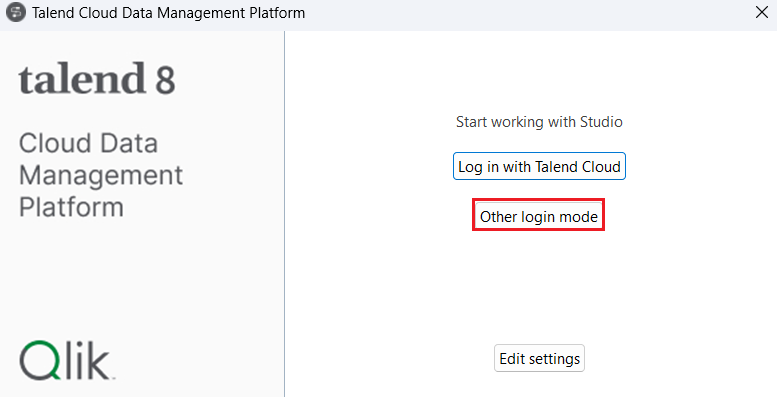
- Run the Talend Cloud Data Management Platform installed on your local system and click on Other Login Mode.
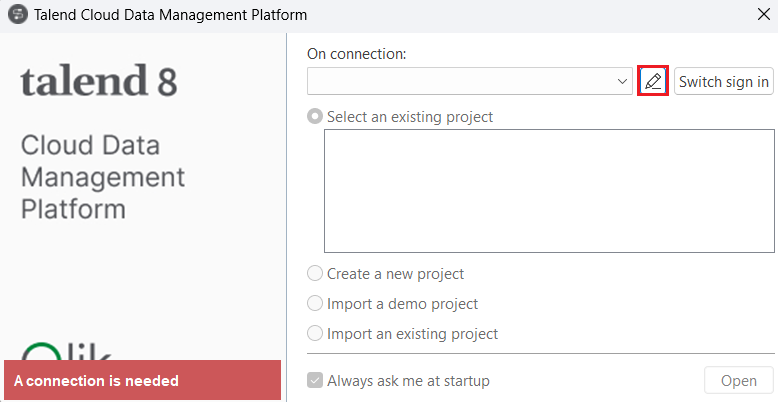
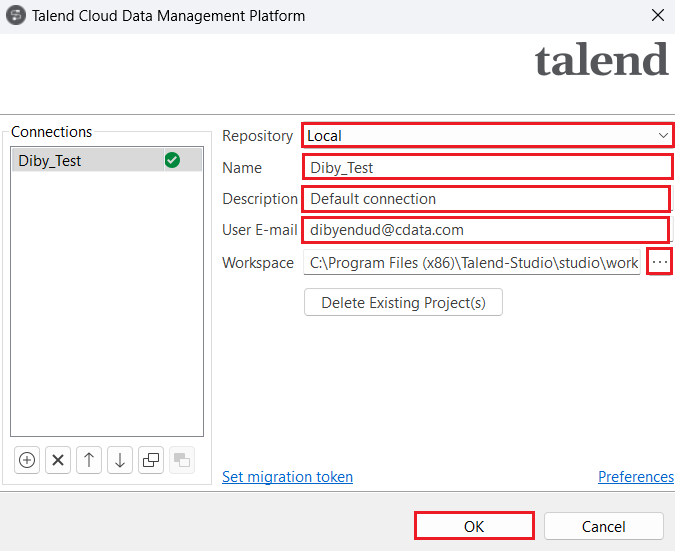
- Click on Manage Connections. Set Repository to "Local" and enter the Name, Description and User E-mail in the respective spaces. Set the Workspace path and click on OK.
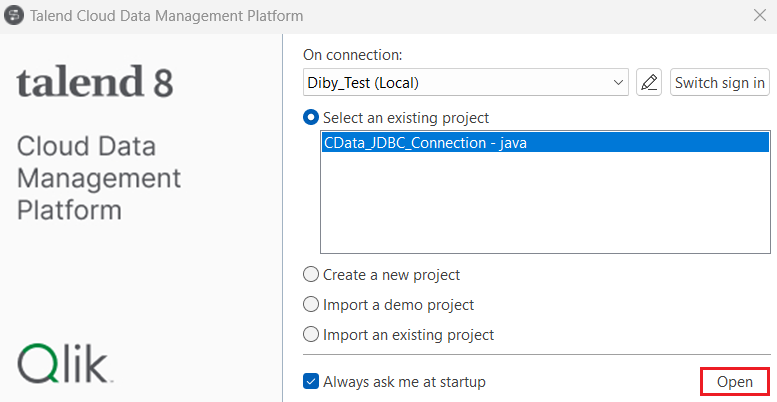
- Now, select the Create a new project radio button to add a new project name and click on Create.
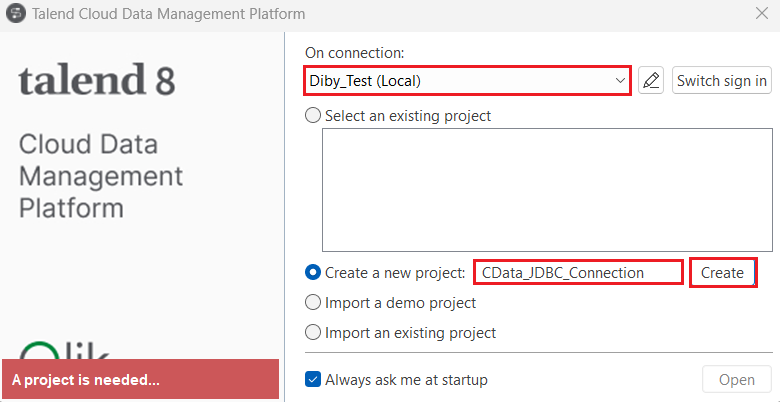
- The new project should appear under the Select an existing project section. Click on Open. The Talend Cloud Data Management Platform workspace opens up.
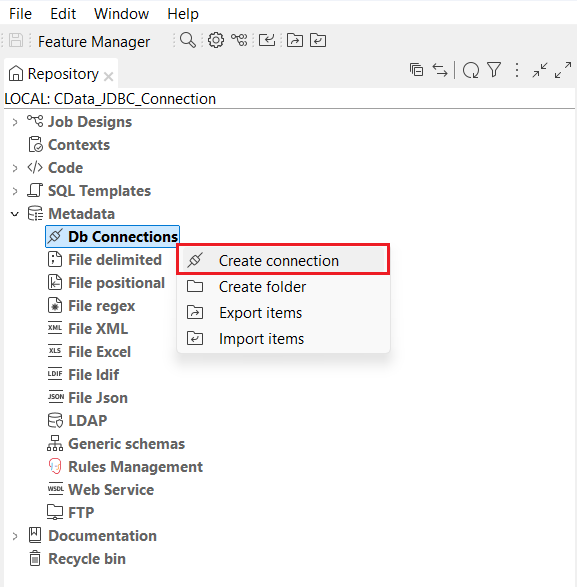
Create a new connection
- In the navigation pane, locate and expand the Metadata dropdown. Right-click on Db Connections and select Create Connection.
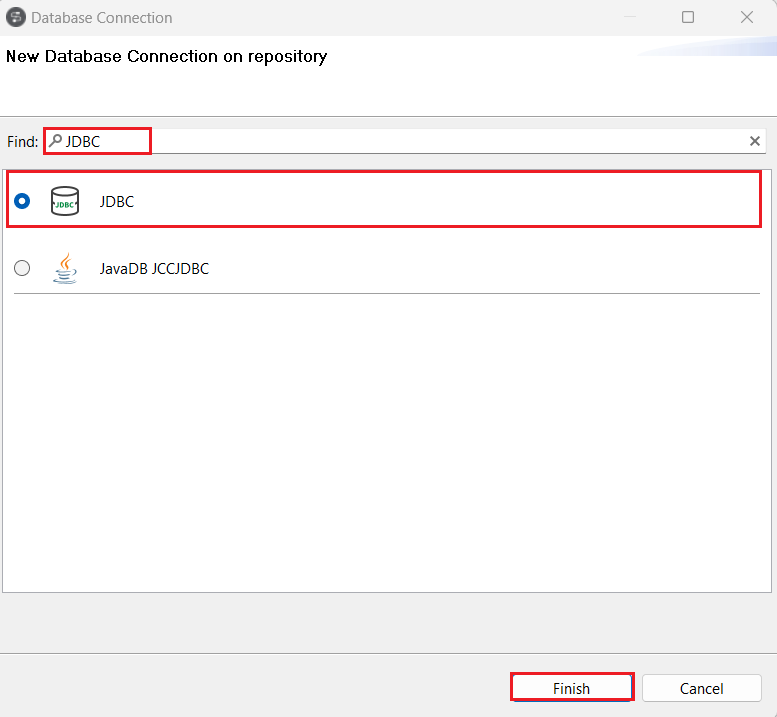
- Search for and select 'JDBC' in the Find section of the Database Connection window. Then, click on Finish.
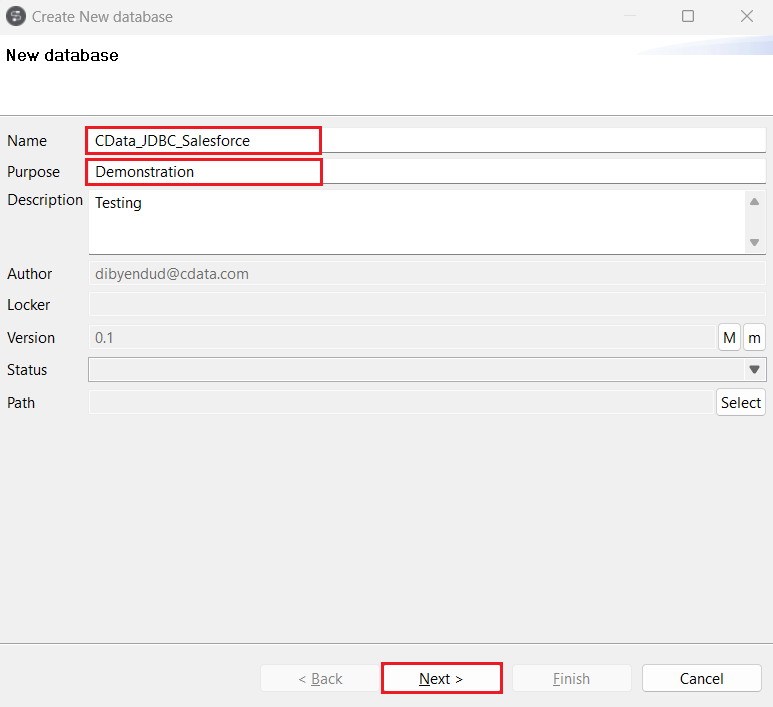
- Enter the Name, Purpose and Description of the new database in Talend where you need to load the Outlook data. Click on Next.
- Generate a JDBC URL for connecting to Outlook, beginning with jdbc:api: followed by a series of semicolon-separated connection string properties.
Using OAuth Authentication
Microsoft Graph API uses OAuth 2.0 for authentication. You must register an application in the Microsoft Azure Portal to obtain OAuth credentials (Client ID and Client Secret).
Obtaining OAuth Credentials
- Log in to the Azure Portal.
- Navigate to Azure Active Directory > App registrations.
- Click New registration to create a new application.
- Enter an application name and select the appropriate account types.
- Set the Redirect URI to your application's callback URL (e.g., http://localhost:33333 for desktop apps).
- Click Register to create the application.
- On the application overview page, copy the Application (client) ID - this is your OAuthClientId.
- Navigate to Certificates & secrets and create a new client secret.
- Copy the client secret value - this is your OAuthClientSecret.
- Navigate to API permissions and add the required Microsoft Graph API permissions:
- Mail.Read - For accessing email messages
- Contacts.Read - For accessing contacts
- Calendars.Read - For accessing calendar events
- Tasks.Read - For accessing To Do tasks
- offline_access - For obtaining refresh tokens
- Click Grant admin consent to grant these permissions.
Connecting with OAuth
After setting the following connection properties, you are ready to connect:
- AuthScheme: Set this to OAuth.
- InitiateOAuth: Set this to GETANDREFRESH. The CData API Profile for Outlook will automatically walk through the OAuth process in order to obtain the access token.
- OAuthClientId: Set this to the Application (client) ID from Azure Portal.
- OAuthClientSecret: Set this to the client secret value from Azure Portal.
- TenantId: Set this to your Azure AD tenant identifier (GUID or domain name like 'contoso.onmicrosoft.com').
- CallbackURL: Set this to the Redirect URI you specified in your app registration (e.g., http://localhost:33333 for desktop apps).
Example connection string
Profile=C:\profiles\Outlook.apip;AuthScheme=OAuth;InitiateOAuth=GETANDREFRESH;OAuthClientId=your_client_id;OAuthClientSecret=your_client_secret;TenantId=your_tenant_id;CallbackUrl=http://localhost:33333;
Built-in Connection String Designer
For assistance in constructing the JDBC URL, use the connection string designer built into the Outlook JDBC Driver. Either double-click the JAR file or execute the jar file from the command-line.
java -jar cdata.jdbc.api.jar
Fill in the connection properties and copy the connection string to the clipboard.

A typical JDBC URL is below:
jdbc:api:Profile=C:\profiles\Outlook.apip;AuthScheme=OAuth;InitiateOAuth=GETANDREFRESH;OAuthClientId=your_client_id;OAuthClientSecret=your_client_secret;TenantId=your_tenant_id;CallbackUrl=http://localhost:33333;
Enter the JDBC URL copied from CData API Driver for JDBC in Edit new database.

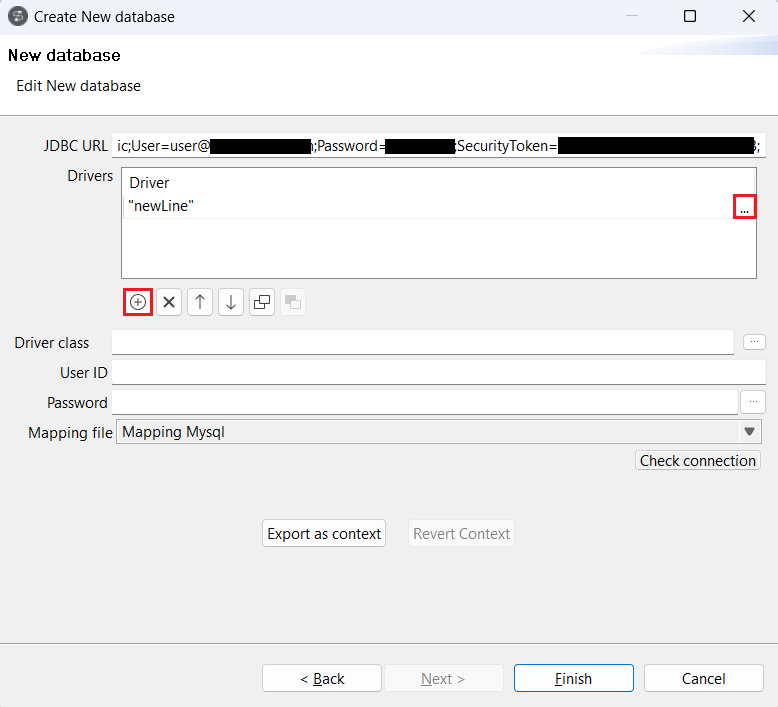
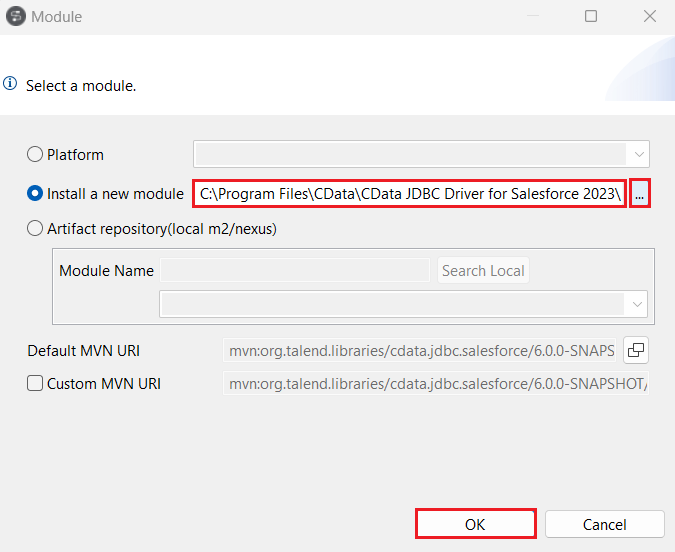
- Click on the "(+) Add" button under Drivers. A 'newLine' will appear in the Drivers board. Click on (...) at the end of the new line, select the Install a new module radio button, and click on (...) to add the path to the JAR file, located in the 'lib' subfolder of the installation directory. Click on OK.
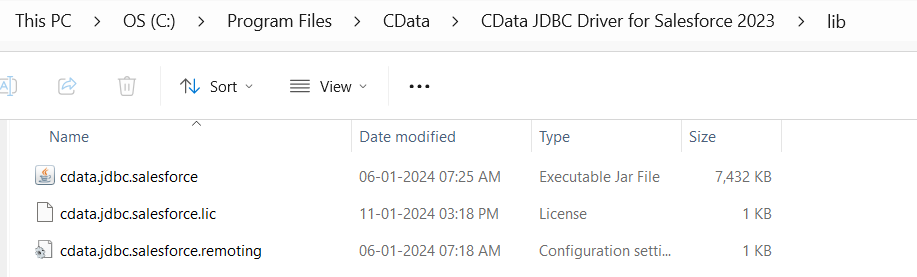
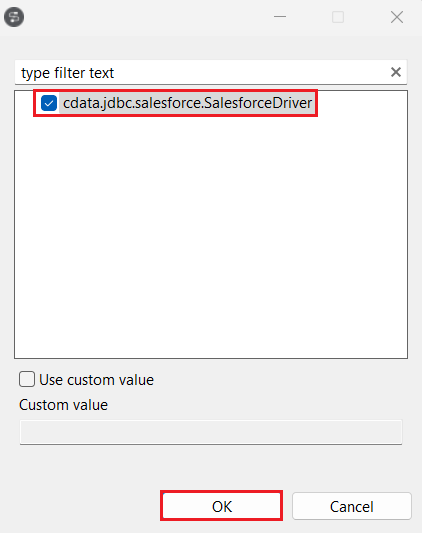
- Select the Driver Class as cdata.jdbc.api (JAR file obtained from your installation directory given in the previous step).
Test the new connection
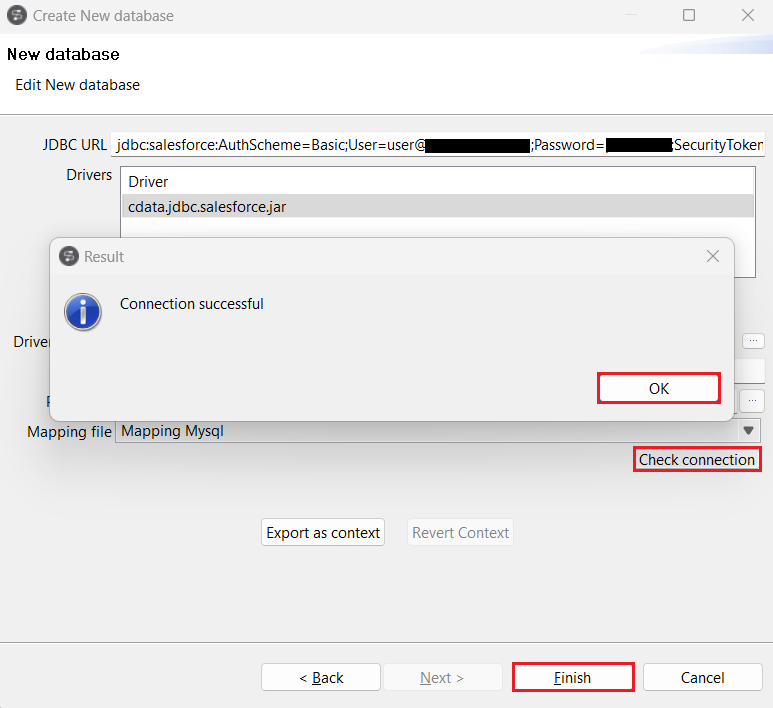
- Click on Check Connection. If the entered details are correct, a "Connection successful" confirmation prompt will appear. Click on "OK" and "Finish".
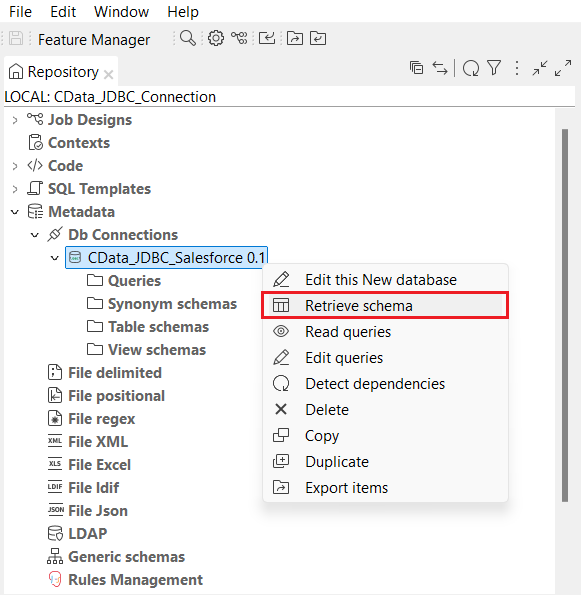
- Once the connection is established, right-click on the newly created connection and select Retrieve Schema. You can use the filters as well to retrieve the data as per your requirements. Click on Next.
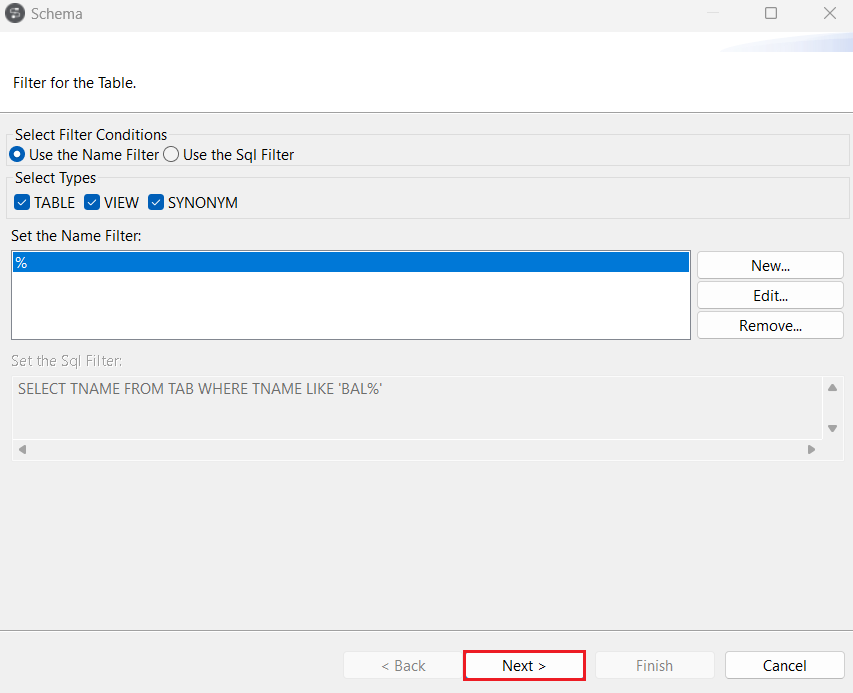
- Expand the "CData" catalog in the Schema window and select the tables you want to import from the Outlook schema. Click on Next.
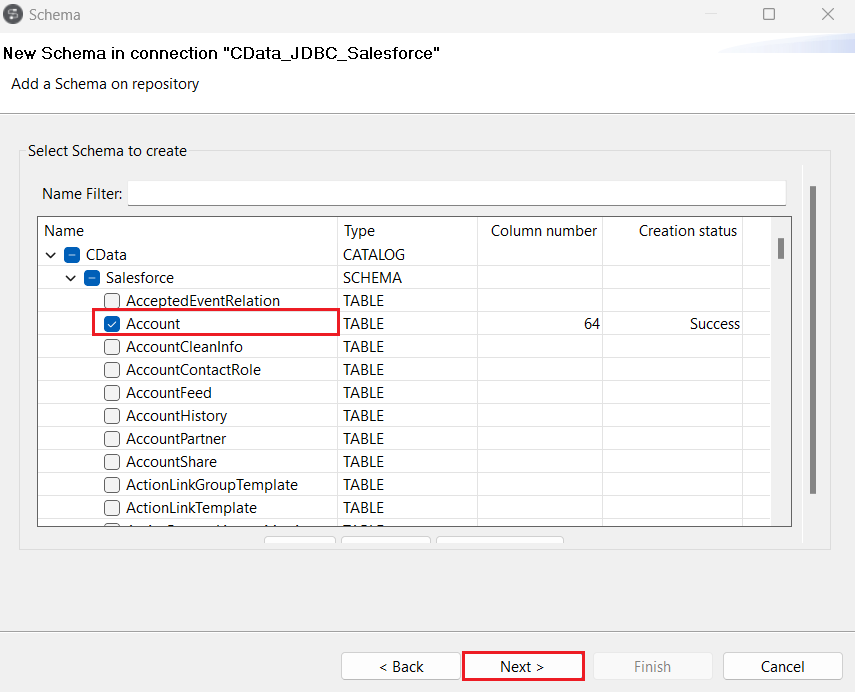
- In the next step, select the columns you want to view from the table and click on Finish.
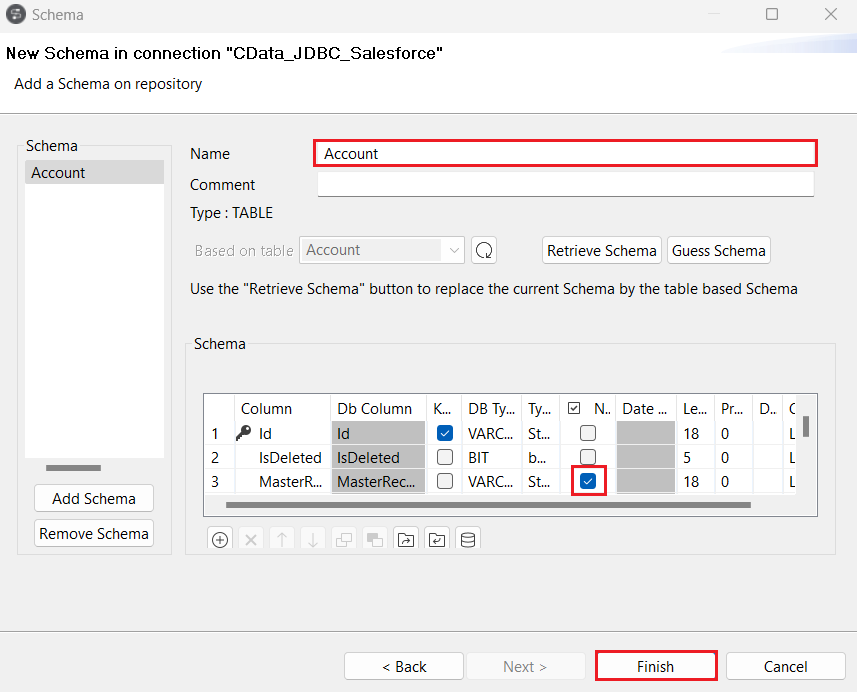
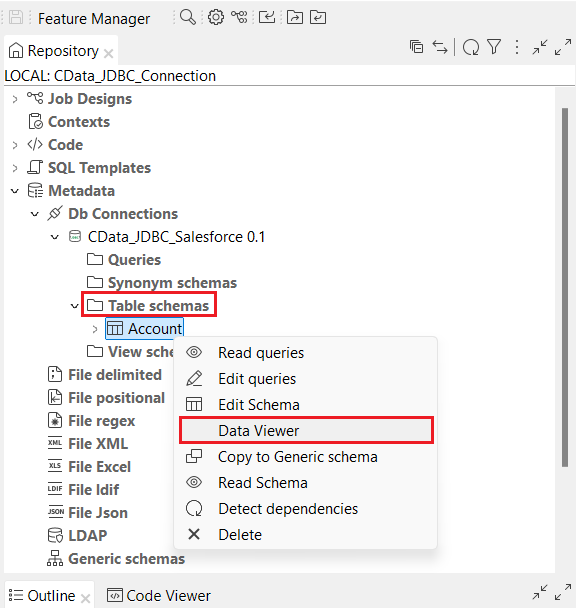
- All the selected tables from the Outlook schema are now populated under the Table Schemas section of the JDBC connection.
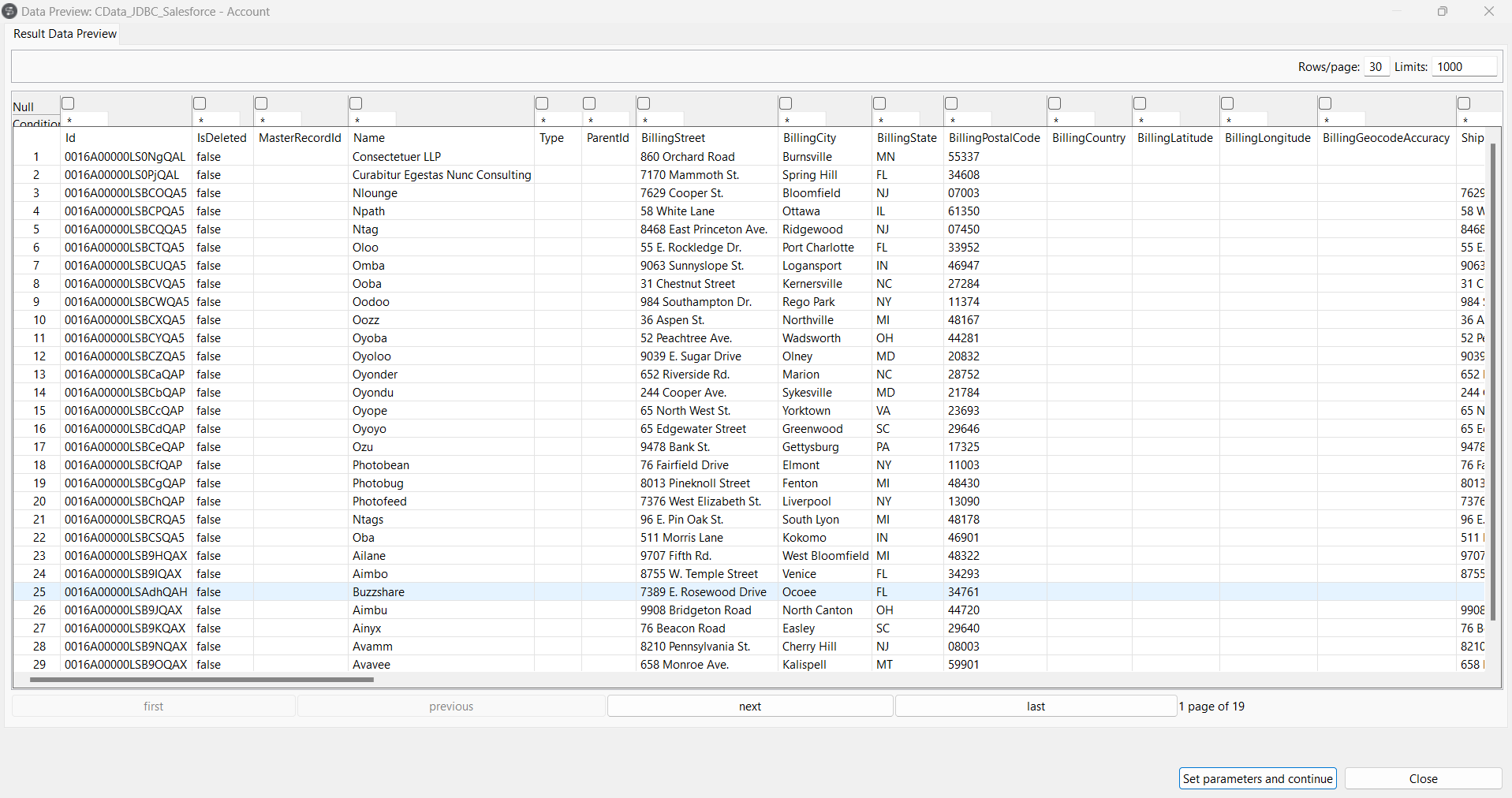
- Right-click on any of the selected tables and click on Data Viewer to preview the data from the data source.
Get Started Today
Download a free, 30-day trial of the CData API Driver for JDBC and integrate Outlook data into Talend Cloud Data Management Platform. Reach out to our Support Team if you have any questions.